

1. Sign in to the platform
Sign in with the credentials provided by Flexxible or by your partner.2. Select a reporting group
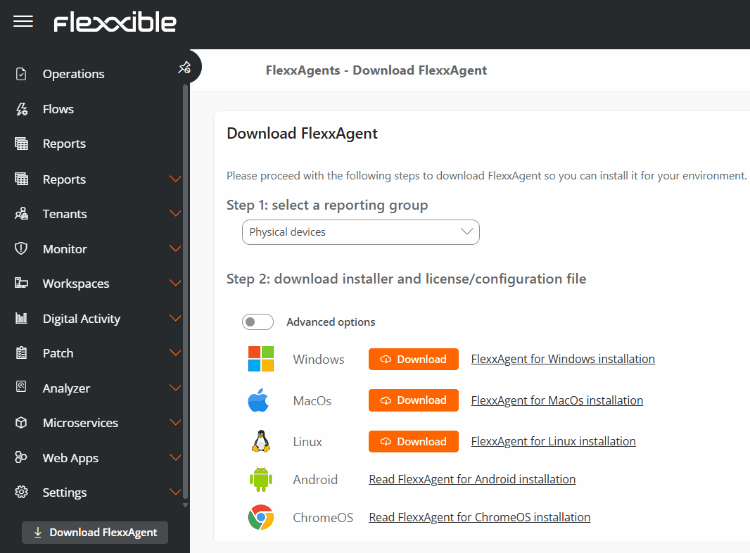
Before downloading the agent, select the reporting group that the devices will belong to. Reporting groups let you organize and segment devices within the platform. For more information, see the Reporting groups documentation.3. Download FlexxAgent
- In the side menu, click Download FlexxAgent.
- Select the corresponding reporting group.
- In the Windows section, click Download.
4. Install the agent
Run the installer on the device or distribute it using the deployment tool used by your organization. To learn about system requirements and the available installation methods, see:5. Verify device onboarding
Once installation is complete:- Go to Workspaces.
- Search for the device by name.
- Verify that it appears in the selected reporting group.
- Verify that the device status is Connected.