Requirements
To deploy FlexxAgent on Chrome devices, you need a mobile device management (MDM) platform, such as Google Admin, which allows you to distribute and install the application centrally. Once the MDM solution is set up, FlexxAgent can be installed from Google Play.Supported versions
FlexxAgent works on ChromeOS devices running version 112 or higher. The ChromeOS Flex edition is not supported.Limitations
Due to the restrictions of this operating system, some features are not available on this type of device, such as running power actions, Flexxible Remote Assistance, flows, or end-user microservices. Some devices, to save battery, stop services or cannot connect to the internet while the screen is locked. When this happens, the device may stop reporting for a while until its screen is unlocked. This behavior varies by manufacturer and operating system version.Download and installation
FlexxAgent is available as a private Android application on Google Play. Flexxible will grant access to FlexxAgent in the Managed Google Play console during the implementation process. FlexxAgent requires managed configuration in order to be deployed. This configuration will be provided in JSON format by a Flexxible contact during the implementation process.Installation
- Go to Devices → Chrome → Apps and extensions → Users & browsers and select the organizational unit (OU) where you want to deploy the application.
- Add the application from Google Play (search for FlexxAgent), assign the configuration management (JSON), and mark it as Force install.
For more information on how to add apps or distribute them to managed users in Google Admin, see the linked references.For the FlexxAgent configuration to be applied correctly, you must manually open the application on each device at least once after installation. We recommend following these steps:
-
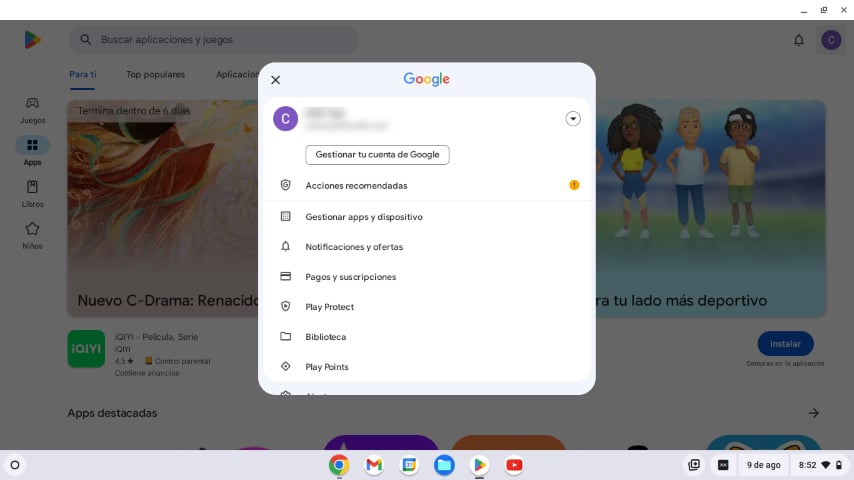
Go to Google Play and then to Manage apps & devices.
-
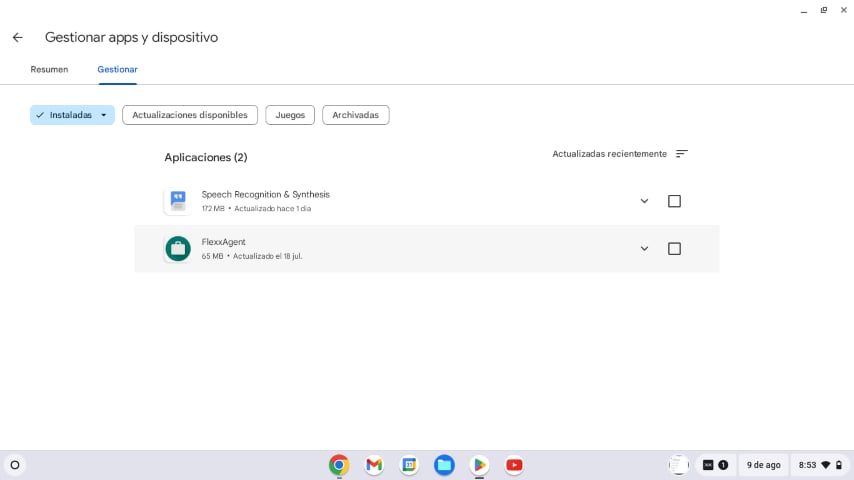
Go to the Manage tab and click the FlexxAgent app.
-
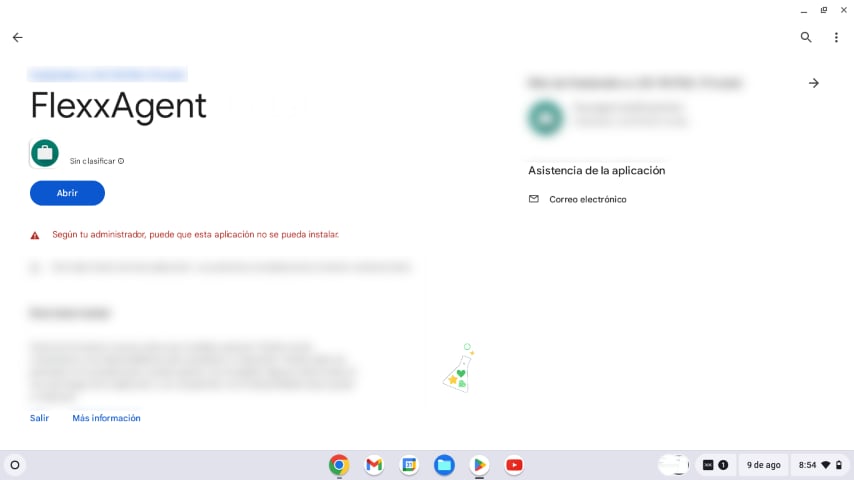
On the application detail screen, click Open. A window will then appear confirming that the application has been configured correctly.
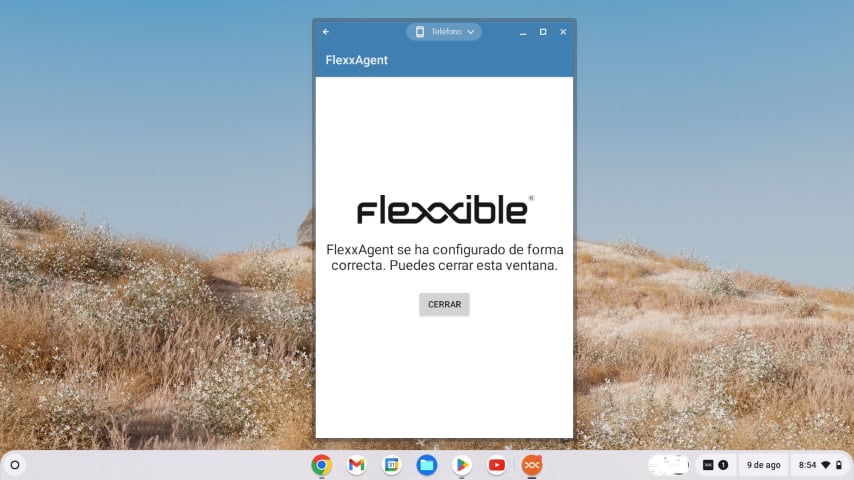
- Close the window.