

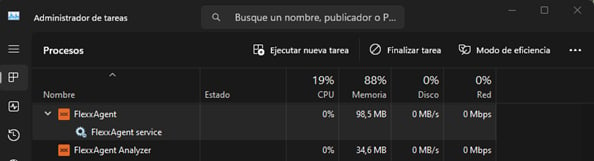
Service architecture
FlexxAgent consists of a Windows service called FlexxAgent Service, which coordinates two processes:- FlexxAgent, running at the system level
- FlexxAgent Analyzer, started for each user session.
Example:
- On a laptop, FlexxAgent (at the system level) and FlexxAgent Analyzer (under the user’s identity) are running.
- On a device with multiple sessions, in addition to FlexxAgent, one FlexxAgent Analyzer process will run per session.
Resource consumption
FlexxAgent is optimized to minimize resource usage. Approximate values are:- Disk space: < 200 MB
- CPU: < 0.5%
- RAM: 100-200 MB
FlexxAgent process (system)
- Collection of performance, hardware, session, profile, disk, partition, and Windows service information: every 60 seconds.
- Sending of error events from the event log: every 10 minutes.
- Update of user profile information: every 15 minutes.
FlexxAgent Analyzer process (user)
- Analyzes application usage, diagnostic data, and user experience.
- Local data collection: every 15 seconds.
- Sending of reports to the service: every 5 minutes (this metric may change for specific features).
Supported versions
FlexxAgent is compatible with Windows operating systems currently within Microsoft’s support lifecycle. Although it can be installed on unsupported versions:- Windows 7 SP1
- Windows 8.1 SP1
- Windows Server 2008 R2 SP1
- Windows Server 2012
Software requirements
FlexxAgent requires the following components:- .NET Framework 4.6.2 or later (recommended: .NET Framework 4.8).
- Windows PowerShell 4.0 or later (PowerShell 5.1 recommended).
- Note: The Azure PowerShell execution policy must be set to Unrestricted.
Considerations for Windows versions in EOL
On systems that are out of support (EOL), FlexxAgent may have limitations or lack compatibility with certain features.Unsupported features
When FlexxAgent is used on older Windows operating systems that are out of support, the following features are not supported:- Collection of GPU consumption metrics.
- Flow execution.
- Execution of microservices by the end user.
- Retrieval of storage drive information.
- For virtual devices, broker and hypervisor detection (limited depending on the vendor).
- User Input Delay (UID) (only available starting with Windows Server 2019 and Windows 10 version 1809).
Windows 7 and 2008 R2
FlexxAgent can be installed on Windows 7 x64 or Windows Server 2008 R2 SP1 under the following conditions:- Install update KB4474419: (SHA-2 code signing support update for Windows Server 2008 R2, Windows 7, and Windows Server 2008: September 23, 2019).
- Install update KB3140245: (Update to enable TLS 1.1 and TLS 1.2 as default secure protocols in WinHTTP in Windows) and follow the instructions in the How to enable TLS 1.1 and TLS 1.2 as default secure protocols in WinHTTP in Windows section of the Microsoft support page.
- Requires at least .NET Framework 4.6 (recommended: 4.8).
- PowerShell 2.0 with Windows 7 is not compatible with TLS 1.2; install Windows Management Framework 5.1, which includes PowerShell 5.1.
Windows 8 and 2012
FlexxAgent installation supports Windows 8 under the following conditions:- Requires .NET Framework 4.6.2 (Microsoft blocks the installation of later versions on Windows 8.0).
- All Windows security updates must be applied to ensure compatibility with TLS 1.2 and SHA-2 code signing.
Unattended deployment
FlexxAgent supports unattended deployment via GPOs, Intune, SCCM, or other distribution tools.Installation
Unattended installation of FlexxAgent is performed via PowerShell.Supported parameters
Uninstallation
To uninstall FlexxAgent unattended:Files
C:\Windows\Prefetch\FLEXXAGENT.EXE-XXXXXXXX.pf– where XXXXXXXX is a string of letters and numbersC:\Windows\Temp\FlexxAgentInstallation.log
Folders
C:\Program Files\FlexxibleC:\ProgramData\Flexxible
Reinstallation
To reinstall FlexxAgent on a device while removing its previous configuration, run:Uninstall protection
This feature prevents a user from uninstalling FlexxAgent. The configuration can be applied at the Product or Reporting group level.Requirements
- The configuration can only be done by a user with the Organization Administrator role.
- Minimum FlexxAgent version: 25.4.2.
Configuration at the Product level
- Go to Settings → Organization.
- In the menu, select the Products tab.
- In the table, choose the environment on which you want to run the feature, and in the Action field click Agent settings.
- In the form, enable or disable the Uninstall protection toggle.
- Click Save.
Configuration at the Reporting groups level
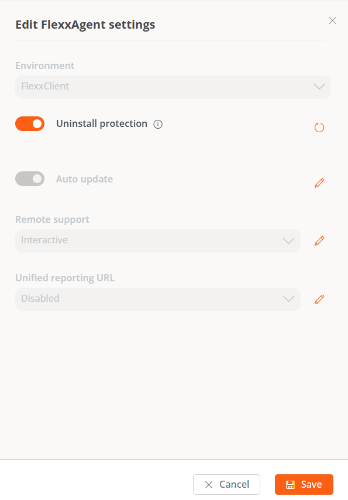
The feature can be run on one or more reporting groups.Enable protection for a reporting group
- Go to Settings → Reporting groups.
- In the table, choose the reporting group on which you want to run the feature, and in the Action field click Agent settings.
- In the form, edit the Uninstall protection feature (pencil-shaped button) to choose between enabling or disabling it.
- Click Save.
Reporting groups inherit the configuration made at the Product level; however, they can override it with their own configuration.
Enable protection for multiple reporting groups
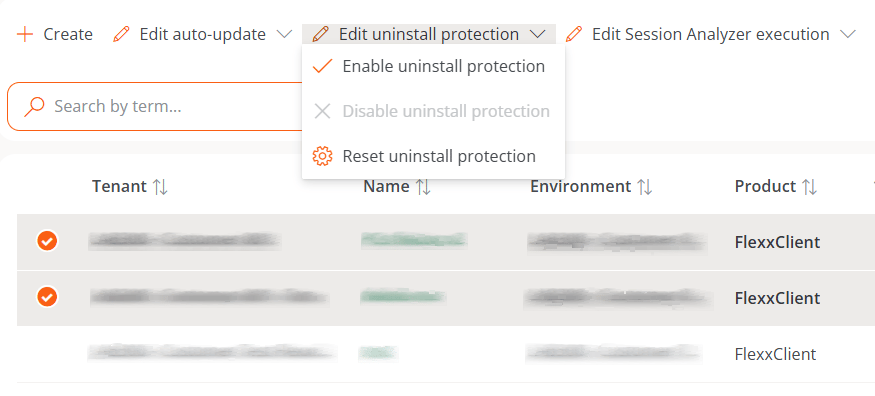
- Go to Settings → Reporting groups.
- In the table, select the reporting groups on which you want to run the feature.
- Click Edit uninstall protection. Three options will be displayed:
- Enable uninstall protection. Protects the reporting groups against FlexxAgent uninstallation (this option will not be available if the feature is already enabled at the Product level).
- Disable uninstall protection. Allows users to uninstall FlexxAgent (this option will not be available if the feature is already disabled at the Product level).
-
Reset uninstall protection. Applies the configuration of the Product the reporting group belongs to, whether enabled or disabled.
- The feature is enabled in the reporting group it belongs to.
- The feature is deactivated in the reporting group (neither enabled nor disabled), but is enabled at the Product level.
Ways to uninstall FlexxAgent with protection enabled
If a user has the feature enabled but needs to uninstall FlexxAgent, they will have two options:- Move the device to a reporting group that does not have the protection enabled.
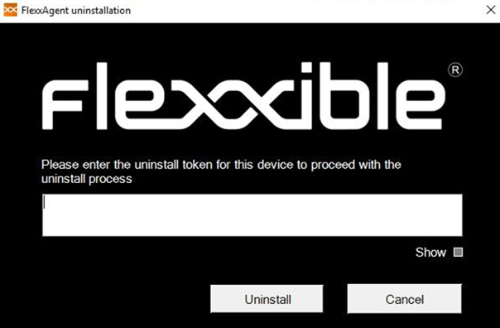
- Through a token:
- Go to Workspaces and select the device.
- Run the Reveal uninstall token action, which will display a unique token for that device, valid until 23:59:59 UTC of the following day.
-
Go to the Windows Control Panel and uninstall FlexxAgent by entering the token.
Flexxible recommends having a reporting group with Uninstall protection disabled to facilitate FlexxAgent uninstallation tasks on devices.
Known issues
FlexxAgent installationIssue 1 - Windows Management Instrumentation (WMI)
If the device has issues caused by the Windows Management Instrumentation (WMI) service during installation or reinstallation, the process may report these errors in the CMD window: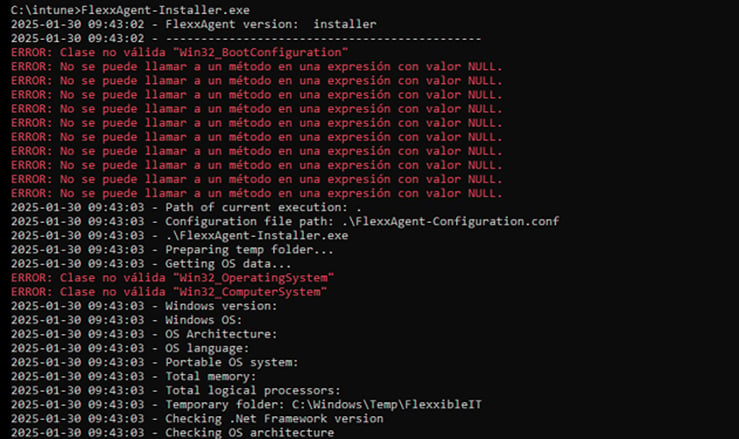
Solution
Run the following commands:Issue 2 - PowerShell process restriction
Some security solutions do not allow the installation and/or auto-update of FlexxAgent to complete successfully. The installer may return the message: The process was terminated with errors. A corrupted installation was detected due to external processes. This is usually caused by antivirus activity. Please check your antivirus settings.Solution
Exclude the following files:C:\Windows\Temp\FlexxibleIT
C:\Windows\Temp\UpdateFlexxAgent.ps1
FlexxAgent uninstallation
Issue - FlexxAgent remains in the services list
It may happen that FlexxAgent still appears in the services list even though it has been uninstalled and all files have been deleted. This would prevent it from being reinstalled.Solution
Run the following command as administrator in the CMD window:Proxy configuration
FlexxAgent supports proxies configured transparently at the system level, with or without authentication. The proxy configuration can be done via the command line or by modifying registry keys.Proxy configuration via command line
Installation with parameters:ip.ad.dre.ss:port corresponds to the proxy’s IP or DNS and port.
Or including credentials:
FlexxAgent may not have access to the proxy applied in its configuration if it is outside the corporate network. To determine its accessibility, FlexxAgent attempts to resolve the DNS record and makes a TCP request to the corresponding port. If the proxy is not accessible, FlexxAgent will report directly (without a proxy).
Proxy configuration via registry keys
The registry keys that store the proxy configuration are located at:Equipo\HKEY_LOCAL_MACHINE\SOFTWARE\Policies\Flexxible\FlexxAgent\Communications
Registry keys related to the proxy configuration:
- Proxy_URL key
- Proxy_User key
- Proxy_Pwd key
Proxy_URL key
- Path:
HKEY_LOCAL_MACHINE\SOFTWARE\Policies\Flexxible\FlexxAgent\Communications - Name: Proxy_URL
- Type: REG_SZ
- Supported values: the URL and port; for example
http://192.168.1.1:3128orhttps://192.168.1.1:3128
Proxy_User key
- Path:
HKEY_LOCAL_MACHINE\SOFTWARE\Policies\Flexxible\FlexxAgent\Communications - Name: Proxy_User
- Type: REG_SZ
- Supported values: the user name to authenticate against the proxy; for example
Administrador. Can be omitted for unauthenticated proxies.
Proxy_Pwd key
- Path:
HKEY_LOCAL_MACHINE\SOFTWARE\Policies\Flexxible\FlexxAgent\Communications - Name: Proxy_Pwd
- Type: REG_SZ
- Supported values: the password to authenticate against the proxy. Can be omitted for unauthenticated proxies.
&&&VGhpc0lzTjArQCQzY3VyZVBAJCR3MHJk&&& for the “Proxy_Pwd” value.
In either case, FlexxAgent encrypts the value as soon as it starts or attempts to transmit information.
You can generate a Base64-encoded string from https://www.base64encode.org/.
Since FlexxAgent triggers one process at the system level (FlexxAgent.exe) and another at the session level (FlexxAgent Analyzer.exe), it may be necessary to define different proxy types for each one, depending on how the proxy behaves at each level.The Proxy type can be defined from the FlexxAgent Settings, under
Products.Logs
Logs provide information and allow you to diagnose issues during installation.- Installation and update logs
- FlexxAgent Analyzer logs
- FlexxAgent service logs
Installation and update logs
Location:C:\Windows\Temp\Flexxible
Contains information about the installation or update process, dependencies, and process details.
FlexxAgent Analyzer logs
Location:%LOCALAPPDATA%\FAAgent\Logs
They can be configured to include or exclude information by criticality level.
FlexxAgent service logs
Available in the Windows Event Viewer, under the Application branch.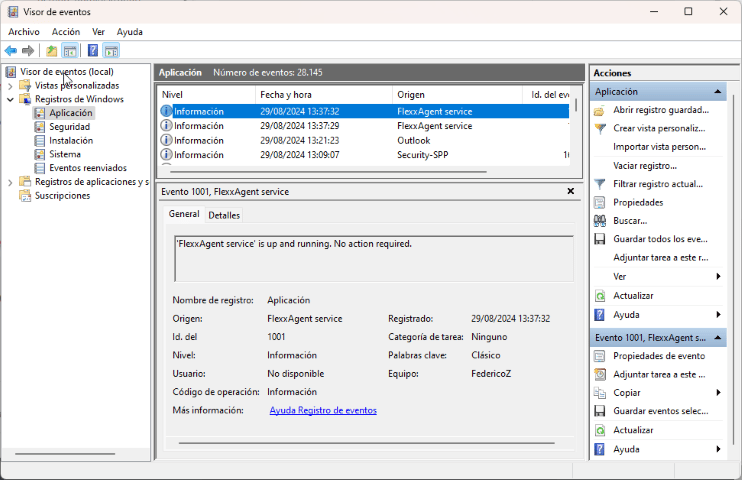
FlexxAgent Health Status
The FlexxAgent Health Status process runs periodically (every hour) to evaluate whether FlexxAgent is working correctly. To do so, it checks its heartbeat and analyzes various internal metrics that determine whether it is operating properly or whether a recovery process needs to be started. During this evaluation, external factors that may affect the agent’s communication are not taken into account, such as:- The device’s connectivity at that moment (it may or may not have a WiFi or Ethernet connection).
- Interference from a firewall or proxy in the communication.
- That the service is started.
- That the service is not disabled; if it is, it is understood that an administrator decided to take that action.
Verifying the FlexxAgent self-repair process
FlexxAgent leaves a trace in the event log with the following entries:- Source: FlexxAgent Service
- Log name: Application
- Event 1001 Checking FlexxAgent health /
<servicename>is up and running. No action required- Event 1002 Disabled service. No action required / Backup not found.
<serviceName>not recoverable- Event 1003 Service
<serviceName>restored from previous backup / Error<message>found when starting<serviceName>with restored backup- Event 1004 Service failed to start and will be repaired
- Event 1005 Service did not report for a long time and will be repaired
- Event 1006 Service was started
- Event 1007 Error found when restarting service after not reporting for a long time
Information obtained from the device
FlexxAgent collects data locally from the device and sends it to the service consoles.General information
- Name. Name of the device.
- Device status. Power status of the device. It can be Powered on, Powered off, or Not reporting.
- Summarized status. If the device status is Powered off, it can indicate whether it is In maintenance or just Powered off. If the device status is Not reporting, it can indicate whether the reason is Unknown.
- FlexxAgent version. Version number of FlexxAgent installed on the device.
- FlexxAgent status. Running or Stopped.
- Last FlexxAgent report. Date and time of the last FlexxAgent report on the device. This date may not be recent if the FlexxAgent service is stopped or the device is powered off.
- Connection type. Indicates whether the device is connected via Wireless LAN, Mobile network, Ethernet, or Unknown.
When the connection is made over a wireless LAN network, a message may appear indicating that the device has a 0% signal or that FlexxAgent is not sending reports. This occurs because the Windows location service is disabled on the device. Please check this link to learn how to enable it.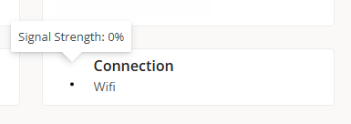
- Network. Addressing of the device’s network and public IP for Internet egress. These networks are created automatically when more than four devices are connected to the same network.
- Subnet. Addressing of the device’s network.
- MAC address. Unique identifier of the device’s network card.
- Network changed. Date and time of the last time the network changed.
- Sessions. Number of user sessions established on the device.
- Last user. Last user connected to the device, in domain\account format.
- Connected from. When the selected device is a VDI or similar, shows the name of the device from which the virtual device is accessed.
- Connection time. Date and time when the session started.
- Domain. Domain the device belongs to.
- Code. Lets you identify the device with a custom code. This code must be assigned manually and individually using the Edit option in the Operations menu of the device detail.
- OU. Organizational unit of the domain where the device’s account resides.
- Description. Lets the user identify the device with a custom description. This field must be assigned manually and individually using the Edit option in the Operations menu of the device detail.
Extended information
- RAM. Total amount of available RAM.
- Cores. Number of processor cores.
- IP address. IP address of the device on the local network.
- OS. Type of operating system.
- Operating system. Version of the operating system.
- OS build. Build number of the operating system.
- Uptime. Time the device has been running since the last time it was started or restarted. If fast startup (fastboot) is enabled, the device is only powered off when it is restarted.
- Downtime. Indicates the time elapsed since the last input event was received in the FlexxAgent user session. Shows 0 if the user is effectively using any input device connected to the device.
- Last Windows update. Date when updates were last applied on the device.
- Last boot duration. Duration of the boot process of the last startup.
- Pending restart. Shows whether the device requires a restart due to updates.
- Windows type. Type of Windows operating system: Client or Server.
- System disk. Amount of free disk space relative to the total capacity.
- ISP public IP. The ISP is obtained using the public IP. It may not be accurate if connected to a corporate network or using a VPN.
- Region. Obtained using the public IP. It may not be accurate if connected to a corporate network or using a VPN.
- Broker type. If detected, shows the session broker used.
- Hypervisor. If virtualization is detected, shows the hypervisor used.
- Delivery group. For VDIs, shows the delivery group the device belongs to.
- Subscription / Broker. Microsoft Azure or Citrix service that manages user connections to the device.
- Registration status. Indicates the registration status of the virtual device.
- Maintenance mode. Indicates whether the virtual device’s maintenance mode is On or Off.
- Virtual machine type. Indicates the type of virtual device.
- Session Analyzer. Indicates whether or not it is configured to start Session Analyzer in all user sessions.
- Session Analyzer version. Version number of Session Analyzer.
- Reporting group. Reporting group the device belongs to.
- BIOS manufacturer. Name of the manufacturer of the device’s firmware.
- BIOS version. Version of the device’s firmware.
- SMBIOS version. Version of the device’s System Management BIOS.
- BIOS serial number. Unique number assigned to the device by its manufacturer. Available only if the manufacturer decided the device needed one.
- Google Chrome version. Build number of Google Chrome, if installed.
- Microsoft Edge version. Build number of Microsoft Edge, if installed.
Additional information
FlexxAgent groups information about the following aspects of the device:Sessions
Shows a table with the record of user sessions established on the device and specific information about the session type, connection status, or start date.Performance
Presents charts of the device’s main performance counters, based on data collected during the last two hours. The following are included:- CPU. Processor usage percentage
- Memory. Amount of memory used and available
- Bandwidth usage. Amount of inbound and outbound traffic
- UID. User input delay. Refers to the time span between the moment a user performs an action, such as clicking a mouse button or pressing a key, and the moment the corresponding response is displayed on the screen or executed.
- Connection signal. Signal reception percentage when the device connects via a wireless method.
Jobs
All actions performed from the Workspaces module on one or more devices are audited in theJobs queue. This tab lets you consult the jobs performed for the active device.
Alerts
Presents a table with the list of all active alerts on the device. When an alert is recorded, a notice is shown at the top of the page.Event log
Information about the events present on the device. By default, errors are filtered and only those with a severity level of Error or Critical are shown. FlexxAgent obtains this information at 10-minute intervals. Through the options available in the settings, you can modify the sampling time or include events by their ID.Connection log
Presents a list of the connections established with the device, including each instance in which a user signs in or reconnects a previously disconnected session. The session end date is recorded only for sessions that have been disconnected or closed. As long as the session remains active, this field will remain empty.Windows services
This option shows the status of services and lets you run start, restart, or stop operations on Windows services.Disks
Shows a list of all the partitions present on the disks identified in the system, as well as statistics on their capacity and occupancy levels.Boot history
Presents a chart showing the duration of the device’s last ten boots.Notifications
Lets you see whether the device has any active notifications. When there is one, a message is shown at the top of the page.Security
From this section you can consult information about the installed antivirus, as well as charts on RAM and CPU consumption.- Antivirus. Name of the antivirus solution installed or integrated in the system. If more than one is detected, Multiple is indicated.
- Antivirus version. Installed version number.
- Antivirus status. Operational status of the solution.
Antivirus detection is automatic only on the Windows Client operating system (Windows 7 or later). On Windows Server, only Bitdefender and Windows Defender will be detected, and these will be the only ones to show RAM and CPU usage.
- Endpoint Detection and Response (EDR). Name of the endpoint security solution; in this case CrowdStrike.
- CrowdStrike version. Installed version number.
- CrowdStrike status. Operational status of the solution.
FlexxAgent syncs CrowdStrike alerts every minute.
- Severity. Criticality level assigned to the detection based on the potential impact or risk of the threat.
- Created. Date and time when the detection was generated in the system.
- User name. User associated with the activity or process that triggered the detection.
- Status. Current status of the detection.
- Display name. Descriptive name assigned to the detection, which summarizes the type of threat or behavior identified.
- Description. Expanded information about the detection.
- Command line. Command or instruction executed on the device that generated or is related to the detection.