Configuration at the Product level
- Go to Settings → Organization.
- Select the Products tab.
- In the table, locate the desired product and click Agent settings in the Action column.
- Enable or disable the Uninstall protection option.
- Click Save.
Configuration at the Reporting group level
The configuration can be applied to one or more reporting groups.Configure protection for a reporting group
- Go to Settings → Reporting groups.
- In the table, locate the desired reporting group and click Agent settings in the Action column.
-
Edit the Uninstall protection option using the corresponding edit button.
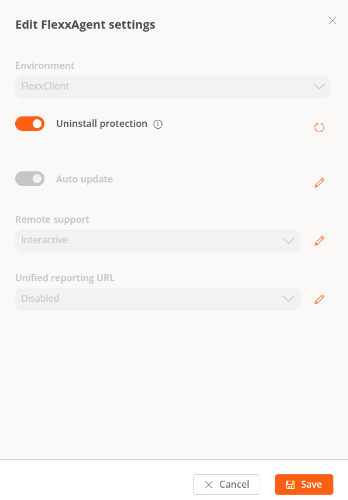
- Select the desired state.
- Click Save.
Reporting groups inherit the configuration defined at the Product level. However, they can override this configuration individually.
Configure protection for multiple reporting groups
- Go to Settings → Reporting groups.
- Select the desired reporting groups in the table.
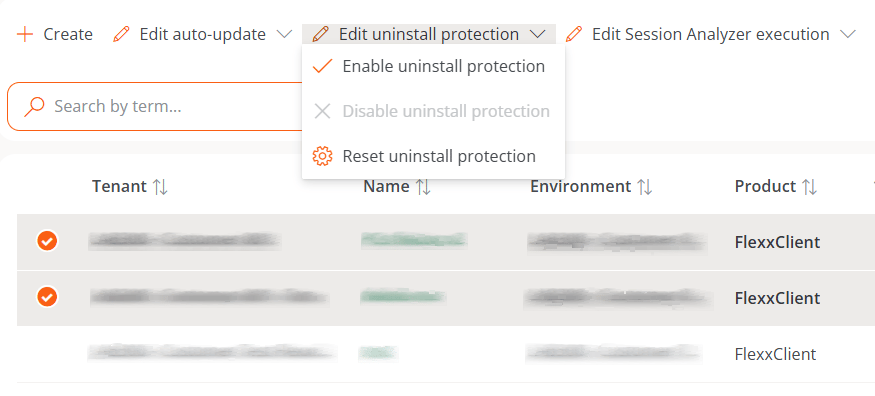
- Click Edit uninstall protection.
- Enable uninstall protection. Prevents the uninstallation of FlexxAgent in the selected reporting groups. This option will not be available if protection is already enabled at the Product level.
- Disable uninstall protection. Allows FlexxAgent to be uninstalled in the selected reporting groups. This option will not be available if protection is already disabled at the Product level.
-
Reset uninstall protection. Restores the configuration inherited from the Product each reporting group belongs to.
Inheritance behavior
A device will have uninstall protection enabled in any of the following cases:- Protection is explicitly enabled in the reporting group it belongs to.
- The feature is unset in the reporting group (neither enabled nor disabled), but it is enabled at the Product level.
Uninstalling with protection enabled
If uninstall protection is enabled, there are two ways to uninstall FlexxAgent.Option 1: Move the device to another reporting group
Move the device to a reporting group that does not have uninstall protection enabled.Option 2: Use an uninstall token
- From the platform menu, go to Workspaces and select the device.
- Run the Reveal uninstall token action.
- Copy the generated token.
- Open the Windows Control Panel.
- Start the FlexxAgent uninstall process.
-
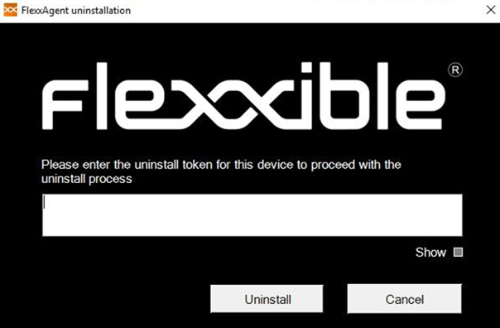
Enter the token when prompted.