Each person in the organization can have a Private section in the sidebar: a space of their own to write notes, drafts and working pages with everything Flexxible KB offers, and where only they see what’s there. Private spaces are optional and turned off by default.
Private means only you see it. It is not visible to the organization’s owners or administrators, nor to Solve, Bot, Teammate in a Flexxible Assist session, or the agents your organization has connected with a key.

Turn on private spaces

In Settings → Private spaces, an owner or administrator selects Turn on private spaces. From that moment on, everyone in the organization sees the Private section in their sidebar.
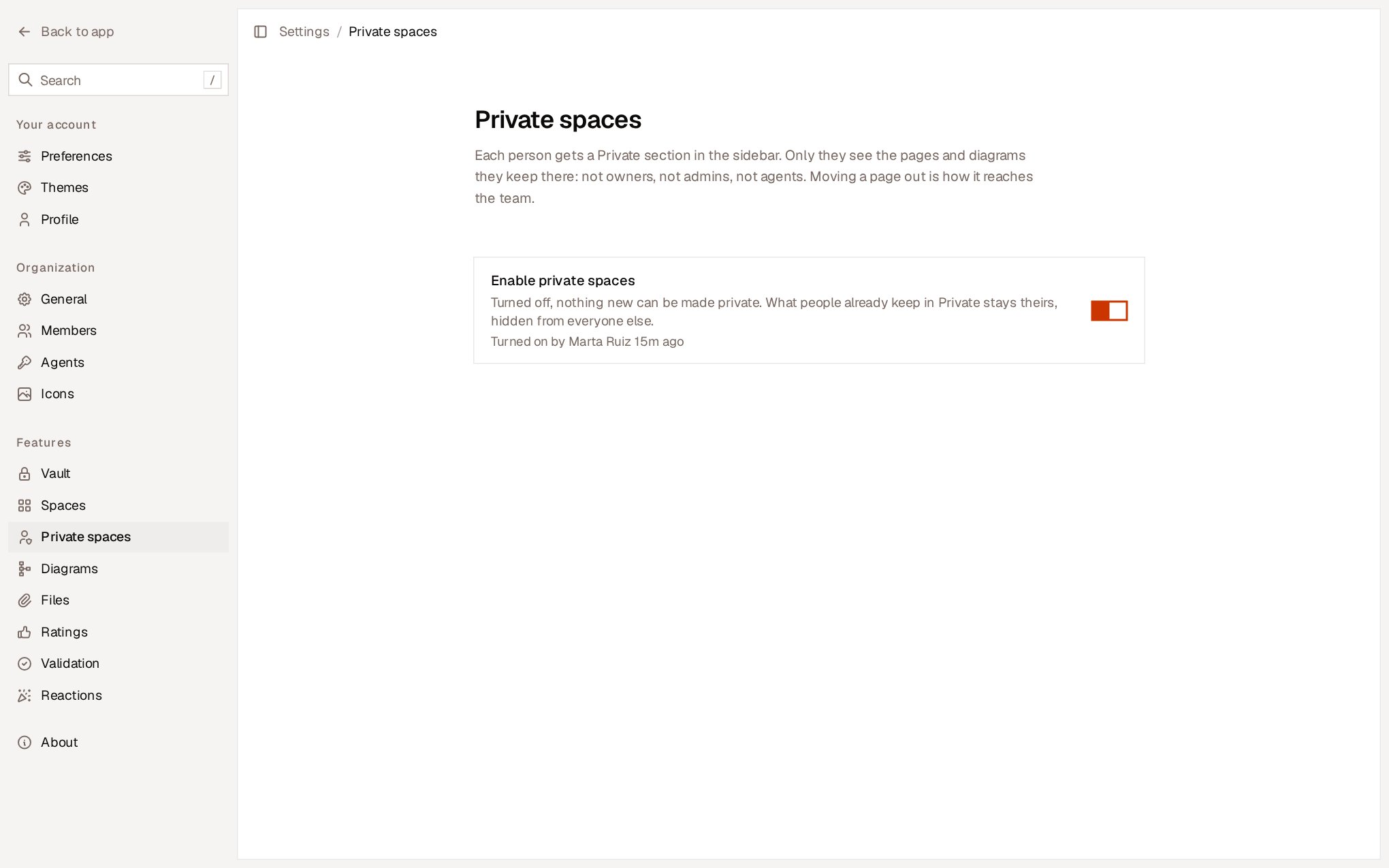
Settings, Private spaces: the description of the feature and the toggle that turns it on for the whole organization.

Create a private page

  • Select + next to Private in the sidebar, or New private page if the section is empty.
  • In the command palette, use New private page.
  • To create it inside another private page, use the + on its row or New page inside. A page created inside a private page is also private.
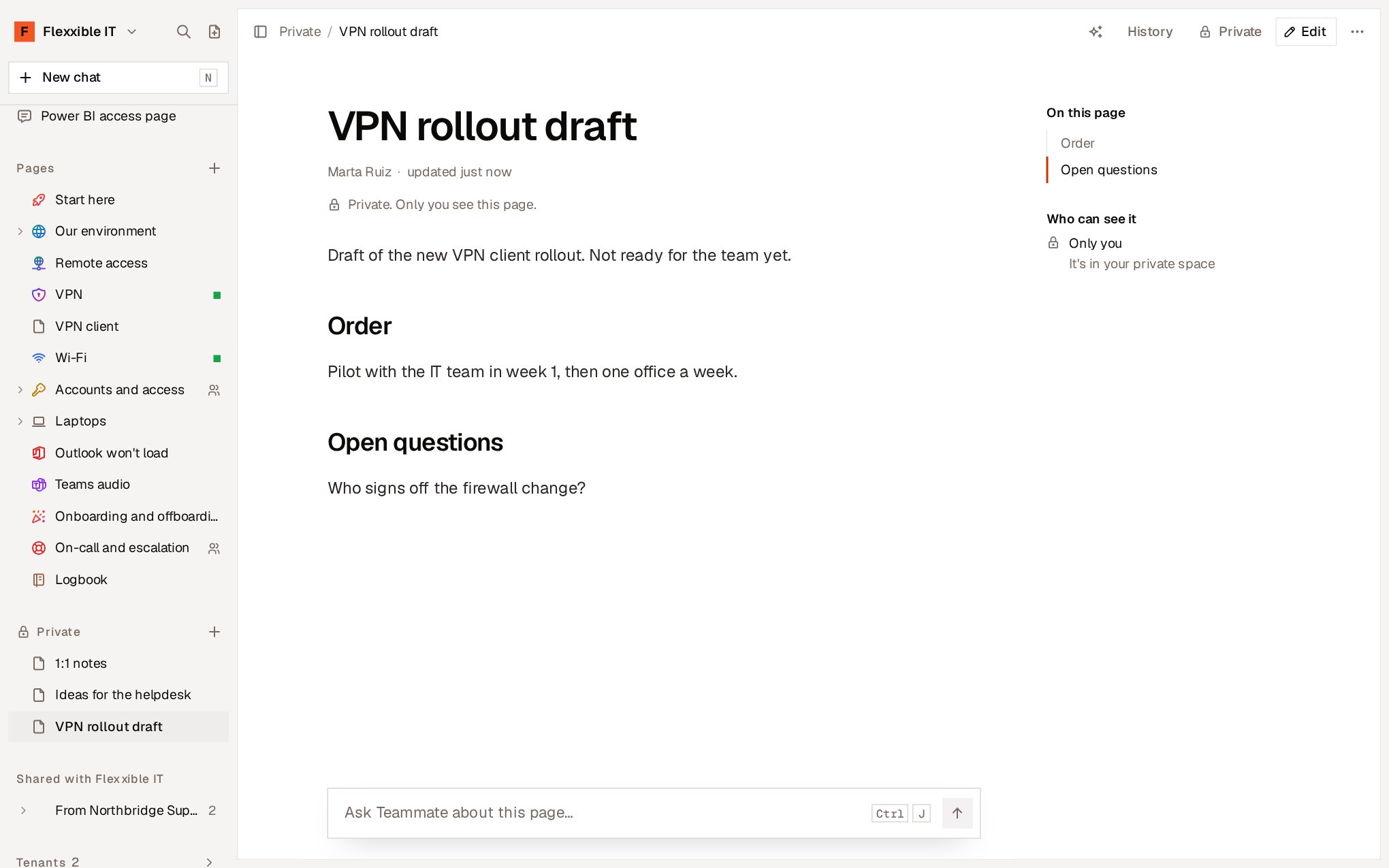
An open private page: the Private section in the sidebar, the Private badge in the header and the line indicating that only its author sees it.
A private page shows it in three places: the Private badge in the header, where other pages have Share; the line below the title; and the Who can see it section, which says Only you.

What you can do in Private

A private page works the same as any other page: What belongs to team pages doesn’t apply to private ones: they are not shared with other organizations, they are not validated, they don’t receive ratings or reactions and they don’t show usage statistics. There is no private vault either: a private page can link to credentials in the organization’s Vault.

Bring a page to the team

When a page is ready for others, take it out of Private.
  1. Open the page menu, on its row in the sidebar or in More.
  2. Select Move to team….
  3. Confirm with Move to team.
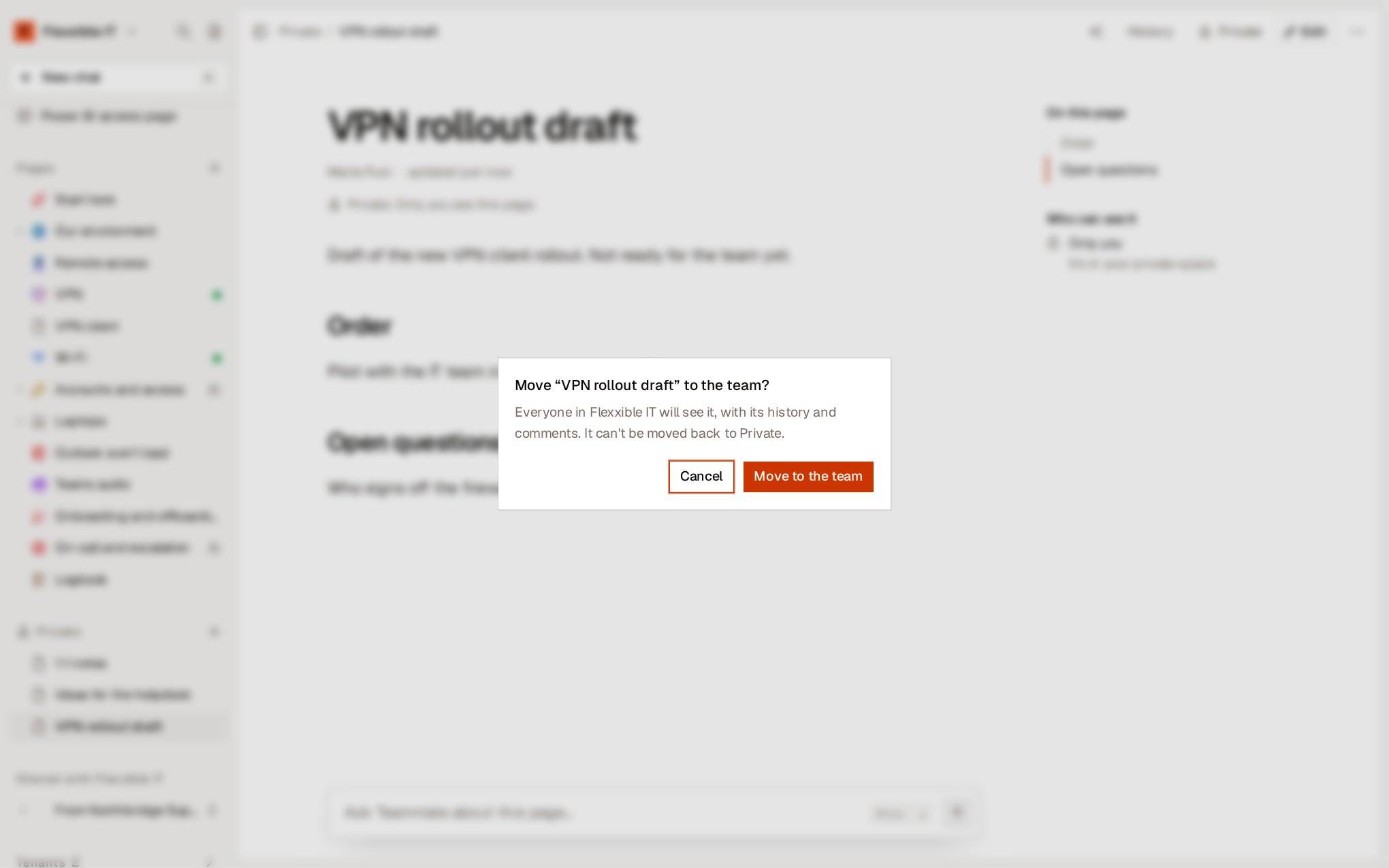
Move to team confirmation: it indicates that the whole organization will see the page with its history and comments, and that it cannot be returned to Private.
The page moves to the top level of the team pages, with the pages it contains, its history and its comments. The private diagrams it shows move with it. Pages you had deleted inside it stay in Private. Its address doesn’t change. Afterwards you can place it where it belongs with Move to….
Moving a page to the team cannot be undone. From that moment on the whole organization sees it, with its entire history, and it can no longer go back to Private.

Copy a team page to Private

A team page cannot be moved to Private: everyone else would stop seeing it. To have your own copy, use Duplicate to Private in the page menu. The copy is yours alone and the team page stays where it was.

Teammate in Private

Teammate, inside Flexxible KB, acts on your behalf: it searches your private pages, reads and edits them when you ask it to, and can create new pages in Private. What’s in Private only leaves it by your hand:
  • Teammate cannot move a private page to the team. You do that with Move to team….
  • If Teammate has read or found a private page in a chat, in that chat it no longer writes to anything other people see: not team pages, their comments or diagrams. To ask it for something for the team, open a new chat.
  • Teammate doesn’t read or modify private diagrams.
Teammate in a Flexxible Assist session, Solve and Bot don’t see anyone’s private pages.

If someone leaves the organization

The private pages of a person who leaves the organization remain hidden from everyone. If the person comes back, they get them back as they were. An owner can delete them without reading them. In Settings → Private spaces, the Abandoned section shows the name of each person who has left and how many pages and diagrams they left behind, never their content. Delete… removes it permanently.

Turn off private spaces

When the feature is turned off, nothing new can be created in Private. What each person already had there is still theirs: they keep it in their sidebar and nobody else sees it. Nothing becomes visible to the team.

Next steps