

Requirements
- The knowledge base is turned on for your organization. Flexxible turns it on. If your organization doesn’t have it yet, request it from your Flexxible contact.
- You have the right role in Portal. Users with the Organization administrator or L3 engineering team role on their own organization can sign in. Read-only roles don’t have access. See Roles.
Delegated tenants aren’t turned on separately: they follow the organization they depend on.
Access
- Sign in to Flexxible Portal.
- In the side menu, select Knowledge base.
https://kb.flexxible.com with your Portal session. You always enter your own organization’s knowledge base.
Direct links to a page also work. If you don’t have an open session in Flexxible KB, the link goes through Portal and then takes you to the page you wanted to open.
Every few minutes, Flexxible KB checks with Portal that you still have access. If your organization’s knowledge base is turned off or your role changes, open sessions are closed within minutes.
If you can’t sign in
The interface
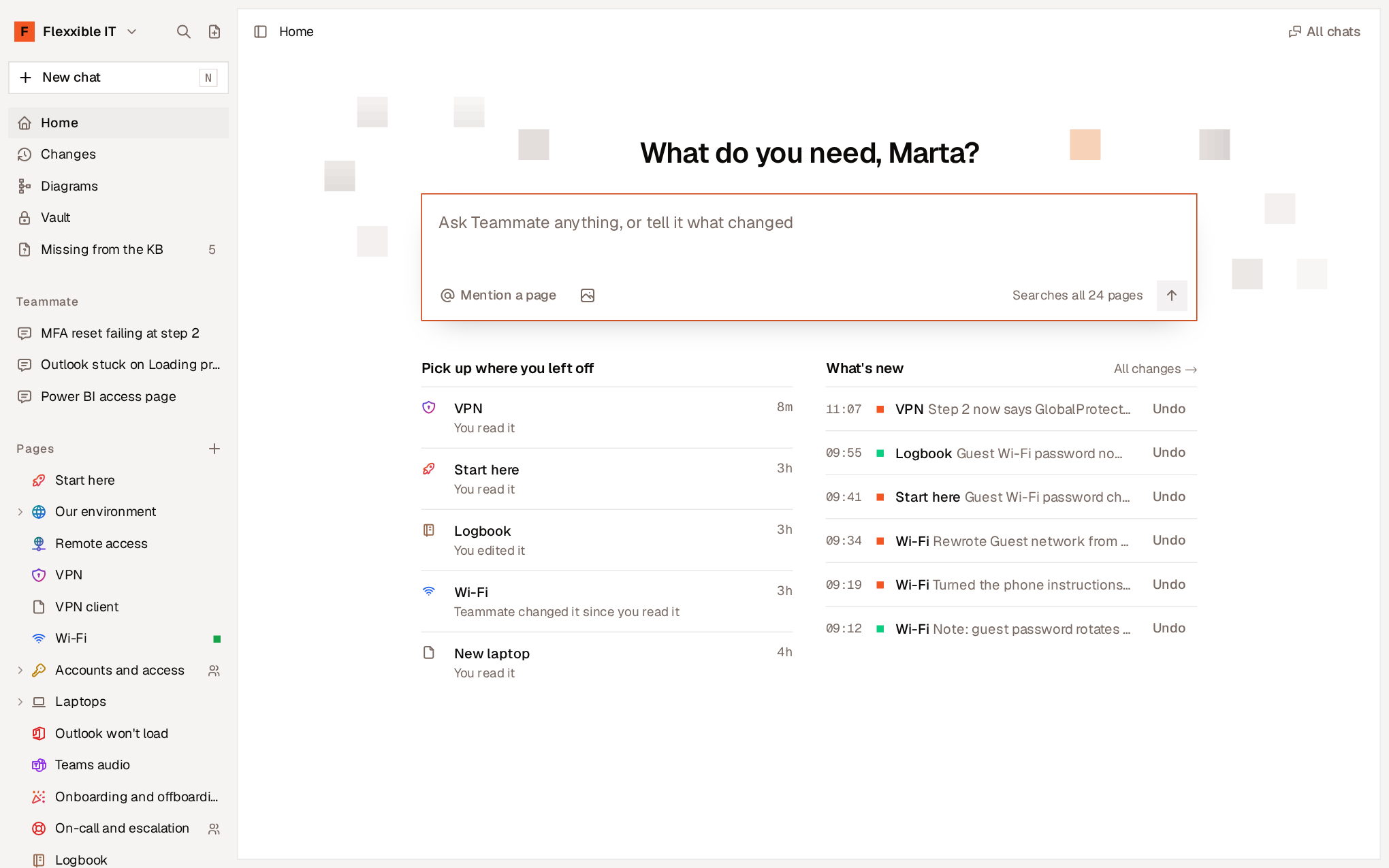
Sidebar
The sidebar is always on the left. You can hide or show it withCtrl + B (⌘ + B on Mac).
Depending on the features your organization has turned on, the sidebar also shows Ratings, Ranking and the space selector. Below the tree appear the pages that other organizations share with yours and those of your tenants.
Home
Home is the entry screen. It includes:- The Teammate box. Type a question or tell it what has changed. See Teammate.
- Pick up where you left off. The last pages you’ve read or edited and your chats, with a notice when someone has changed a page since you read it.
- What’s new. The latest changes by people and agents, each with Undo.
- Waiting for you. Pages awaiting your validation, if you’re a validator of any.
Keyboard
Almost everything can be done from the keyboard.Ctrl + K (⌘ + K on Mac) opens the command palette and ? shows all shortcuts. See Keyboard shortcuts.
First steps
1
Choose your language
In the organization menu, select Language. It changes menus, buttons and messages, for you and on all your devices. Pages stay as they’re written.
2
Write the first page
Select New page, give it a title and start writing. If the knowledge base is empty, Home also offers to ask Teammate to draft a “Start here” page.Before documenting, review What to write in the knowledge base.
3
Move credentials to the Vault
Store passwords and keys in the Vault, not in page text. Pages link to them and every use is logged.
4
Turn on the Flexxible Assist agents
In Settings → Agents, turn on Teammate, Solve and Bot so they consult the knowledge base while they work. See Flexxible Assist agents.
5
Review what's missing
Once agents start working, Missing from the KB will gather what they needed and didn’t find. It’s the best list of what to write next.