

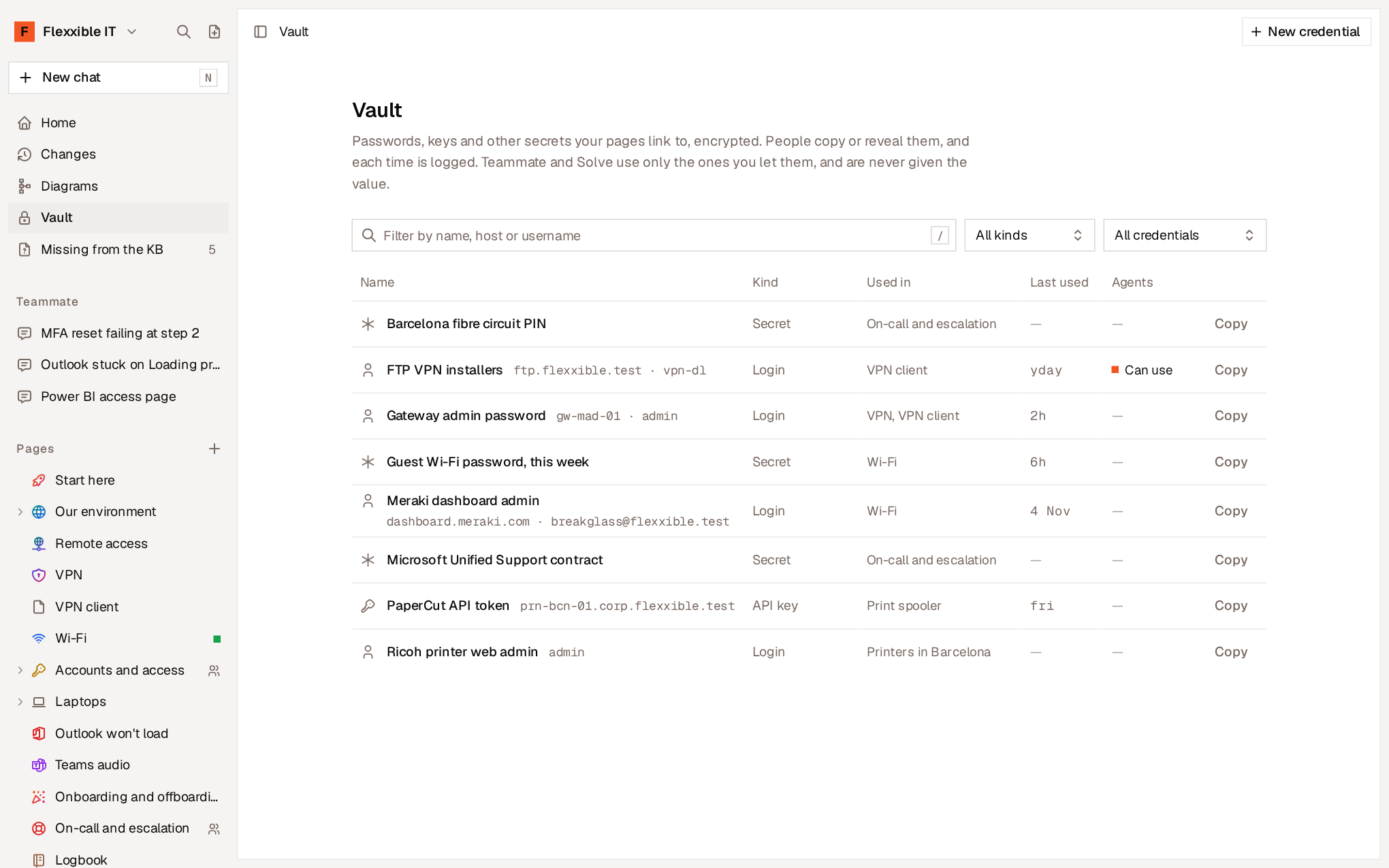
Credential types
Create a credential
- In the Vault, select New credential.
- Fill in the form:
- Name. How people and agents will see it. For example, “Gateway admin password”.
- Type.
- Host and User (optional). Where and with which user it’s used.
- Value. The secret. Generate creates a random password.
- Notes (optional). What it’s for and when to use it.
- Select Save credential.
Use a credential in a page
In the editor, type/ and choose Password or key from the vault. Select an existing credential or create a new one. The page only stores a reference.
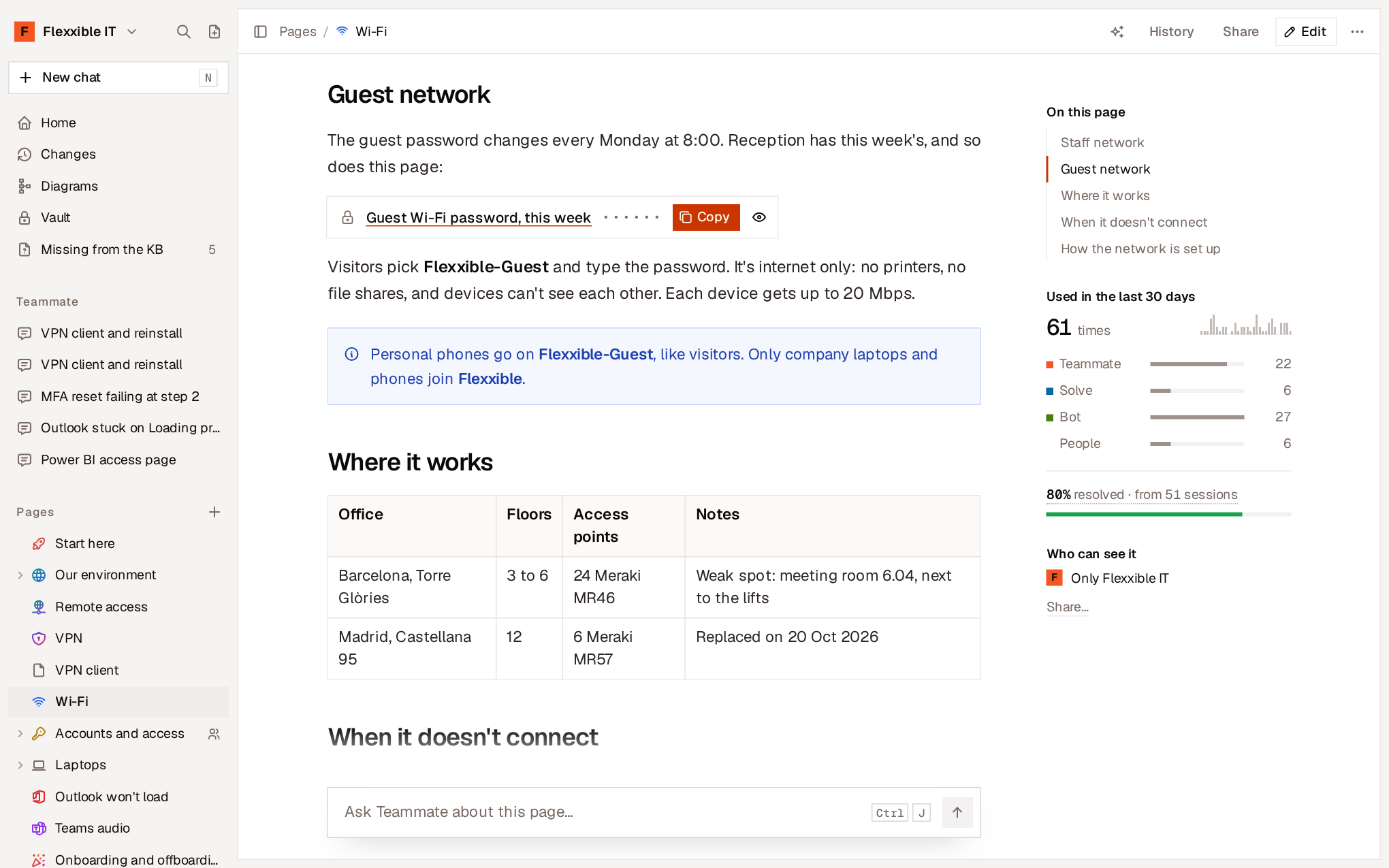
- Copy copies the value to the clipboard.
- Reveal shows it for a few seconds and hides it again.
- The block’s name opens the credential in the Vault.
Credential details
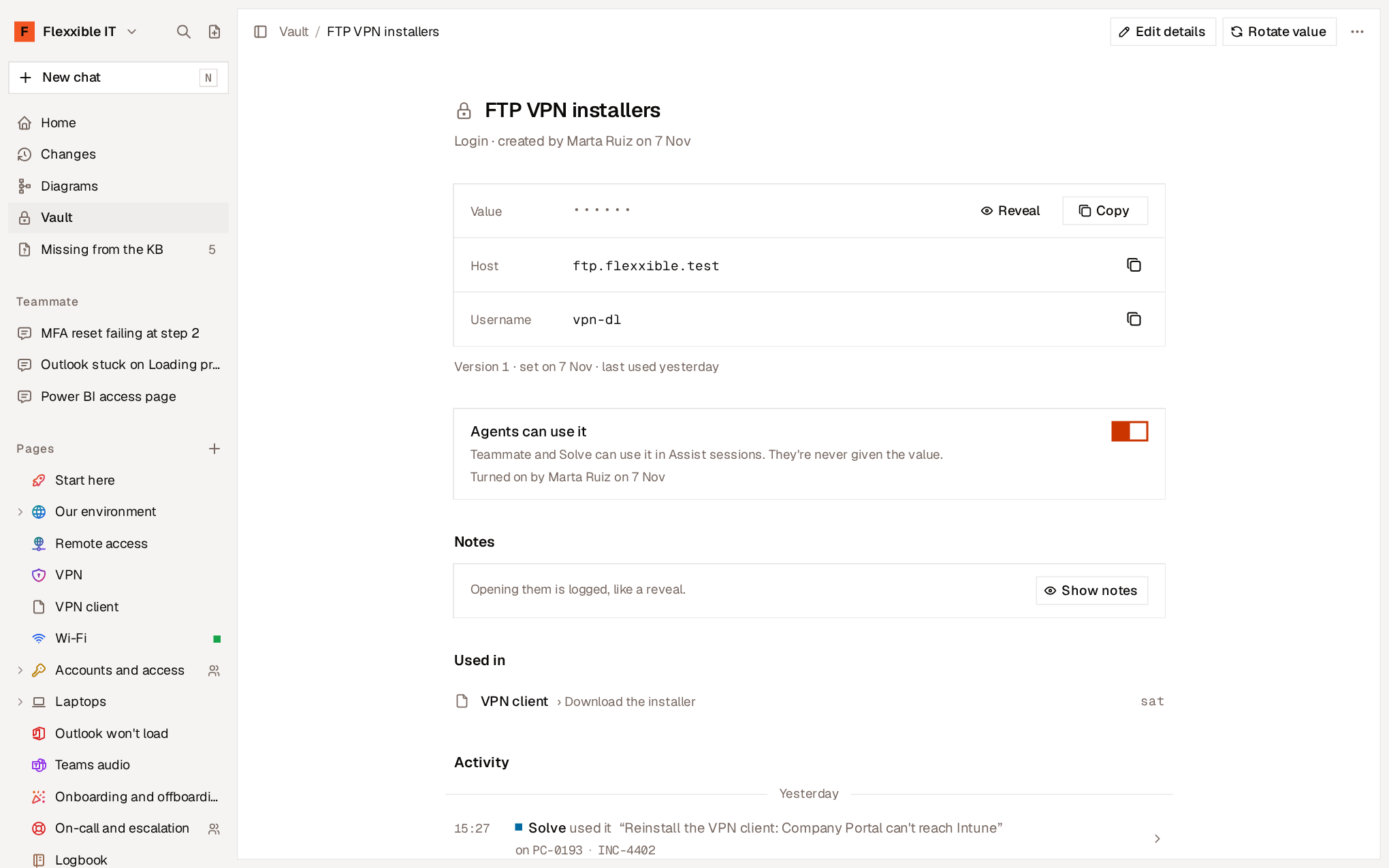
Allow agents to use a credential
The Agents can use it toggle allows Teammate and Solve to use the credential in Flexxible Assist sessions. For example, to download an installer from a server that requires a user and password.- They never receive the value. The agent asks for permission to use the credential and gets a single-use authorization. It’s Flexxible Assist, on the device, that redeems that authorization and uses the value. The value never reaches the AI model or the engineer’s browser.
- They say so. Before using it, Teammate tells the engineer which credential it’s going to use and where.
- It’s logged. The credential’s Activity shows which agent used it, for whom, on which device and for what reason.
- Only the marked ones. A credential without the toggle turned on can’t be used: the agent’s request is rejected.
- Agents only use logins, API keys and secrets. SSH keys are for people.
- If someone changes a credential’s host, user or type, the permission turns off automatically and must be granted again.
- Bot can’t use credentials or query the Vault.
Search and filter
The Vault list can be filtered by name, host or user (/ key), by Type and by Who can use it: Agents and people or People only.
The command palette also finds credentials by their name or host.
Credentials and shared pages
Credentials don’t leave your organization. When you share a page with another organization, the recipient sees that the credential belongs to your Vault and isn’t shared.Turn off the Vault
In Settings → Vault, Turn on the vault controls the feature for the whole organization. With the Vault turned off:- Nobody sees it, and pages show their credentials as unavailable.
- Agents can’t use any credential.
- Nothing is deleted: credentials are kept encrypted and come back as they were when it’s turned on again.