

Edit a page
- Open the page and select Edit, or press
E. - Write. The header shows editing and the status: saving or saved.
- Select Done, or press
Esc, to go back to reading.
If you lose the connection, your changes stay in that tab until you get it back. Keep the tab open so you don’t lose them.
Write at the same time as others
When another person or an agent edits the same page:- You see their cursor, with their name and color, and their text appears as they type it.
- Below the title it shows who is writing with you, and their avatars appear in the header.
- If you select someone’s avatar, the page follows their position. Select it again to stop following them.
Insert blocks
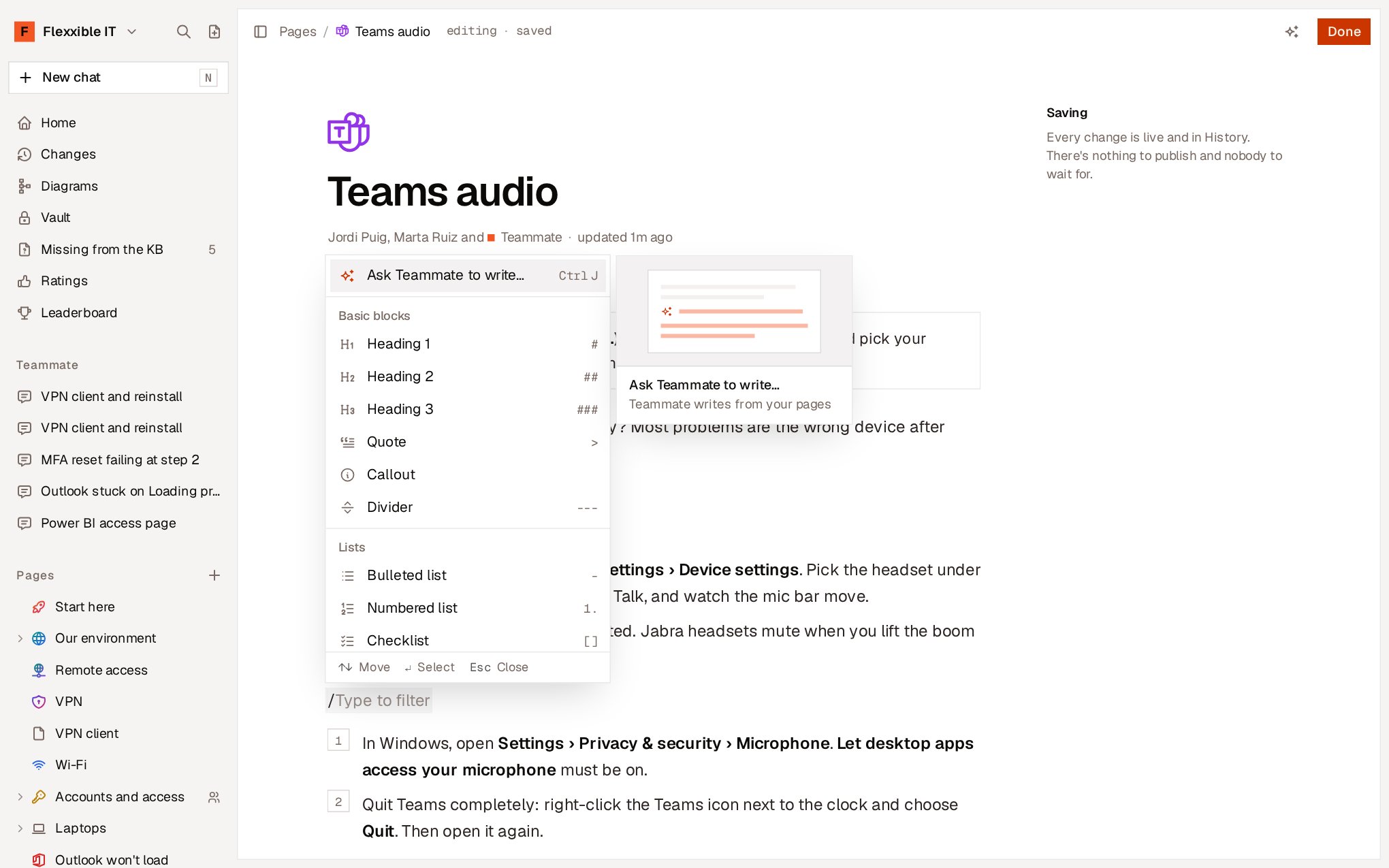
Type/ on a line to open the block menu and keep typing to filter it.
Markdown as you type
If you know Markdown, you can type it directly. The editor converts it instantly:
You can also paste Markdown: the editor interprets it as formatted content.
Format text
When you select text, a bar appears with the options Ask Teammate, Turn into, Bold, Italic, Strikethrough, Inline code, Link and Comment.Callouts
A Callout makes a note or warning stand out. There are five types, and you can change the type from the block itself:Links to other pages
To link to another page in the knowledge base:- Type
@and the page name. - Or choose Link to a page in the
/menu. - Or select some text, press
Ctrl+Kand search for the page.
@ you can also insert dates, such as Today or Tomorrow.
Images
Paste an image or a screenshot, drag it onto the page or choose Image in the/ menu. PNG, JPEG, GIF and WebP images up to 10 MB are supported.
Attachments
Choose File in the/ menu, or drag the file onto the page, to attach a vendor manual, a configuration or a log. The file appears as a row with its name and size: a PDF opens in the browser and other types are downloaded.
Agents see an attachment’s name and size, not its content. Whatever they need to know, write it in the page.
Tables and code
- Tables. Inside a table,
Tabmoves to the next cell. The table menu lets you insert and delete rows and columns, align a column or delete the table. - Code blocks. Choose the Language in the block itself to highlight the syntax. In reading mode, each block has a Copy code button.
- Collapsible sections. Their content stays hidden until someone opens them. They’re useful for details not everyone needs.
Credentials and secrets
Choose Password or key from the vault in the/ menu to link a credential from the Vault. The page stores only a reference: it shows the credential’s name, and people copy or reveal its value from there.
If you paste or type something that looks like a password, a token or a key, the editor asks what to do:
- Save it in the vault. Creates the credential and leaves a reference in the page.
- Leave it as text. Keeps it in the page, at your own responsibility.
- Leave it out. Doesn’t add it.
Ask Teammate for help
Inside the editor, Teammate writes or rewrites based on your organization’s pages:- With no selection, press
Ctrl+J(⌘+Jon Mac) or choose Ask Teammate to write… in the/menu, and tell it what to write at that point. Write the next section continues the page. - With text selected, choose Ask Teammate in the formatting bar and tell it what to do with it, or use one of the quick options: Rewrite, Shorter or Turn into steps.
Esc stops it.