

This page describes Teammate within the knowledge base. For the assistant that helps the engineer during remote assistance, see Assist Teammate. To learn how the latter uses the knowledge base, see Flexxible Assist agents.
Ask from Home
On Home, type a question in the Teammate box or tell it what has changed, and pressEnter. Some examples:
- “Which VPN client do we use and how do I reinstall it?”
- “The VPN client is now GlobalProtect 6.4.0.”
- “Write a page on how to request access to Power BI.”
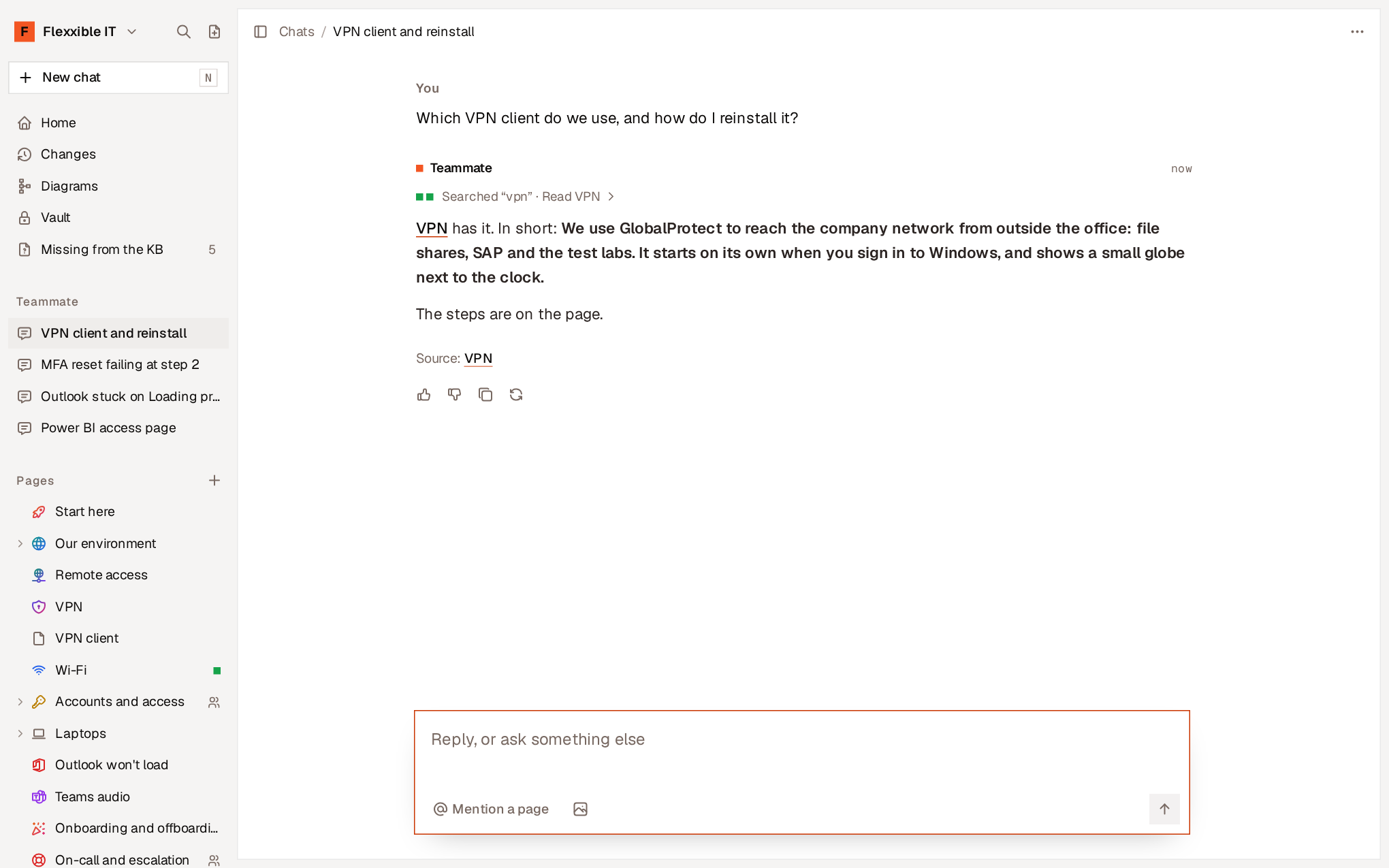
- What Teammate is doing. A line summarizes what it has searched for and which pages it has read. Select it to see each step.
- The answer, in the language you ask in, with links to the pages and their sections.
- The sources. The pages it relied on.
- The pages it has changed, if you asked for a change.
@ you can mention a specific page in your question.
Ask alongside a page
At the bottom of each page, the Ask Teammate about this page… box (Ctrl + J, or ⌘ + J on Mac) opens Teammate in a panel next to the page.
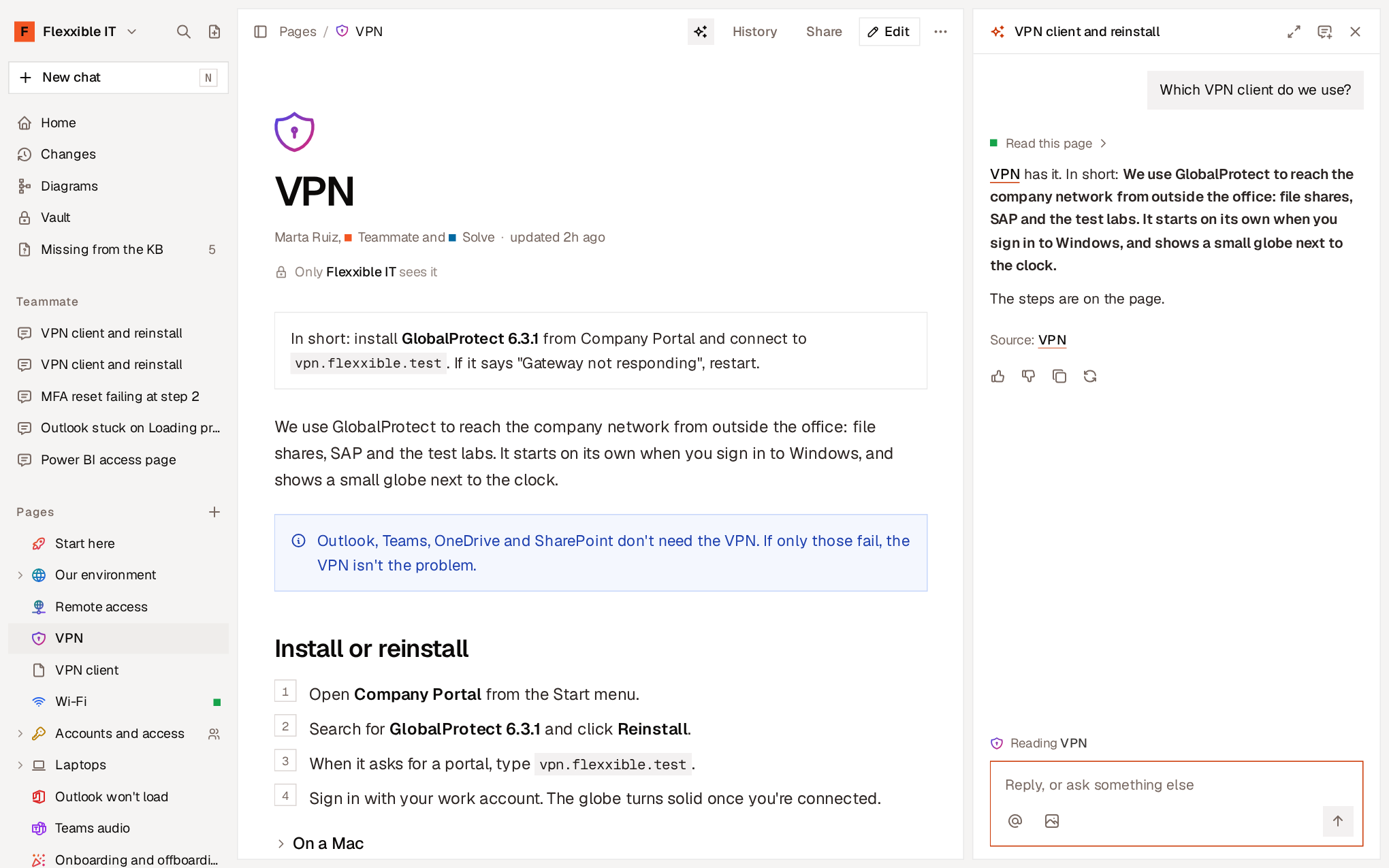
- Teammate reads the page on your screen first, so “this page” or “here” refer to it.
- The panel stays open as you move from one page to another and follows the page you have open.
- Open full screen moves the conversation to the chat screen. New chat starts another one.
- To reopen the panel as it was, select the Teammate icon in the page header or press
Ctrl+Jtwice.
Ask for changes to pages
Teammate can create, edit and move pages. It doesn’t ask for confirmation first: it makes the change and tells you what it has changed.- Each change appears in the chat as a card, with Undo. If it has changed several pages, Undo all reverts them at once.
- If you have the page open, the change appears on it instantly, marked in Teammate’s color.
- In History, the change is attributed to “Teammate for” followed by your name.
- Undoing a page that Teammate created deletes it. It can be restored.
Teammate doesn’t add links to external websites to a page unless they were already on it or you type the address in your message. This way, malicious text inside a page or a ticket can’t get a link inserted.
Attach images
You can paste, drag or attach up to four images per message, for example a screenshot of an error. PNG, JPEG, GIF and WebP images up to 10 MB are supported. Images are used to answer that message and aren’t saved. When you reopen the chat, a note that the image wasn’t saved appears in their place.Your chats
- Chats are private: only the person who started them can see them.
- Teammate names each chat after its first answer. You can change it.
- The sidebar shows the most recent ones. All chats, on Home, opens the full list, which can be filtered by title or by answer.
- When you delete a chat, the conversation is erased forever. The pages Teammate changed stay as they are, and their History keeps every change.
Other places where Teammate helps
Limits
- Teammate answers based on your organization’s pages and those other organizations share with it. If nothing covers it, it says so.
- It sees the names of Vault credentials, never their values.
- It doesn’t check the current state of devices: that’s what the platform is for.