

Choose a theme
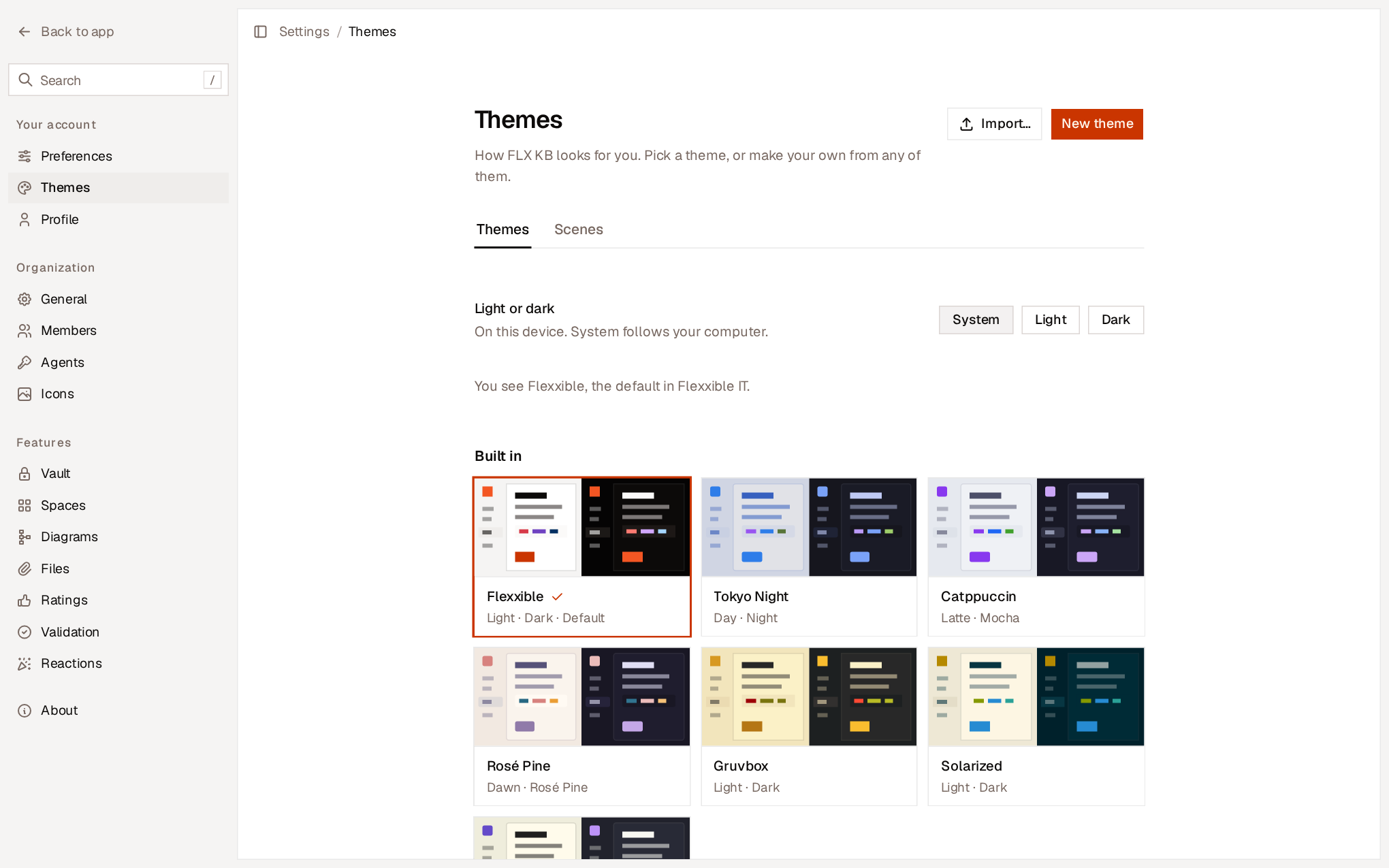
- Built-in. The themes that come with Flexxible KB. They can’t be changed or deleted, but you can duplicate them.
- Shared in your organization. Themes someone has shared with everyone.
- Only you. Your themes. Nobody else sees them until you share them.
Create a theme
Select New theme, or Duplicate and edit in an existing theme’s menu. The editor has two tabs, which work on the same theme:With Teammate
Describe how you want the theme to look, or start from something you already have:- Like a website. Type your company’s website address and Teammate takes its colors, fonts and logo from it.
- From a brand document. Attach a PDF or Word file with your style guide.
- Like an image. Paste or attach an image.
- Or just say it. For example, “dark and calm, with our orange”.
By hand
The whole app shows your changes as you make them. Nothing is saved until you select Save theme.
The editor checks that text is readable. It shows which colors don’t meet WCAG AA contrast and suggests the closest value that does.
Share a theme and apply the organization’s branding
In the menu of one of your themes:- Share with your organization makes it available to everyone.
- Make default makes it the theme seen by everyone who hasn’t chosen another. With your company’s logo and colors, this is how you apply your branding to Flexxible KB.
- Export as file downloads it. Import…, in the gallery, loads it into another organization.
- Keep it just for me stops sharing it, and Delete theme deletes it. Anyone who was using it goes back to the default.
A theme can only be shared if its text is readable with a minimum contrast. Until it meets that, only you can use it.
Scenes
The scene is what Home draws behind the greeting, in the colors of your current theme. It’s chosen separately from the theme, in the Scenes tab.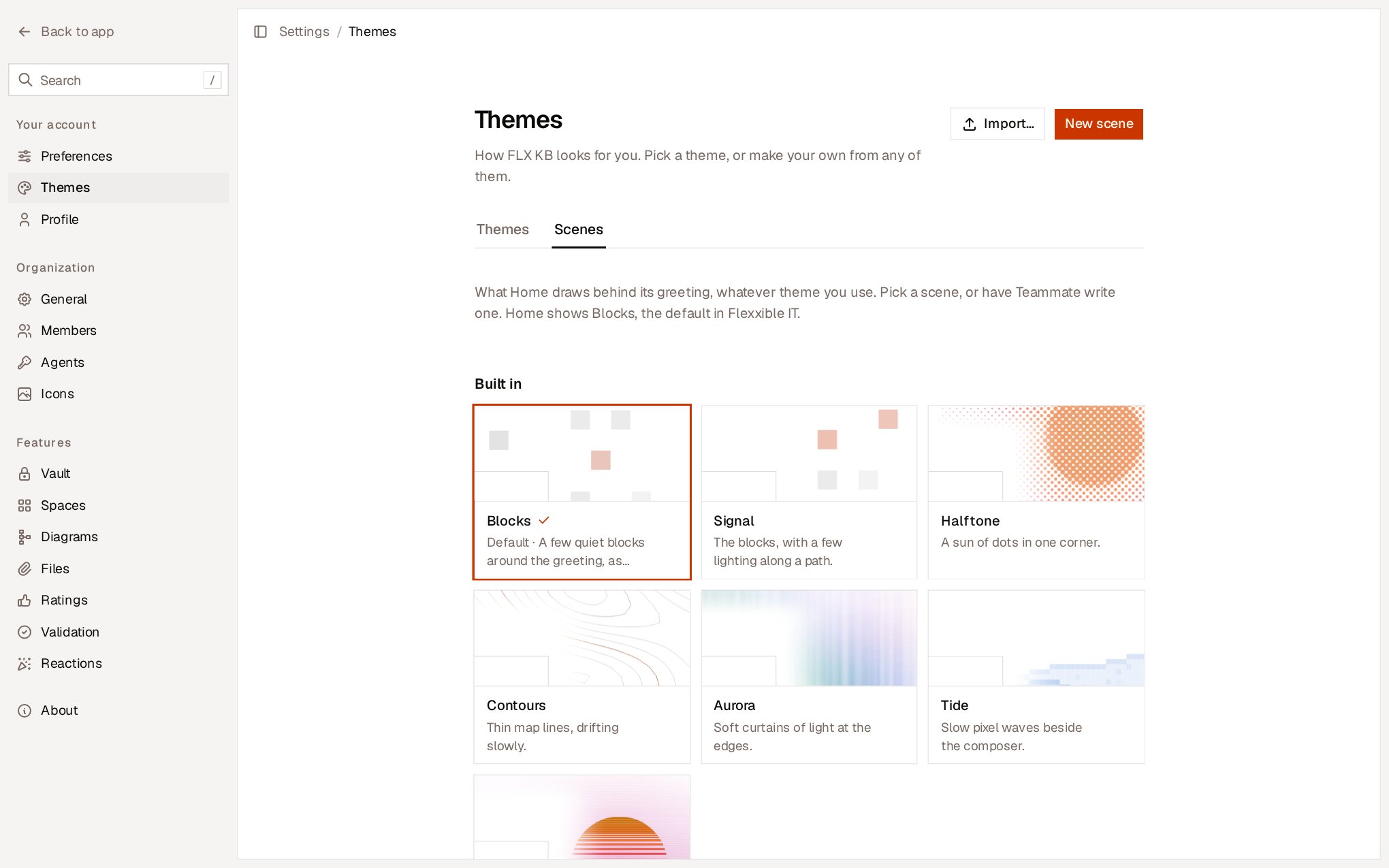
Writing a scene takes a minute or two. Keep the page open in the meantime. Nothing is saved until you select Save scene.