

Spaces organize, they don’t restrict. Everyone in the organization sees all spaces, and agents search and read in all of them.
Turn on spaces
In Settings → Spaces, an owner or administrator selects Turn on spaces. The existing pages become the first space, and more can be added from there.Create a space
- Select New space… in the space picker in the sidebar, or New space in Settings → Spaces.
- Enter the Name, the Address and, if you want, an icon and a color.
- Select Create space.
Work with spaces
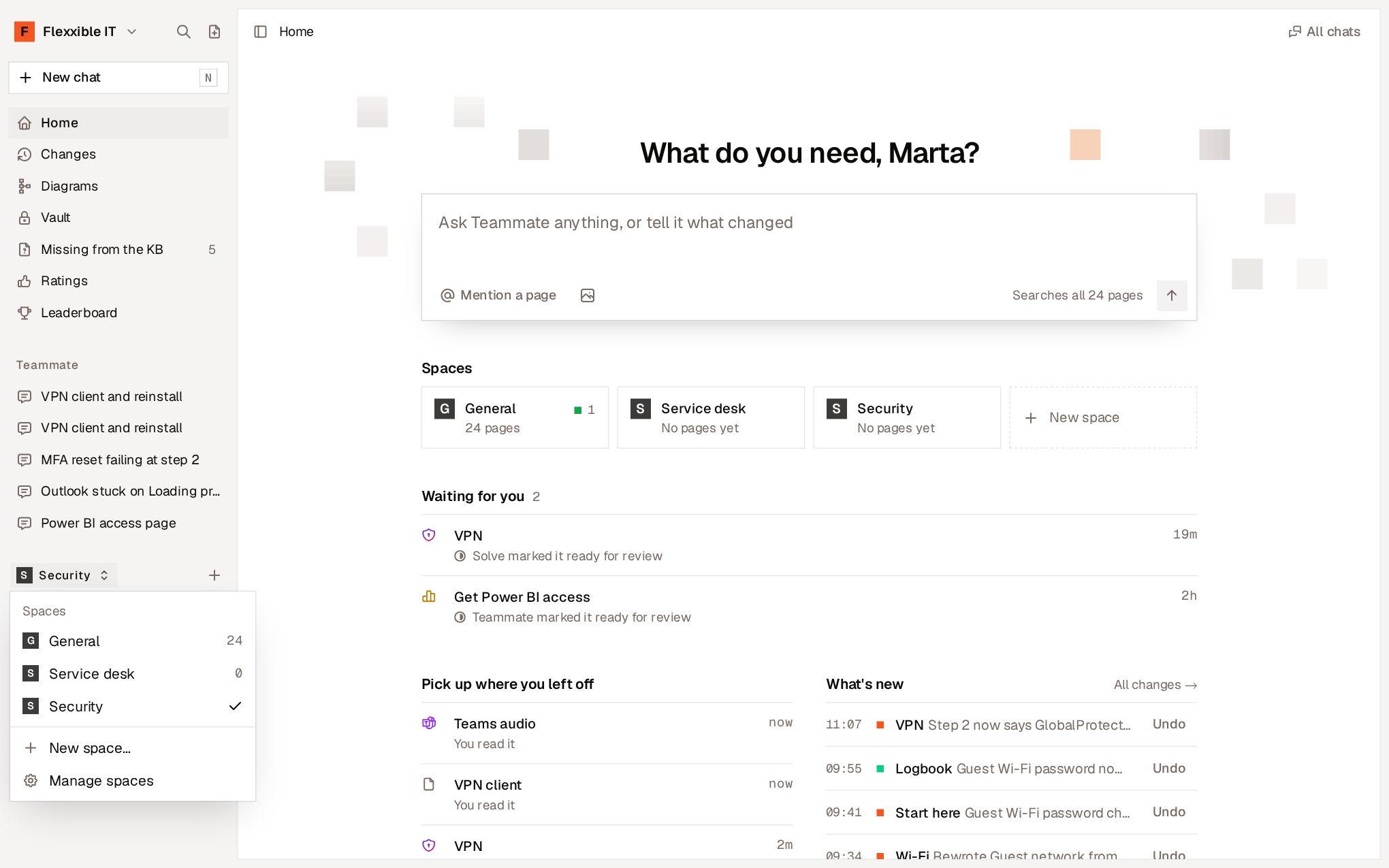
- Switch spaces. The picker in the sidebar lists the spaces. When you choose one, its pages fill the tree. You can also use Go to a space… in the command palette.
- Home. Shows the organization’s spaces, with the number of pages in each and those that have changed since you read them.
- Search. Search covers all spaces and shows which one each page is in.
- Move a page to another space. Use Move to… and choose the top level of another space or one of its pages. The page moves with the pages inside it and with its history.
- Diagrams, Ratings and Leaderboard can be filtered by space.
Manage spaces
In Settings → Spaces, each space’s menu lets you:
The first space in the list is the default space. An organization always has at least one space.