

Rules
A delegated tenant’s pages are always visible to the organization it depends on. The delegated tenant doesn’t share them on its own.
Share a page
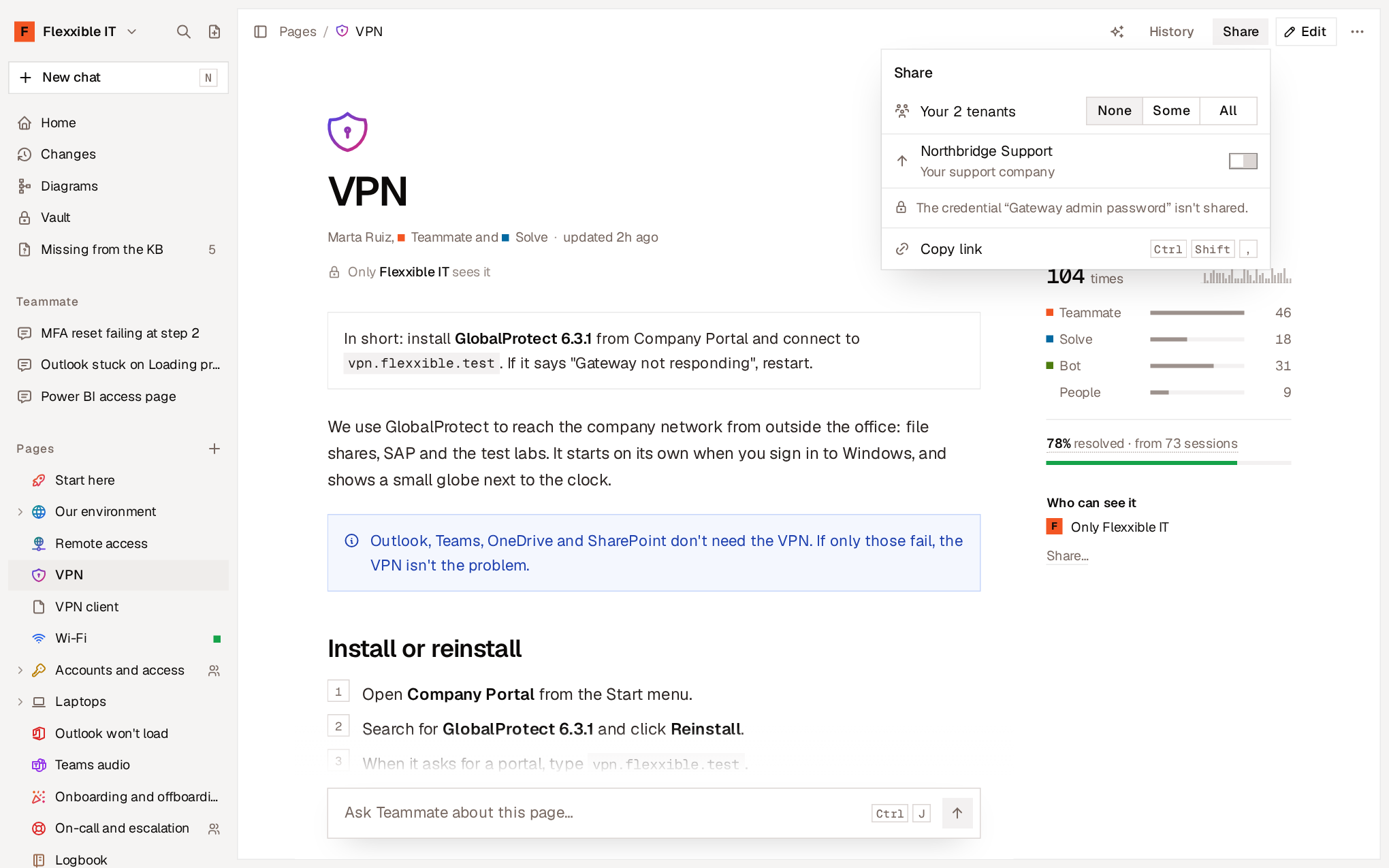
Only owners and administrators decide who sees a page.- Open the page and select Share.
- Choose who with:
- Your tenants: None, Some (search for them by name or paste a list) or All. All includes tenants created later on.
- The organization you depend on. It appears with its name and its relationship to you: the manufacturer, your distributor or your support company. Turn it on with its toggle.
Know who sees a page
- Below the title, the page shows who can see it: only your organization or others as well.
- Who can see it, to the right of the page, details each organization and what it can do.
- Who has read it shows which organizations and which agents have read a shared page.
- In the page tree, an icon marks pages shared with other organizations.
- Changes records when each page was shared and when it stopped being shared.
Pages you receive
Pages that other organizations share with yours appear in the sidebar, below your tree, grouped by the organization that wrote them. If you have tenants, Tenants gathers theirs. A received page:- Is read-only. It shows which organization it belongs to, and only that organization can change it. It has no History or usage data in your organization.
- Appears in your searches, alongside yours, showing who it belongs to. Teammate and agents use it too.
- Can be shared onward. With Also share it with your tenants, you decide whether your tenants see it.
- Disappears if its owner deletes it or stops sharing it.
Add what’s different in your organization
When a received page doesn’t quite fit your environment, you can’t edit it, but you can select Add what’s different in followed by your organization’s name. This creates a page of your own, linked to the original, where you write only the differences. Anyone in your organization who reads the original page will see that it has this addition.Shared pages and agents
- Solve and Bot use the pages that the device’s organization can see.
- Assist Teammate uses the pages that both the device’s organization and the organization of the engineer providing assistance can see. If a partner’s engineer assists a customer’s device, the session doesn’t use the partner’s private pages or Vault credentials.
- Flexxible Assist agents never change who sees a page.
- What an agent reads from a shared page counts toward the page’s usage for its owner, and what agents find missing also reaches the organization that wrote the pages consulted.
Requirements
- The knowledge base must be turned on in both your organization and the organization you share with.
- The organization hierarchy is Flexxible Portal’s. Changes to the hierarchy are reflected in Flexxible KB after a few minutes.