

The page tree
The Pages section of the sidebar shows pages as a tree:- A page that contains others shows an arrow to expand it. The pages you leave expanded are remembered on that device.
- A green square next to a page indicates that it has changed since you last read it.
- At the top of each page, the breadcrumb shows the pages that contain it.
↑ and ↓ to move, → to expand a page and ← to go back to its parent page.
Create a page
- New page, in the sidebar or with the
Ckey, creates a blank page at the top level and opens it ready for you to type the title. - New page inside, in a page’s menu or in the button that appears when you hover over it in the tree, creates the page inside that one.
Read a page
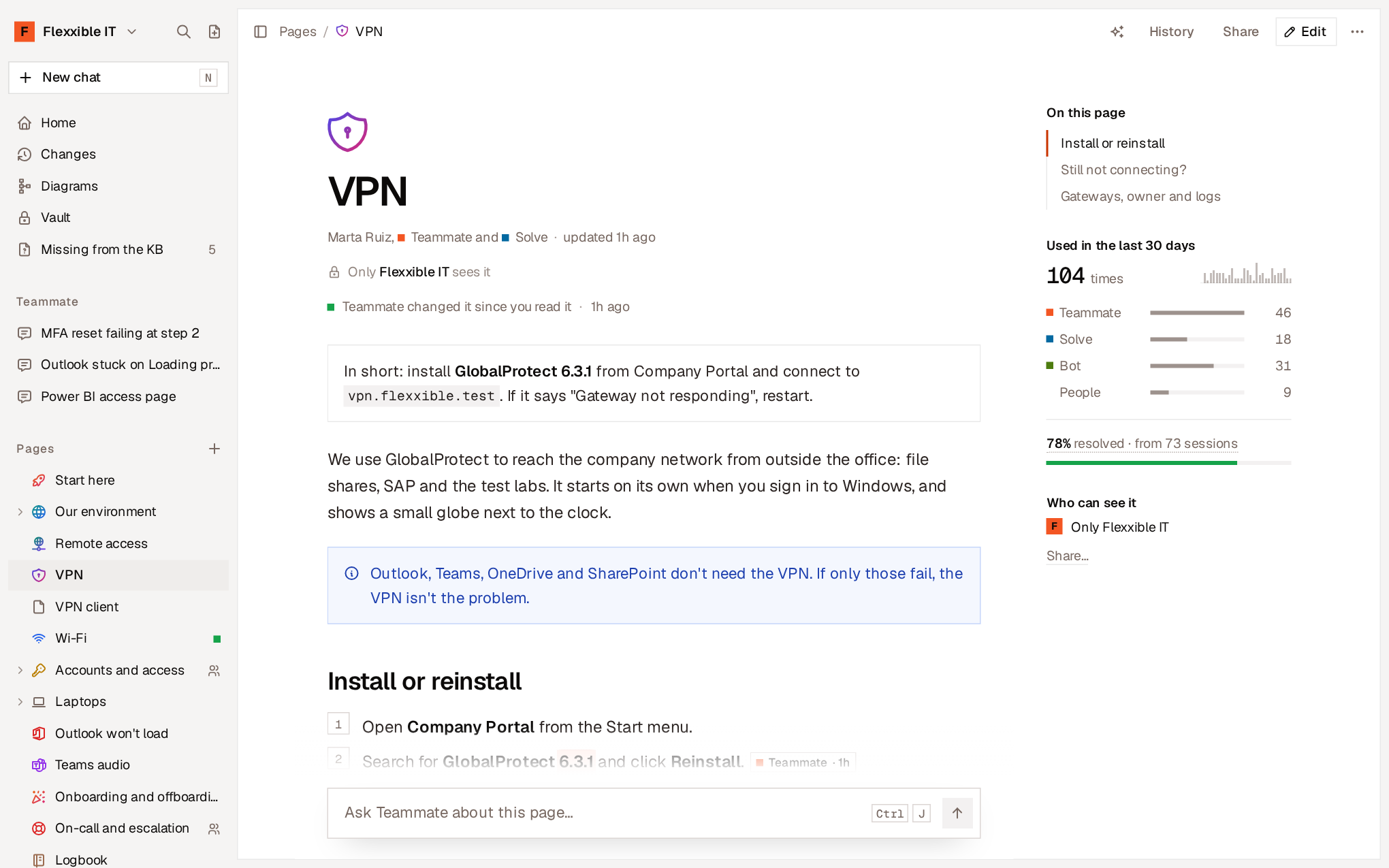
- Who wrote it and when it was updated. The people and agents who have contributed appear.
- Who can see it. By default, only your organization. See Share pages between organizations.
- What has changed since you read it. If someone has changed it, the page says so and highlights the text that changed. See Changes and history.
- In short. One or two sentences with what needs to be done or the key fact. Teammate writes it from the page and updates it about a minute after each change. It isn’t part of the page text and can’t be edited: if it isn’t correct, fix the page.
- On this page. The table of headings.
JandKjump to the next and previous heading. - Use in the last 30 days. See Page usage.
- Who can see it and, depending on what your organization has turned on, validation, ratings and reactions and comments.
Page actions
Actions are in the page’s More (···) menu, in the context menu of its row in the tree (right-click) and in the command palette.Move a page
There are three ways to move a page:- Drag it in the tree. Drop it on another page to put it inside, or between two rows to place it at that point.
Esccancels the drag. - Move to…, in the page’s menu or with the
Mkey. Type the name of the destination page or choose Top level. - With the keyboard, in the tree.
Alt+Shift+↑or↓moves it up or down,Alt+Shift+→puts it inside the page above andAlt+Shift+←takes it out of its page.
A page’s address doesn’t change when it’s moved or renamed. Links you’ve already shared keep working.
Delete and restore
Delete page deletes the page and, if it has any, the pages it contains (it asks for confirmation first). The notice that appears includes Undo. A deleted page isn’t lost: its address still shows that it has been deleted and offers Restore, which recovers it along with the pages it had inside.Icons
Each page can have an icon, which is shown wherever the page appears. Select the icon next to the title, or Change icon… in the menu, and choose from:- Icons, with a color.
- Emojis.
- Custom: your organization’s own icons, such as a logo or a system’s brand. See Settings.
Page usage
Use in the last 30 days shows how many times the page has been used and who used it:- Total uses and their day-by-day trend.
- One row for Teammate, another for Solve, another for Bot and another for People.
- The resolution rate: of the Flexxible Assist sessions that used the page and reported how they ended, how many were resolved without escalating. When you select it, it’s broken down into Resolved without escalating, Escalated and Abandoned.
Read a page in your language
Pages stay in the language they were written in. When you open a page written in another language, Flexxible KB offers Read in your language and translates it in parts.- The translation is a reading view: it isn’t saved as a page and doesn’t change the original. View original returns to the text as written.
- In Settings → Preferences → Pages in other languages, choose between Offer translation and always Translate them.
- In Languages you read, indicate the languages you understand: pages in those languages are never translated or offered for translation.
- The page’s Read in… menu lets you choose another language at any time.