

Create a diagram
- From Diagrams. In the sidebar, select Diagrams and then New diagram.
- From a page. In the editor, type
/and choose Diagram. You can draw a new one or show one your organization already has. - From the command palette.
Ctrl+Kand New diagram.
The diagram editor
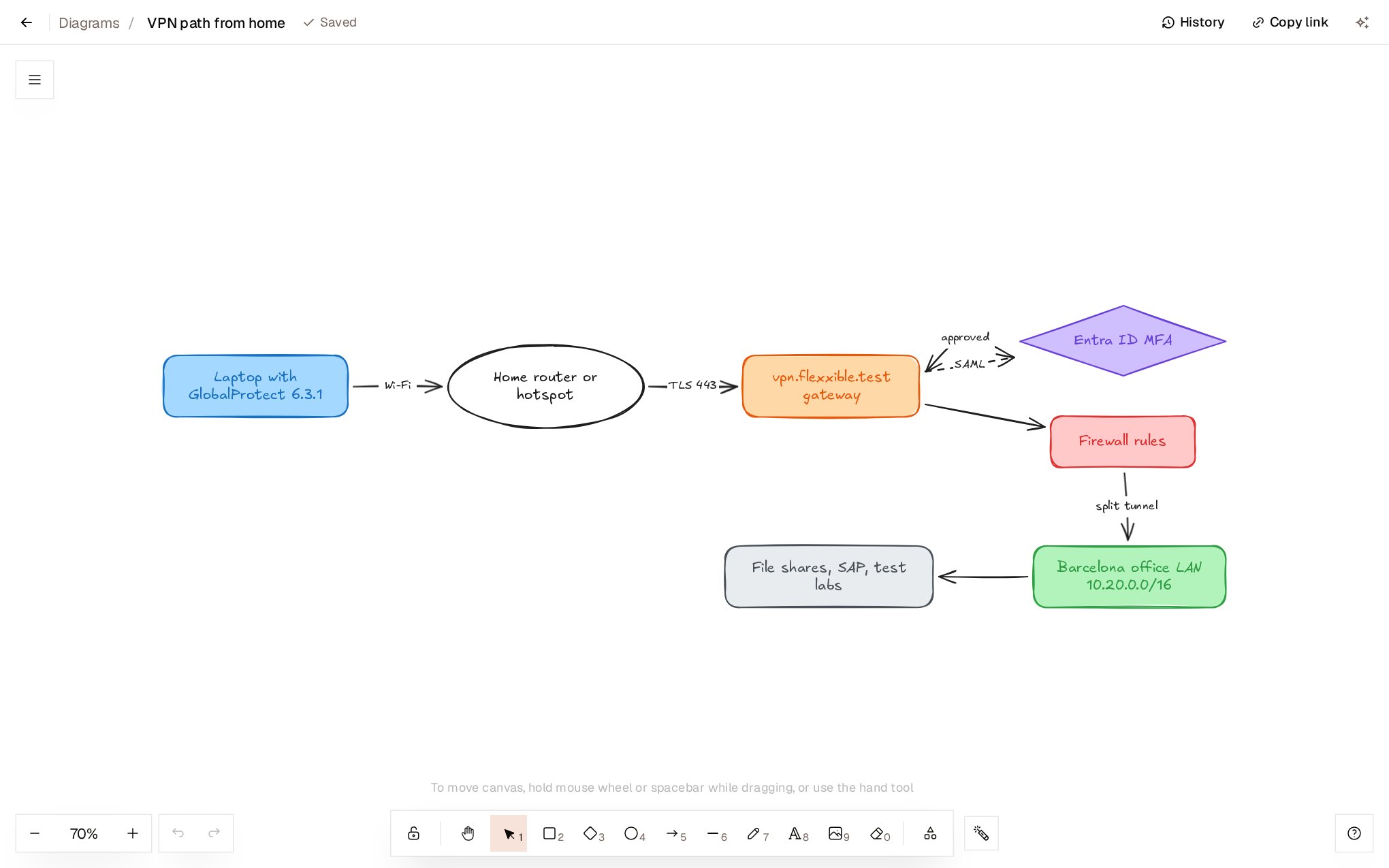
- It saves itself. The header shows Saving… or Saved. Offline, changes are synced once you’re back online.
- Draw as a team. You see other people’s pointers, with their names, and what they draw as they draw it. You can follow someone by selecting their avatar.
- Title. Select the title in the header to change it.
- Export image downloads the diagram as an image.
- Copy link copies the diagram’s address.
Diagram history
History, in the editor header, shows the diagram’s versions, with who made each change. Choose a version to view it and select Restore this version if you need it. The history keeps the 100 most recent versions of each diagram, up to about 50 MB, and always the 10 most recent.Draw with Teammate
In the editor,Ctrl + J (⌘ + J on Mac) or the Teammate icon in the header opens the Draw with Teammate panel. Describe what you want to draw or the change you need:
- “Draw how a laptop at home reaches the office network through the VPN.”
- “Draw who an incident is escalated to, starting with first-level support.”
- “Tidy up the diagram and align the elements.”
- “Compare this with our pages and say what’s out of date.”
Diagrams in pages
A diagram inserted in a page is shown drawn, like any other image.- In reading mode, select it to open it large. From there you can view it at Actual size or Fit to window.
- In editing mode, double-click to draw. The block menu offers Edit diagram, Open in new tab, Copy link and Remove from page.
- Remove from page doesn’t delete the diagram: it stays in Diagrams and in the other pages that show it.
Organize diagrams
The Diagrams screen lists all diagrams with their last modification and the pages each one is in.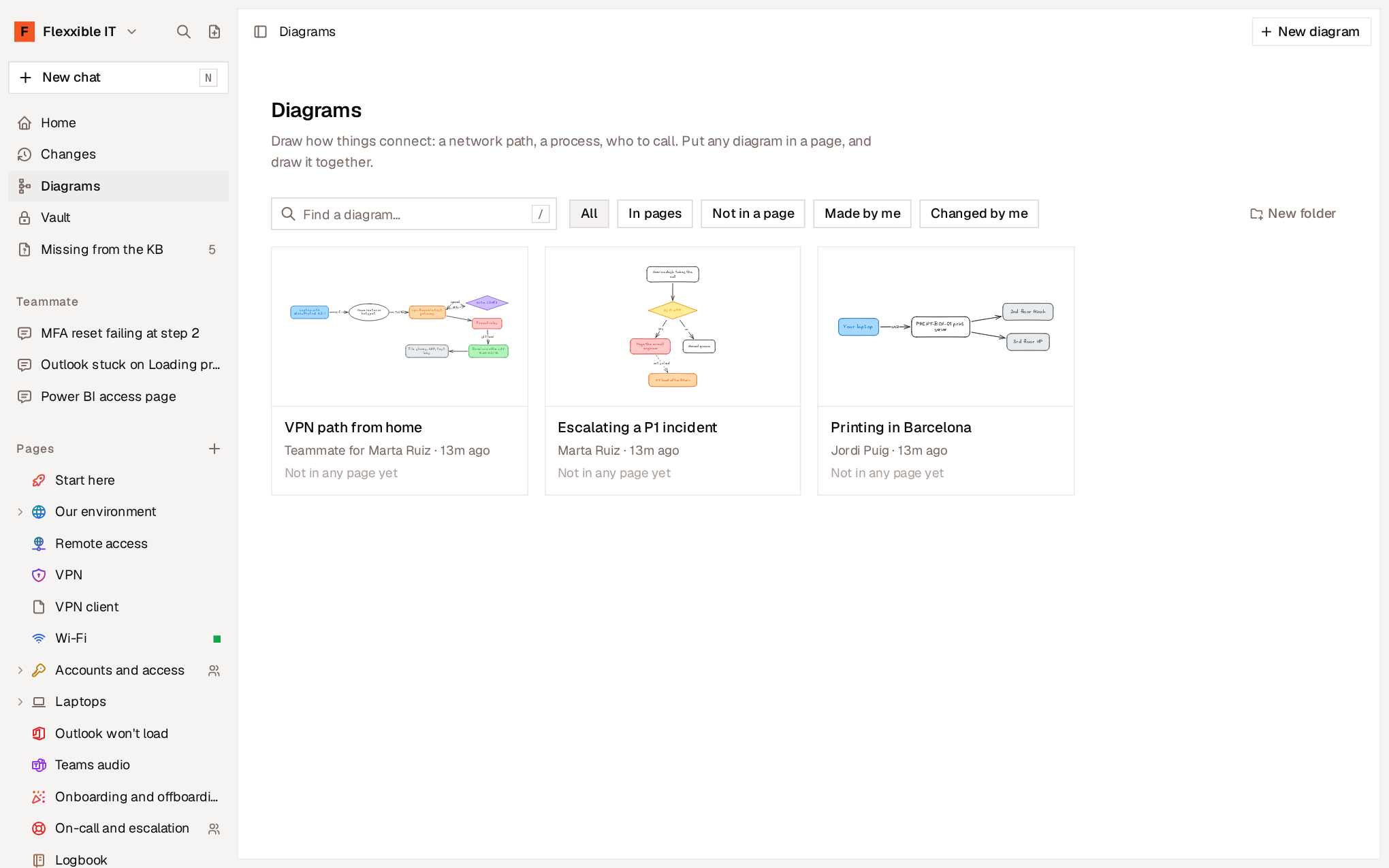
- Search. By title, by the words the diagram contains or by a page it’s in.
- Filters. All, In pages, In no page, Made by me and Changed by me.
- Folders. New folder creates a folder. Drag a diagram into a folder or use Move to… in its menu. The diagram’s address doesn’t change when you move it, and the pages that show it keep showing it.
- Each diagram’s menu. Open, Rename, Duplicate, Move to… and Delete.
Diagrams and agents
Agents also read and draw diagrams. When reading a page, an agent receives a text description of each diagram: its elements and one line for each arrow. That way it can follow a network path or an escalation just as a person would by looking at it. Agents with write permission can create and modify diagrams from a description. Their changes are kept in the diagram’s history.Turn off diagrams
In Settings → Diagrams, Turn on diagrams controls the feature for the whole organization. With diagrams turned off:- Diagrams disappears from the sidebar, the
/menu and the agents’ tools. - Pages keep showing theirs, read-only.
- Nothing is deleted.