

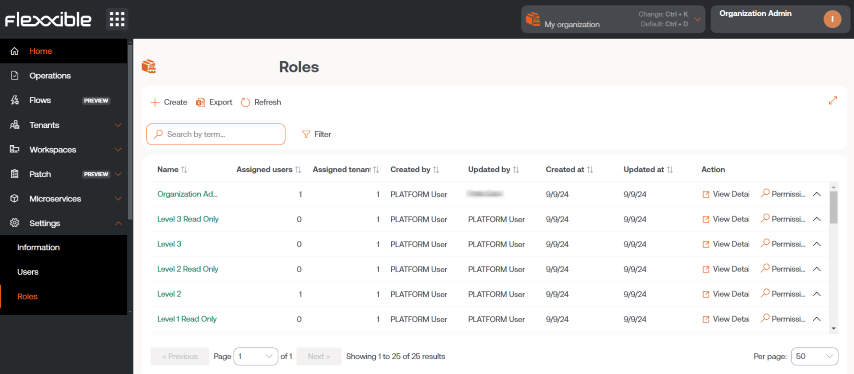
Create a new role
To create a new role, click the New button. A form will open requesting a name for the new role. Once assigned, it will appear in the roles table.Multi-tenant environments
An organization’s roles let you configure access and visibility for the organization’s users, and they also allow you to include permissions to configure access and visibility for dependent organizations. An organization is dependent when:- It is a customer-type organization and the roles and users are in the higher-level partner-type organization.
- It is a sub-organization of a customer organization.
Table information
The roles table shows the following information:- Name. Name assigned to the role.
- Assigned users. Users to whom that role is assigned.
- Assigned tenants. Tenants to which that role is assigned.
- Created by. User who created the role.
- Updated by. User who updated the role’s information.
- Created on. Role creation date.
- Updated on. Role update date.
- Action.: Provides access to View details and to Permissions.
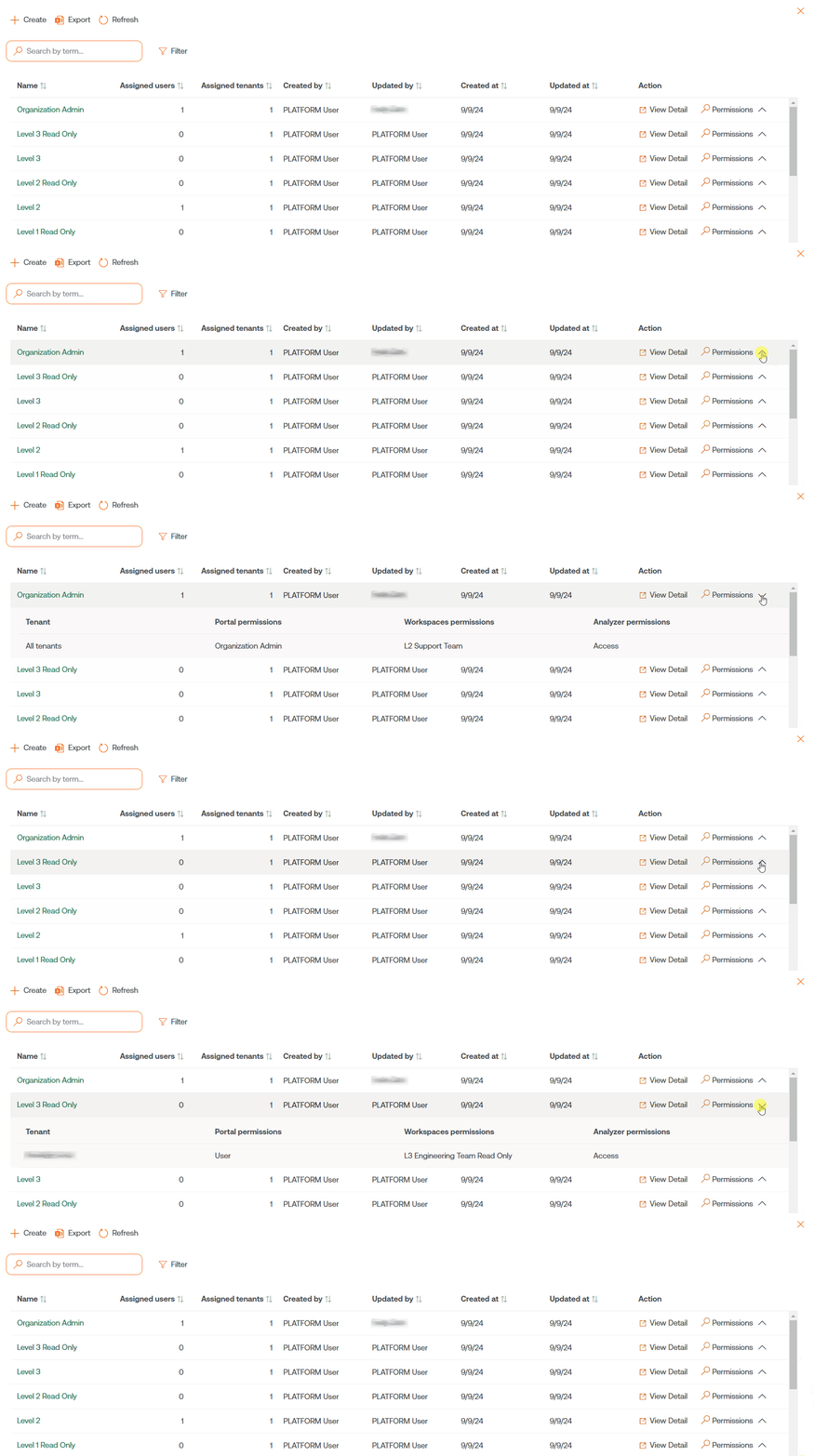
Details view
When you click on an item in the roles table, you go to the details view, which shows the following tabs:- Details
- Permissions
- Users
- API keys
Details
This tab holds additional information about the role: name, number of users and tenants to whom that role has been assigned, creation and update dates, and the user who created it. At the bottom right, the Clone button allows you to copy and reuse the role. Edit provides the option to change the role’s name.Permissions
Through Permissions you can view, create, or edit permissions. In this view, you can configure a single group of permissions for each selectable organization. New lets you create a new permission with the following information:- All tenants
- Tenant
- Permissions
- All reporting groups
- Reporting groups
All tenants
Lets you apply the permissions to all organizations you have access to. In service provider use cases, it allows you to manage permissions centrally and replicate the changes to the managed customer organizations. When a role’s permissions mix permissions applied at the “All tenants” level with organization-specific configurations, which may be different, the more specific permission wins. This way you can create a default configuration for all organizations and override those that require modifications.Tenant
Lets you specify the organization to which permissions are being granted in the role being edited; the All tenants option lets you configure the role’s permissions to apply to all organizations you have access to.Permissions
Lets you select the access level the role will have.All reporting groups
Lets you apply the permissions to all reporting groups you have access to. In service provider use cases, it allows you to manage permissions centrally and replicate the changes to the managed customer organizations.Reporting groups
Lets you apply the permissions to the specified reporting groups; there can be more than one.Users
This table lets you view the users who have the role assigned, and provides the option to perform searches.API keys
Shows a table with the list of API keys created for that role. The fields contain the following information:- Name. Name assigned to the API key.
- Status. Can be Active, Expired, or Revoked.
- Key ID. ID corresponding to the API key.
- Creation date. Date and time the key was created.
- Expiration date. Date and time the key expires.
- Revocation date. If it has been revoked, revocation date and time.
List of roles
The platform distinguishes the following roles:Permission tables by role
Roles let you group different access levels. The detail of the visibility and actions available for each role is defined in the following table:Home
Operations
Audit logs
Flows
Reports
Tenants
Monitor
Workspaces
Updates
Analyzer
Microservices
Billing
Product
Integrations
Webhooks
Modules
Information
Policies
API keys
Reporting groups
Roles
Users
DaaS
- ✅ Has access.
- ❌ Does not have access.
Permission tables for microservices
The user’s role corresponds to the organization where the microservice was created.- ✅ Has access.
- ❌ Does not have access.
Enabled microservices
The user’s role corresponds to the organization where the microservice was enabled.- ✅ Has access.
- ❌ Does not have access.