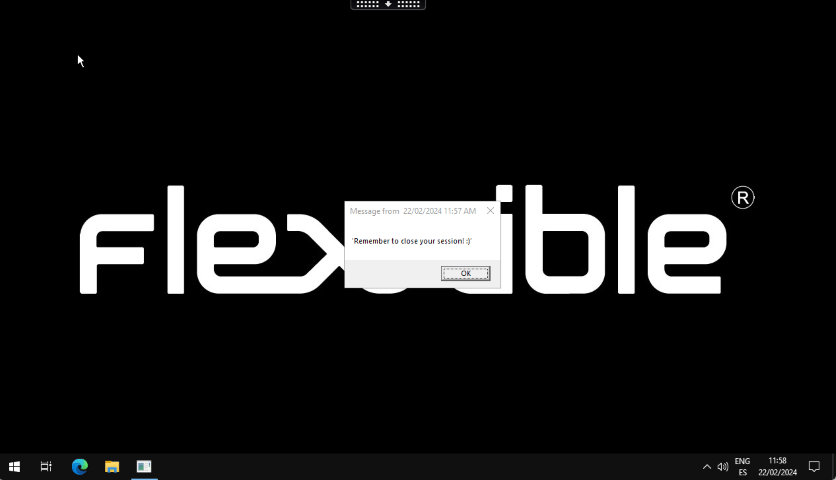
They show the user a window that appears over the interface and can be closed with a single click. They are useful for communicating brief or one-off information without permanently interrupting work.
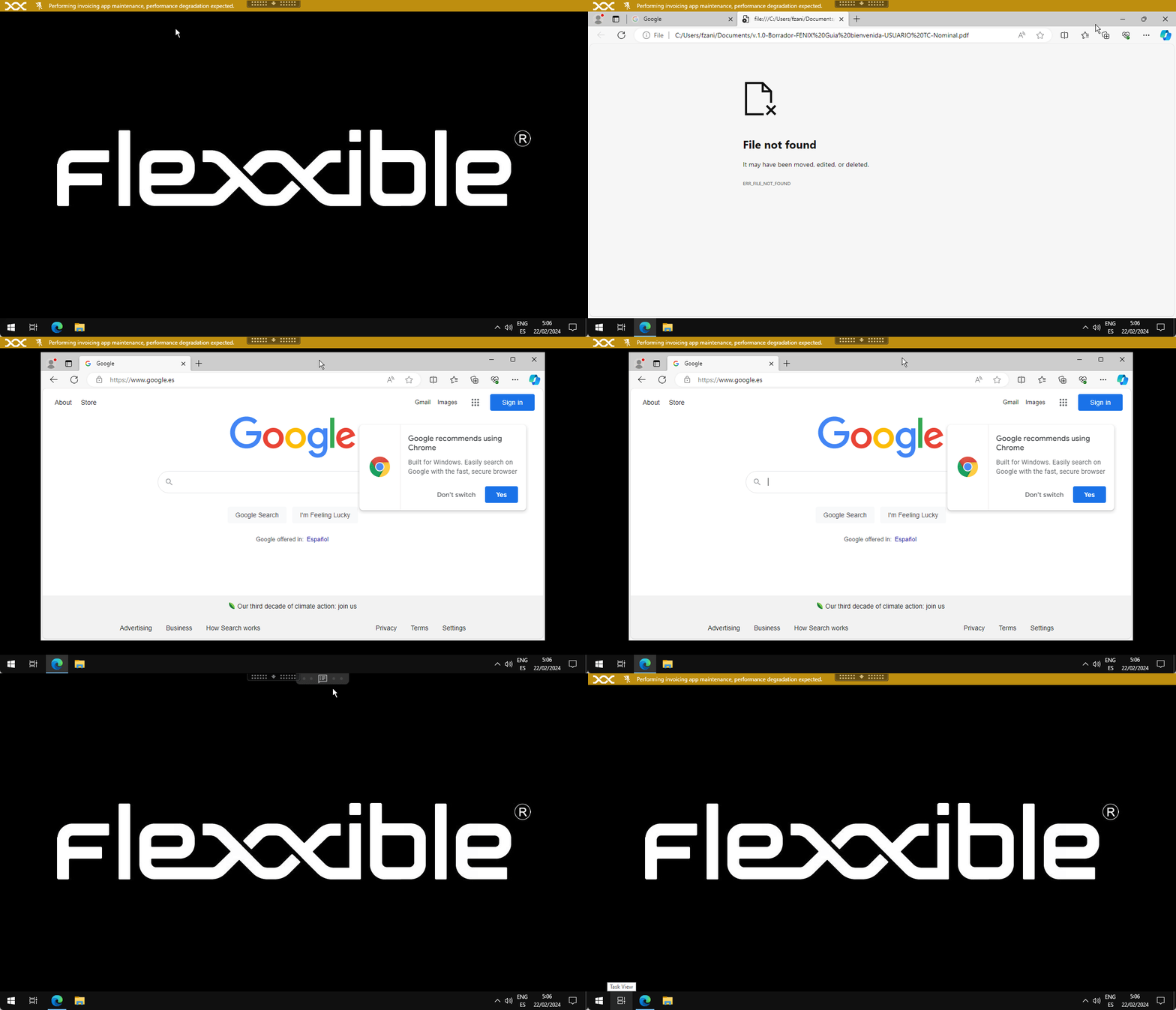
Notifications are designed for critical situations, such as service outages, in which other corporate channels might not be available. Their goal is to ensure that the message reaches users as soon as possible, reducing the risk of overwhelming the support team with simultaneous requests.Notifications have many additional features, aimed at maintaining effective communications and protecting the information transmitted to users.While on screen, notifications reserve that space so that the user can no longer occupy it with their applications. This mechanism ensures that the user has the message visible.Notifications can be configured by time intervals, so that all active and future sessions receive the notification during the defined period.
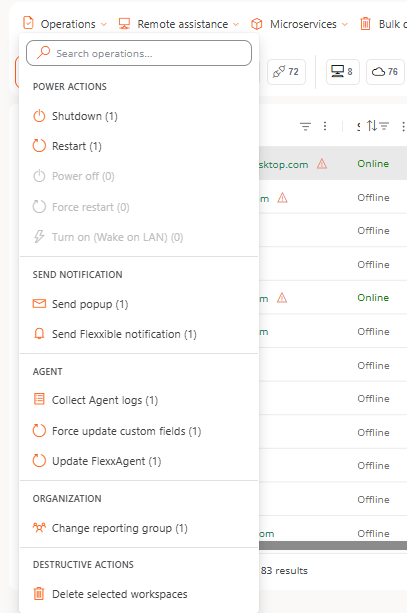
Lets you launch the collection of FlexxAgent log files. Once the operation is complete, the logs will be available in the detail view of the affected devices, in the FlexxAgent logs tab.
This section lets you launch the reporting group operation for the selected devices, allowing you to select any of the existing reporting groups in the current organization.
Device deletion is not immediate. After you request the deletion, it may take a few minutes for the process to complete and for the device to stop appearing in the platform.
Even if you delete a device, if it has FlexxAgent installed and continues to report, the device will reappear in the platform.
Deletion trackingThis operation works similarly to other system operations: each deletion generates one or more entries in the Operations section.If you delete devices from several sub-organizations, a separate operation is generated for each sub-organization.
This button lets you launch the remote assistance types and modes configured for the selected device. This can be a remote assistance in which the user’s consent is required for the support operator to take control of their session, or remote access to a server. The remote assistance can be performed using either of the two options available in Flexxible:
This menu shows all microservices with Enabled status in the current organization, grouped by category. The menu includes search options, and when you select the microservice to run, it asks the user for confirmation.
This operation lets you create a new group or edit an existing one.
Static groups let you select multiple devices and group them. When a device is a member of a static group, it remains in that group until it is manually removed from it. Likewise, new devices can be added to the group through this operation.
This operation lets you create a new group or edit an existing one.
Dynamic groups let you automatically group devices that meet specific filtering conditions and let you search for specific situations, for example “devices that are powered on, with an active user session, that have not updated antivirus signatures in the last 48 hours and have been powered on for more than 48 hours”.To create one, first filter the Workspaces view until you reach the desired set of devices and then create the group using this option.
Dynamic groups are updated automatically every 60 minutes.