

Available actions
A bar with the following actions is shown above the table:- Create. Lets you create a new location (see Create a location).
- Export. Downloads the table content in the available format.
- Reload. Refreshes the table data.
Table information
- Name. Name that identifies the location.
- Address. Postal address of the location.
Location detail
Selecting a location opens its detailed information, organized into the following tabs: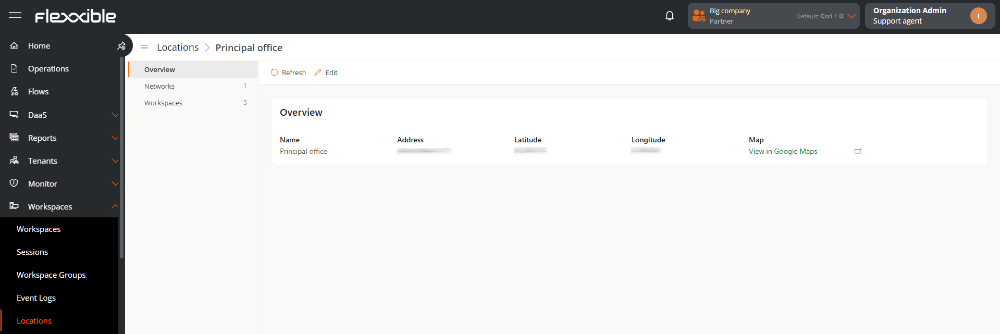
Overview
At the top of this tab, a bar with the Reload and Edit actions is shown. Shows the general and geographic data of the location.- Name. Name that identifies the location.
- Address. Postal address of the location.
- Latitude. Latitude coordinate that determines its geographic position.
- Longitude. Longitude coordinate that determines its geographic position.
- Map. Opens Google Maps in a new tab and shows the position defined by the location’s coordinates.
Networks
Shows the networks identified by FlexxAgent that are linked to the location. A bar with the following actions is shown above the table:- Link / Unlink. Lets you add or remove networks from the location.
- Export. Downloads the table content in the available format.
- Reload. Refreshes the table data.
- Name. Name that identifies the network. It is clickable and redirects to its detail view in Networks.
- CIDR. IP address range of the network, expressed in CIDR notation.
- Public IP. Public IP address from which the Internet connection is established.
- Gateway. IP address of the device that enables communication between the network and other networks.
- VLAN. Identifier of the virtual local area network (VLAN), if available.
Workspaces
Shows the devices connected to the networks linked to the location. A bar with the following actions is shown above the table:- Export. Downloads the table content in the available format.
- Reload. Refreshes the table data.
- Name. Name that identifies the device. It is clickable and redirects to its detail view in Workspaces.
- Current subnet. Subnet the device is connected to.
- Public IP. Public IP address detected for the device’s connection.
- Current machine IP. IP address assigned to the device on the local network.
- Network. Network where the device is located.
- Network changed. Date and time when the device’s last network change was detected.
Create a location
To create a location:- Go to Workspaces → Locations.
- Click Create.
- Fill in the requested fields.
- Click Save.