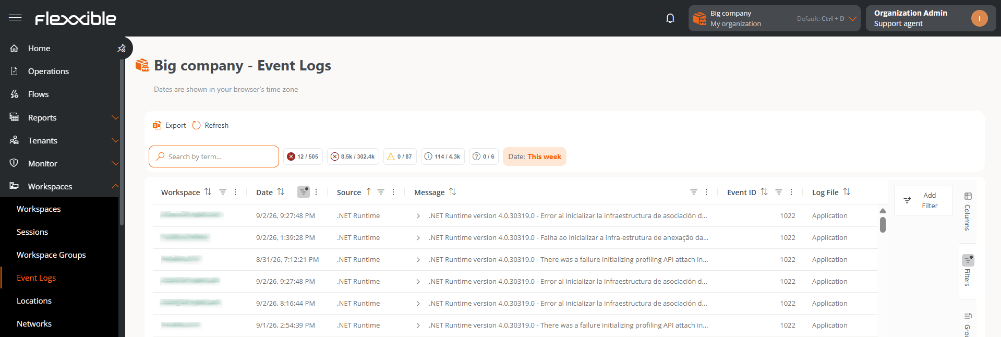
Dates are shown according to the time zone configured in the browser.
Table information
The table shows the events collected on the organization’s devices and provides the following information:- Workspace. Device on which the event occurred. It is clickable and redirects to its detail view in Workspaces.
- Date. Date and time when the event occurred.
- Source. Component, service, or application that generated the event.
- Message. Information recorded by the event; it can be expanded to see the details.
- Event ID. Code that identifies the generated event.
- Log file. Log where the event is stored.
- Event type. Classification of the event according to its nature or severity: Critical, Error, Warning, Information, or Unknown.
Available actions
A bar with the following actions is shown above the table:- Export. Downloads the table content in the available format.
- Reload. Refreshes the table data.
Quick filters
Several quick filters are shown above the table, represented by icons, one for each event type (for example, Critical, Error, Information, Unknown). When you hover over each one, it shows the number of events of that type that match the applied filters and the historical total (for example, “Critical · 5 / 14.552”). You can select one or more filters to narrow down the results shown in the table.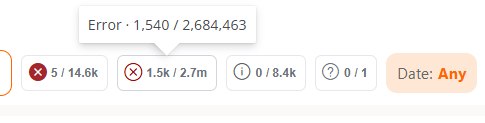
Table customization
Columns
The Columns tab lets you customize the information shown in the table. By default, Workspace, Date, Source, Message, Event ID, Log file, and Event type are shown.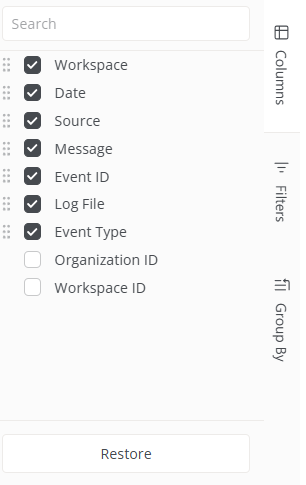
- Organization ID
- Workspace ID
Filters
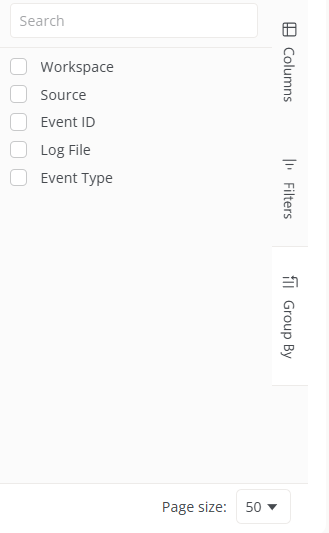
The Filters tab lets you reduce the number of results shown in the table by selecting a column (Workspace, Source, Event ID, Log file, or Event type) and one or more values.