Windows (Cross-Platform)
FlexxAgent Cross-Platform is designed to facilitate the management, monitoring, and operation of devices in Windows environments. Its architecture allows all necessary components for its operation to be integrated into a single executable, eliminating the need to install external dependencies or additional software.
This approach significantly simplifies installation, massive deployment, and maintenance processes, especially in large-scale managed infrastructures. It also reduces operational complexity associated with managing the agent, facilitates updates, and minimizes possible incidents arising from incompatibilities or operating system prerequisites.
Compatibility and supported versions
The agent is compatible with Windows operating systems that are currently within Microsoft's official support cycle:
- Microsoft Windows 10 or later
- Microsoft Windows Server 2016 or later
It works on 64-bit Windows operating systems. Installation on 32-bit systems is not possible.
Service Architecture
FlexxAgent Cross-Platform is distributed as a single executable. During the installation process, the agent is configured to run automatically at both system and user session levels.
This simplified architecture allows for more efficient service management, facilitates issue diagnosis, and reduces the operational load associated with its operation.
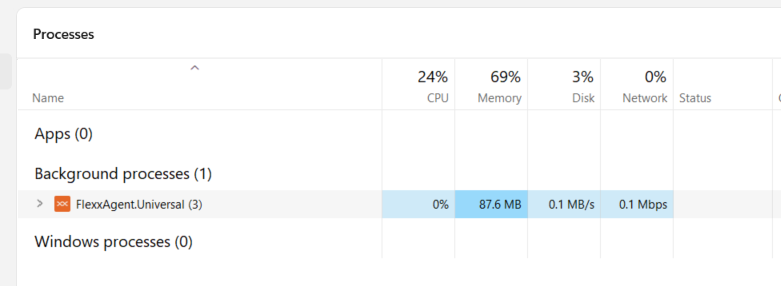
Resource consumption
The agent is optimized to minimize the impact on system performance. Approximate consumption values are as follows:
- **Disk space used: < 300 MB
- **CPU: < 0.5 %
- **RAM: 90-170 MB
Download from Portal
To perform the installation, click on the Download FlexxAgent button, available at the bottom of Portal's sidebar menu.
Next:
-
Select a report group from the respective dropdown menu.
-
Download the license/configuration file (
.conf) and the installer for Windows. Make sure the operating system doesn't block the files after downloading; if necessary, manually unblock them before proceeding with the installation.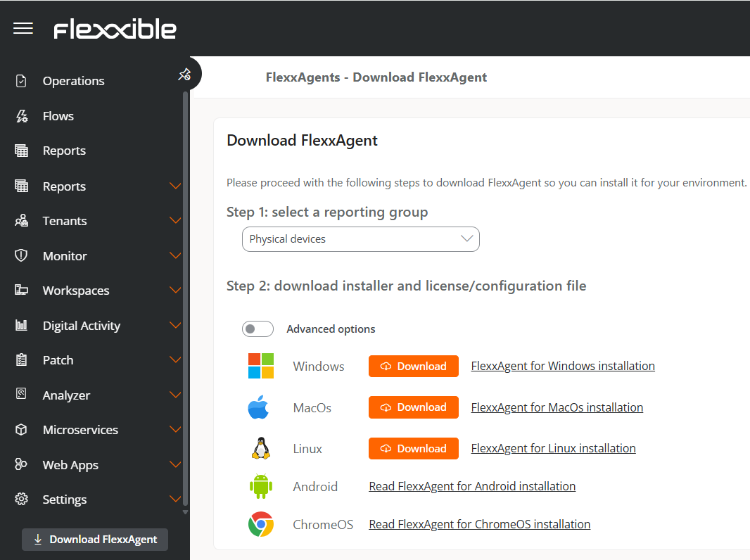
Available installer types
Advanced options allow you to select the type of installer to download:
-
.exe(recommended option): installation with graphic interface or unattended. -
.msi: unattended installation.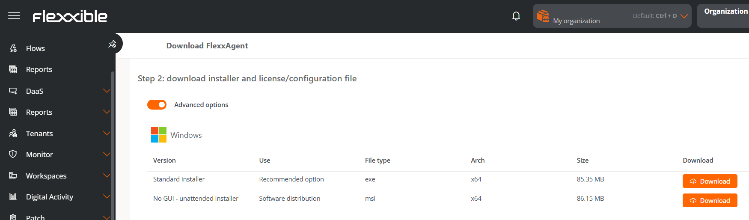
Installation with graphic interface
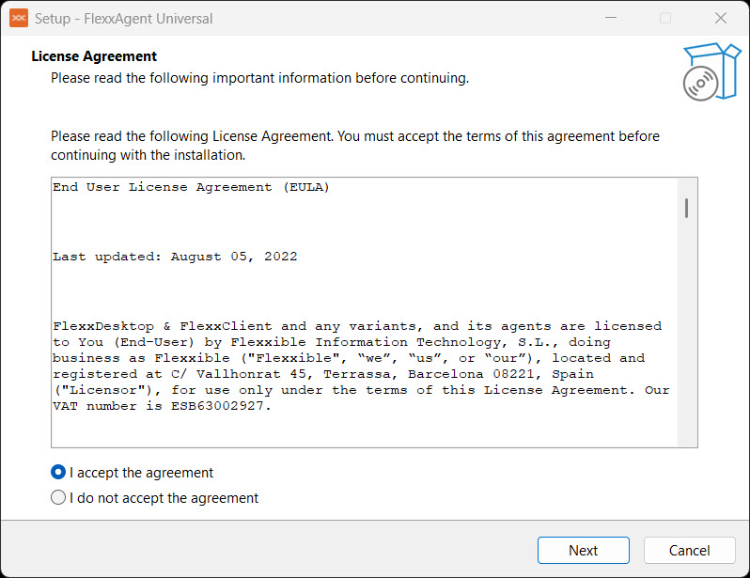
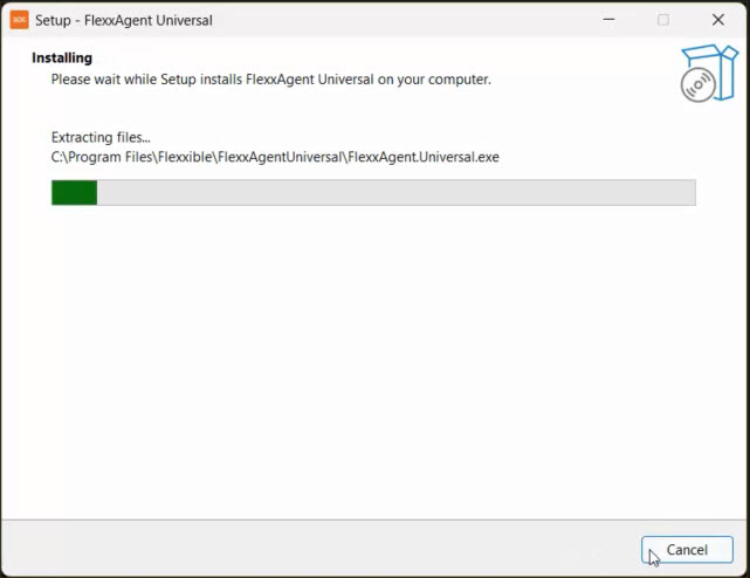
To install FlexxAgent Cross-Platform via graphical interface, double-click on the .exe file downloaded from Portal and follow the assistant steps:
-
Read and accept the product's license agreement.
-
Provide the
.conffile downloaded from Portal to configure connectivity and agent preferences.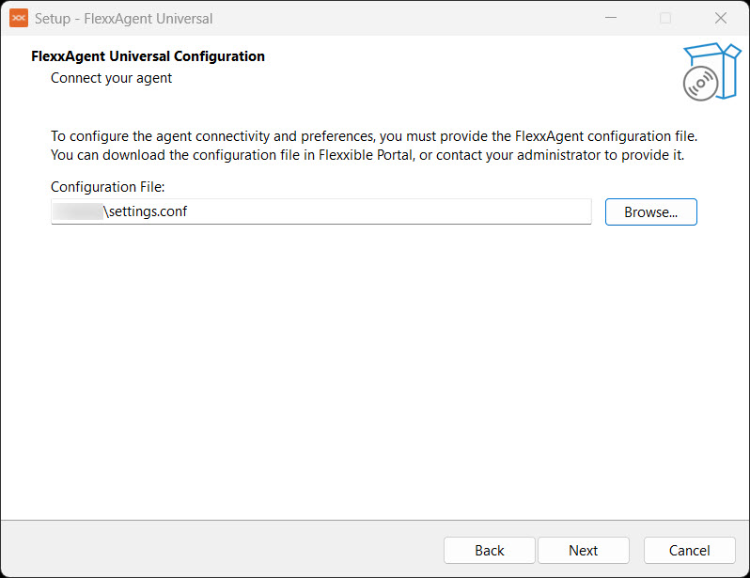
-
Start the installation by clicking on
Install.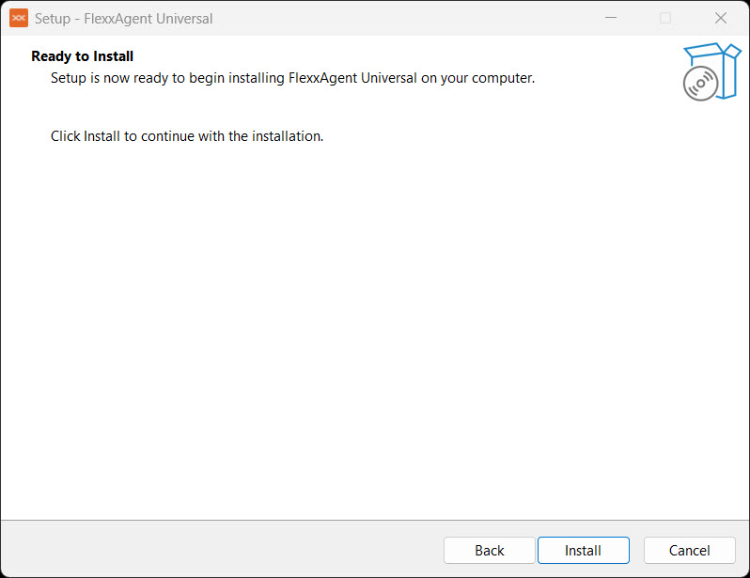
Unattended installation
FlexxAgent Cross-Platform supports unattended deployment using files downloaded from Portal:
.exeor.msiinstaller.confconfiguration file
Parameters available for EXE
| Parameter | Type | Caption |
|---|---|---|
| /AgentConfig | [string] | Mandatory parameter for unattended installation. In graphic interface installations, the configuration value will be requested. If you want to reuse a previous configuration, you should indicate /UsePrevConfig=True. |
| /UsePrevConfig | [bool] | Optional parameter. When set to True, the installer will attempt to use the previous configuration, and the /AgentConfig parameter will not be necessary. |
| /SendTelemetry | [bool] | Optional parameter. Default value: False |
Example
.\FlexxAgent.Installer.exe /verysilent /AgentConfig="C:\Path\To\Settings\settings.conf"
Parameters available for MSI
| Parameter | Type | Caption |
|---|---|---|
| AGENT_CONFIG | [string] | Mandatory parameter. It's the configuration file path, it has to be the absolute path, not the relative one. If you want to reuse a previous configuration, you should indicate USE_PREV_CONFIG=True. |
| USE_PREV_CONFIG | [bool] | Optional parameter. When set to True, the installer will attempt to use the previous configuration, and the AGENT_CONFIG parameter will not be necessary. |
| SEND_TELEMETRY | [bool] | Optional parameter. Default value: False |
| /qn | [string] | Mandatory parameter. Indicates to execute as silent installation. |
| /i | [string] | Mandatory parameter. Indicates to install the MSI package. |
Example
msiexec /qn /i "C:\Path\To\Installer\FlexxAgent.Installer.msi" AGENT_CONFIG="C:\Path\To\Settings\settings.conf"
Uninstall
Uninstallation can be manually performed from the device's Control Panel. For unattended uninstallations, the following methods can be used:
- MSI
msiexec /qn /passive /x "{6F330B47-2577-43AD-9095-18614A74D82F}"
- EXE
C:\Program Files\Flexxible\FlexxAgentUniversal\unins000.exe /verysilent [/log="mi_fichero_de_log"]
Connectivity test
To verify agent connectivity, the user must have administrator permissions.
Steps to execute connectivity test
-
Access the installation folder:
%programfiles%\Flexxible\FlexxAgentUniversal\. -
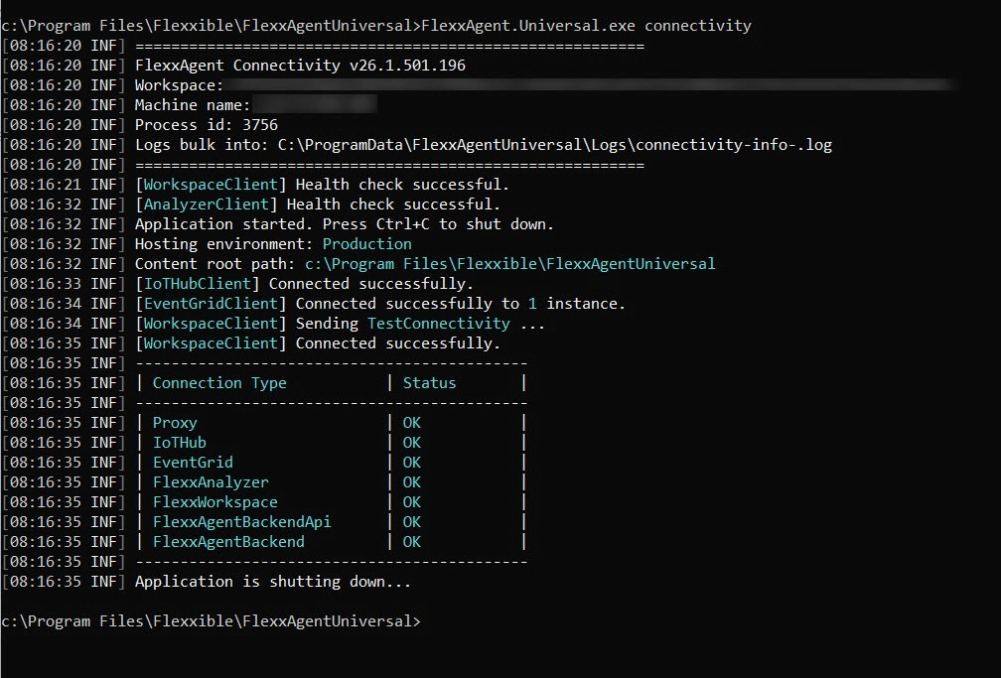
Run the command:
FlexxAgent.Universal.exe connectivity -
The system will display diagnostic information similar to what's shown in the following image:
Proxy Configuration
Proxy configuration must be done before installation by modifying the configuration file downloaded from Portal. For this, add a line in the [Agent/Network] section of the file with the following format:
Unauthenticated proxy
proxy = http://proxy_uri:port- Example:
proxy = http://192.168.0.100:443
Authenticated proxy
proxy = http://user:password@proxy_uri:port- Example:
proxy = http://proxy_user:[email protected]:443
Logs
FlexxAgent Cross-Platform generates activity logs that allow for diagnostic tasks, auditing, and incident resolution related to the installation and execution of the agent.
Logs can be consulted both from Portal and directly from the device, facilitating problem analysis even when the device has no connectivity with the platform.
FlexxAgent logs
Agent logs are available in the workspace detail view.
To access them:
- Go to
Portal->Workspaces->Workspaces. - Select the corresponding device in the table.
- In the sidebar menu, click on
FlexxAgent Logs.
This section shows the log files generated by the agent and collected from the device.
Information available in the log table
The log table includes the following information:
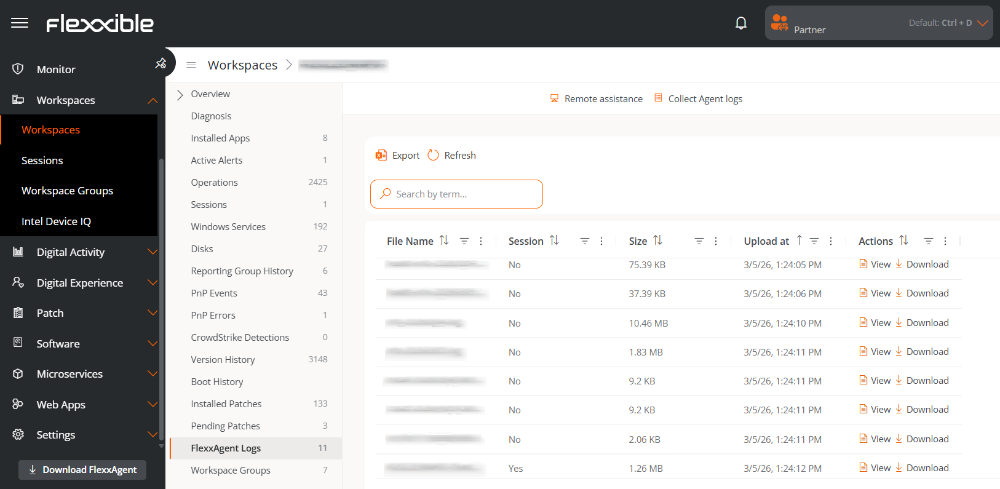
- File name. Name of the file generated by FlexxAgent Cross-Platform.
- Session. Identifier of the installation or execution session to which the log belongs.
- Size. Size of the log file.
- Uploaded on. Date and time when the log was uploaded to Portal.
- Actions. Operations available on the log file.
-
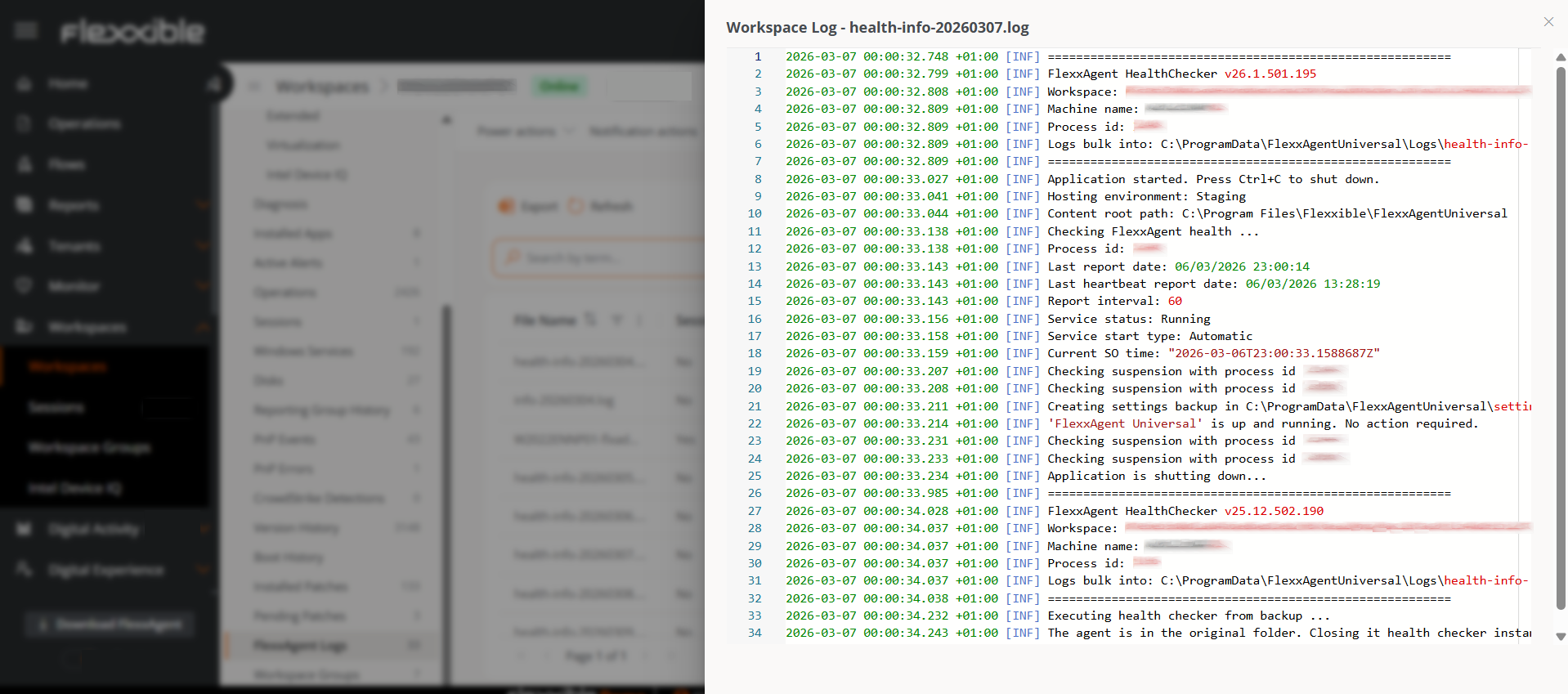
View. Displays the agent log content.
-
Download. Allows downloading the log file for local analysis.
-
Event Log Recollection
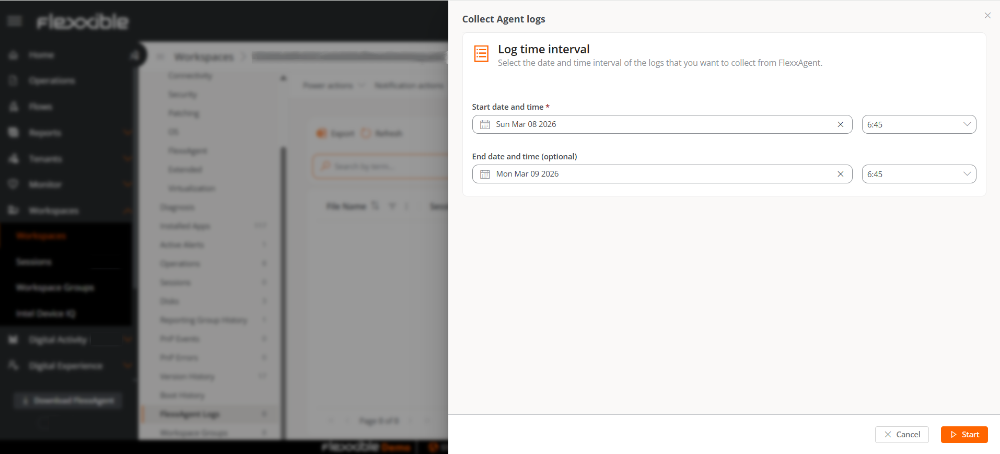
The Collect agent logs button, located at the top of the table, allows requesting the collection of logs from the device during the time interval for which logs are desired.
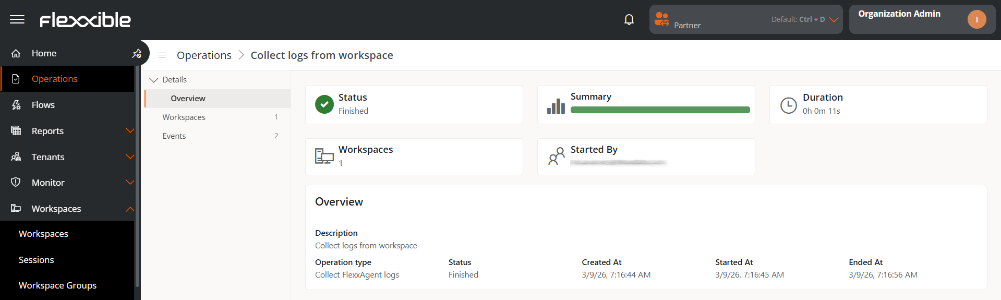
The collection generates an operation that can be monitored from the Operations section of Portal.
Log retention
FlexxAgent Cross-Platform stores logs locally on the device for a maximum period of five days. After this time, old files are automatically deleted.
Device location
In addition to viewing from Portal, logs can be viewed directly on the system where the agent is installed.
| Log type | Path | Caption |
|---|---|---|
| Installation logs | %systemroot%\Temp\FlexxibleIT\FlexxAgentUniversal\Installer | They contain information generated during the agent installation or update process. |
| System agent logs | C:\ProgramData\FlexxAgentUniversal\Logs | They collect the activity of the main service running at the system level. |
| Session agent logs | %localappdata%\FlexxAgentUniversal\Logs | They include events related to the agent's execution within the user session. |
Uninstallation Protection
This functionality prevents a user from uninstalling the agent. The configuration can be applied at the Product or Reporting Group level and can only be performed by a user with the Organization Administrator role.
This functionality is disabled by default.
Configuration at Product Level
- Go to
Portal->Settings->Organization. - In the menu, select the
Productstab. - In the table, choose the environment where you want to execute the functionality, and in the
Actionfield click onAgent Settings. - In the form, enable or disable the
Uninstallation Protectionbutton. - Click on
Save.
Configuration at Reporting Groups Level
The feature can be executed on one or several reporting groups.
Enable protection for a reporting group
- Go to
Portal->Settings->Reporting Groups. - In the table, choose the reporting group where you want to execute the functionality, and in the
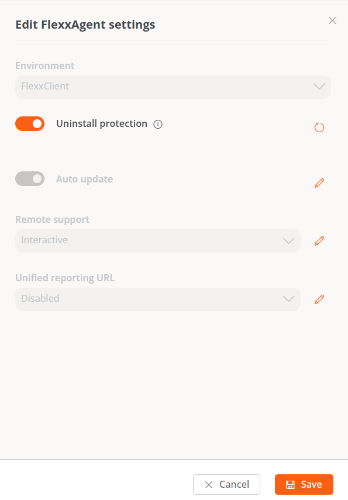
Actionfield click onAgent Settings. - In the form, edit the
Uninstallation Protectionfunctionality (pencil-shaped button) to choose between enabling or disabling it. - Click on
Save.
Report groups inherit settings made at the Product level; however, they can override their own settings.
Enable protection for multiple reporting groups
- Go to
Portal->Settings->Reporting Groups. - In the table, select the reporting groups where you want to execute the functionality.
- Click on
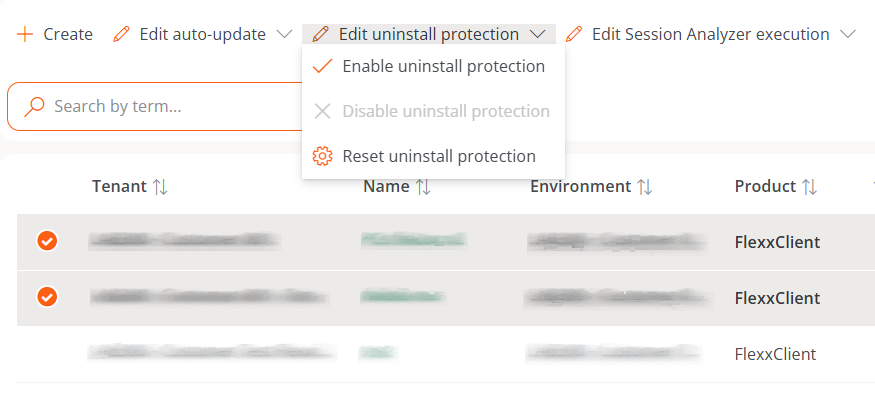
Edit uninstallation protection. Three options will be displayed:
- Enable uninstallation protection: protects the reporting groups against the uninstallation of the agent (this option will not be available if the feature is already enabled at the Product level).
- Disable uninstallation protection: allows users to uninstall the agent (this option will not be available if the feature is already disabled at the Product level).
- Reset uninstallation protection. Applies the configuration that the Product has to which the report group belongs, whether enabled or disabled.
A device will have FlexxAgent Uninstallation Protection enabled in the following cases:
- The feature is enabled in the reporting group to which it belongs.
- The feature is deactivated in the reporting group (it is neither enabled nor disabled), but it is enabled at the Product level.
Ways to uninstall the agent with protection enabled
If a user has the functionality enabled but needs to uninstall the agent, they will have two options:
- Move the device to a reporting group that does not have protection enabled.
- Via a token:
- Go to
Portal->Workspacesand select the device. - Execute the action
Reveal uninstall tokenwhich will display a unique token for that device valid until 23:59:59 UTC the next day. - Go to the Windows Control Panel and uninstall FlexxAgent by entering the token.

Before managing the uninstallation of the agent through tools like Intune or custom scripts, desired devices must be moved to a reporting group that does not have protection enabled.
Flexxible recommends having a reporting group with Uninstallation Protection disabled to facilitate uninstallation tasks on devices.
FlexxAgent Health Status
The FlexxAgent Health Status process runs periodically (every hour) to evaluate if the agent is functioning correctly. For this, it checks its heartbeat and analyzes various internal metrics that allow determining whether it is operating adequately or if a recovery process is necessary.
During this evaluation, external factors that might affect the agent's communication, such as:
- The device's connectivity at that time (it may or may not have WiFi or Ethernet connection).
- The interference of a firewall or proxy in the communication.
On the contrary, the following aspects are considered:
- That the service is running.
- That the service is not disabled; if it is, it is interpreted that an administrator has decided to take this action.
Verification of the self-repair process
The agent's self-repair can be verified in the following ways:
- Via the
Last auto repaircolumn:
- Access the
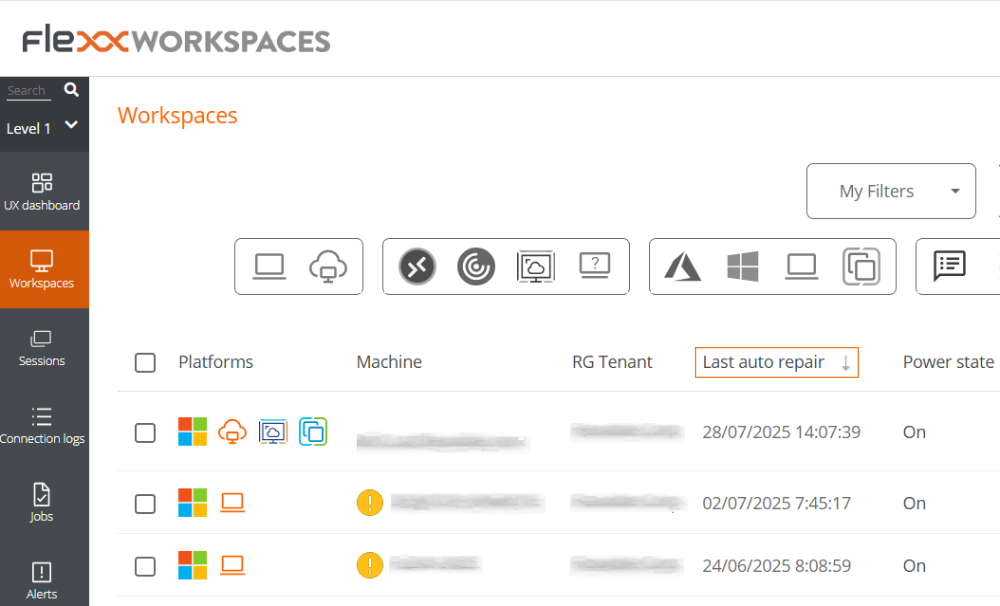
Workspaces->Level 1->Workspacesmodule. - In the table, check the
Last auto repaircolumn. If it's not visible, use the Column Selector to add it.
- Reviewing the agent's logs:
- Verify the agent's log folder and look for files starting with
health-info-, which are generated by the FlexxAgent Health Status process.
Information obtained from the device
FlexxAgent collects data locally from the device and sends it to the service consoles.
General information
- Name. Device Name.
- Device Status. Device power state. It can be On, Off, or Not reporting.
- Summary status. If the device status is Off, it can indicate if it is Under maintenance or just Off. If the device status is Unreported, it can indicate if the reason is Unknown.
- FlexxAgent Version. Version number of FlexxAgent installed on the device.
- FlexxAgent Status. Running or Stopped.
- Last FlexxAgent report. Date and time of the last FlexxAgent report on the device. This date might not be recent if the FlexxAgent service is stopped or the device is off.
- Connection Type. Indicates if the device is connected via Wireless LAN, Mobile Network, Ethernet, or Unknown.
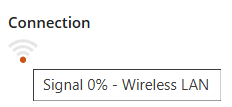
When the connection is made via a wireless LAN network, a message may appear indicating that the device has a 0% signal or that FlexxAgent is not sending reports. This occurs because the Windows location service is disabled on the device. Please check this link to learn how to enable it.
- Network. Network addressing of the device and public IP for internet access. These networks are created automatically when more than four devices are connected to the same network.
- Subnet. Device's network addressing.
- MAC Address. Unique identifier of the device's network card.
- Network Changed. Date and time of the last network change.
- Sessions. Number of user sessions established on the device.
- Last User. Last user logged into the device in domain\account format.
- Connected From. When the selected device is a VDI or similar, shows the device name from which the virtual device is accessed.
- Connection Time. Date and time when the session started.
- Domain. Domain to which the device belongs.
- Code. Lets identify the device with a personal code. This code must be manually filled in individually using the Edit option in the Operations menu of the workspace details.
- OU. Organizational unit of the domain where the device account resides.
- Description. Allows the user to identify the device with a personal description. This field must be assigned manually and individually using the Edit option in the Operations menu of the device details.
Extended Info
- RAM. Total amount of available RAM.
- Cores. Number of processor cores.
- IP Address. Device's IP address on the local network.
- OS. Type of operating system.
- Operating System. OS version.
- OS Build. Operating system build number.
- Uptime. Time the device has been running since the last boot or reboot. If fastboot is enabled, the device is only off when it is restarted.
- Idle time. Indicates the time elapsed since the last input event was received in the FlexxAgent user session. Shows 0 if the user is effectively using any input device connected to the device.
- Last Windows update. Date of the last updates applied on the device.
- Last boot duration. Duration of the boot of the last start.
- Pending reboot. Shows whether the device requires a reboot for updates.
- Type of Windows. Type of Windows operating system: Client or Server.
- System disk. Amount of free disk space relative to the total capacity.
- ISP Public IP. The ISP is obtained using the public IP. It might not be accurate if connected to a corporate network or using a VPN.
- Region. Obtained using the public IP. It might not be accurate if connected to a corporate network or using a VPN.
- Broker type. If detected, shows the session broker used.
- Hypervisor. If virtualization is detected, shows the hypervisor used.
- Delivery group. For VDIs, shows the delivery group to which the device belongs.
- Subscription / Broker. Microsoft Azure or Citrix service that manages user connections to the device.
- Registration status. Indicates the status of the virtual device registration.
- Maintenance mode. Indicates if the maintenance mode of the virtual device is On or Off.
- Virtual machine type. Indicates the type of virtual device.
- Session Analyzer. Indicates whether or not it's configured to launch session Analyzer in all user sessions.
- Session Analyzer Version. Version number of Session Analyzer.
- Report Group. Reporting group to which the device belongs.
- BIOS manufacturer. Name of the device's firmware manufacturer.
- BIOS version. Version of the device's firmware.
- SMBIOS version. Version of the System Management BIOS of the device.
- BIOS serial number. Unique number assigned to the device by its manufacturer. Available only if the manufacturer decided the device needed one.
- Google Chrome version. Build number of Google Chrome, if installed.
- Microsoft Edge version. Build number of Microsoft Edge, if installed.
Information in tabs
FlexxAgent groups information about the following aspects of the device:
Sessions
Displays a table with the log of user sessions established on the device and timely information about the session type, connection status, or start date.
Performance
Displays graphs of the device's main performance counters, based on data collected over the last two hours. The following are included:
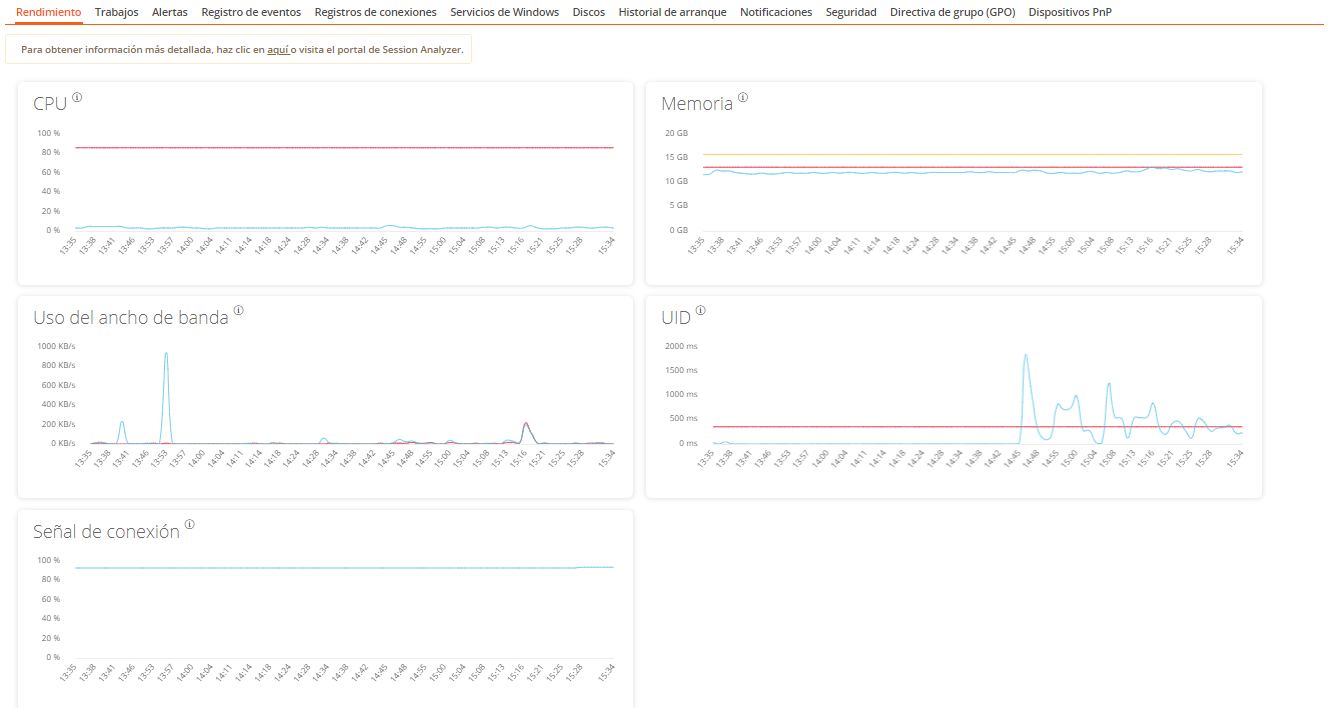
- CPU. Percentage of processor usage
- Memory. Amount of memory used and available
- Bandwidth usage. Amount of incoming and outgoing traffic
- UID. User input delay. Refers to the time lapse between the moment a user performs an action, such as clicking a mouse button or pressing a key, and the moment the corresponding response is displayed on the screen or executed.
- Connection signal. Percentage of signal reception when the device connects using a wireless method.
At the top, a link grants access to the Analyzer module.
Job
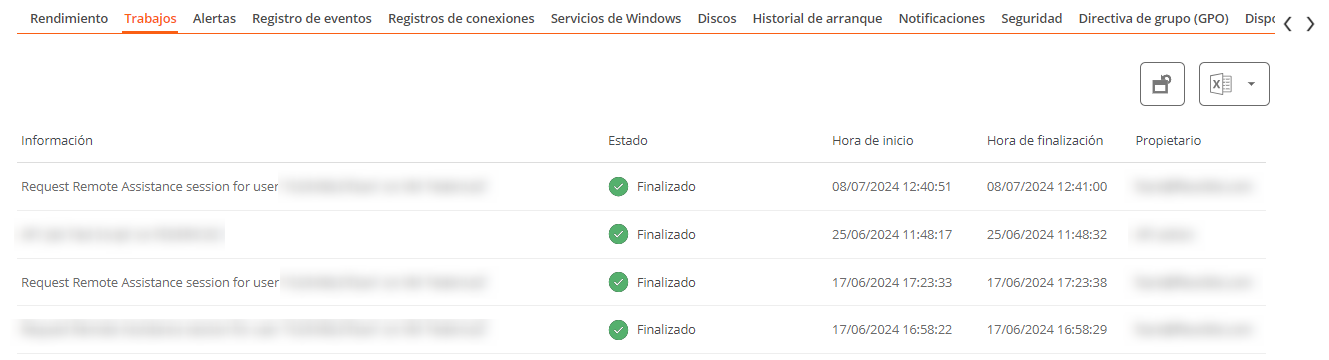
All actions performed from the Workspaces module on one or more devices are audited in the Jobs queue. This tab allows you to check the work done for the active device.
Alert
Presents a table with the list of all active alerts on the device. When an alert is logged, a notice is displayed at the top of the page.

Event Logs
Information about the events present on the device. By default, errors are filtered and only those with severity level Error or Critical are shown. FlexxAgent obtains this information in 10-minute intervals.
The available settings allow you to modify the sampling time or include events by their ID.
Connection Log
Presents a list of the connections established with the device, including each instance where a user logs in or reconnects a previously disconnected session.
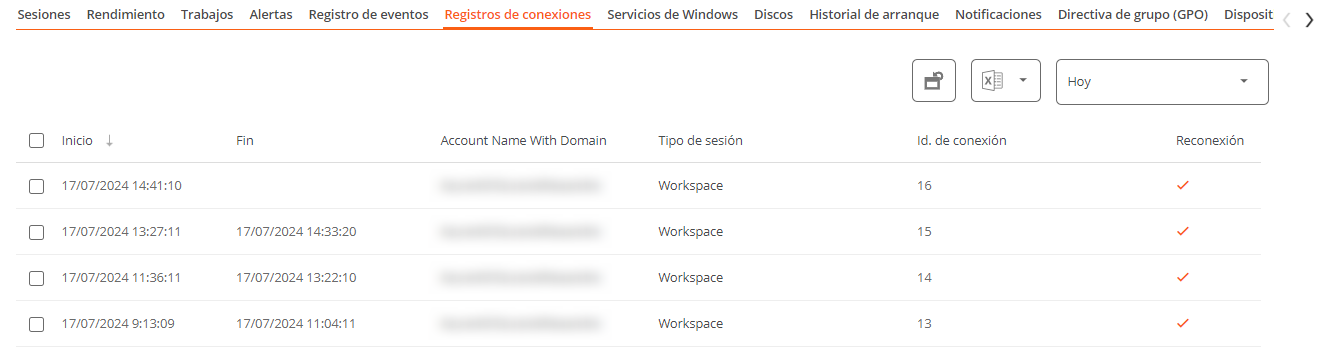
The session end date is recorded only for sessions that have been disconnected or closed. While the session remains active, this field will remain empty.
Windows services
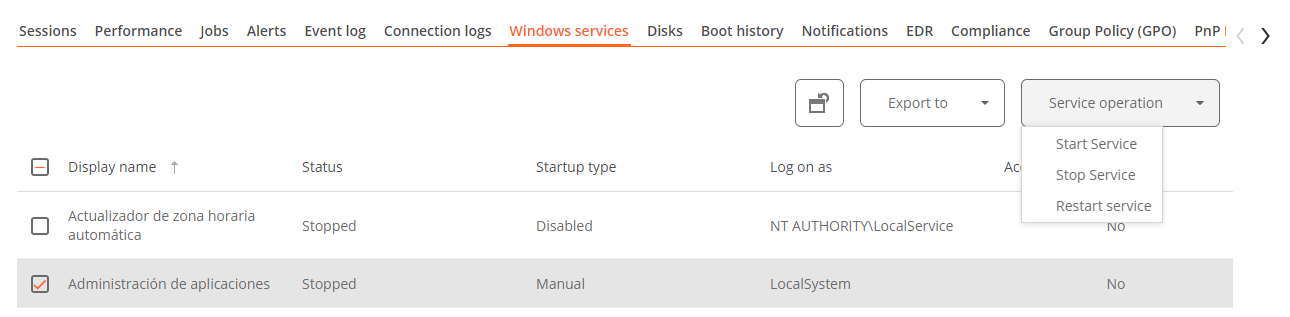
This option displays the status of services and performs start, restart, or stop operations on Windows services.
Disks
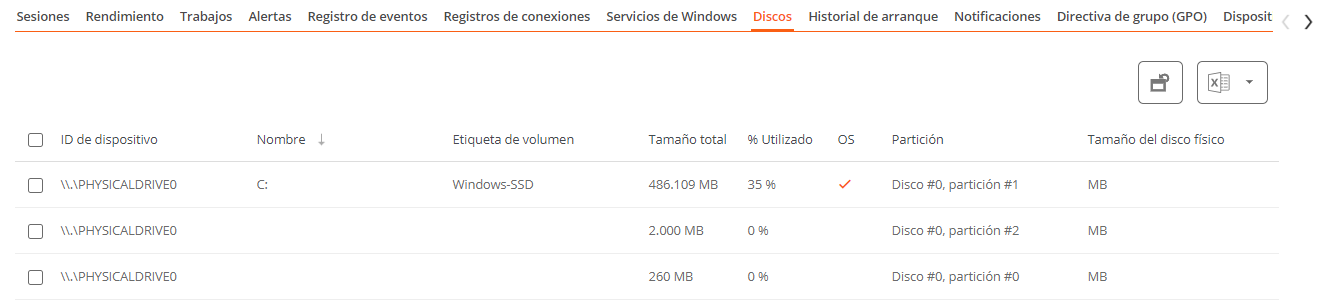
Displays a list of all partitions present on the disks identified in the system, as well as statistics of their capacity and occupancy levels.
Boot history
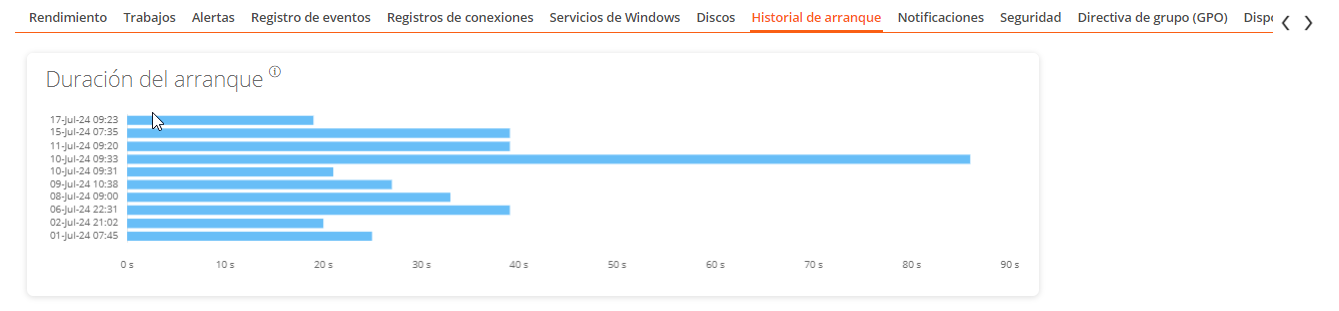
Displays a graph showing the duration of the last ten boots of the device.
Notifications
Allows you to see if the device has any active notification. When there is one, a message is displayed at the top of the page.

Security
From this section, you can view information about the installed antivirus, as well as graphs on RAM and CPU usage.
- Antivirus. Name of the antivirus solution installed or integrated into the system. If more than one is detected, Multiple is indicated.
- Antivirus version. Installed version number.
- Antivirus status. Operational state of the solution.
Antivirus detection is automatic only on the Windows Client operating system (Windows 7 or later). On Windows Server, only Bitdefender and Windows Defender will be detected, and these will be the only ones to show RAM and CPU usage.
If FlexxAgent detects CrowdStrike as the Endpoint Detection and Response (EDR) solution, the same information fields will be displayed:
- Endpoint Detection and Response (EDR). Name of the endpoint security solution; in this case, CrowdStrike.
- CrowdStrike version. Installed version number.
- CrowdStrike status. Operational status of the solution.
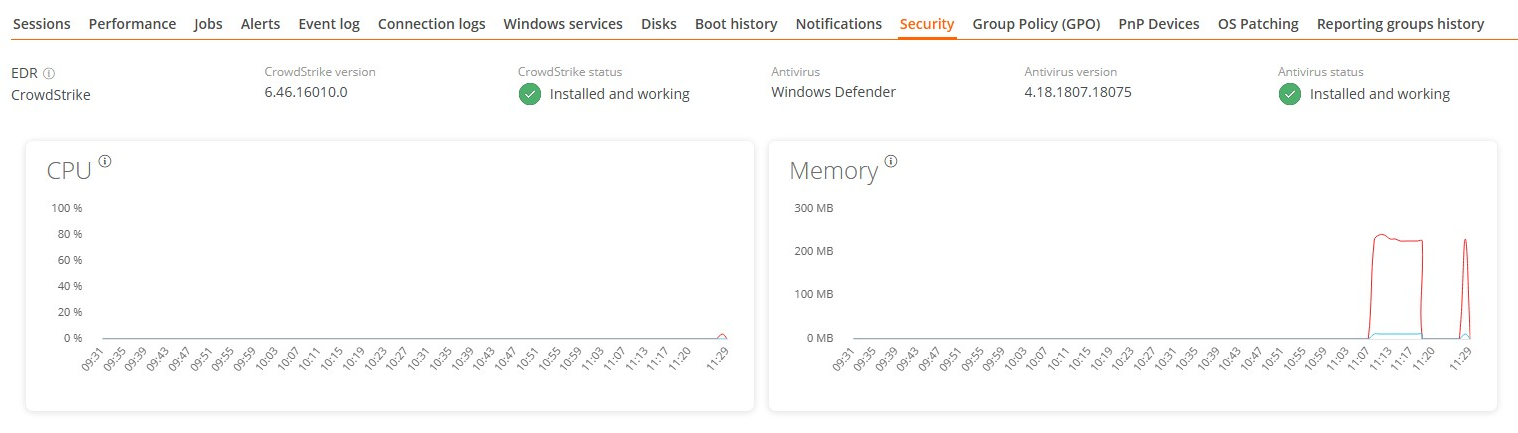
FlexxAgent synchronizes CrowdStrike alerts every minute.
If CrowdStrike integration has additionally been performed from Portal, a table with information on the detections will be displayed, including the following fields:
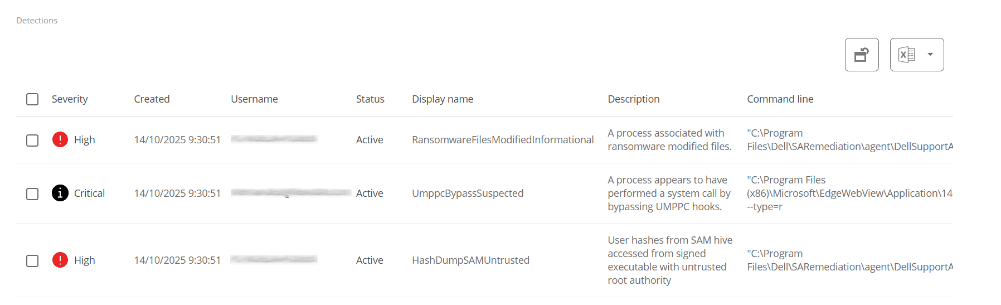
- Severity. Criticality level assigned to the detection according to the potential impact or risk of the threat.
- Created. Date and time the detection was generated in the system.
- Username. User associated with the activity or process that triggered the detection.
- Status. Current status of the detection.
- Display Name. Descriptive name assigned to the detection, summarizing the type of threat or behavior identified.
- Description. Expanded information about the detection.
- Command line. Command or instruction executed on the appliance related to or that generated the detection.
Compliance
Allows viewing the status of the compliance policy configured for the active device. To update this field on demand, click on Operations -> Enforce compliance.

Group Policy (GPO)
Displays information about the group policies applied on the active device. Allows you to see the names of the policies as well as the verification time.
PnP Devices
Displays Plug and Play (PnP) devices that are in an error state, which may be due to hardware failures or incorrect driver or device configuration.
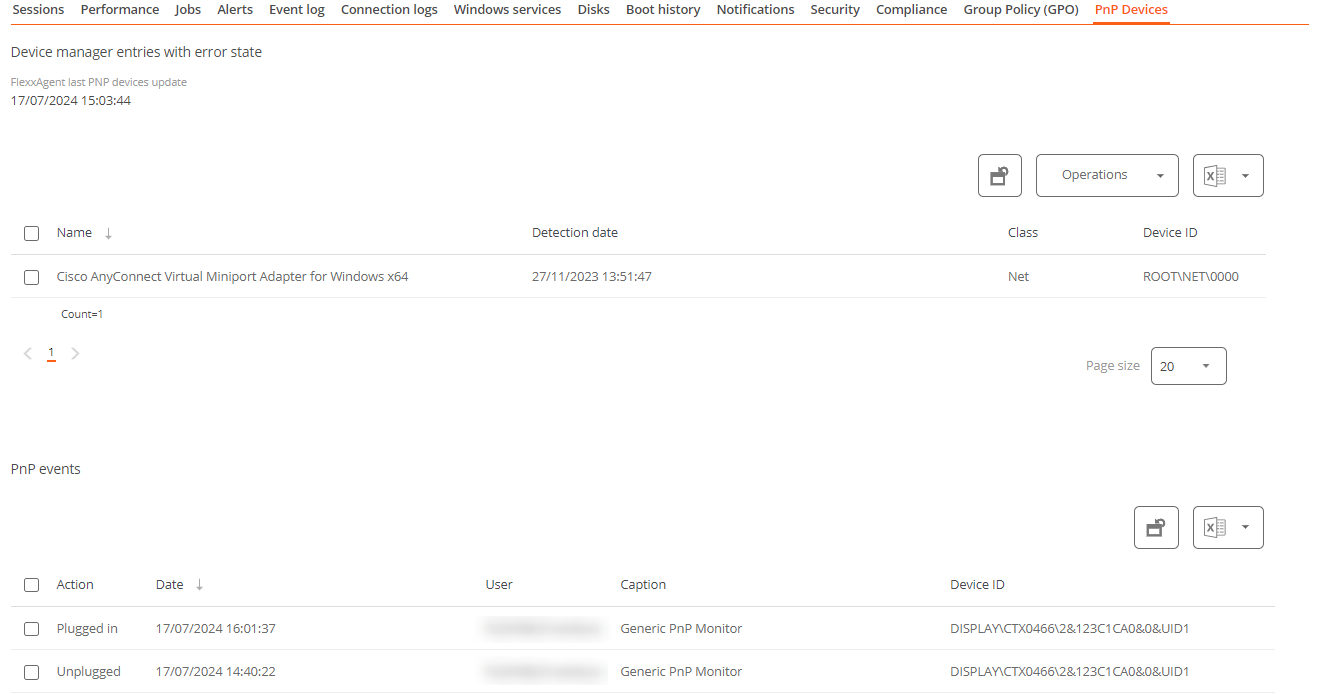
At the bottom of this view, a table shows all events related to PnP devices, creating an entry each time a peripheral is connected or disconnected.
System Summary
Displays system information for Windows devices. Includes:
| Field | Detail |
|---|---|
| OSVersion | Operating system version number |
| OtherOSDescription | Additional description of the current operating system version (optional) |
| OSManufacturer | Nombre del fabricante del sistema operativo. In the case of Windows-based systems, this value is "Microsoft Corporation" |
| SystemModel | Product name given by a manufacturer to a piece of equipment |
| SystemType | System running on the Windows-based equipment |
| SystemSKU | Stock keeping unit (SKU) product information (optional) |
| Processor | Name, number of cores, and number of logical processors of the processor |
| BIOSReleaseDate | BIOS Release Date |
| EmbeddedControllerVersion | Primary and secondary firmware versions of the embedded controller, separated by "." |
| BaseBoardManufacturer | Name of the organization responsible for manufacturing the physical device |
| BaseBoardProduct | Manufacturer-defined part number for the motherboard |
| BaseBoardVersion | Version of the physical device |
| PlatformRole | Type of chassis where Unspecified = 0, Desktop = 1, Mobile = 2, Workstation = 3, EnterpriseServer = 4, SOHOServer = 5, AppliancePC = 6, PerformanceServer = 7, MaximumValue = 8 |
| WindowsDirectory | Operating system's Windows directory |
| SystemDirectory | Operating system's system directory |
| BootDevice | Name of the disk drive from which the Windows operating system starts |
| Locale | Name Identifier of language used by the operating system |
| TimeZone | Name of the operating system time zone |
| PageFileSpace | Actual amount of disk space allocated for use as a page file, in megabytes |
| PageFile | Name of the page file |
| BIOSMode | Device boot mode (BIOS or UEFI) |
| SecureBootState | Secure boot mode status (Off, On) |
Reporting groups history
Allows you to see which reporting groups the device belongs to, the date of incorporation, and if it has been assigned to the group manually or automatically.