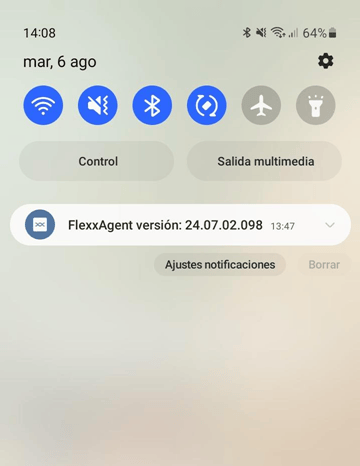
Requirements
To deploy FlexxAgent on Android devices, you need a mobile device management (MDM) platform, such as Google Admin or Microsoft Intune. These platforms let you distribute and install the application centrally. Once the MDM solution is set up, FlexxAgent can be installed from Google Play.Supported versions
FlexxAgent is compatible with devices running Android 9.0 or later.Limitations
Due to the restrictions inherent to mobile operating systems, some features are not available on Android devices, such as running power actions, Flexxible Remote Assistance, flows, or end-user microservices. Some devices, to save battery, stop services or cannot connect to the internet while the screen is locked. When this happens, the device may stop reporting for a while until its screen is unlocked. This behavior varies by manufacturer and operating system version.Configuration
The FlexxAgent configuration is managed through Managed Configurations to work correctly. This configuration will be provided by a Flexxible contact during the implementation process and depending on the application distribution solution used. For example, for Microsoft Intune the configuration is provided in JSON format, but for Google Admin the configuration is supplied with individual values.Distribution
Flexxible will grant access to FlexxAgent in the Managed Google Play console provided by the customer’s MDM solution during the implementation process, as well as the data required for its configuration. In order for Flexxible to grant access to the application, the customer must provide the Name and ID of their Managed Google Play.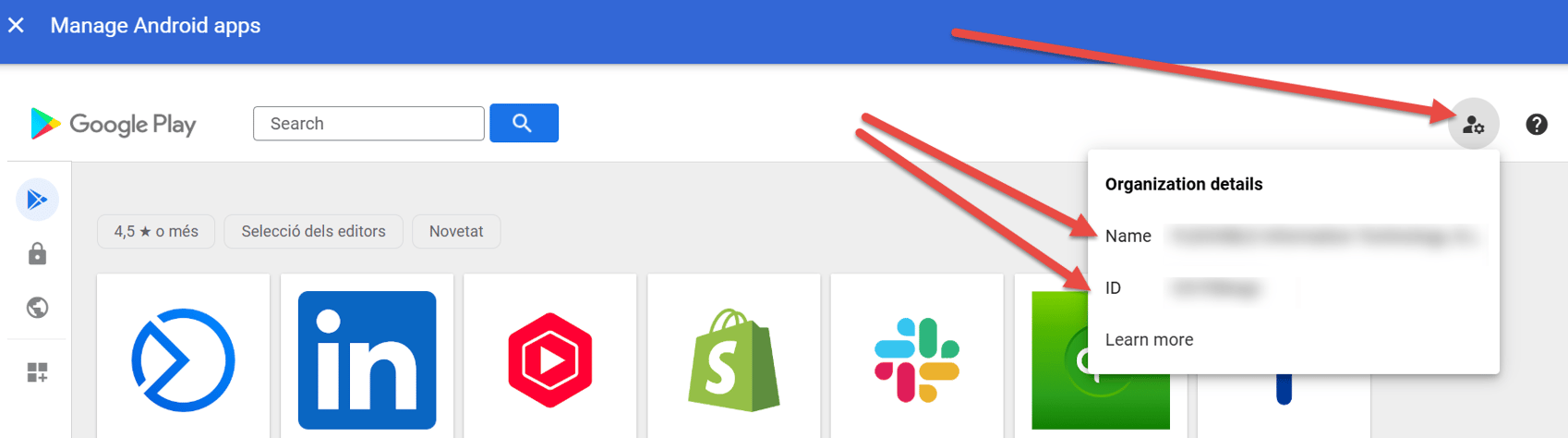
Download and installation
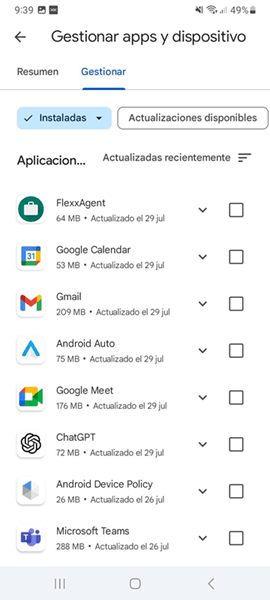
FlexxAgent is available as a private Android application on Google Play. For the FlexxAgent configuration to be applied correctly, you must manually open the application on each device at least once after installation. We recommend following these steps:- Go to Google Play and then to Manage apps & devices.
-
Go to the Manage tab and click the FlexxAgent app.
-
On the application detail screen, click Open.
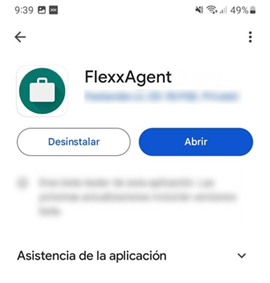
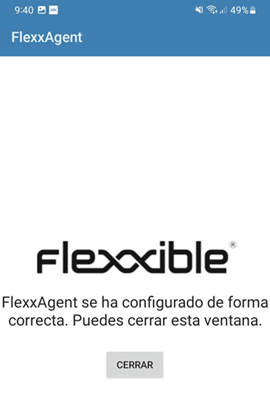
FlexxAgent requires some special permissions, such as access to the device’s files. If this permission has not been granted in the app configuration in your MDM solution, the user will be asked to provide it. When they do, a message will appear indicating that the application has been configured correctly.
- Close the window.