

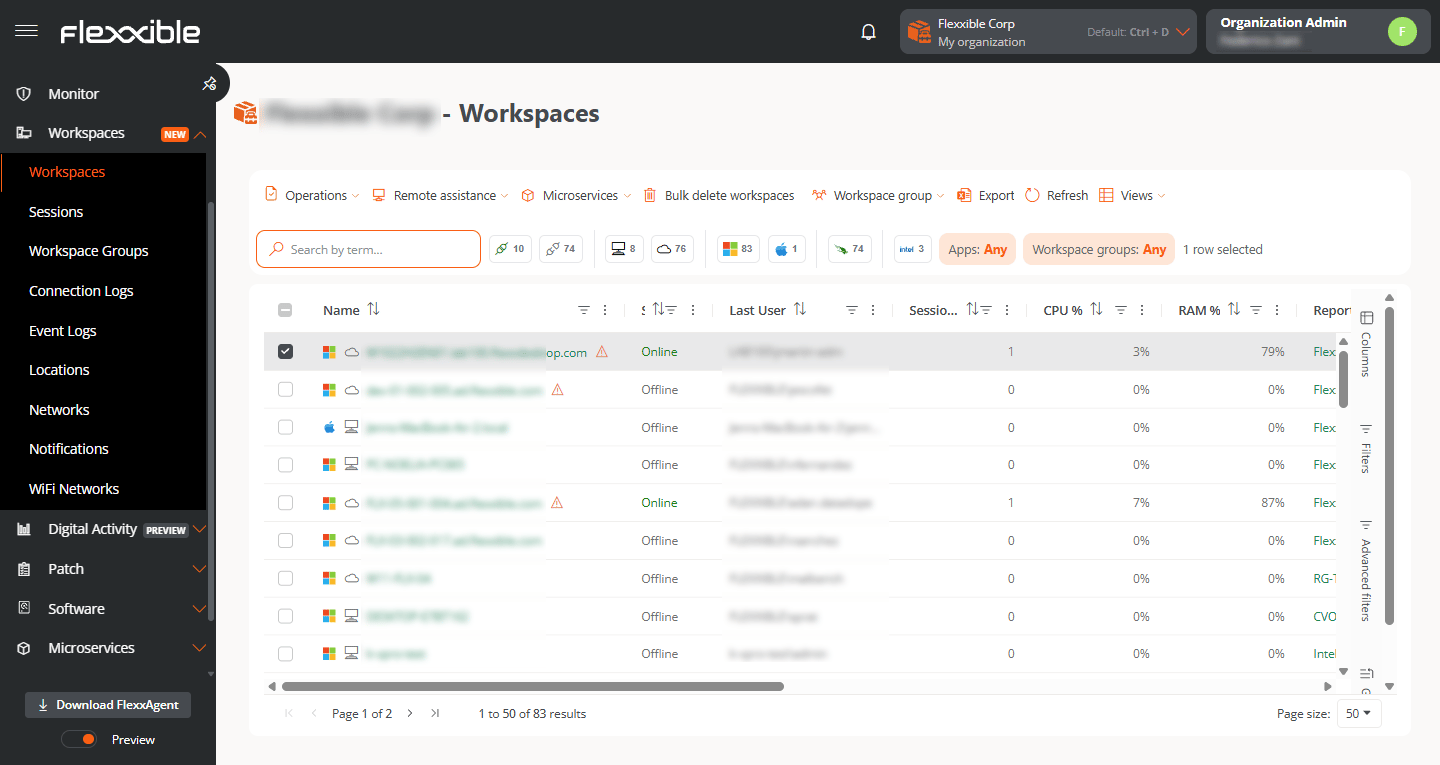
Workspace list
The main view shows all the organization’s devices in a table. By default, the following columns are displayed:- Name. Device name.
- Status. Current status (Online or Offline).
- Last user. Name of the last user who accessed the device.
- CPU cores. Number of processor cores.
- RAM. Total RAM (in MB).
- IP address. IP assigned to the device.
- Reporting group. Reporting group the device belongs to.
- Last report. Date and time of the last report received.
- OS. Installed operating system.
- Device type. Physical or Virtual.
- Connection. Type of network connection used by the device.
- FlexxAgent version. Installed agent version.
- FlexxAgent type. Unified or Universal.
Category filters
The platform provides several tools to adapt the table to your needs. You can customize the visible columns, apply filters, create groupings, and run advanced searches. Several quick filters are shown above the table, each represented by an icon. Each icon indicates the number of devices that belong to that category.
Columns
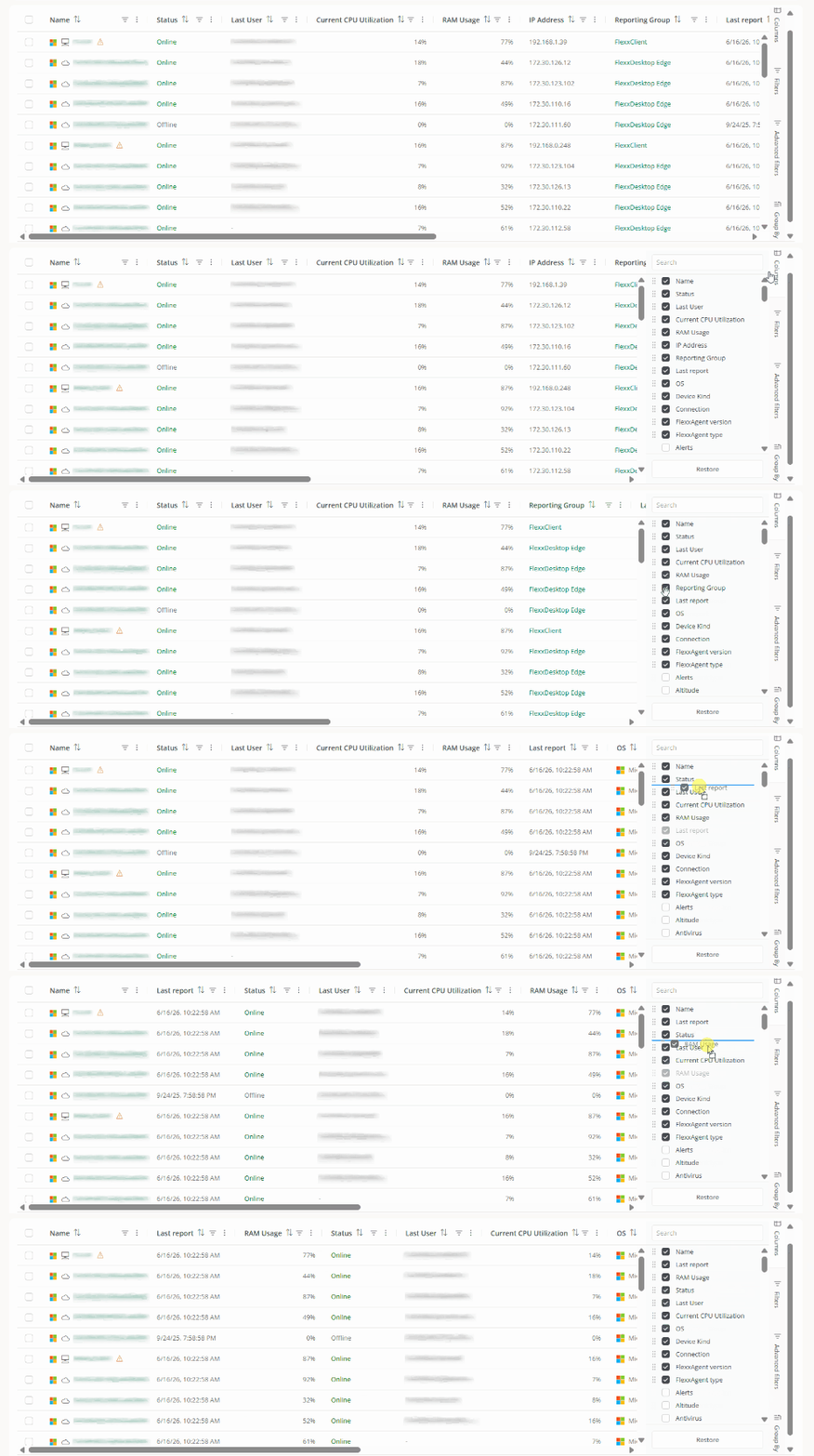
The Columns tab lets you customize the information shown in the table. From it you can:- Show or hide columns.
- Search for columns by name.
- Change the order in which they appear.
Filters
The Filters tab lets you reduce the number of results shown in the table to find devices that meet specific conditions.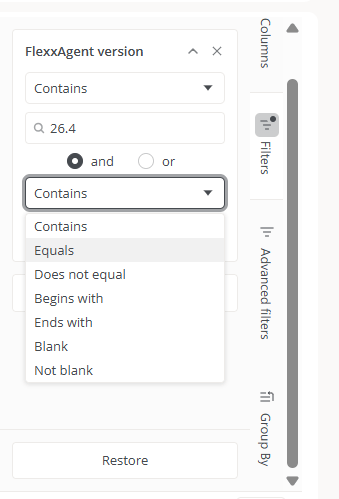
- Click Add filter.
- Select the field you want to filter by.
- Choose one or more values.
- Add more filters if needed.
Advanced filters
The Advanced filters tab expands the search options. Currently, you can filter by:-
Group. Shows in the table only the devices that belong to a specific reporting group.
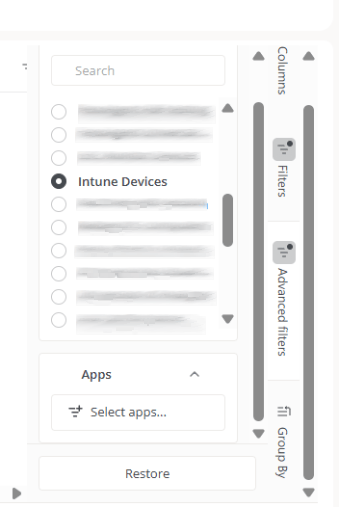
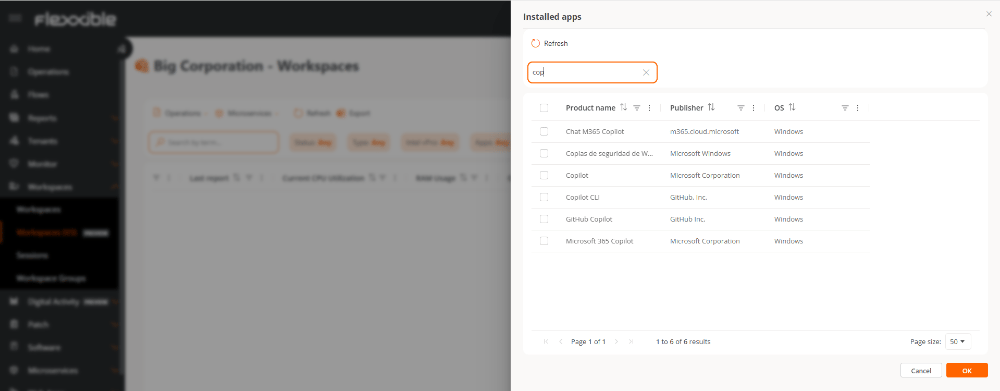
- Applications. Shows in the table only the devices that have one or more specific applications installed.
- Go to Applications → Select apps.
- Select one or more applications from the available list.
Group by
The Group by tab organizes devices by the values of one or more columns. For example, if the OS column is visible in the table, you can group devices by operating system. You can also create hierarchical groupings by adding multiple levels. For example, group first by OS and then by Device type.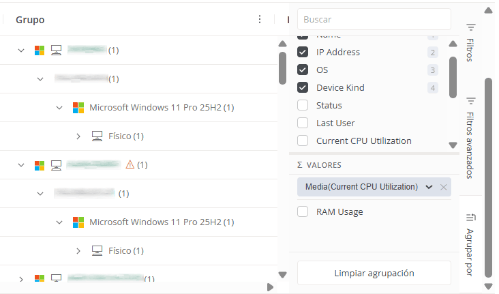
Values
The Values subsection lets you calculate aggregate metrics for each group.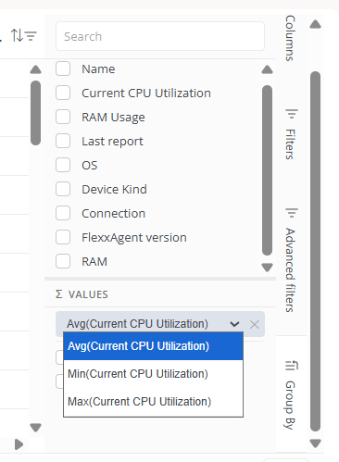
- Average
- Minimum value
- Maximum value