

This page covers the Flexxible KB MCP server, which gives access to the knowledge base. The Flexxible MCP server, which gives access to workspaces, sessions and platform operations, is a different service, with a different address and different authorization.
How it works
- An agent is an identity in your organization. You create it in Settings → Agents, with a name, such as “Claude Code”.
- Each agent has its own keys. One key for each place it runs, so you can revoke them one at a time.
- The key is sent as a Bearer token. Whatever holds the key acts as that agent in your organization.
- Everything is recorded under its name. Its changes appear in the History with the agent’s name, and its calls in Activity.
Create an agent and its key
1
Create the agent
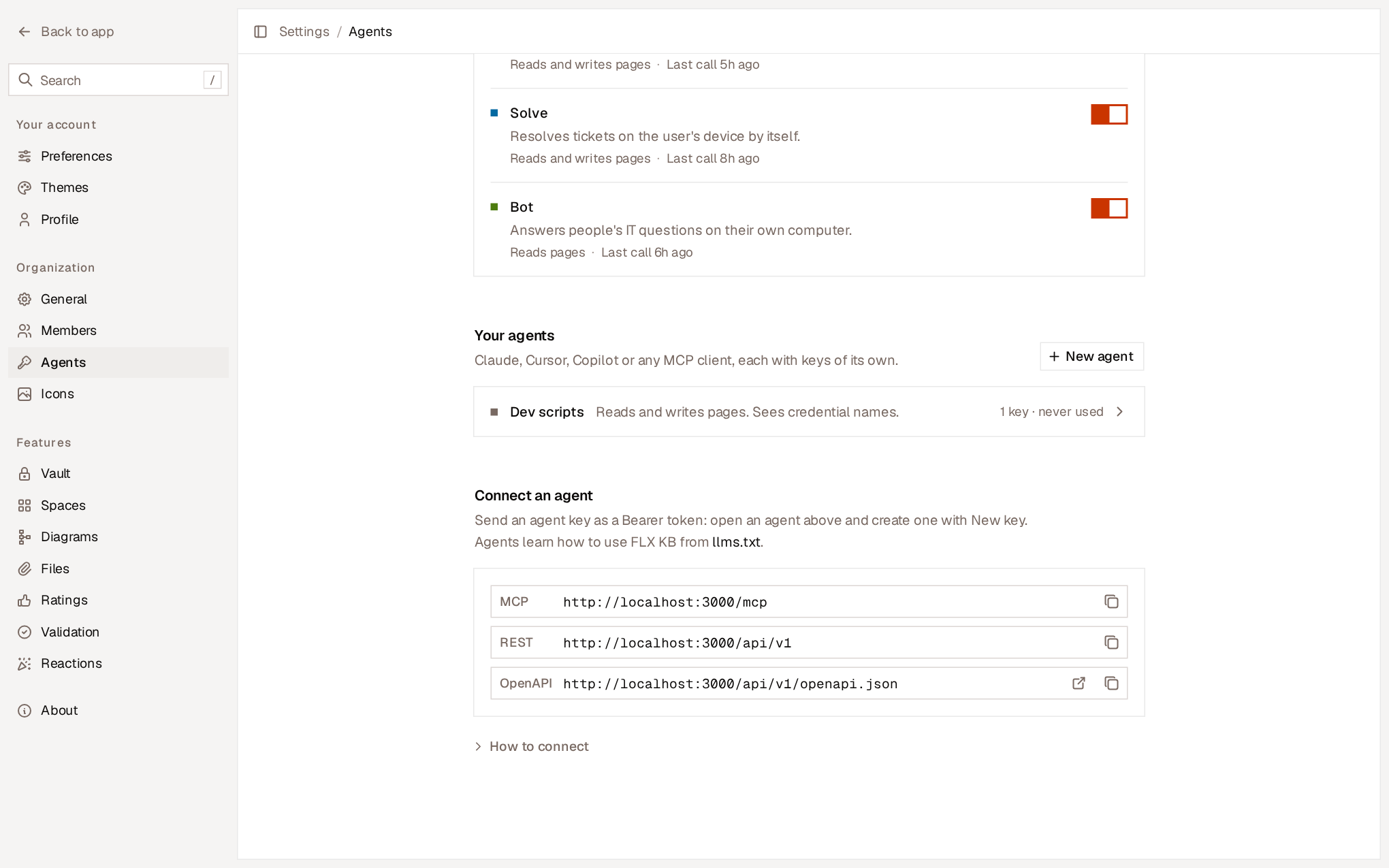
In Settings → Agents, under Your agents, select New agent, give it a name and select Create agent.
2
Create a key
Open the agent, select New key and give it the name of the place where it will be used, for example “Claude on Marta’s laptop”. Select Create key.
3
Copy the key
Copy the key right away: it isn’t shown again. Copy for Claude Code directly copies the configuration command with the key included.
Addresses
Your organization’s addresses are shown in Settings → Agents → Connect an agent, with a button to copy each one.
In all cases, the key is sent in the
Authorization: Bearer <clave de agente> header.
Configure the client
The How to connect section in settings offers ready-to-copy configuration. Replace<clave de agente> with your agent key.
- Claude Code
- Claude Desktop
- Cursor
- VS Code
- curl
Run the command in a terminal. Add
--scope user to have it in all projects.MCP server tools
The MCP server publishes tools with names and descriptions designed for AI models, and includes instructions on how to use them.
The REST API offers the same operations. The OpenAPI specification describes all of them.
Rules for agents
The same rules apply to any agent, whether from Flexxible Assist or your own:- They never get a credential’s value. They see names, types, hosts and users, and can link a credential in a page.
- They can’t write secrets. Every write goes through a secret detector. If it adds a password, a token or a key, it’s rejected with a prompt to use the Vault.
- They edit, they don’t rewrite. Changes are sent as exact text replacements on the page as it currently is, so a person editing the same page keeps their work. If someone changed the same text in the meantime, the write is rejected and the agent must read the page again.
- They can undo their own mistakes. An agent can’t undo the change that created a page, because that would amount to deleting it.
- Only people validate. An agent can mark a page as ready for review, but not validate it.
- They only access your organization. A key gives access to your organization’s pages and to those that other organizations share with it, which are read-only.
Manage agents and keys
Open an agent in Settings → Agents to see its keys, with the creation and last-use date of each one.- Revoke invalidates a key immediately.
- Delete agent invalidates all its keys. Its edits remain in the History.
- Activity shows each of the agent’s calls and which key was used. See Agent activity.