

What is MCP
Model Context Protocol (MCP) is an open standard that defines how artificial intelligence applications connect to external tools and data sources. It works as a universal connector: any MCP-compatible application can use any MCP server without the need for specific development. An MCP server exposes a set of tools. Each tool performs a specific action, such as listing the workspaces of an organization or restarting a device, and includes a description that tells the assistant what it is for and which parameters it needs. When it receives a request, the assistant:- Interprets the request and chooses the necessary tools.
- Calls those tools on the MCP server with the appropriate parameters.
- Uses the results to build the response or decide the next step.
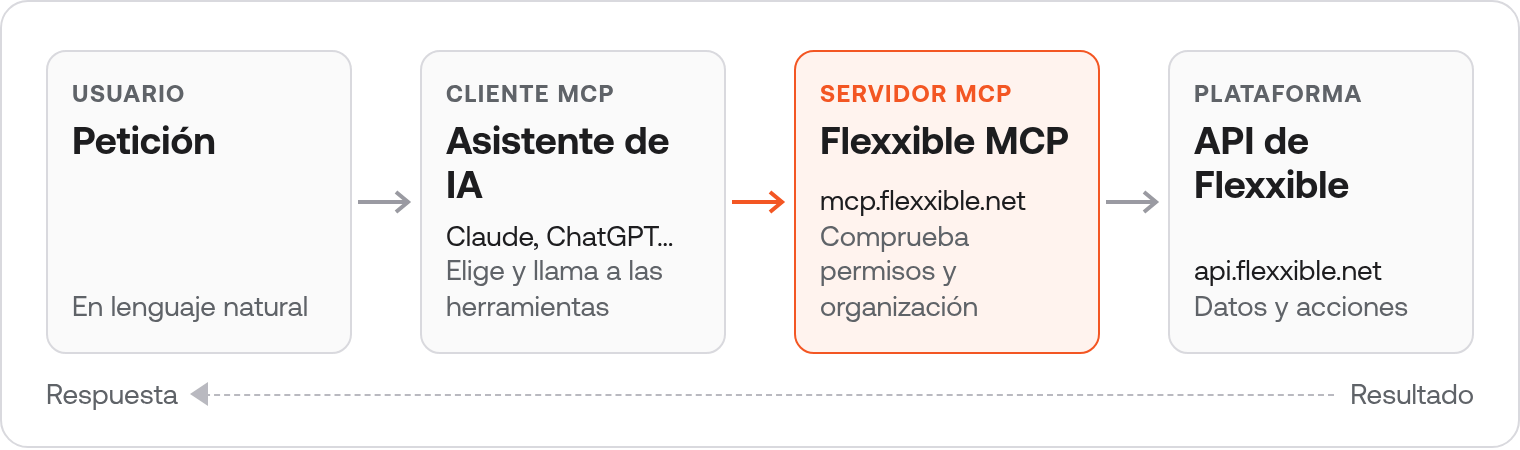
How the Flexxible MCP server works
The Flexxible MCP server is available at the following address:- Based on the Flexxible API. The operations of the API Gen 2 (v2) are exposed as individual tools covering workspaces, sessions, installed applications, alerts, patches, reporting groups, workspace groups, flows, microservices, operations, Digital Activity, locations, networks, users, roles, tenants, and auditing, among others.
- Authorization with an API key. The connection is authorized only once with a platform API key, which is entered on a Flexxible page. The assistant never sees the key: it receives a separate access token that is only valid for the MCP server.
- User-selected permissions. When authorizing the connection, you choose the assistant’s permissions. The assistant can only do what both those permissions and the API key’s role allow.
- Access limited to the key’s organizations. The assistant can only access the API key’s organization and its tenants. Any other organization is rejected before reaching the API.
- Identified actions. Each tool indicates whether it only queries data or whether it can modify or delete it, which allows AI applications to request confirmation before making a change.
- Bounded operations. Each operation on devices or sessions (restart, shut down, log off, send a notification, etc.) targets an explicit list of up to 100 items.
The MCP server works with the Flexxible environment (
api.flexxible.net). API keys from the FXXOne environment are not supported.Permissions
API keys do not have their own permissions: what they can do depends on the role assigned to the key. When connecting the assistant, you also choose the connection’s permissions, which act as an additional limit on that role.Adding devices to a workspace group (Write permission) subjects them to the group’s existing schedules and to the flows that target it.
Domain-specific addresses
In addition to the main address, the server offers addresses that only include the tools for a specific area. They are intended for applications that load all of a connector’s tools at once, such as Microsoft Copilot Studio, where a smaller set works better. In Claude and ChatGPT, using the main address is recommended. Each address is formed by adding the path tohttps://mcp.flexxible.net (for example, https://mcp.flexxible.net/mcp/devices).
All addresses also include two general tools: one that shows the connection’s identity (organization, API key, and permissions) and another that lists the accessible organizations. You can add several addresses to the same application.
Requirements
- A platform API key (API Gen 2).
- An AI application that supports remote MCP servers with OAuth authentication, such as Claude or ChatGPT. The subscribed plan or the organization’s policies may restrict the ability to add custom connectors.
Create an API key for the assistant
The Organization administrator role is required to create the key.- Go to Settings → Organization.
- Select the API keys tab.
- Click Create API key.
- Fill in the form:
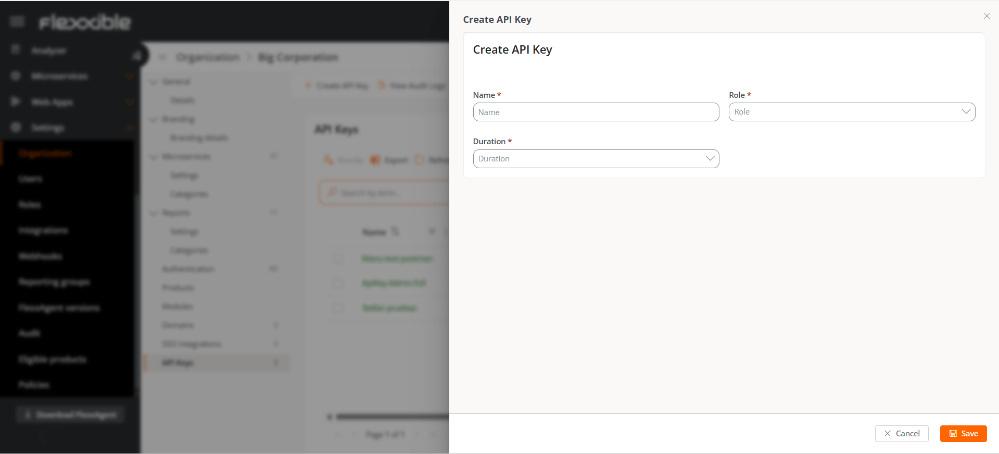
- Name. API key identifier. For example,
AI Assistant - Claude. - Role. Role with the minimum permissions required for what you want the assistant to do.
- Duration. Validity period of the key. The connection with the assistant stops working when the key expires.
- Click Save and copy the key.
Connect an AI assistant
The process is similar in all MCP-compatible applications:- In the AI application, add a custom connector or MCP server.
- Enter a name (for example,
Flexxible) and the addresshttps://mcp.flexxible.net/mcp. - If the application asks for the authentication type, select OAuth. There is no need to enter a client ID or secret: the application identifies itself to the server automatically.
- Start the connection. The application opens the Flexxible authorization page in the browser.
- Complete the two steps of the authorization page, described below.
- Return to the AI application and check that the connector is active in the conversation.
Authorization page
When the connection starts, the AI application opens a Flexxible page with two steps. The page is available in Spanish, English, Catalan, Basque, and Brazilian Portuguese, and the language can be changed from the selector at the top right.Step 1: Review access
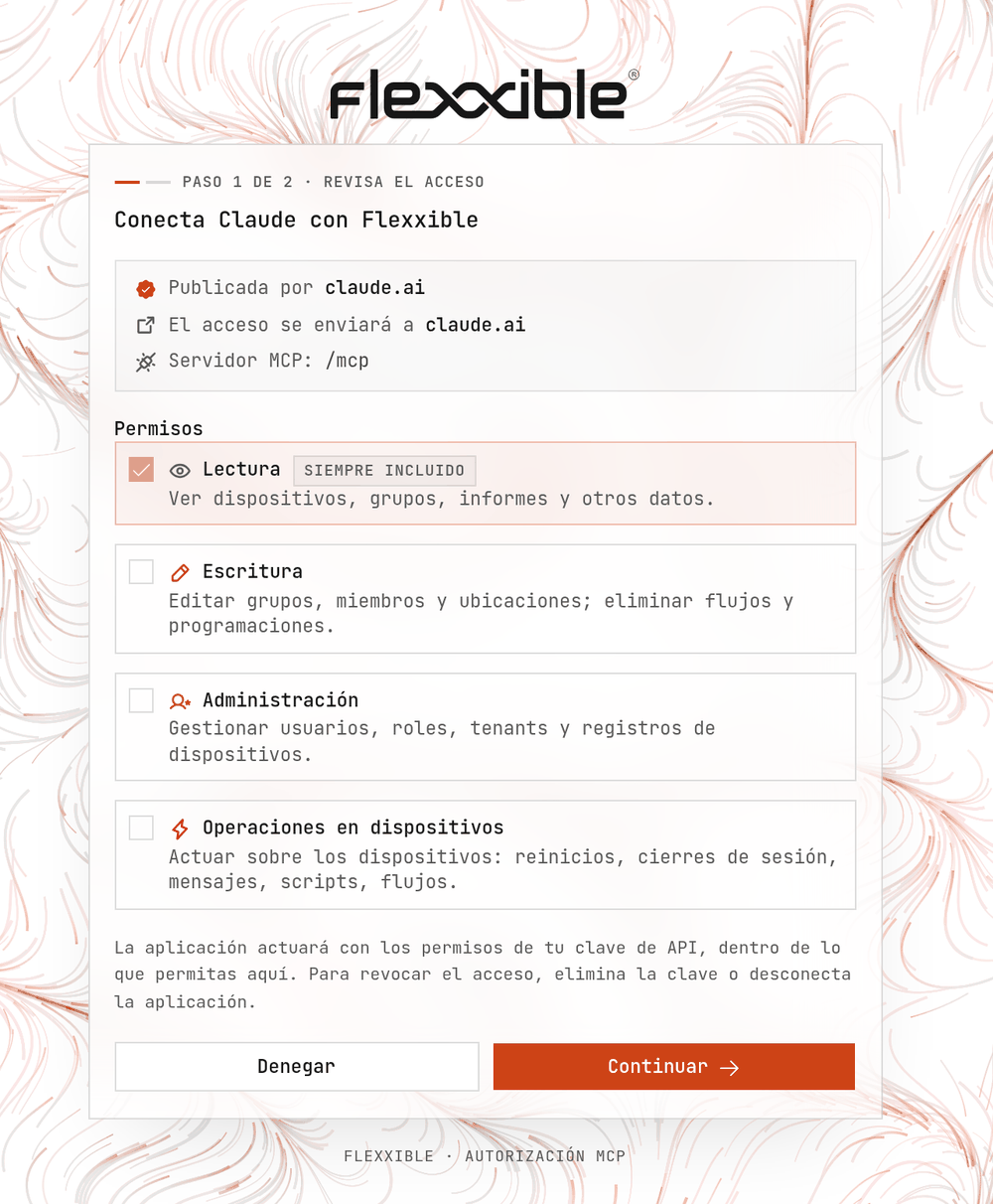
- Application requesting access. Applications that identify themselves with a published identity, such as Claude or ChatGPT, show Published by and their domain. Applications that register automatically appear as Unverified application, since any application can register under any name. In that case, only continue if you have just started the connection from a trusted application.
- Access will be sent to. Domain of the application that will receive access. If it is an application installed on the computer itself, a warning is displayed.
- MCP server. Address of the server being authorized.
- Permissions. Read is always included. Write is checked if the application requests it. Administration and Device operations are never checked automatically, even if the application requests them (in that case they appear as Requested): to grant them, you must check them manually.
Step 2: Enter the API key
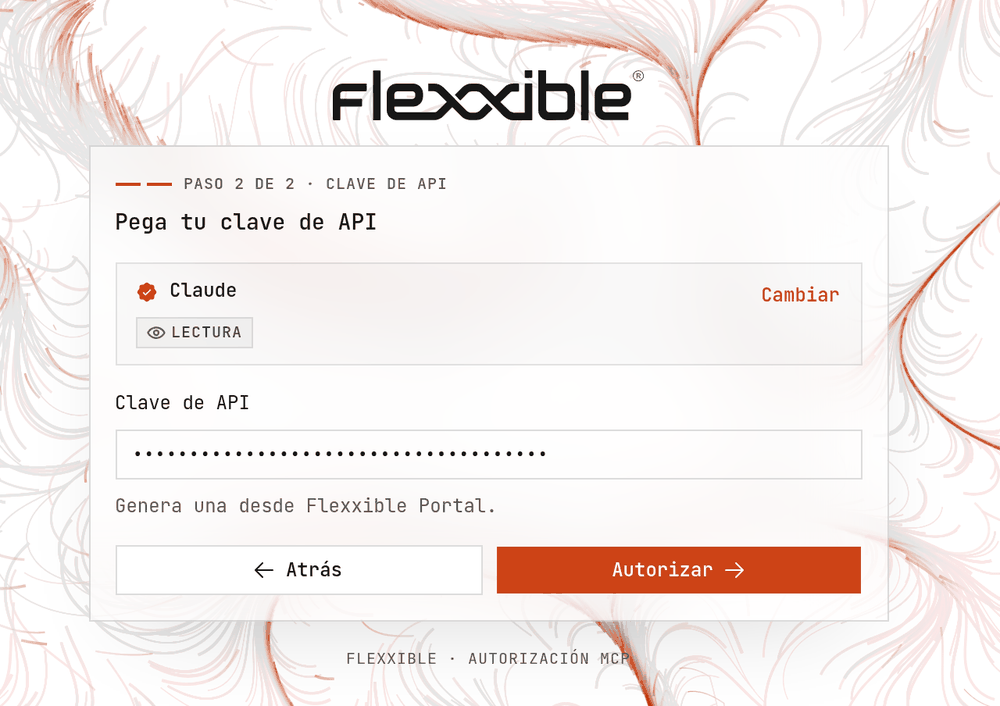
- Paste the API key into the API key field.
- Click Authorize.
Connect Claude
Custom connectors are available in Claude (web), Claude Desktop, and Cowork for the Free, Pro, Max, Team, and Enterprise plans. On the Free plan, only one custom connector can be added.The menu names in this section correspond to Claude’s English interface.
Free, Pro, and Max plans
- Go to Customize → Connectors. In Claude Desktop, select Customize in the sidebar and then Connectors.
- Click + Add → Add custom connector.
- Enter a name for the connector (for example,
Flexxible) and the server address:https://mcp.flexxible.net/mcp. Click Continue. - Review the authentication settings that Claude has detected and click Continue.
- Configure the following options:
- Authentication. Keep an option with sign-in (Sign in now or Sign in when needed). Do not select No sign in.
- OAuth client. Select Use Claude’s published identity (Recommended). With this option, the authorization page shows the application as Published by claude.ai.
- Request headers. Leave empty. The server does not accept API keys in headers: the key is always entered on the authorization page.
- Click Add. If the authorization page does not open automatically, click Connect next to the connector.
- Complete the two steps of the authorization page. When finished, the connector appears as connected.
Team and Enterprise plans
On these plans, an organization owner adds the connector once, and then each member connects it with their own API key. To add the connector to the organization (owners only or, on Enterprise, custom roles with the Manage access to Libraries permission):- Go to Organization settings → Connectors.
- Click Add, hover over Custom, and select Web.
- Follow steps 3 to 6 of the previous section.
- Go to Customize → Connectors.
- Locate the connector added by the owner. It usually shows the Custom label.
- Click Connect and complete the authorization page with your own API key.
Use the connector in a conversation
- In a conversation, click the + button at the bottom left of the text box.
- Select Connectors and enable Flexxible.
- Type your request.
Connect ChatGPT
Connecting custom MCP servers is available in ChatGPT web for the Business and Enterprise/Edu plans. It is not available in the mobile apps.- Business. Only workspace admins and owners can add and publish custom MCP servers.
- Enterprise/Edu. Admins and owners can add them and grant other members the Create plugins with MCPs permission from Workspace settings → Permissions & roles. Only admins and owners can publish them to the workspace.
On the Pro plan, ChatGPT only allows connecting custom MCP servers with read permissions. The menu names correspond to ChatGPT’s English interface, where connectors are called Plugins.
Add the server
- Go to Plugins from the sidebar.
- Click the + button and select Add custom MCP server.
- Enter a name (for example,
Flexxible) and, optionally, a description. - Under Connection, enter the server address:
https://mcp.flexxible.net/mcp. - For authentication, select OAuth. There is no need to enter a client ID or secret.
- Review the risk warning and check the I understand and want to continue box.
- Click Create as a plugin.
- Complete the two steps of the Flexxible authorization page when ChatGPT opens it and review the detected tools.
- Install the created plugin.
Depending on how ChatGPT identifies itself to the server, the authorization page shows it as Published by chatgpt.com or as Unverified application. Both cases are normal if you have just started the connection from ChatGPT.
Use the plugin in a conversation
- Start a new conversation.
- Type @ in the text box and select Flexxible.
- Type your request.
In workspaces, ChatGPT uses a fixed snapshot of the server’s tools taken when it was published. When Flexxible adds new tools, an admin must refresh the tool list (Refresh) from the workspace settings for them to become available.
Usage examples
Once connected, simply ask the assistant for what you need in natural language. Some examples: Workspaces and sessions- “How many Windows 11 devices are offline in the Contoso tenant?”
- “Which devices have pending Windows updates?”
- “Show the alerts and disk usage for device LAPTOP-042.”
- “Which devices have Zoom installed, and which version?”
- “Who is logged on to the session servers right now?”
- “Restart devices KIOSK-01 and KIOSK-02.” (Device operations)
- “Create a workspace group called Kiosks with these three devices.” (Write)
- “Add a daily restart at 2:00 AM, Madrid time, to the Kiosks group.” (Device operations)
- “List the reporting groups and their product configuration.”
- “Get the September 2026 monthly report for the Offices reporting group.”
- “Which flows are enabled and what do they do?”
- “Which microservices are enabled in this organization?”
- “Run the disk cleanup microservice on device LAPTOP-042.” (Device operations)
- “Did last night’s restart complete successfully on all devices?”
- “Who deleted the Kiosks group and when?”
- “List the users with the Helpdesk role.”
- “How many workspace groups, flows, and users can this organization have?”
Most AI applications ask for confirmation before running a tool that modifies data. Before approving it, it is recommended to review the details (names, devices, times).
Work with multiple organizations
If the API key belongs to an organization with tenants, the assistant can work with any organization in that tree:- By default, requests apply to the API key’s organization.
- To work with a tenant, simply name it in the request (for example, “…in the Contoso tenant”). The assistant looks it up by name.
- Count and summary questions can span several organizations at once (for example, “…across all my tenants”). Organizations are processed in batches of 25, and the assistant can continue with the next batch.
- Organizations that do not belong to the key’s tree are rejected, even if their ID is known.
- A newly created tenant may take up to five minutes to become available.
Manage the connection
Expand or reduce permissions
There is no need to grant all permissions when connecting. When a request needs a permission that has not been granted, the server asks the AI application for a new authorization: the authorization page opens with the additional permission requested and, after checking it and entering the API key again, the request continues. If the application does not show this request, disconnect the connector and connect it again, checking the required permission. To reduce permissions, disconnect the connector in the AI application and connect it again with fewer permissions checked.Revoke access
To cut off access completely, revoke or delete the API key in Settings → Organization → API keys. All connections that use that key stop working.Connection lifetime
The connection renews automatically while it is in use: each renewal keeps it active for another 30 days. You must reconnect in the following cases:- The connection has not been used for 30 days.
- The API key has expired. A connection never lasts longer than its key.
- The API key has been revoked.
Usage limits
Each connection can perform, per minute, up to:- 60 queries.
- 30 write or administration changes.
- 5 device operations, including changes to flows and schedules.
Troubleshooting
Best practices
- Create an API key dedicated to the assistant, with the minimum required role and a limited duration.
- Grant only the necessary permissions and expand them when needed.
- Carefully review the actions proposed by the assistant before confirming them, especially device operations.
- Revoke the API key when it is no longer used or if you suspect it has been compromised.