Create with AI - Reports
Create with AI - Reports allows you to generate customized reports from data managed on the platform (devices, installed applications, workspace groups, etc.) using artificial intelligence, employing only natural language.
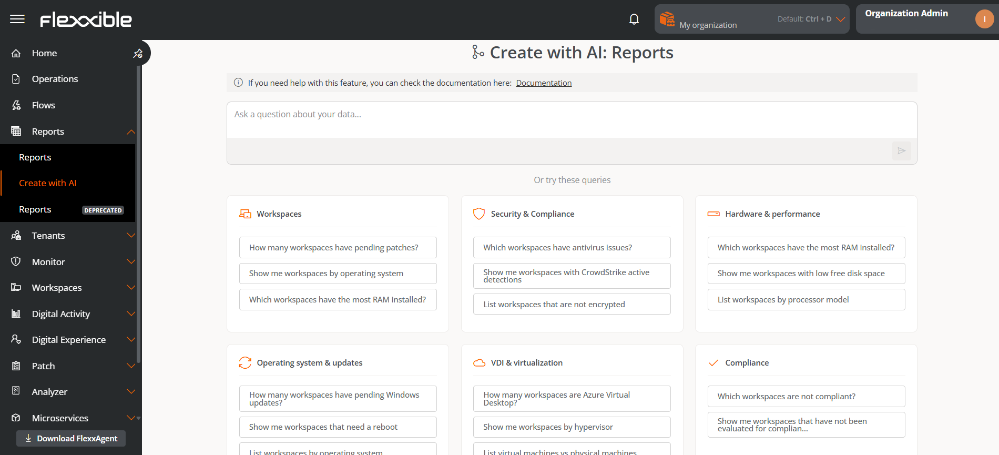
This feature allows you to quickly obtain relevant information without needing advanced technical knowledge. It simplifies the report creation process, avoids complex manual configurations, and speeds up the generation, scheduling, and distribution of results.
The generated reports can:
- Be viewed directly on screen.
- Be saved for later use.
- Be scheduled for automatic email delivery.
- Be consulted from the Reports section.
Create a report
To create a report using AI:
-
Access
Portal->Reports->Create with AI. -
In the central panel, write the request using natural language (maximum 400 characters).
TheOr try these queriessection offers examples organized by categories.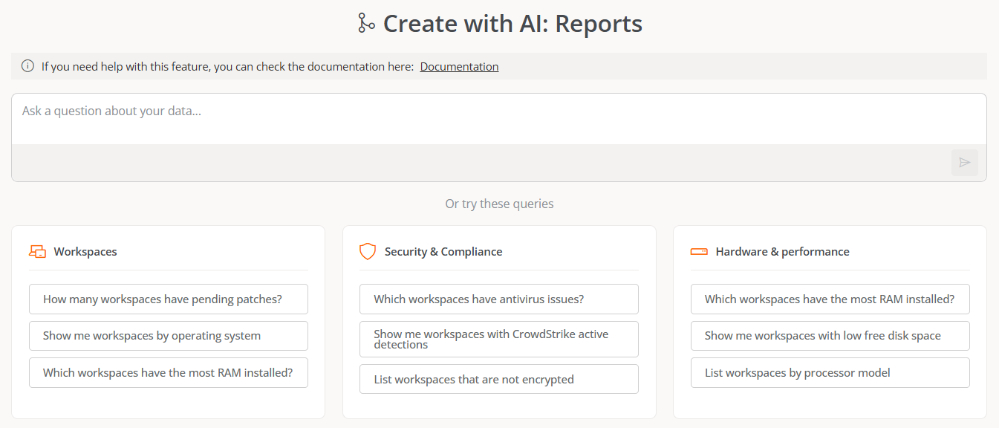
-
Click on the arrow in the orange box to start the process.
-
After a few seconds, the system generates a report preview, so the user can see if the returned data matches their expectations.
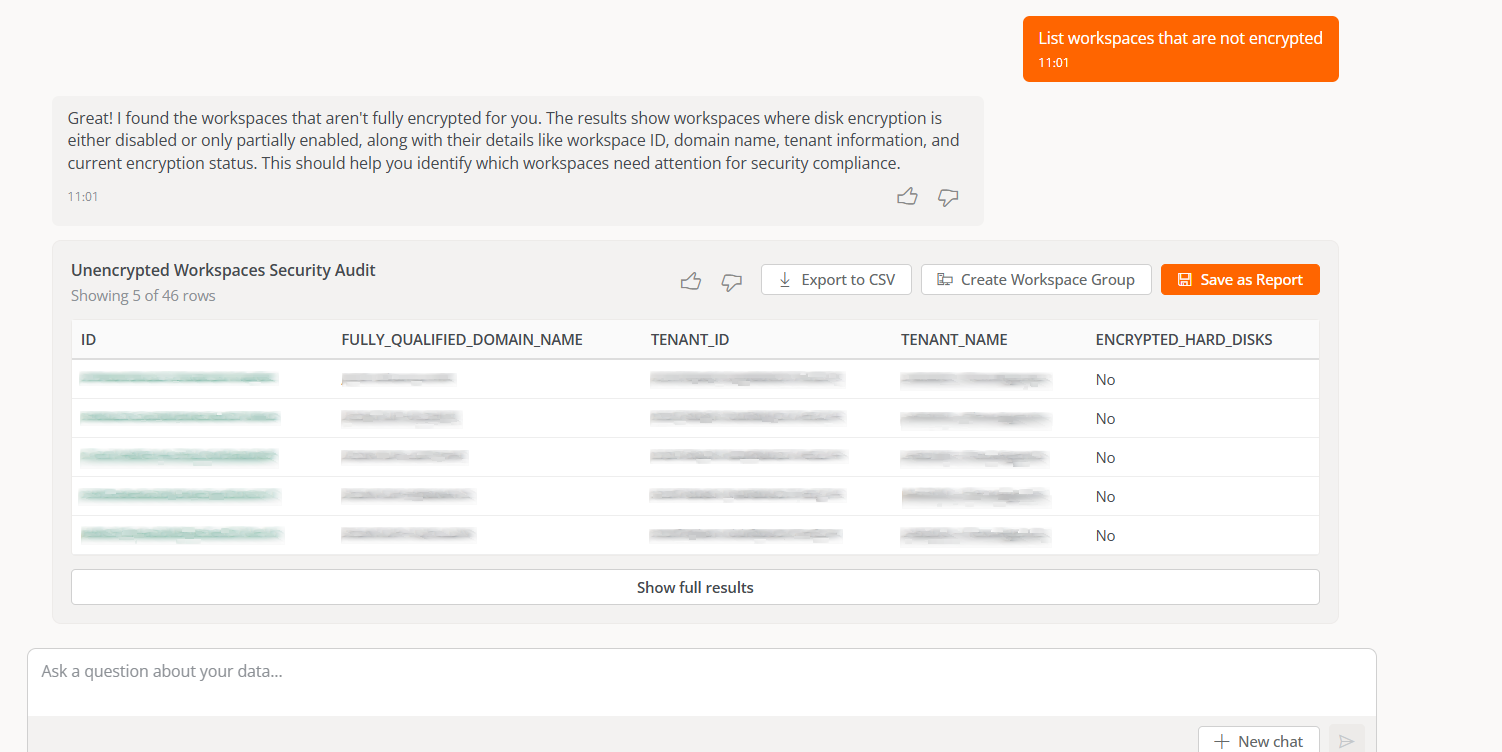
To see all records, click on
Show full results.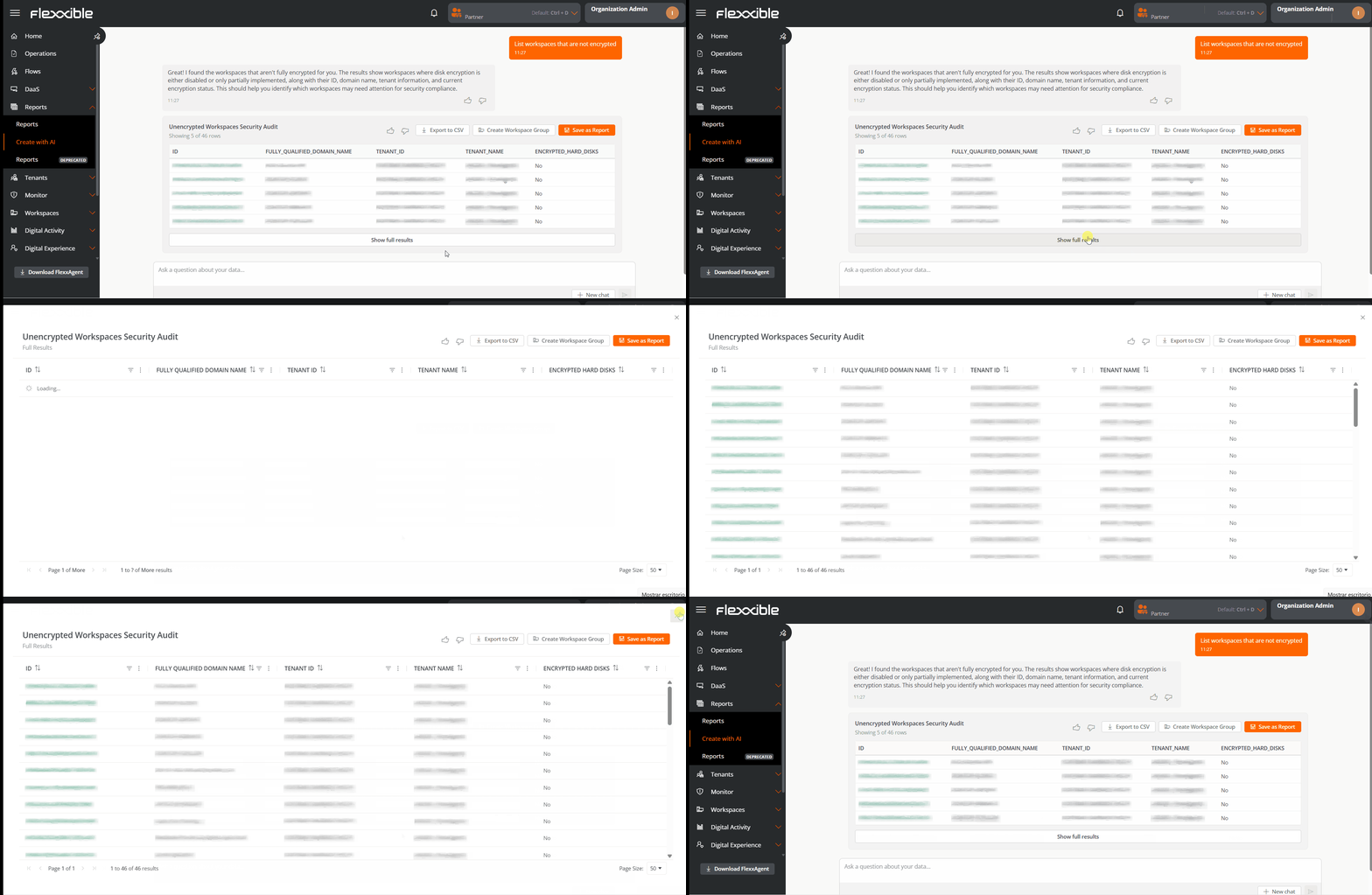
-
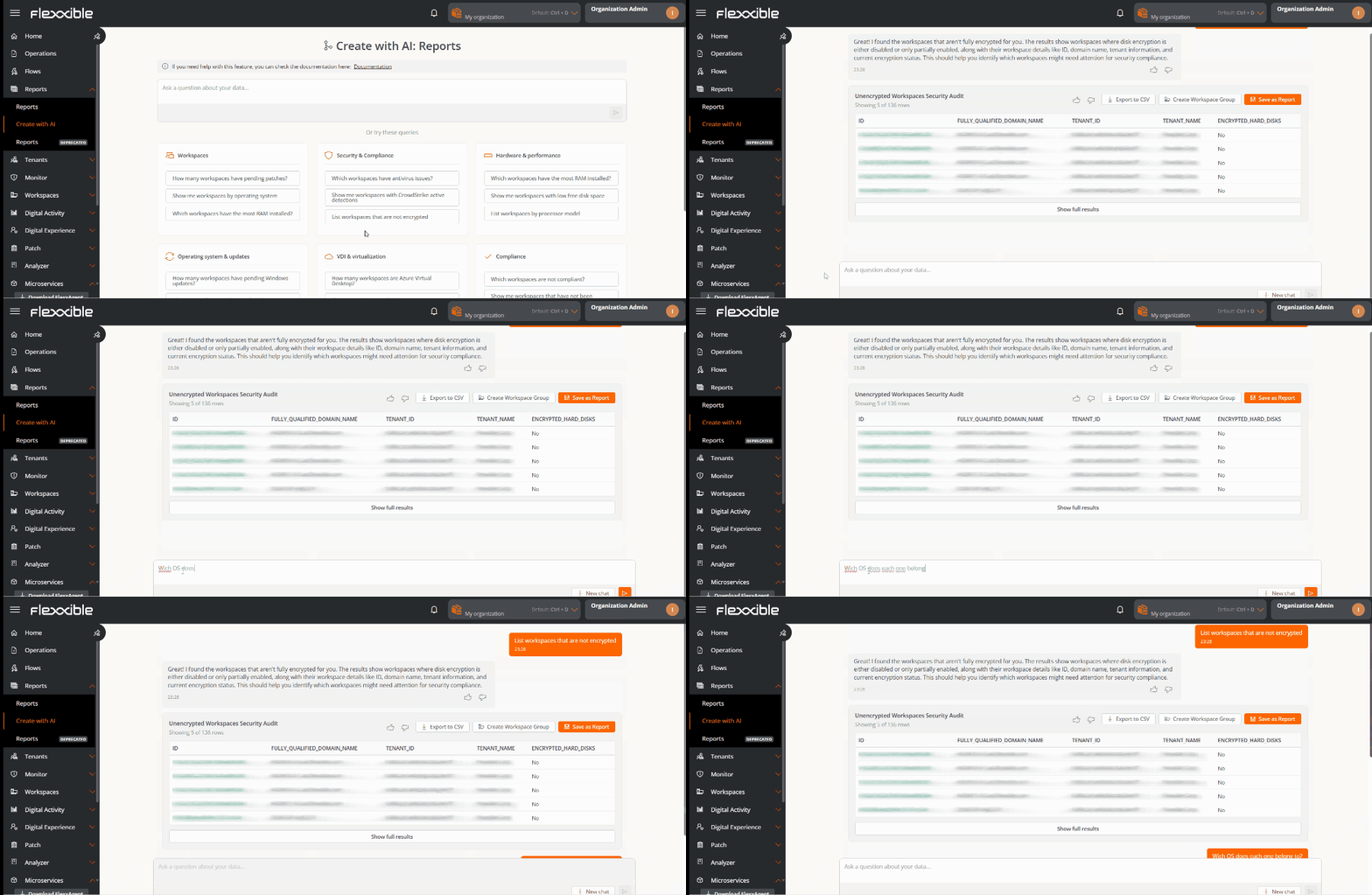
If you want to iterate over the query, you can select the option
Ask a question about your data.
Iterations do not delete tables from previous results: these remain available in the conversation history.
Save the result
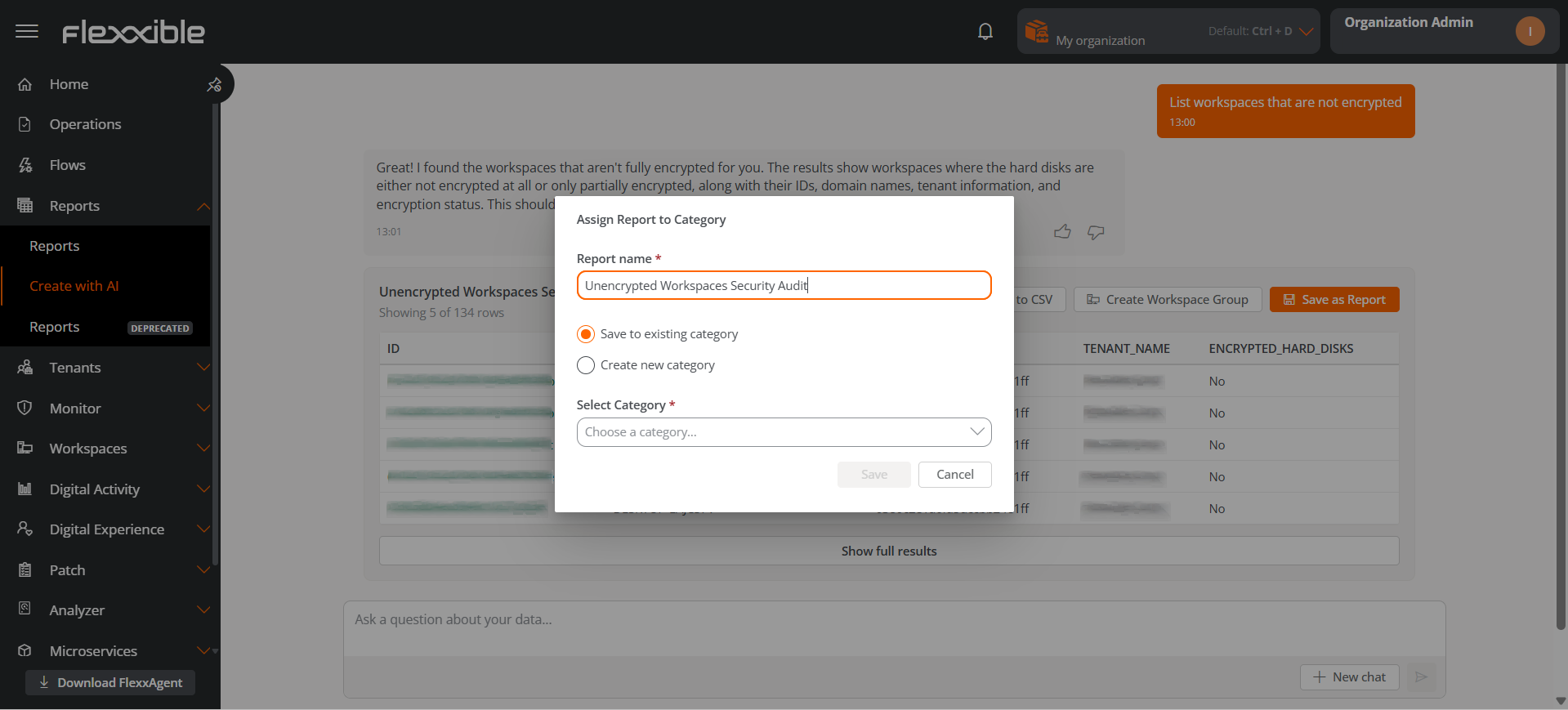
Clicking Save the result opens a popup window:
-
Report Name. The system suggests a name for the report that has just been created, but the user can assign one as they see fit.
-
Save in existing category. Allows assigning it to one of the existing categories. You can change the category from the
Editoption in the Reports section. -
Create new category. Allows you to create a new category.
Categories can be set up from the Organization section.
Once the report is saved, the system automatically redirects to the report detail view.
Available actions on the result
Rate
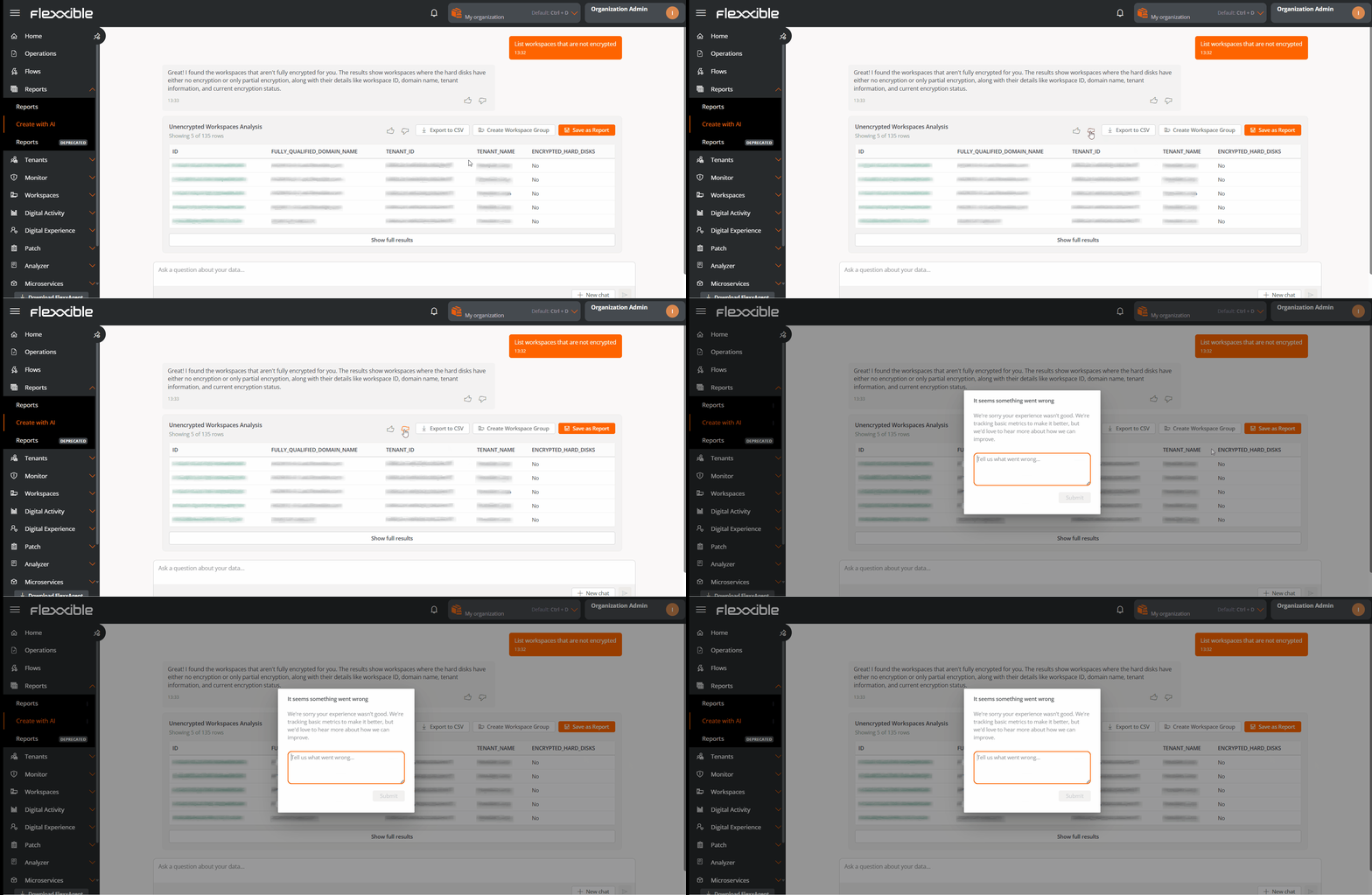
Optionally, the user can rate the usefulness of the result using the thumb icons, both in the chat and in the results table.
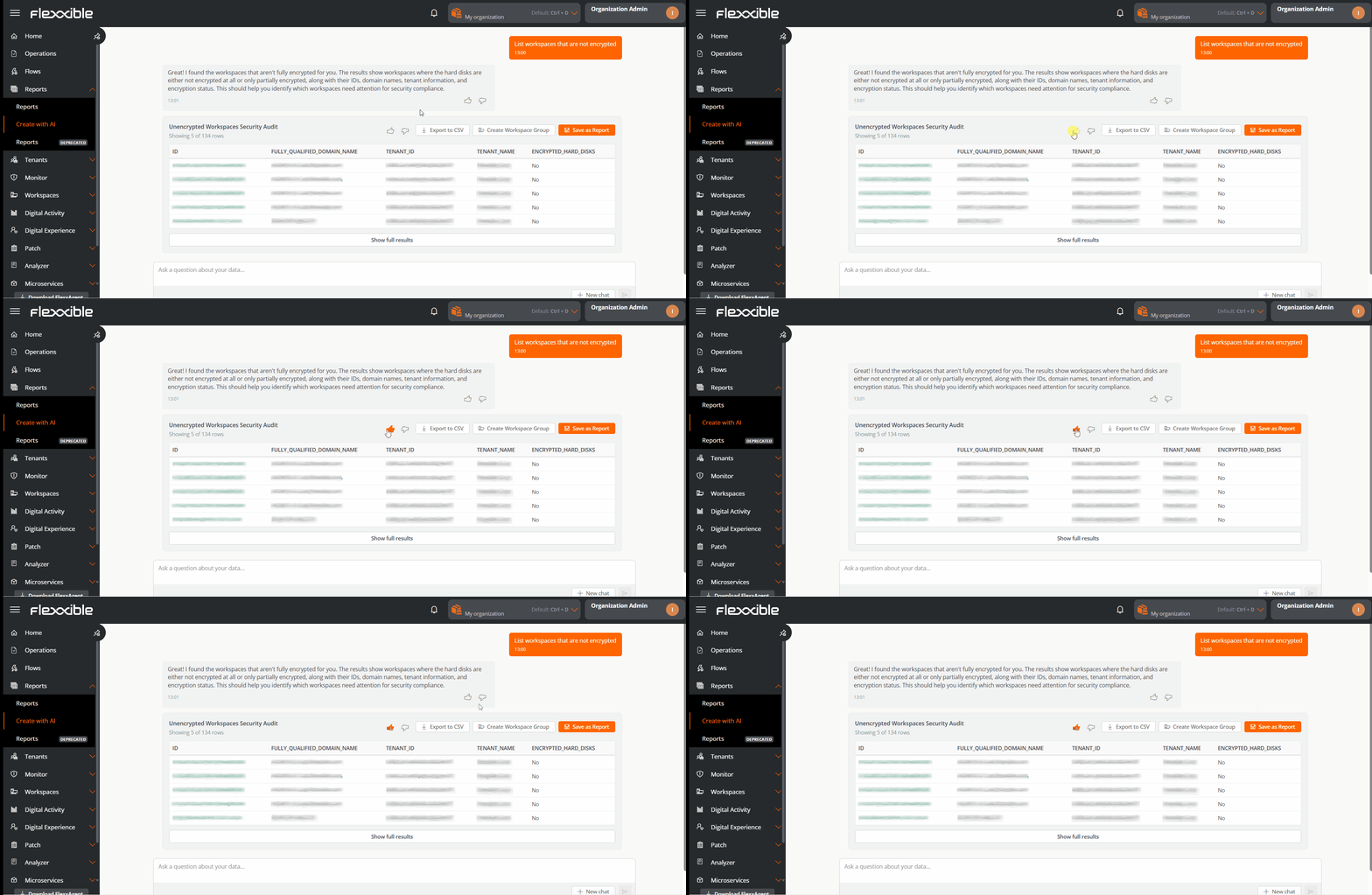
When selecting the thumbs down, information is requested about the reason for the rating.
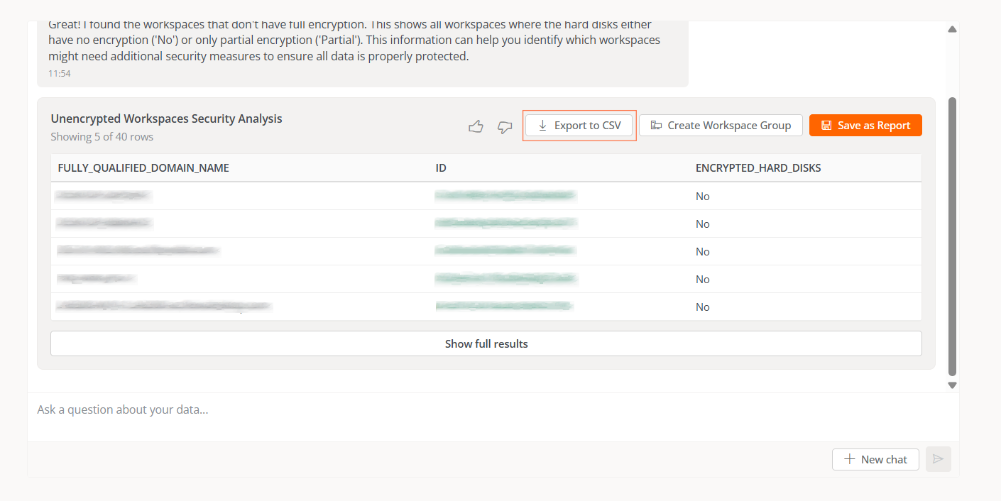
Export to CSV
Allows downloading the results in .csv format.
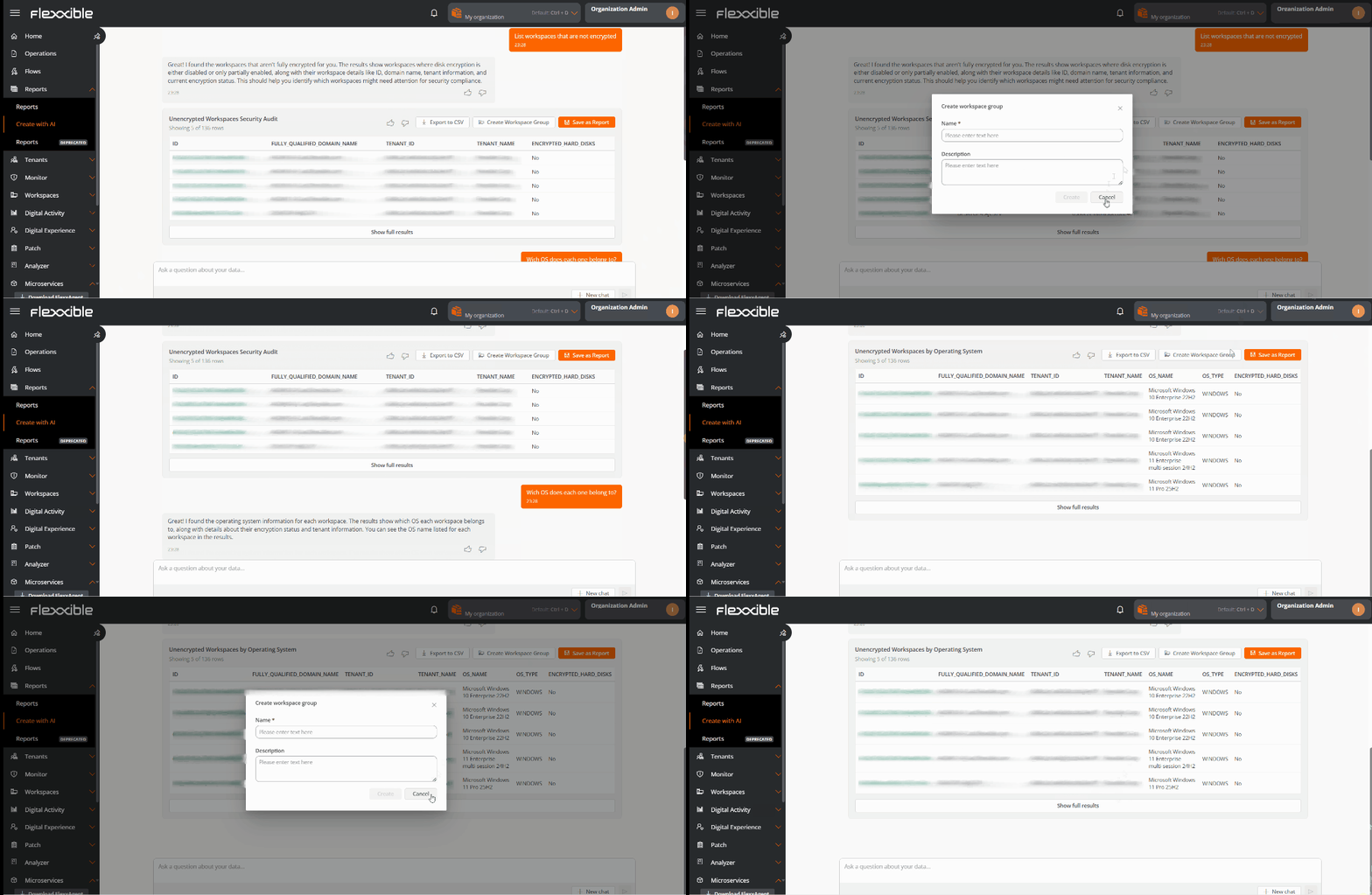
Create a workspace group
This button is visible only when the report content includes devices.
Allows creating a workspace group from devices that meet the report criteria.
A group can be generated from any result in the conversation history.
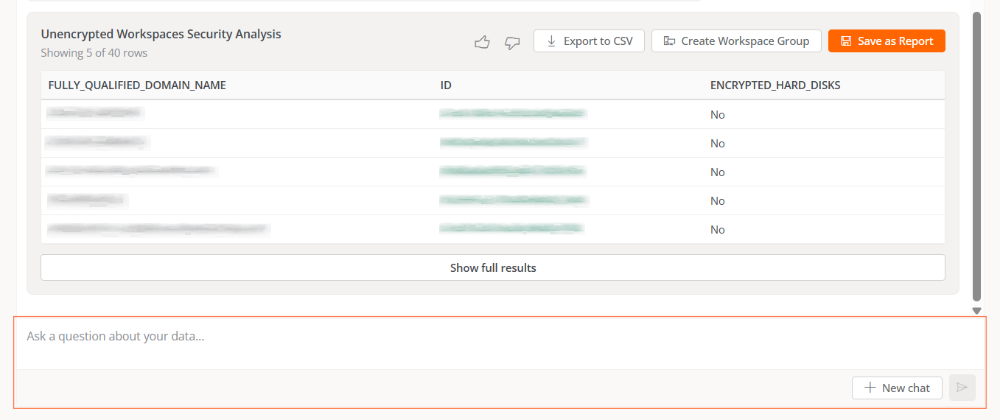
Improve or start a new query
If the result is not as expected, you can:
- Refine the query while maintaining the context using
Ask a question about your data. - Start a new independent query with
New chat.
Requests
Requests can be made with varying levels of detail, from very specific queries to general requests. In all cases, the AI analyzes the context, identifies relevant criteria, and returns structured results based on available data.
This approach makes it easy to use for both users with advanced technical knowledge and those who aren't sure what information they need to obtain initially.
Examples
| User type | 🧑💻 Request | 🤖 AI Response |
|---|---|---|
| Specialized | Give me a list of all devices that have been affected by BSOD or had application crashes in the last 15 days. Include the number of devices, the number of failures by type, and order them from highest to lowest number of occurrences. | I've identified all devices that have presented BSOD or application crashes in the last 15 days. The list I'm presenting is ordered from highest to lowest number of occurrences, showing the name of each device and breaking down how many failures each had by type of problem. This will help you quickly identify which equipment needs the most attention. Would you like me to analyze any specific pattern in these data or do you need additional information on any of these devices? |
| Non-specialized | List the devices presenting performance issues, risk of obsolescence, or security gaps. | I've found devices with performance issues, risk of obsolescence, or detected security vulnerabilities. - Performance: high CPU usage or memory use, or low disk space. - Obsolescence: unsupported operating systems or old hardware. - Security: disabled antivirus, absence of EDR, unencrypted disks, non-compliant devices or active threats detected. Here's a table that includes all devices needing immediate attention. |
In the previous examples:
- The request from the specialized user produces a very specific report oriented towards advanced analysis.
- In the non-specialized user's request, the AI was able to decipher the request. Here, the report can be used as a starting point for more detailed studies and even to learn how to diagnose, what to look at, and how to correlate events.
Queries from the search bar
It is also possible to make requests to the AI directly from the Portal search bar, without having to navigate to the Reports section.
To perform the query:
- Press
Ctrl + Kfrom any section of Portal. - Type the request in natural language.
- Click on
Ask with AI.