FlexxAgent deployment via Intune for macOS
FlexxAgent can be centrally deployed on macOS devices through Microsoft Intune. This method allows you to automate the agent installation and manage its distribution within the organization's devices.
Before starting the deployment, it is recommended to consult the FlexxAgent documentation to know the agent's requirements and features on macOS.
Requirements
Before starting the deployment:
- macOS devices must be enrolled in Microsoft Intune.
- The FlexxAgent installation script (
.sh) must be available.
Download the installation script
The agent is distributed for macOS using an installation script.
To obtain it:
-
Download FlexxAgent from the platform.
-
Get the installation file with
.shextension.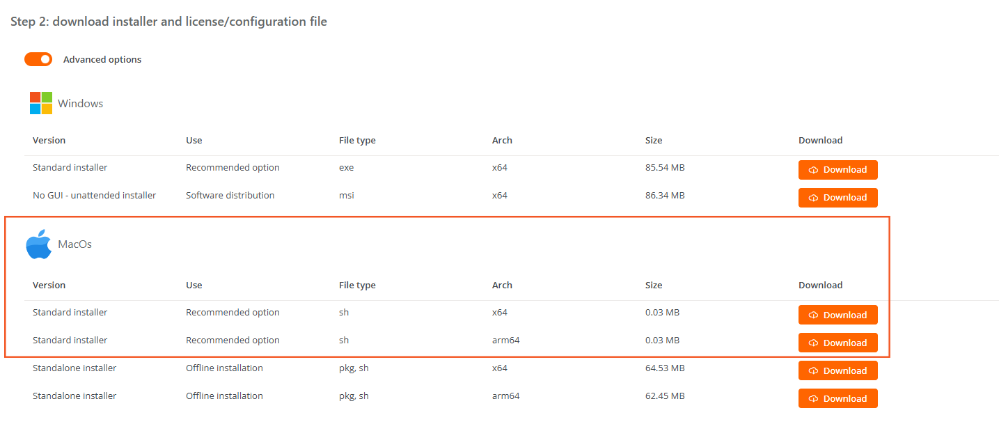
For more information on downloading and installing the agent on macOS, check FlexxAgent for macOS.
Configure deployment in Microsoft Intune
Once the installation script is downloaded:
-
Access the Microsoft Intune Admin Center.
-
In the side menu, go to
Devices→macOS. -
In
Manage devices, selectScripts. -
Create a new script.
-
Complete the configuration by following the steps below.
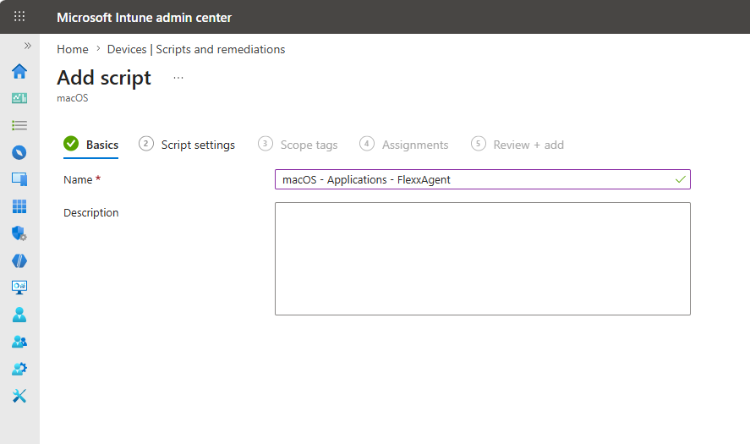
Basics
Enter the general script information.
Script settings
Configure the script and upload the FlexxAgent
.shfile.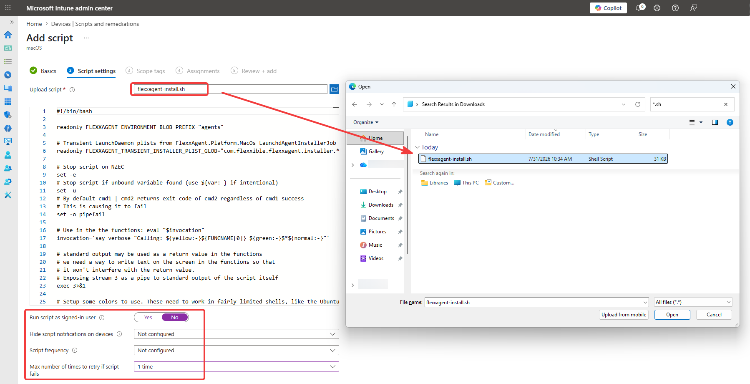
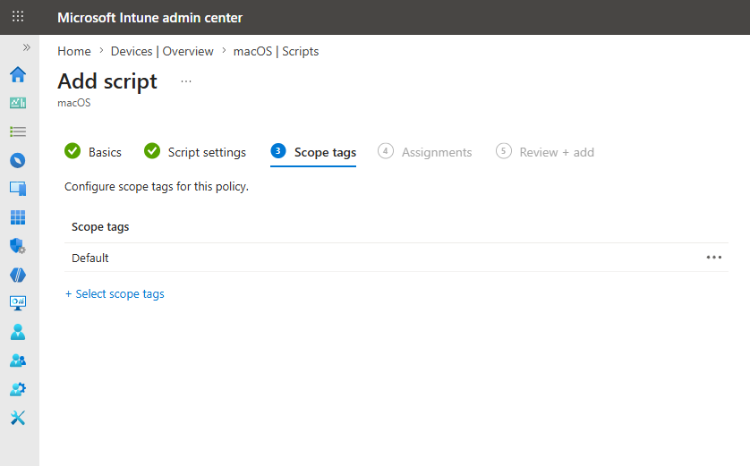
Scope tags
Configure the scope tags relevant to the organization.
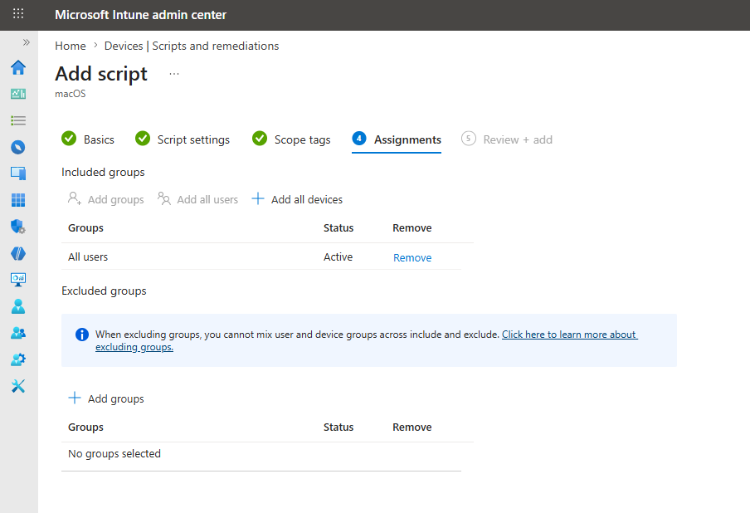
Assignments
Select the user or device groups to which the installation script will be assigned.
-
Review the configuration and create the script.
Verify installation
Once the script runs on the assigned devices, check that FlexxAgent is installed correctly.
The devices where the agent is correctly installed and registered will appear in the Portal and will start sending information to the platform.