Deployment with Microsoft Intune
FlexxAgent Cross-Platform can be centrally deployed using Microsoft Intune, allowing administrators to distribute, install, and manage the agent on Windows devices within the organization.
Using Intune facilitates the automation of the installation process and the application of management policies on devices, especially in corporate environments with a high number of computers.
Before starting the deployment process, it is recommended to review the general documentation for FlexxAgent Cross-Platform to understand the agent's requirements and configuration options.
Requirements
Before beginning deployment, the following requirements must be met:
-
If you want to install FlexxAgent Cross-Platform and the device has FlexxAgent previously installed, it is necessary to uninstall the latter before proceeding.
-
Microsoft Windows 10 version 1607 or later operating system
-
Devices must be enrolled in Microsoft Intune and added to the active directory in one of the following configurations:
- Registered in Azure Entra ID (especially in Bring your own device environments)
- Associated with Azure Entra ID (also known as Joined device)
- Associated with a hybrid environment (AD / Azure Entra ID)
-
Microsoft Win32 Content Prep Tool is required.
Deployment steps
1. Download FlexxAgent Cross-Platform installer
Download FlexxAgent Cross-Platform from the platform and obtain the following files:
- Installer
.msi. - Configuration file
.conf.
For more information about the download process, check this link.
2. Create the installation package in .intunewin format
-
Unzip the agent installation package to a local folder.
-
Download the
Microsoft Win32 Prep Tool. For more information, see Prepare a Win32 app to be uploaded to Microsoft Intune. -
Create an empty folder where the generated package will be stored. For example:
C:\Temp\FlexxAgent-Installer-output. -
Create the installation package. In this example, it was extracted to
C:\Temp\FlexxAgent-Installer. -
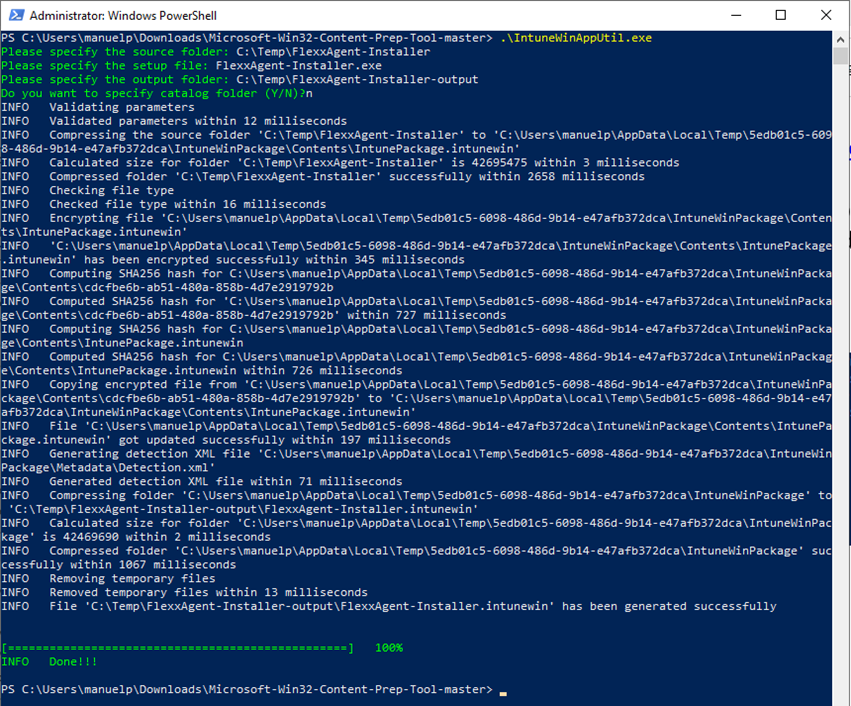
Use the tool IntuneWinAppUtil.exe (Microsoft Win32 Content Prep Tool) to convert the installer into an Intune package.
-
Confirm that the package has been created correctly.

-
The created package will be used to deploy an application in Microsoft Intune.
3. Create the application in Intune
- Access the Intune admin center.
- Go to
Apps->All Apps. - Select
+ Add - Choose Windows app (Win32) as the application type.
- In the
App informationtab, clickSelect app package fileand select the.intunewinpackage created earlier. - Enter the application information:
- Name: FlexxAgent-Installer standalone
- Publisher: Flexxible
- App version: This information is provided in the properties of the
FlexxAgent.Installer.msifile.
4. Configure installation
In the Program tab, set up the installation and uninstallation commands.
For example, if the configuration file is named settings.conf:
-
Install command
msiexec /qn /i "FlexxAgent.Installer.msi" AGENT_CONFIG=".\settings.conf"
The installation command must be adjusted to the real paths and names of the files included in the package. The configuration file path is mandatory and must point to the .conf file that will be used during installation.
-
Uninstall command
msiexec /qn /passive /x "{6F330B47-2577-43AD-9095-18614A74D82F}"noteDouble quotes are mandatory.
-
Install behavior: System
-
Device restart behavior: No specific action
5. Set up a proxy (optional)
If the environment uses a proxy server to access the Internet, the setup must be done before installing the agent by modifying the downloaded .conf file.
In the [Agent/Network] section, add a line with the corresponding format:
Unauthenticated proxy
proxy = http://proxy_uri:port
Example: proxy= http://192.168.0.100:443
Authenticated proxy
proxy = http://user:password@proxy_uri:port
Example: proxy = http://proxy_user:[email protected]:443
6. Configure system requirements
In the Requirements tab, include the information about the operating system architecture:
- Operating system architecture: 64-bit
- Minimum operating system: Select according to the version used in the current installation (device fleet). For example, minimum: Windows 10 1607
7. Configure detection rules
-
In the Detection Rules tab, select:
Manually configure detection rules. -
Click
+Add. -
Configure the following values:
- Rule type: File
- Path:
%ProgramFiles%\Flexxible\FlexxAgentUniversal - File or folder:
FlexxAgent.Universal.exe - Detection method: File or folder exists
- Associated with a 32-bit app on 64-bit clientsA: No
8. Assign the application
In the Assigments tab, create an Azure Entra ID security group containing the devices where this package will be installed.
9. Configure user notification
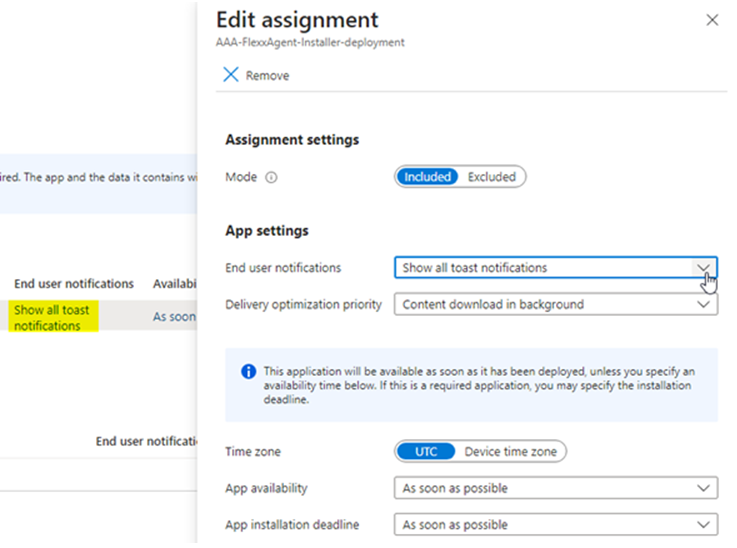
Select the appropriate notification to be displayed to the end user.
10. Select target devices
You can choose between:
+Add all devices, to deploy the application on all devices enrolled in Intune.- Select a specific group of devices where the deployment will be made.
11. Start deployment
Once the configuration is complete, click Review+Create to start the deployment.
The process may take up to an hour to begin applying on devices.
Once the setup is complete, Microsoft Intune will distribute FlexxAgent Cross-Platform to the assigned devices.