Types
Four license types are distinguished:- Workspace installation license. Consumption is counted when the device has at least one of the applications that make up the license installed.
- Workspace execution license. Consumption is recorded when one of the applications runs on a device, regardless of whether it is installed.
- User-specific execution license. Consumption is counted when a user runs any of the associated applications.
- Web App per-user license. Consumption is based on the users who use the web applications linked to the license.
License usage information is calculated in real time. Consumption begins to be recorded from the moment the license is created and applications are associated with it.
Create a license
To create a new license, click the New button located in the list view. A form will then open in which you must complete the following fields: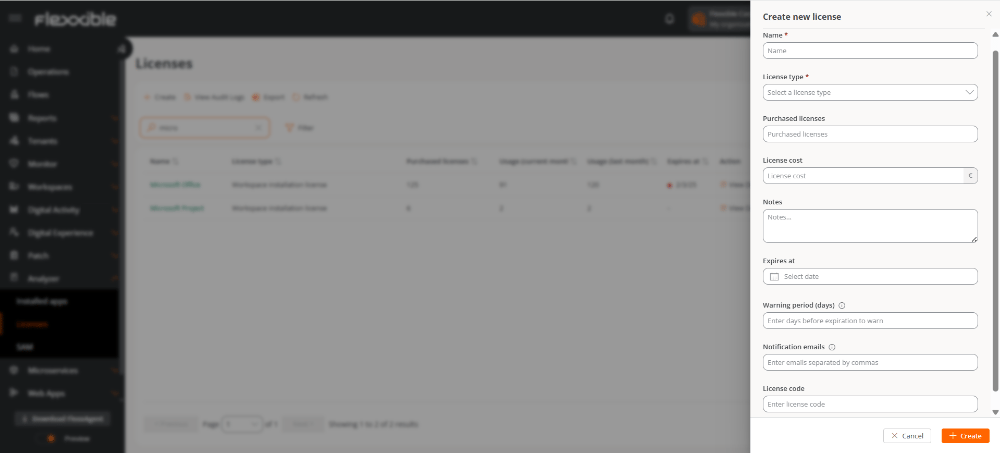
- Name. License identifier.
- License type. Installed on the device, Executed on the device, or Executed by a user.
- Purchased licenses. Number of licenses acquired.
- License cost. Monthly license cost, expressed in euros.
- Notes. Additional relevant information about the license.
- Expires on. License expiration date.
- Warning period (days). Number of days before the expiration date on which a notification will be sent.
- Notification emails. Email addresses (separated by commas) that will receive the expiration notice.
- License key. Informational field to record an internal identifier or reference to locate it. It is not used in any automated processes.
License expiration control
This feature lets you configure automatic email notifications when a license is approaching its expiration date. To enable it, during license creation or editing you must configure the following fields:- Warning period (days)
- Notification emails
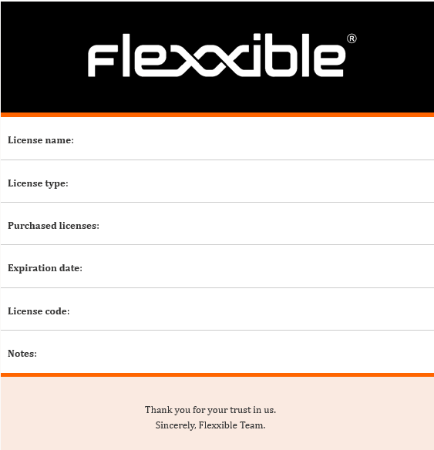
License expiration notifications are sent at 12:00 UTC.
License list
The license list includes the following information: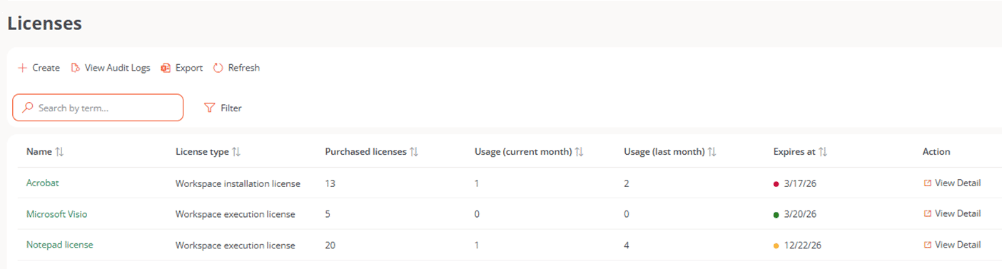
- Name. License name.
- License type. Installed on the device, Executed on the device, or Executed on user.
- Purchased licenses. Number of licenses purchased.
- Usage (current month). Number of licenses used in the current month.
- Usage (last month). Number of licenses used in the previous month.
-
Expires on. Expiration date. Represented with colors:
- Red: license expired.
- Yellow: within the warning period.
- Green: valid and outside the warning period.
- View details. Provides access to the detailed license view.
License details view
Depending on the license type, different tabs are available. In all cases, the following tabs are shown:- Details
- Installed applications
- Usage history
- Purchased licenses history
Details
The Details tab brings together the license’s general information and also shows the following data:- Monthly license cost
- Warning period (days)
- Notification emails
- License key
- Issue, update, and expiration dates
- User who made the last modification
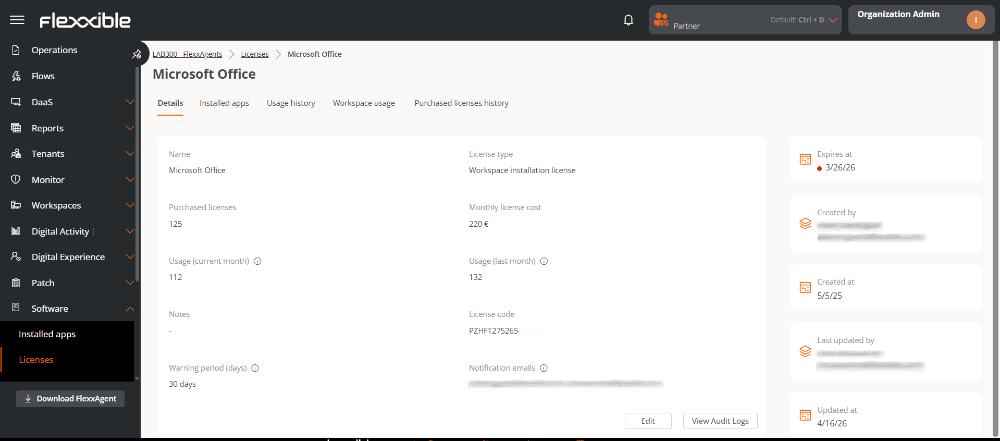
- Modify the license information using the Edit button.
- Add additional notes.
- Access the audit logs using the View audit logs button, which opens the Audit view.
Installed applications
Shows a table with the applications associated with the license.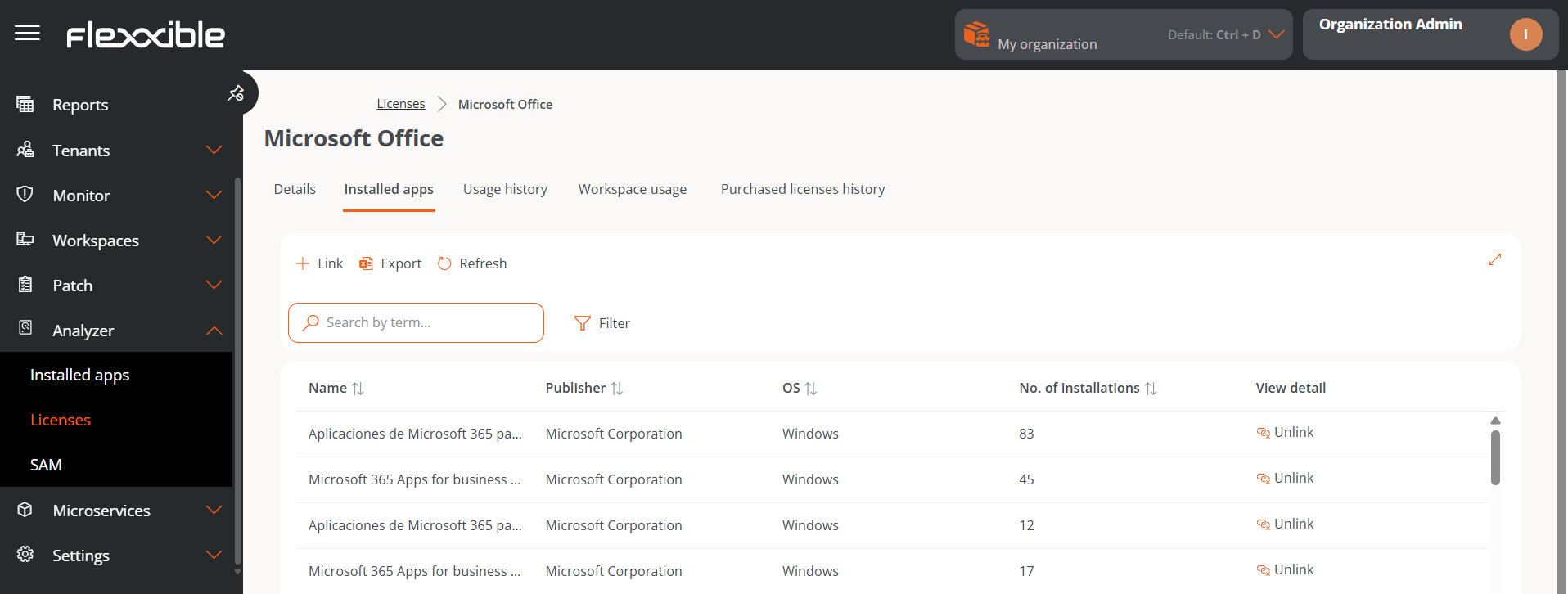
- Name. Application name.
- Publisher. Company that developed the application.
- OS. Operating system on which the application runs.
- Number of installations. Number of installations of the application.
- View details. Lets you Unlink or Link an application. The latter displays a form with options to link an application to the installed applications list. The Reload button refreshes the list after changes have been made.
Usage history
Lets you view license usage per month in a bar chart, from the moment it was created.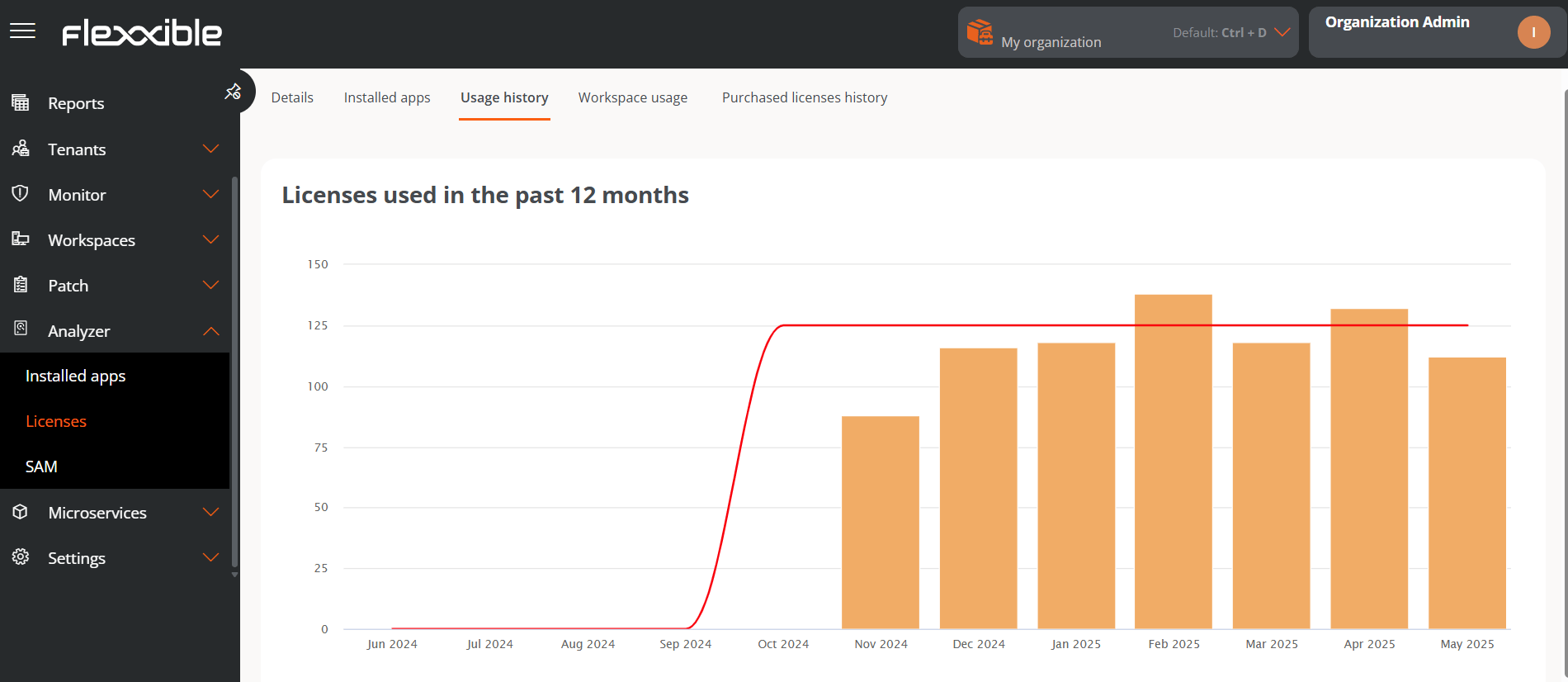
Purchased licenses history
Shows the license acquisition history. The table contains the following information:- User name
- Licenses purchased before
- Licenses purchased after
- Updated at
Details view by license type
The following tabs are enabled depending on the license type.- Running processes
- Workspace usage
- User usage
- Web Apps
Running processes
Shows the processes linked to the license whose execution counts a license as In use. The table includes the following information: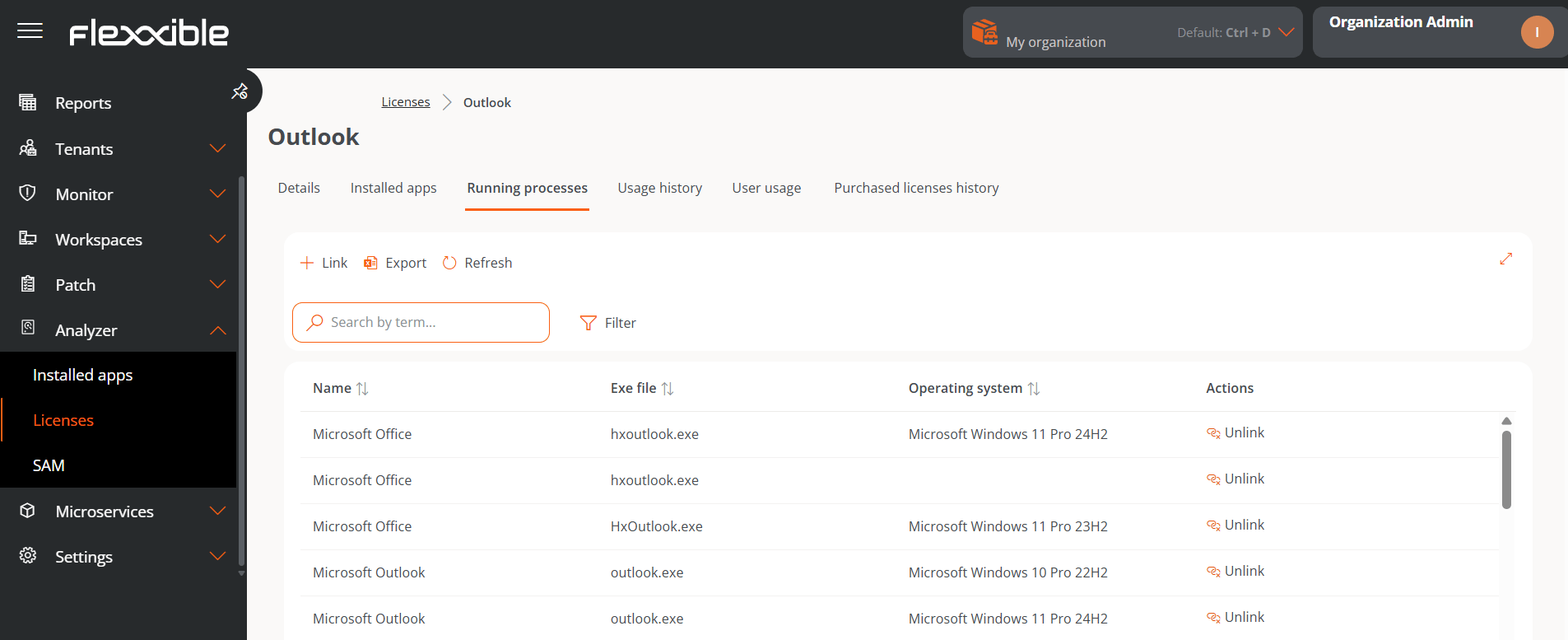
- Name. Application name.
- Exe file. Name of the executable.
- OS. Operating system on which the process was detected.
- Action. Lets you Link or Unlink applications from the license.
Available for Workspace execution license and User-specific execution license types.
Workspace usage
Shows the devices currently consuming the license.- Name. Device name.
- IP address. Device IP address.
- OS. Operating system.
- CPU cores. Number of processor cores.
- Total RAM. Installed RAM.
- Type. Device type.
- Last user. Last user who signed in.
Available for Workspace installation license and Workspace execution license types.
User usage
Shows the users currently consuming the license.Available for User-specific execution license and Web App per-user license types.
Web Apps
This tab shows the web applications linked to the Web App per-user license type. Once at least one web application is linked, consumption is recalculated daily based on the number of unique users who use any of the applications during the current month. This information is also used in the SAM section to identify potential licensing optimization opportunities.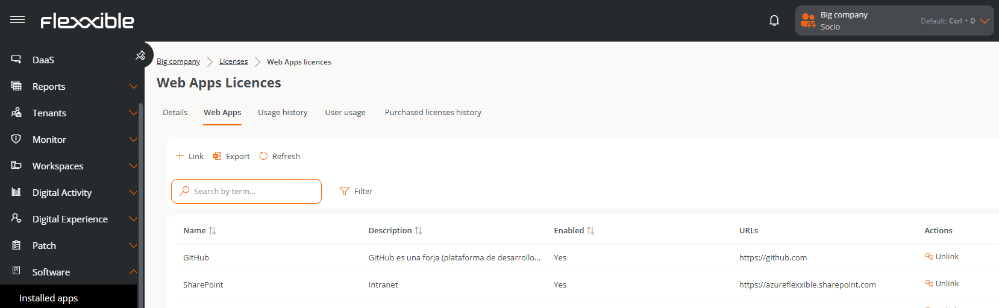
- Name. Application name.
- Description. Application description.
- Enabled. Indicates whether the application is enabled.
- URL. Web addresses of the application.
- Actions. Lets you unlink the application from the license.
License consumption will not begin to be calculated until at least one Web App is linked.
Link a web application
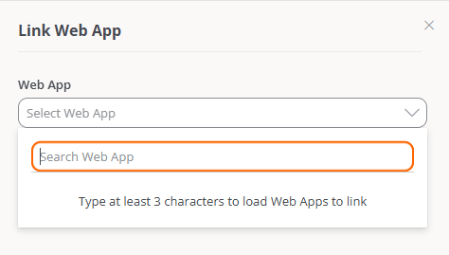
- Click the Link button located above the table.
- Select the web application you want to associate. Only Web Apps created for the organization will be available.
- Click Link.