

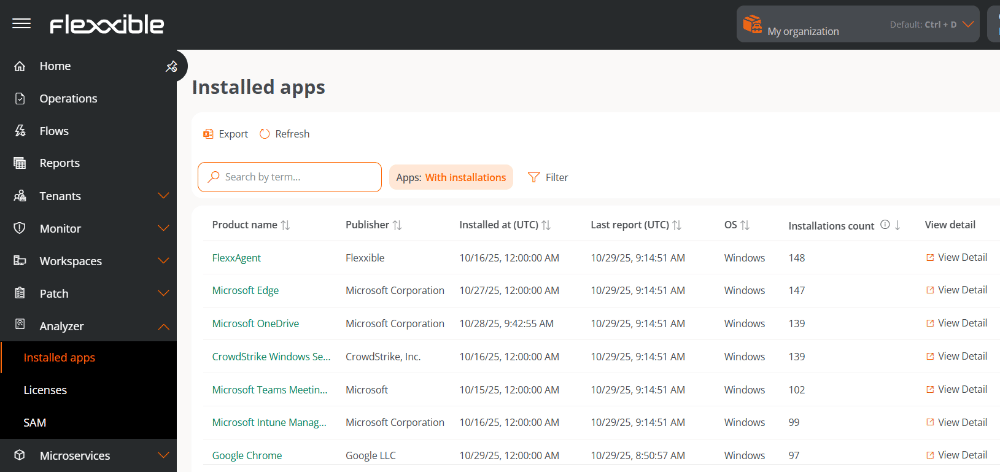
Installed applications list
The table shows the following information:- Product name. Name of the installed application.
- Publisher. Company that develops the application.
- Installed at (UTC). Date and time the application was first reported on a device (in UTC time).
- Last report (UTC). Date and time of the last report received for that application (in UTC time).
- OS. Operating system of the devices where the application is installed.
- Installation count. Number of installations recorded on the organization’s devices.
- View details. Opens the details view of the selected application.
Filters
At the top of the table is the default Applications filter, which lets you list applications by their installation status: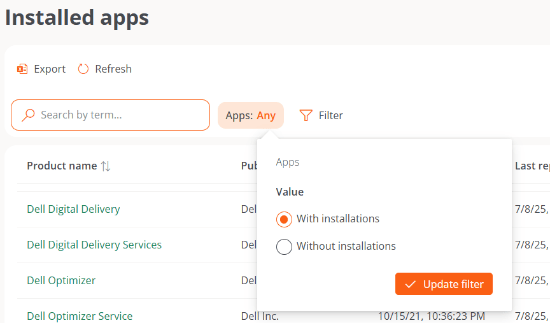
- With installations. Shows applications present on at least one device.
-
Without installations. Shows applications that were installed at some point but are no longer present on any device.
The Without installations historical data is kept for 120 days.
Installed applications details
Clicking on the name of an application or on the View details option opens a view with five tabs:- Overview
- Versions
- Workspaces
- Installation history
- Report history
Overview
Shows the same information as the main table, plus the Edit button, which lets you add a free-text note.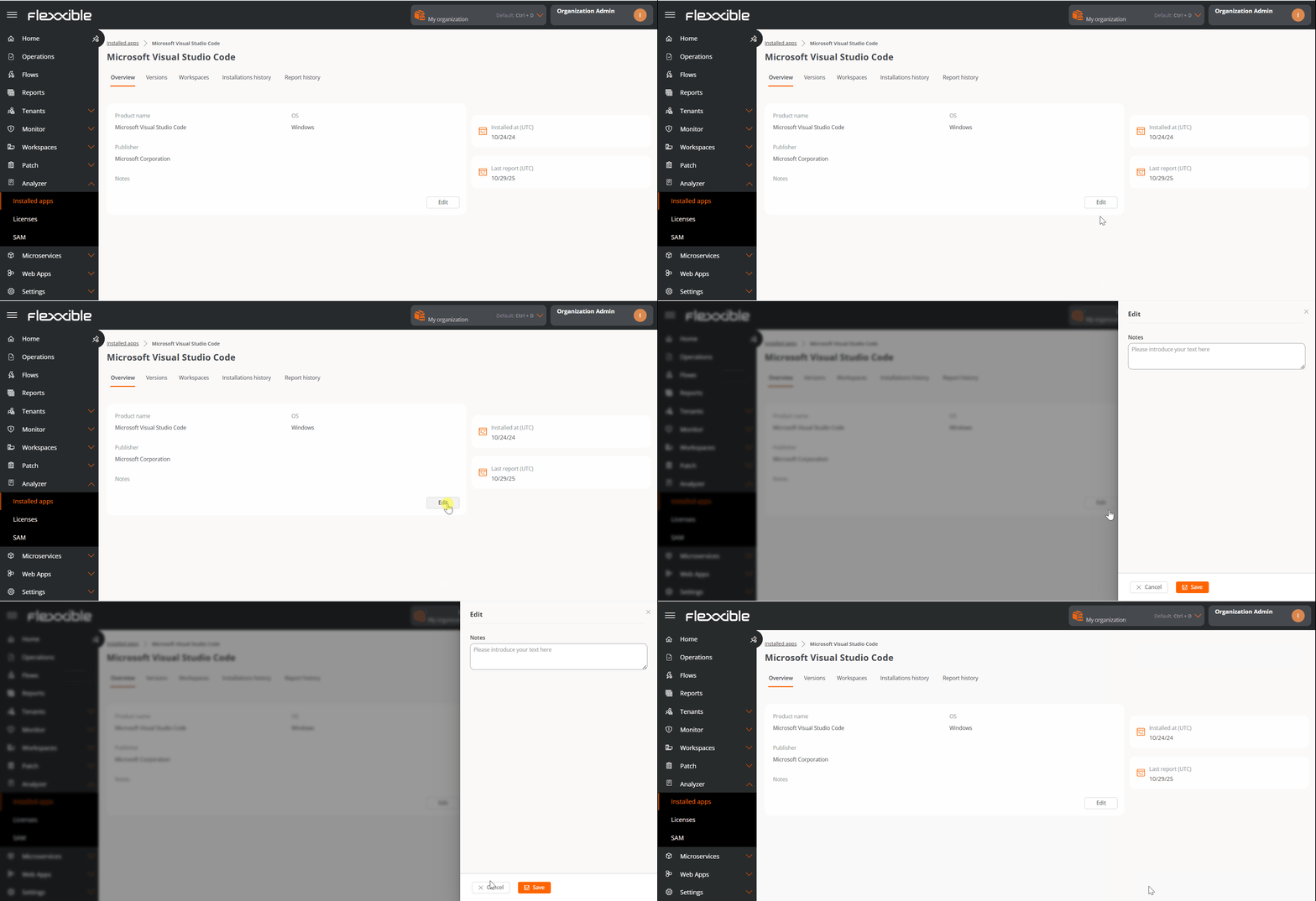
Versions
Presents a table with the following columns:- Version. Application version number.
- Number of workspaces. Number of devices where that version is installed.
- Installed at (UTC). Date of the first report of the application for that version.
- Last report (UTC). Date of the last report of the application for that version.
Workspaces
Shows detailed information about the devices where the application is installed:- Name. Device name.
- Version. Version of the installed application.
- Installation location. Path to the executable file.
- Last report (UTC). Date of the application’s last report on the device.
- Installed at (UTC). Date of the application’s first report on the device.
- Product name. Name of the installed application.
- OS. Device operating system.
- Reporting group. Reporting group the device belongs to.
- Last user. Last user who used the device.
Installation history
Using a chart, this shows the number of installations for each version of an application over a maximum period of 120 days.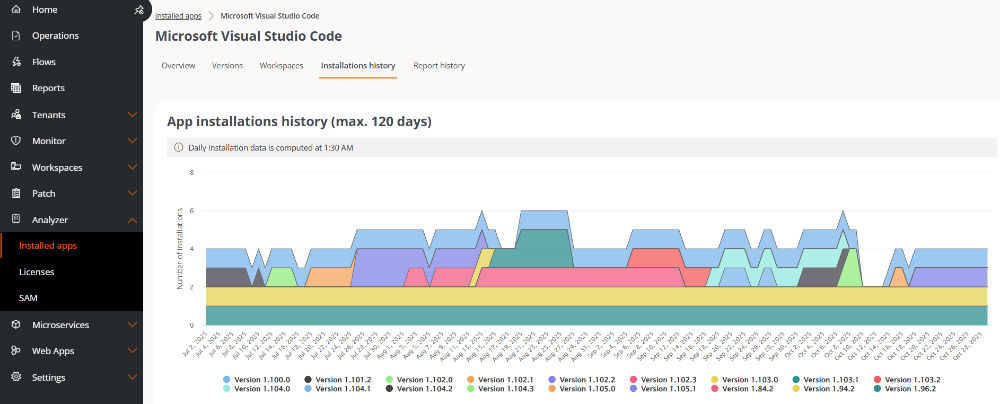
The installation history is updated daily at 01:30 UTC.
Report history
Shows a chart with the number of devices that have reported a certain application version number over a maximum period of 120 days.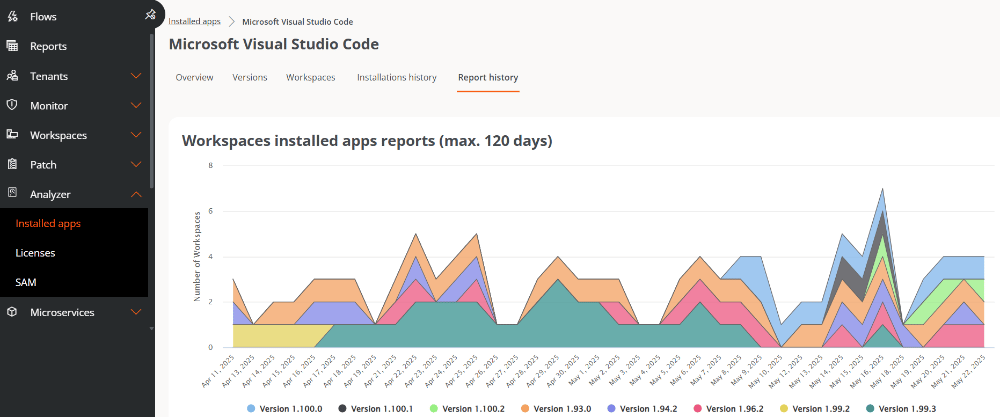
Product name and versions
How an application’s version is displayed depends on the vendor and how they handle their names and updates.- For applications whose name does not change between versions, the latest installed version will always be shown.
- For applications whose name includes the version number, it may happen that two different versions are shown as if they were independent installations (for example, App 1.0 and App 2.0). This happens because the operating system interprets each name as a different application.
Considerations when removing a device
When you remove a device from the platform:- The applications installed on that device stop being counted in the Installation count column of the main table.
- If those applications remain installed on other devices, the Installation count value will decrease.
- The device will no longer appear in the Workspaces list within the application’s details view.
- If the application is no longer installed on any other device, it will be included in the Without installations list.