Summary
This section presents indicators that help identify the web applications with the highest latency, error rate, and number of anomalies. Additionally, it provides information about the number of devices accessing each application, the access dates, and the usage evolution over time.
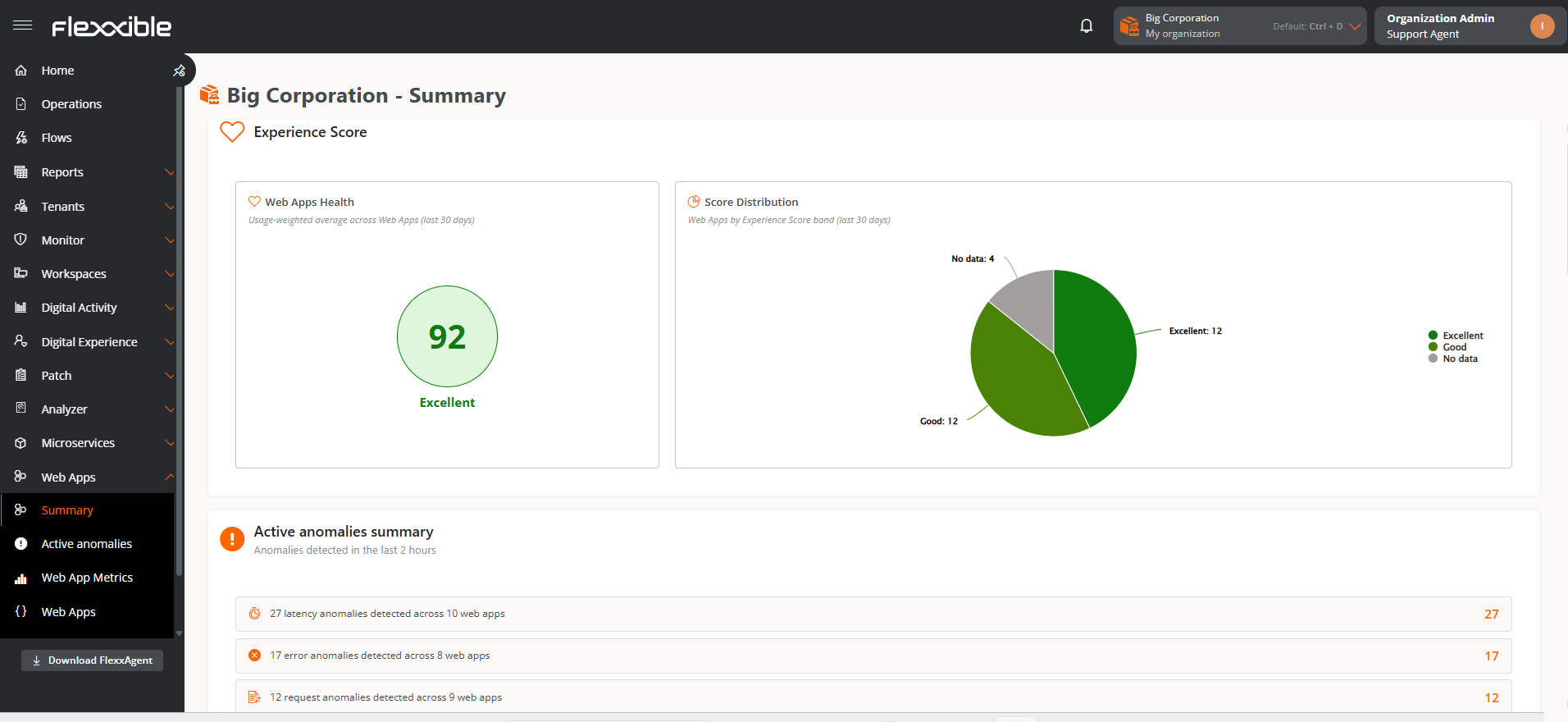
Experience Index
The experience index is a composite metric that reflects the overall quality of web applications from the end user perspective. Its goal is to provide a quick and unified view of the application status.
This indicator combines request reliability, response speed, and stability, based on anomaly detection. It allows for easy identification of the level of experience offered by the web applications and to detect improvement points.
Score
The experience index is represented by a score between 0 and 100, where higher values indicate a better user experience:
- 90–100 — Excellent (Green)
- 75–89 — Good (Light green)
- 60–74 — Average (Yellow)
- 40–59 — Poor (Orange)
- 0–39 — Critical (Red)
Additionally, when applicable, it's also indicated:
- Insufficient data. The recorded request volume is not enough to calculate a representative index. Not calculated to avoid imprecise results.
- No data. No activity has been recorded in the web application during the analyzed period.
Graphs
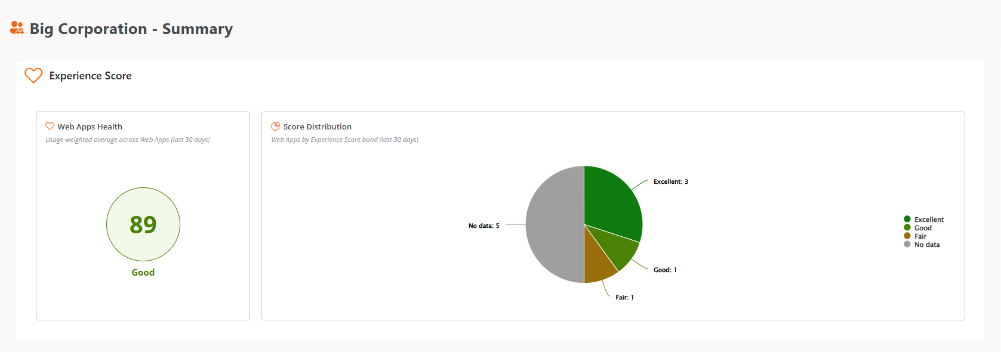
The graphs show indicators corresponding to the last 30 days:
-
Web application health. Represents the weighted average of the experience index of web applications based on their use.
-
Distribution by experience index. Shows the percentage distribution of web applications according to their experience index.
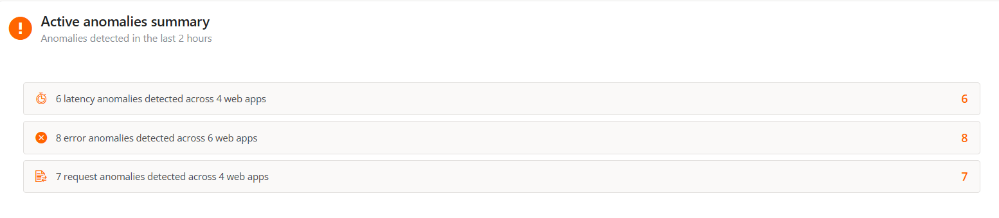
Summary of active anomalies
Allows accessing details of anomalies detected with the greatest incidence during the last two hours, to identify potential current issues in the operation of web applications.
Anomalies are classified in the following categories: Latency, Error, and Request.
Top 5 Web Apps
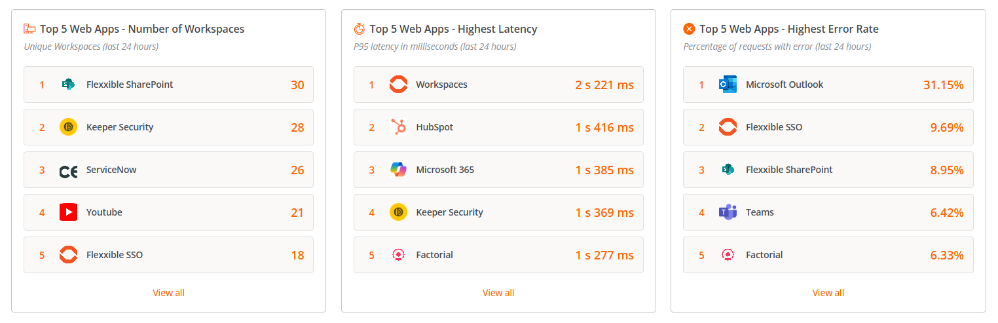
Displays indicators that help identify the five applications that stand out by specific metrics. Selecting an application from any indicator provides access to its detailed view.
The See all button allows opening the Web Apps Metrics table, automatically applying the filter corresponding to the selected indicator.
-
Number of workspaces
Shows the most used applications based on the number of unique devices that made requests during the last 24 hours.
-
Highest latency
Indicates the applications with the highest average latency, expressed in milliseconds, during the last 24 hours.
-
Highest error rate
Presents the applications that have recorded the highest number of errors in requests during the last 24 hours.
-
Anomalies in request volume
Identifies the applications that have recorded a higher number of anomalies related to request volume during the last 48 hours.
-
Most anomalies in latency
Shows the applications with the highest number of anomalies related to latency during the last 48 hours.
-
Most anomalies in error number
Presents the applications that have recorded the highest number of anomalies related to errors during the last 48 hours.
Workspaces
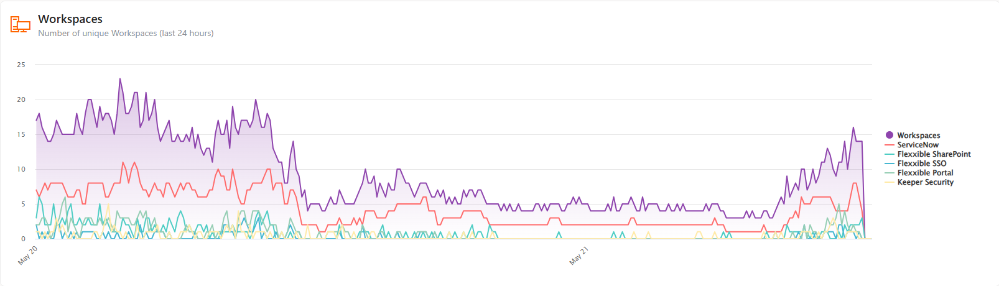
The graph shows the number of unique devices that accessed the most used applications during the last 24 hours.
The legend on the right side allows:
- To visualize only the data of a specific web application, keeping the rest of the elements dimmed.
- To visualize only the total devices by switching on the word
Workspacesand turning off the rest of the elements.
Requests
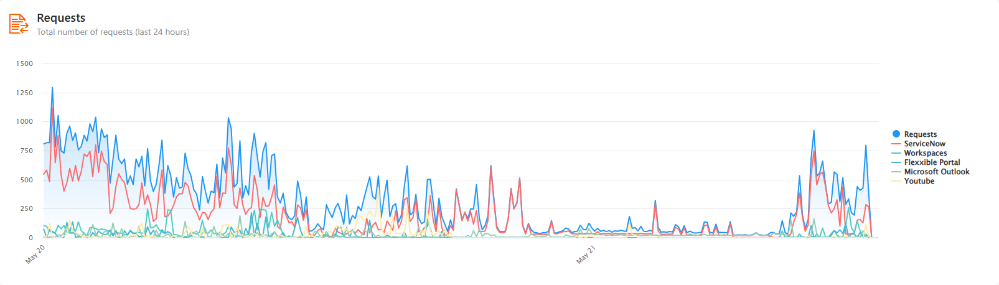
This line chart shows the number of requests made by users to each of the five most used web applications during the last 24 hours.
The legend on the right side allows:
- To visualize only the data of a specific web application, keeping the rest of the elements dimmed.
- To visualize only the total requests by switching on the word
Requestsand turning off the rest of the elements.
Errors
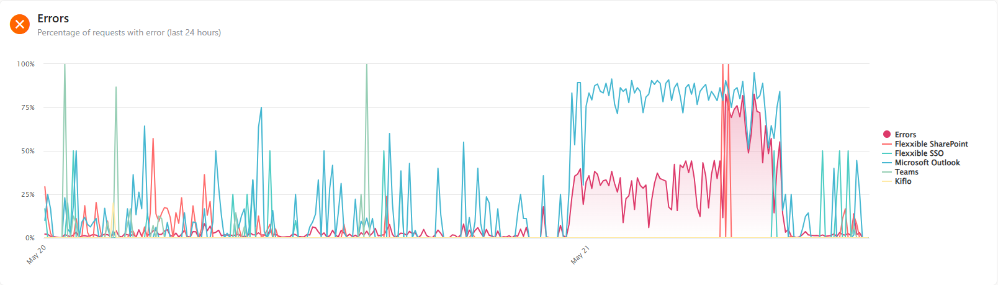
This chart shows the number of recorded errors made when requests were done for each of the five most-tracked web applications over the last 24 hours.
The legend on the right side allows:
- To visualize only the data of a specific web application, keeping the rest of the elements dimmed.
- To visualize only the total errors by switching on the word
Errorsand turning off the rest of the elements.