Organization
Organization allows managing the functionalities that affect the organization's environment globally, from assigning the name on the platform to configuring remote assistance.
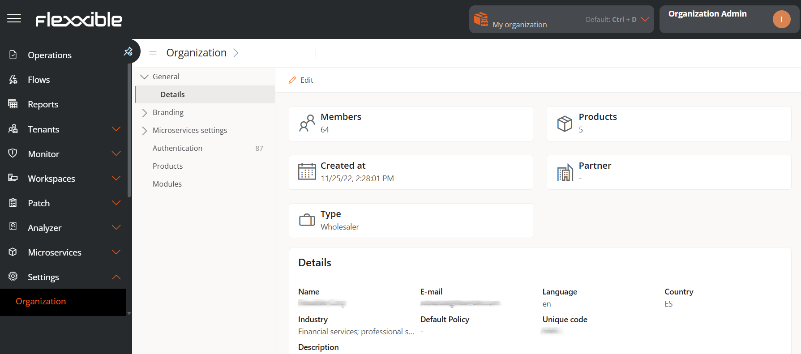
Management can be done from the following sections:
- General
- Branding
- Microservices
- Authentication
- Products
- Modules
- Domains
- SSO Integrations
- SCIM Provisioning
General
Allows defining general information of the organization that can be updated anytime using the Edit button. The following data can be modified:
- Name. Organization's name.
- Email. Associated email address.
- Language. Configured language.
- Country. Country the organization belongs to.
- Sector. The sector it belongs to.
- Description. Description of the organization.
Additionally, from this section you can also access the following information:
- Members. Number of members that the organization has registered on the platform.
- Products. Number of Flexxible products the organization has contracted.
- Creation Date. Date when the organization was registered on the platform.
- Partner. For client type organizations, allows defining or modifying the partner.
- Type. Type of organization that corresponds to it.
Branding
Facilitates the storage of information linked to the organization's brand identity. Clicking the Edit Brand Settings button leads to a form for uploading the organization's logo and cover image, as well as a palette to define corporate colors in hexadecimal format.
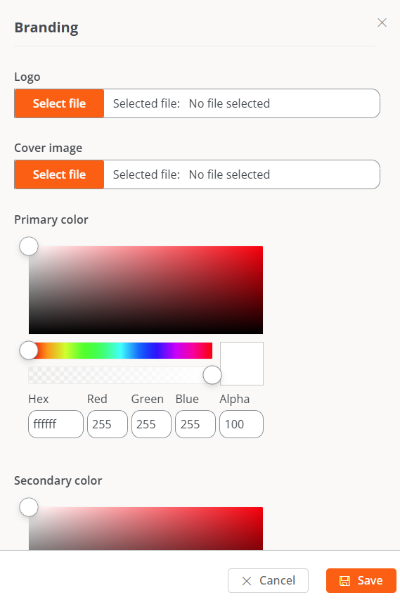
This section also indicates the date and time of the last update, as well as the name and email of the user who made it.
Microservices
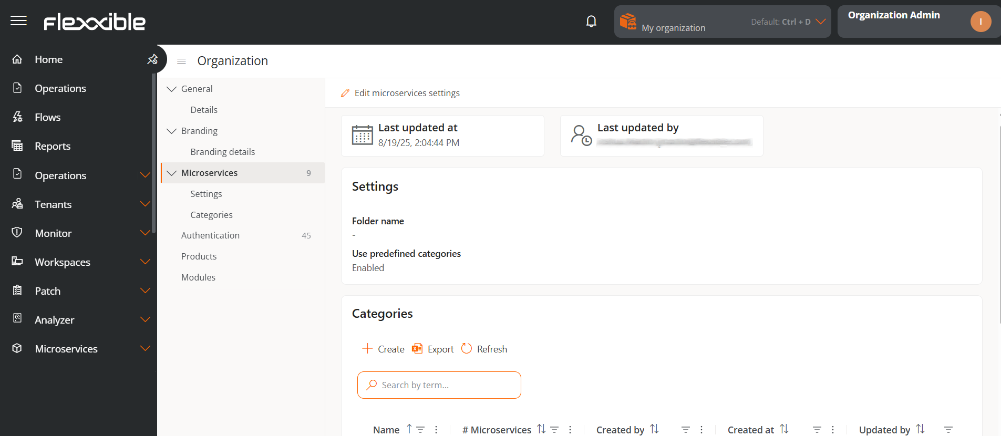
Through its configuration and classification options, it allows changing the name of the folder containing the end-user microservices and managing the predefined categories. It also shows the date and the name of the user who updated the information.
Settings
In this section, it shows the name assigned to the end-user microservices folder and if the option to use predefined categories is enabled.
Folder name
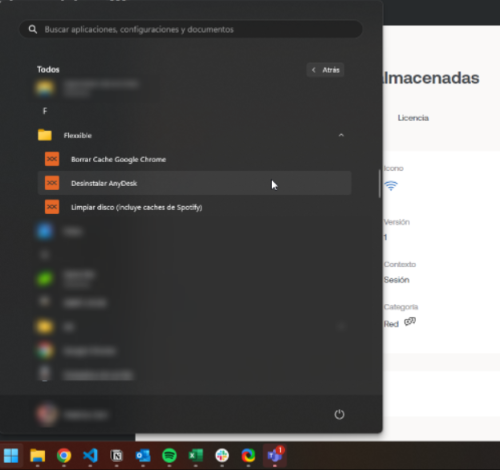
When microservices are enabled to be executed by the end-user, they are automatically added to a folder on the device called Flexxible; however, this name can be modified.
Rename the microservices folder
-
Go to
Portal->Settings->Organization. -
In the left side menu, select
Microservices -
Click on
Edit microservices configuration.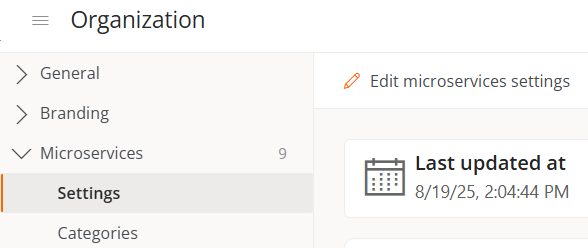
-
Write the new name in the
Folder namefield. The structure must be between 3 and 50 characters and can only contain letters, numbers, hyphens, and underscores.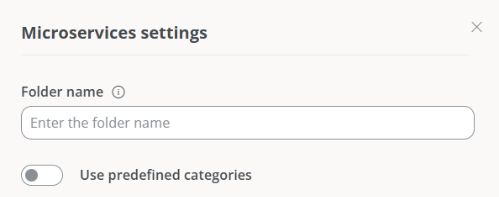
-
Click on
Save.
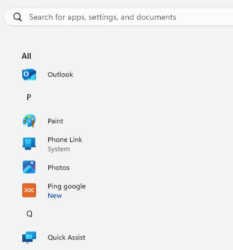
If the device has Windows 11 as its operating system and only one microservice is enabled for an end-user, the Flexxible folder will not be displayed; instead, only the microservice icon will be visible in the start menu.
Predefined categories
This functionality allows users with the role of Organization Administrator to define and manage classification categories for the microservices. The configuration can only be carried out from the main organization and is automatically inherited by sub-organizations, ensuring consistency and preventing the creation of random categories.
Activate predefined categories
- Go to
Portal->Settings->Organization. - Select the
Microservicestab. - Click on
Edit microservices configuration. - Activate the
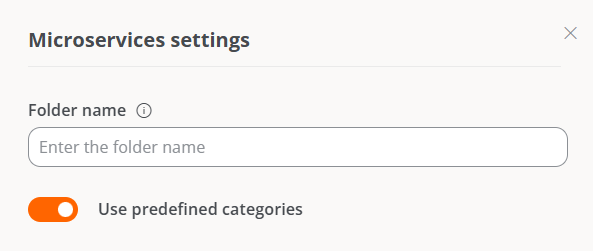
Use predefined categoriesbutton.
- Click on
Save.
When the functionality is active:
-
The
Categoriessection is created automatically, containing a table with the list of microservices categories of the organization.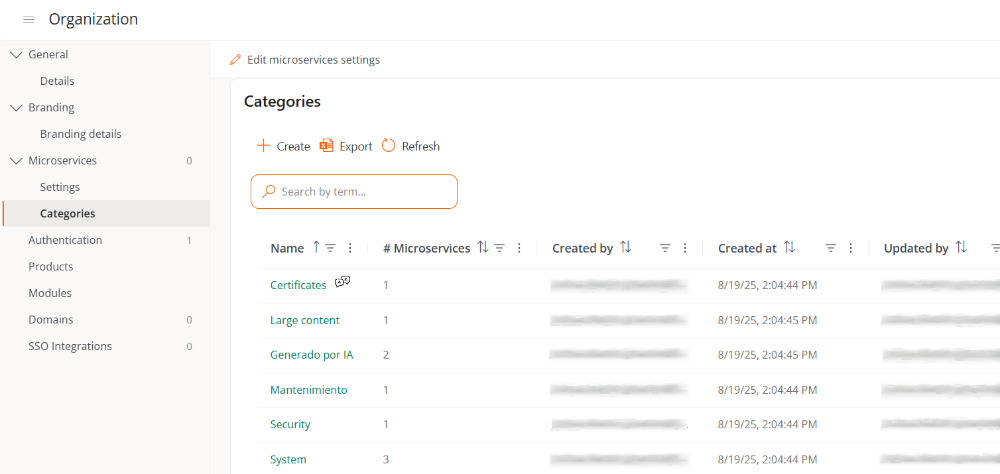
-
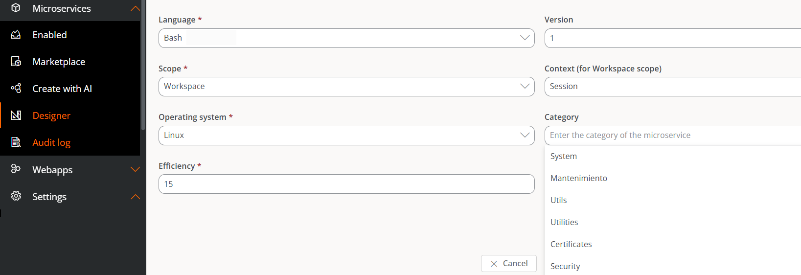
The categories also appear in the Designer section, so that users can only select from the available categories in the list.
Deactivate predefined categories
- Go to
Portal->Settings->Organization. - Select the
Microservicestab. - Click on
Edit microservices configuration. - Deactivate the
Use predefined categoriesbutton
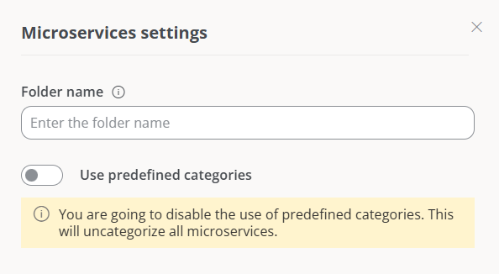
When this option is disabled, a message is displayed informing the user that all microservices with assigned categories will lose that association, and it will be necessary to manually reassign them categories.
Categories
This tab is only enabled when the option of predefined categories is activated. Contains a table with the list of categories and allows creating new ones or deleting existing ones.
Create a predefined category
- Go to
Portal->Settings->Organization. - In the menu, go to
Microservices->Categories. - Click on
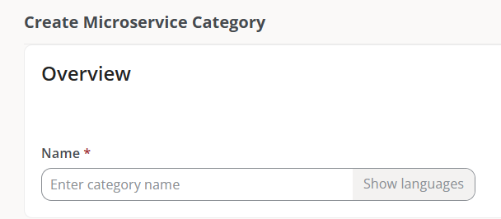
Newand type the name of the new category.
- Click on
Save.
The category name will be displayed both in the table and in the Designer section.
Delete a predefined category
- Go to
Portal->Settings->Organization. - In the menu, go to
Microservices->Categories. - Select a category from the table and click on
Delete.
When a category is deleted, the microservices associated with it will become uncategorized and it will be necessary to manually assign them to another category.
Authentication
From this tab, an Organization Administrator can enable or disable the option to log in using email and password for the organization's users. In case there are suborganizations, the functionality can only be enabled or disabled from the main organization.
The button Enable email/password authentication or Disable email/password authentication, as applicable, allows enabling or disabling the possibility for users who are members of an organization or sub-organization to be able to activate login with email and password.
If this option is disabled, users will not be able to log in with email and password or manage their account. All user credentials will be deleted. If this feature is re-enabled, users will need to reset their password and two-factor authentication again.
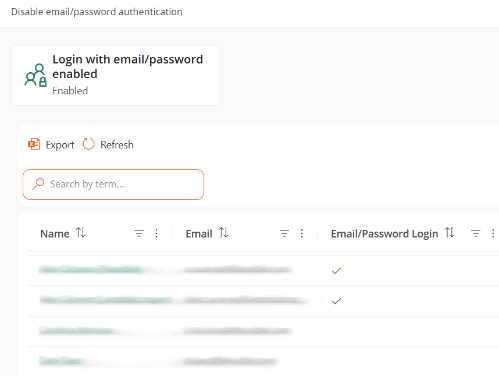
User table
Shows the list of organization members. At a glance, you can see which members have the option to log in via email and password enabled.
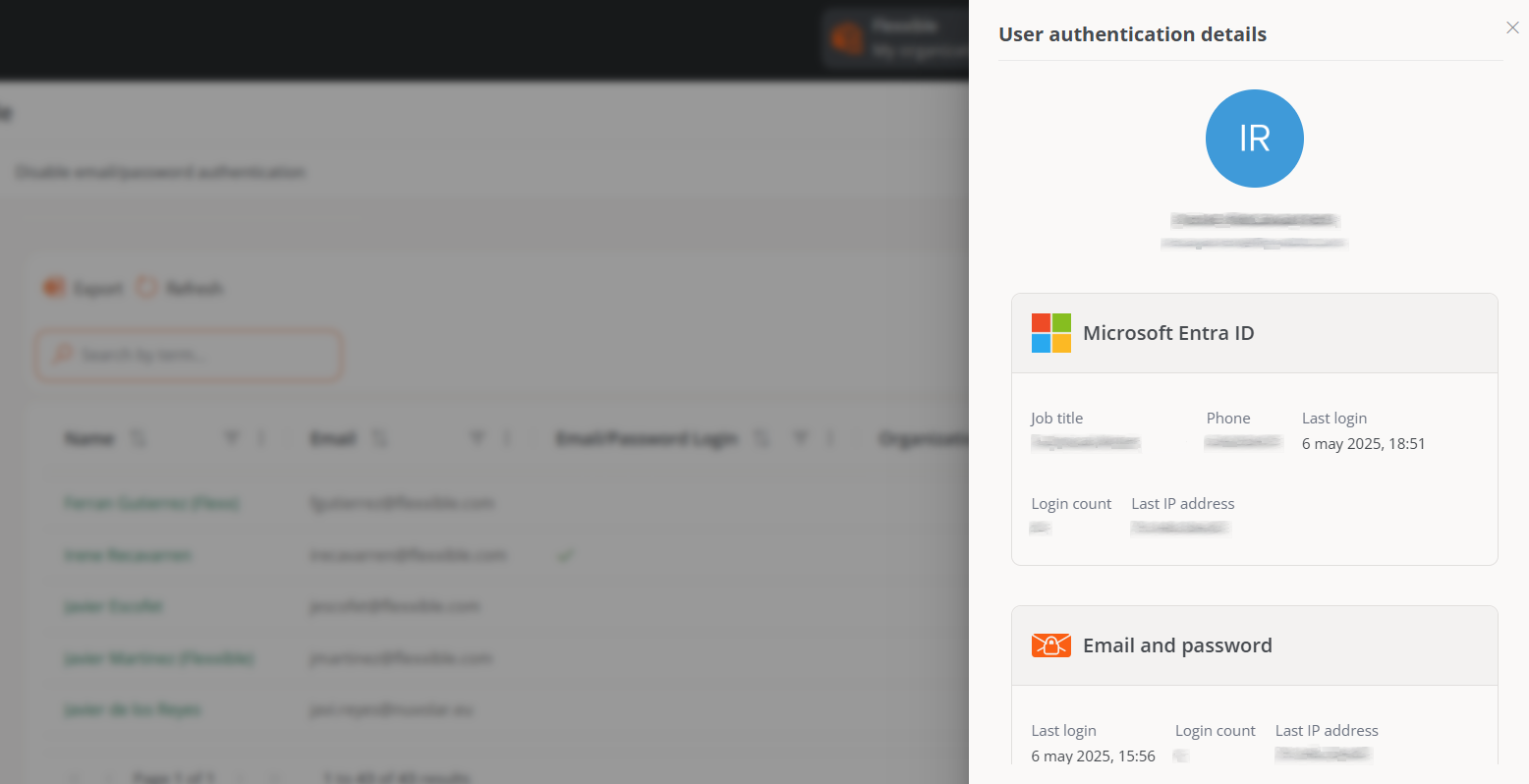
User authentication detail
By clicking on a user's name in the table, you can access cards with specific information about the authentication method they have enabled:
-
Microsoft Entra ID. Role, Phone, Last login, Login count, Last IP address.
-
Google. Last login, Login count, and Last IP address.
-
Email and password authentication. Last login, Login count, and Last IP address. Additionally, from here, the administrator can manage the Authentication security settings for that specific user, which includes Two-factor authentication and Password.
Products
This section reports on the Flexxible environments and products that the organization has. The list view shows data like the name of the environment where the product is deployed, the type of product that is available, region, creation date within the organization, and its status; the Actions field allows you to consult and edit its specific data.
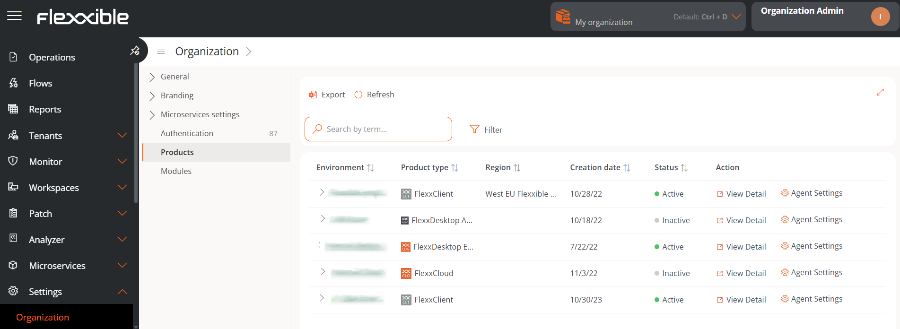
In the table, the Action field shows two buttons to access more detailed information and edit the product's behavior: View details and Agent settings.
View details
This option allows editing the data of each product that the organization has: the environment in which it has been deployed, the license key, its creation date in the organization, and also its status, which can be active or inactive.
FlexxAgent Configuration
This form allows changes at the Remote Assistance and Analyzer Proxy levels.
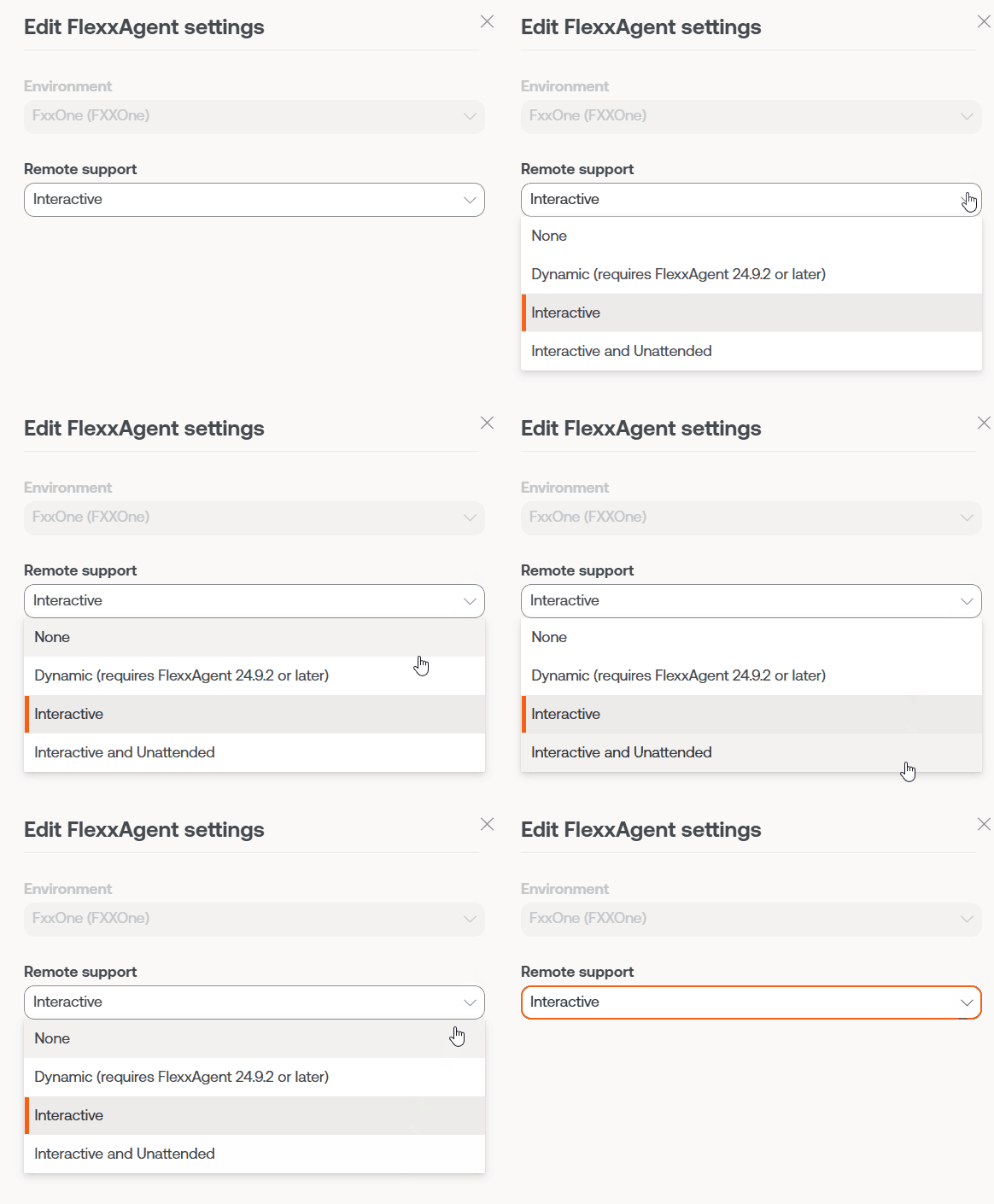
FlexxAgent Configuration - Flexxible Remote Assistance
A user with the Organization Administrator access level in Portal can choose what type of remote assistance the organization will use globally. It can be configured to be interactive, unattended, dynamic, or to have no access at all.
Each reporting group that the organization has can edit its own remote assistance configuration to suit its needs.
FlexxAgent Settings - Proxy
FlexxAgent consists of a Windows service called FlexxAgent Service, which manages two processes: FlexxAgent, which runs at the system level, and FlexxAgent Analyzer, which starts for each user session.
The proxy configuration of FlexxAgent Analyzer is not always the same as that of FlexxAgent, so according to the proxy operation in each environment, its settings will need to be set appropriately.
In the FlexxAgent settings, a user with the Organization Administrator access level can find two configuration options for the FlexxAgent process:
-
System proxy settings
- FlexxAgent Analyzer automatically detects and uses the proxy settings.
- Flexxible recommends this configuration for the system proxy.
-
FlexxAgent detected config
- In this case, FlexxAgent uses the credentials found in the registry if they are defined during installation.
- If not configured, FlexxAgent automatically detects the proxy settings.
- FlexxAgent Analyzer uses the detected settings for the Uniform Resource Identifier (URI), user, and password.
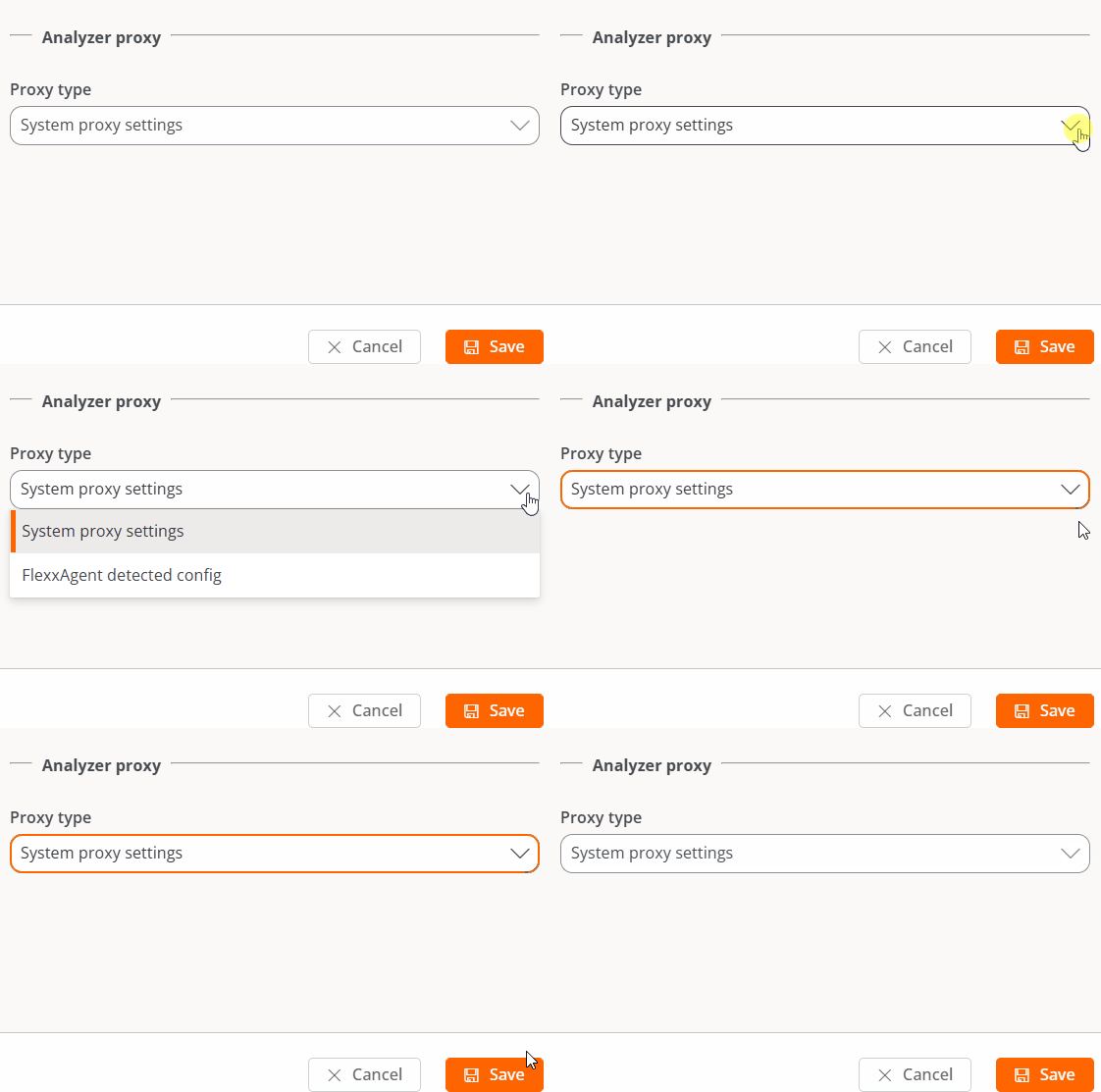
Some of the configuration options of FlexxAgent are not visible to users with the Organization Administrator role.
Modules
This tab shows a list of Flexxible product modules available for the organization, as well as those created by the users themselves.

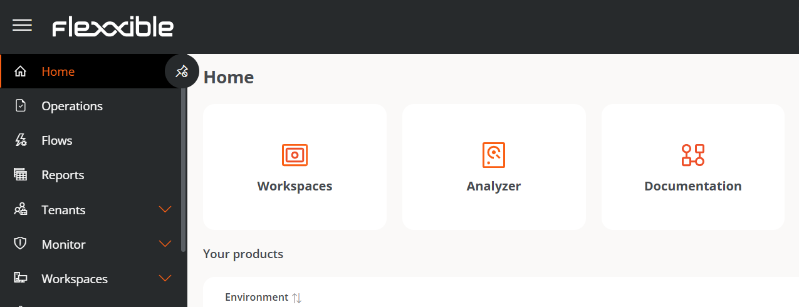
The table contains the module name, its corresponding URL, and its visibility level. From See detail, a label and URL can be assigned to the selected module, and you can define whether it is visible as Featured or Secondary. When it is featured, it appears among the main modules in the Home section of Portal; when it is secondary, it is shown as a list under the View more button.
Create module
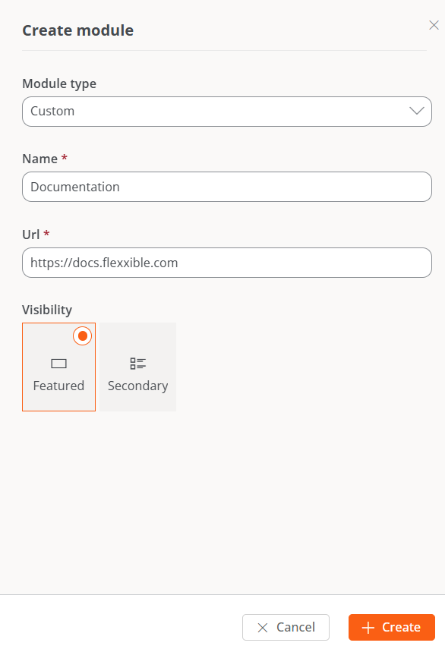
The New button allows you to create custom modules to maximize the platform's utility. For example, in the images below, you can see how a module for Flexxible's documentation webpage has been created.
Domains
Portal allows you to configure login through SAML authentication, a single sign-on (SSO) technology that lets organizations connect their identity managers with the Flexxible platform.
To set up login with this method, you need to make adjustments related to recognizing the organization's domain and integrating with the identity manager used.
From this tab, an Organization Administrator can register and verify the domains to be used. You can also access the table with the domain list and consult its detail view.
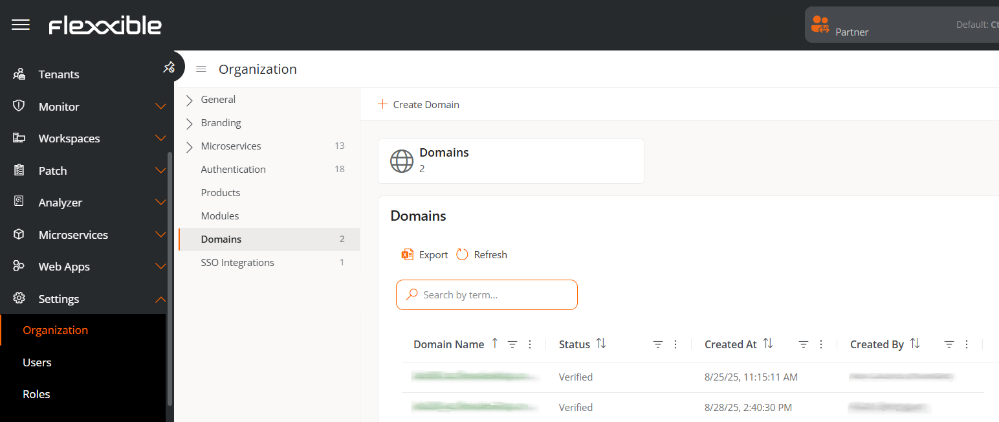
The table shows the following information:
- Domain name. Web address registered by the organization.
- Status. Verified or Not verified.
- Created on. Domain creation date and time.
- Created by. User who registered the domain.
Create a domain
To configure a domain, it must first be registered and then verified.
-
Access
Portal->Organization-> -
In the menu, select the
Domainstab. -
Click
Create domain. -
Enter the organization's domain (corresponding to the email of the users who will log in with SAML).
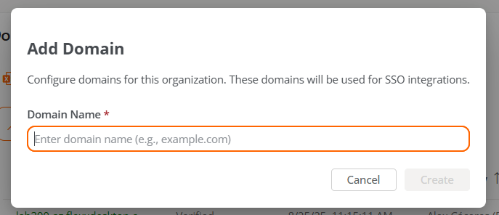
-
Click on
New.
The domain will be added to the table with the status Not verified.
Verify the domain
-
In the Domains table, select the registered domain.
-
A window will appear with instructions to add a TXT record in DNS, necessary to verify ownership.
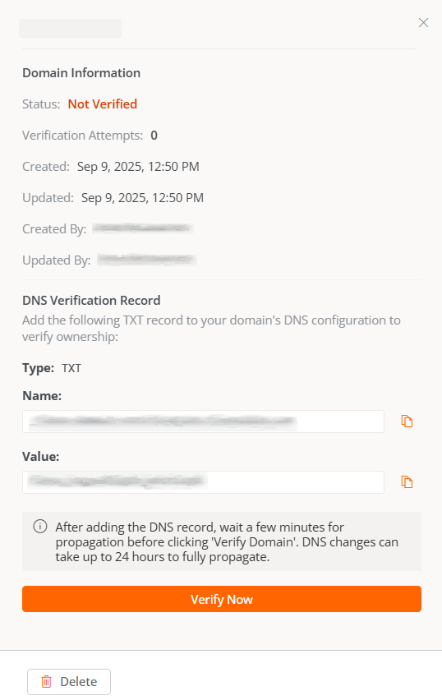
-
Click
Verify nowto complete the process.
Remove domain
- Access
Portal->Organization. - In the menu, select the
Domainstab. - Select the domain in the table that you want to remove.
- In the detail window, click
Remove.
By removing a domain, users associated with it will no longer be able to authenticate via SAML until it is registered again.
SSO Integrations
SSO Integrations allow users with email addresses from specific domains to authenticate through the organization's identity provider.
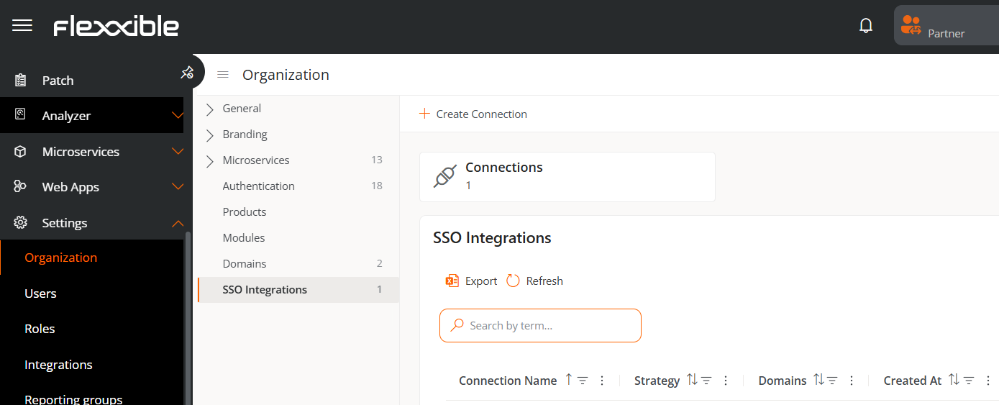
Create an SSO connection
- Access
Portal->Organization. - In the menu, select the
SSO Integrationstab. - Click
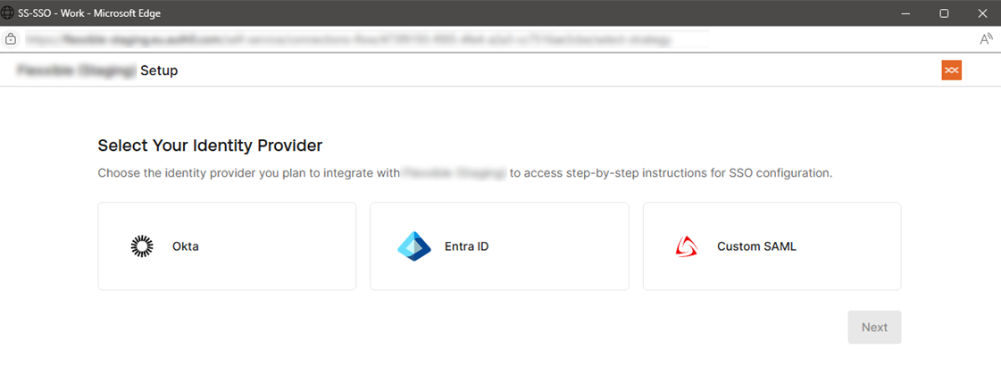
Create connectionand follow the wizard instructions, which will guide the Organization Administrator through the setup and testing according to the identity manager used.
Available identity managers:
- Okta
- Entra ID
- Custom SAML
For each case, a wizard will guide you step by step in the specific setup within the selected identity manager.
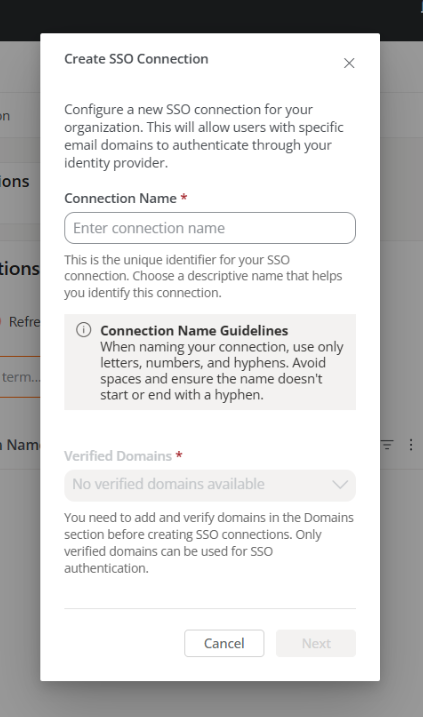
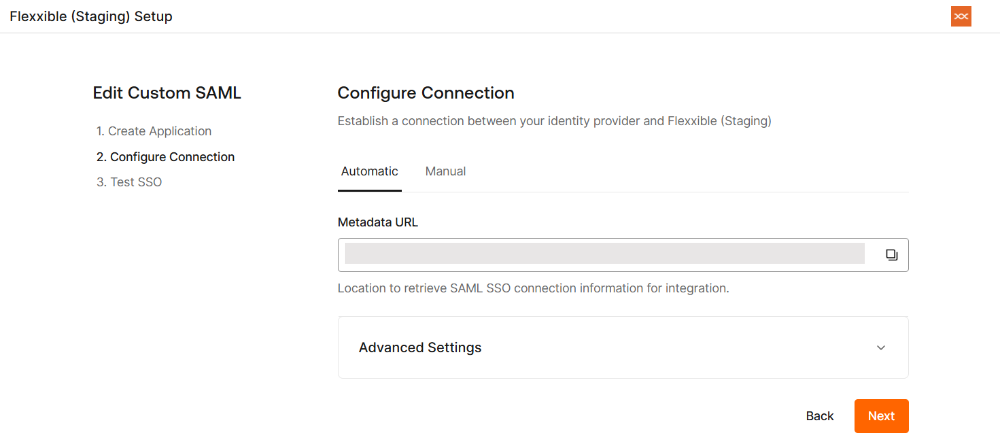
Some of the requested data during setup may have different names depending on the identity manager. For example, in Custom SAML:
- The
Single Sign-On URLfield may appear in the identity manager asReply URL (Assertion Consumer Service URL). - The
Service Provider Entity IDfield may be calledIdentifier (Entity ID).
If any doubts arise during the setup process, please consult with your contact at Flexxible.
Once the process is completed, users from associated domains will be able to log in by entering their email address in the appropriate field and clicking Continue with email.
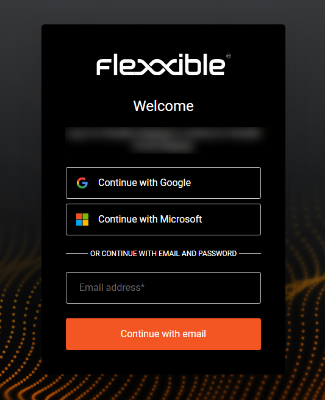
If the system recognizes the domain as enabled for SSO, it will redirect the user to the organization's identity manager for authentication.
Edit an SSO connection
The platform allows editing an existing SSO connection either to update the configuration or renew the certificate in case of expiration.
-
Access
Portal->Organization. -
In the menu, select the
SSO Integrationstab. -
Select a record in the table.
-
Click
Edit connection.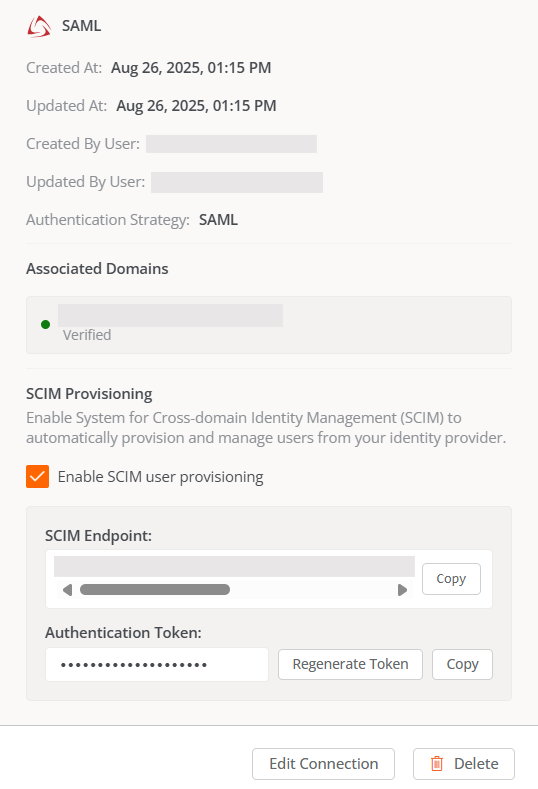
Checking the Enable SCIM user provisioning checkbox is optional. More information in SCIM Provisioning.
Remove an SSO connection
- Access
Portal->Organization. - In the menu, select the
SSO Integrationstab. - Select the corresponding record in the table.
SCIM Provisioning
The System for Cross-domain Identity Management (SCIM) is a user provisioning and management standard that complements authentication with SAML. It is optional and automates the creation, update, and removal of user accounts in Portal, keeping information synchronized between the organization's identity manager (Okta, Entra ID, etc.) and the Flexxible platform.
When SCIM is enabled, the identity manager can send basic user information (name, email, group) to Portal, simplifying account management. This way, the user's lifecycle in Portal is centrally controlled from the identity manager.
The SCIM Provisioning tab will be visible after creating user groups in the identity manager.
Enable SCIM in Portal
To use SCIM, it is essential to have previously set up authentication with SAML:
- Access
Portal->Organization. - In the menu, select the
SSO Integrationstab. - In the table, select the corresponding SSO connection.
- Check the
Enable SCIM user provisioningoption.
When the option is activated, the following will appear at the bottom of the configuration window:
- SCIM endpoint
- Authentication token
These details are confidential and should be stored securely.
In environments with sub-organizations, the SCIM integration must be defined in the "parent" tenant.
Configure SCIM in the identity manager
In the organization's identity manager, enter the SCIM endpoint and authentication token provided in Portal.
Example with Entra ID:
-
Go to
Provisioning. -
Enter the SCIM endpoint and authentication token.
-
Select the authentication method:
Bearer tokenorBearer Authentication. -
Click
Test connectionto validate synchronization. -
Activate provisioning.
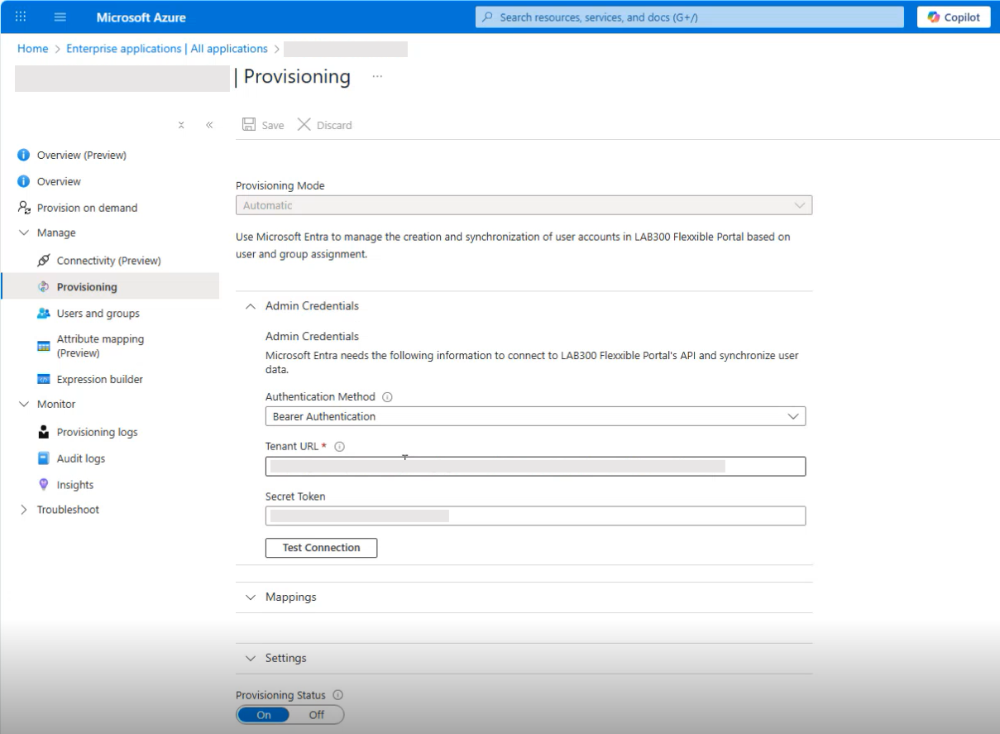
From that moment, the identity manager will start syncing groups and users to Portal.
- If Okta is used as the identity provider:
- The SCIM functionality has to be configured using the Custom SAML option, as Okta does not support SCIM when the connection is with OIDC.
- When configuring the Custom SAML connection, the Application username format must be specified as Email, otherwise users will not be able to authenticate.
Create user groups in the identity manager
To integrate users via SCIM, it is essential to create groups in the identity manager.
Considerations
- Create groups specifically dedicated to Portal with clear and exclusive names (e.g.
MiOrg-Portal-L2). - When user groups are created or deleted in the identity manager, they will also be automatically created or deleted in Portal.
- Do not create nested groups.
- A user should belong to only one group; otherwise, unexpected behaviors may arise: in Portal a user cannot have more than one role.
- There cannot be users without an assigned group.
- Users belonging to a group without a linked role won't be visible in the Users list.
After creating user groups in the identity manager, the SCIM Provisioning tab will automatically appear in the menu.
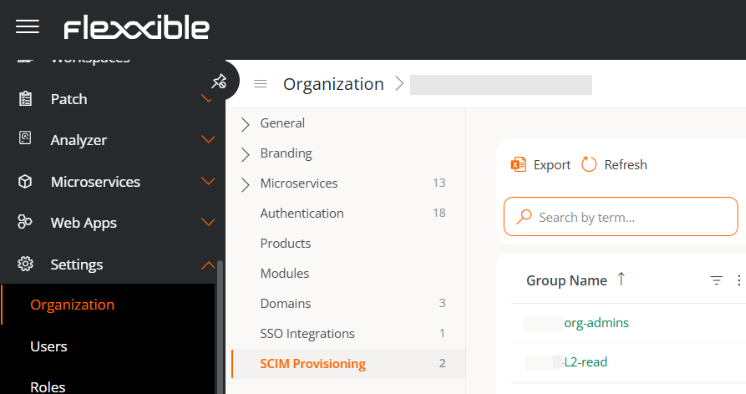
Role mapping in Portal
In the SCIM Provisioning tab table, you can see the groups created in the identity manager. This happens because a one-way synchronization has been established from the identity manager to Portal.
To map roles:
-
Access
Portal->Organization. -
In the menu, select the
SCIM Provisioningtab. -
Select a synchronized group from the table.
-
In the modal window, assign the corresponding role.
-
If an organization (tenant) has sub-organizations, choose which sub-organization that group belongs to before assigning it a role.
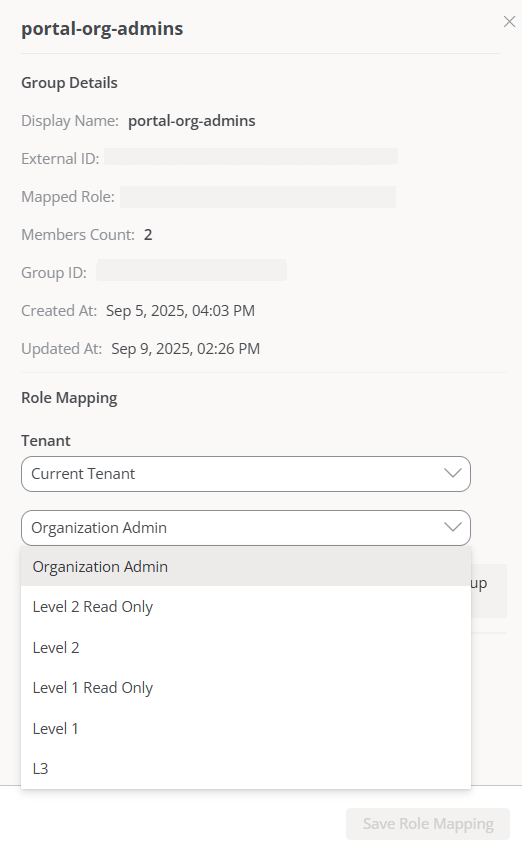
From the moment all groups are linked to a role, no further configurations will be needed. New users added or removed from groups in the identity manager will be automatically synchronized in Portal.
Considerations about roles
-
Every synchronized group must have a role assigned to be visible and functional in Portal.
-
The same role can be assigned to different groups.
-
The role assigned to a group can be changed at any time by following the same steps used to assign the role.
-
In the Users list, the columns Created by and Updated by will identify users managed by SCIM.
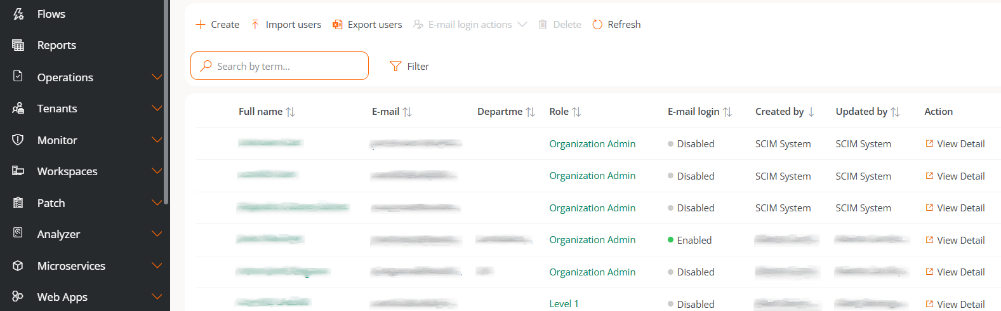
Role synchronization
The synchronization frequency depends on the identity manager used (for example, Entra ID synchronizes every 40 minutes), although manual synchronization can be forced from the identity manager itself for tests or urgent changes without waiting for the automatic cycle.
To avoid relying on those intervals, Portal includes the Sync assigned roles button, which allows aligning user roles belonging to groups created with SCIM.
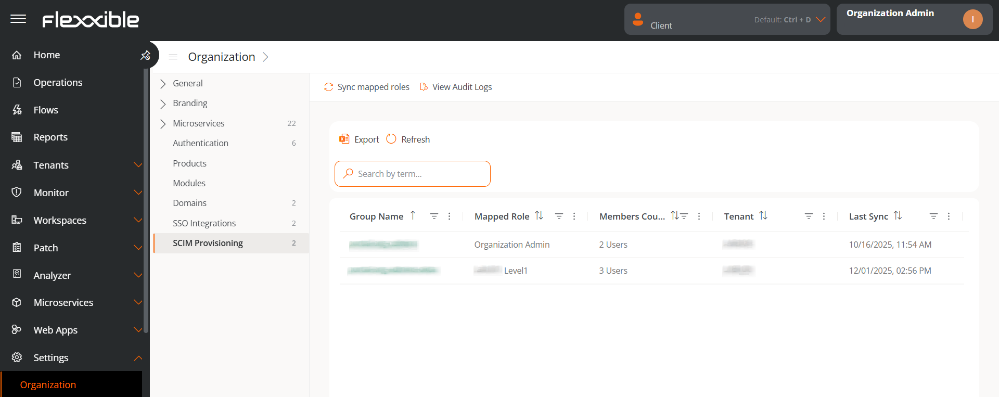
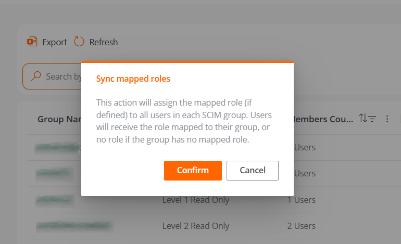
This action performs the following operations:
- Reviews all users belonging to groups created via SCIM.
- Checks if the role assigned to each user matches the role mapped for their group.
- If discrepancies are detected, it automatically updates the user's role.
If the role belongs to another sub-organization, the user will automatically move to the corresponding sub-organization.
At the end of the process, a detailed summary of the modified data is displayed.
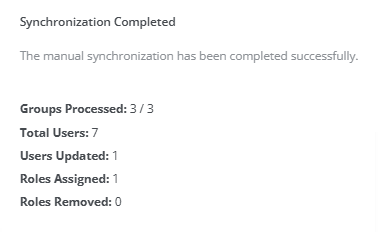
It is not necessary to execute the Sync assigned roles action regularly. It is recommended to use it only when making a change to mapped roles.