

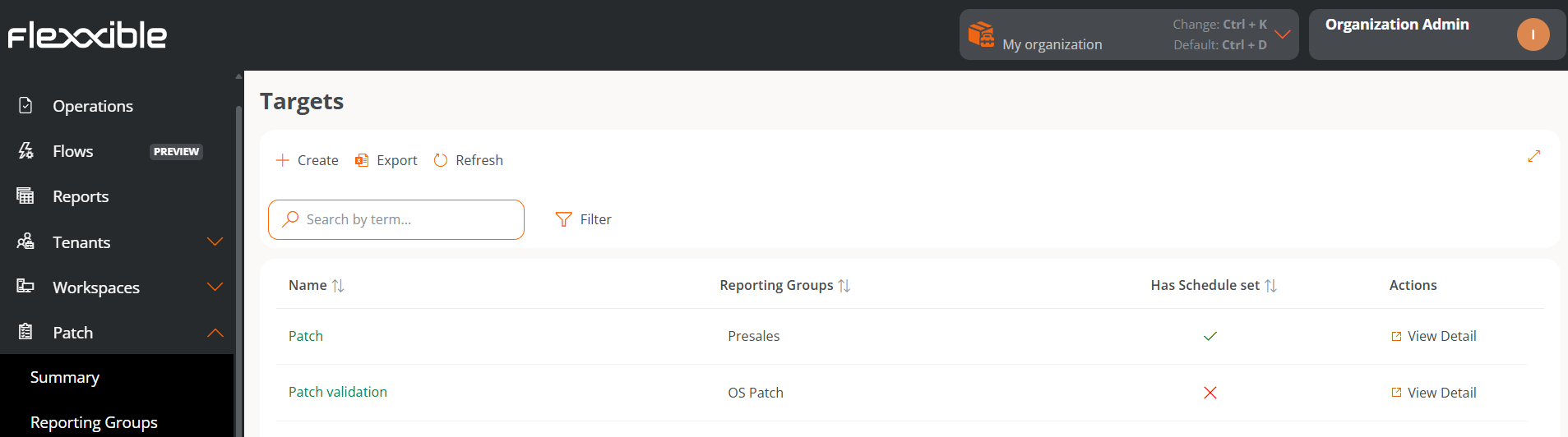
- Name. Name assigned to the target.
- Reporting groups. Name of the reporting group (there can be more than one) that will be subject to the target’s update policy.
- Has schedule set. Indicates whether the target has scheduling enabled for applying patches.
- Actions. Shows the View details link, which opens a window with the target’s details and its configuration options.
Update policies are applied to reporting groups; you cannot apply them to an individual device.
Create a new target
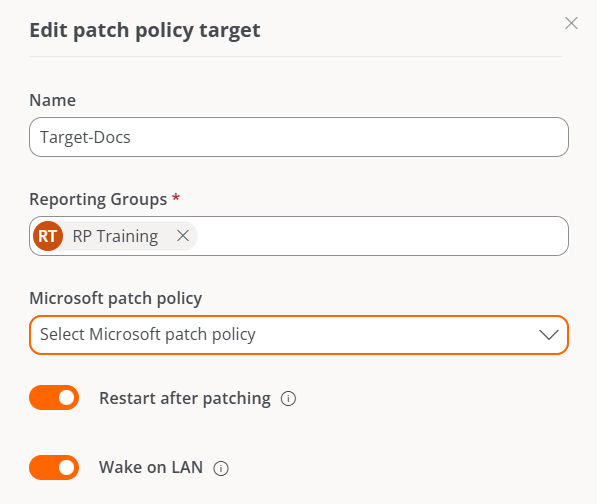
To create a new target and define its update policy, click New at the top of the table. A modal window will then open with a form where you must assign a name to the new target, the reporting groups to which its update policy will apply (one or more reporting groups), and, optionally, its link to a Microsoft update policy.Target details
From this view, you can configure the target’s update policy in two areas: Details and Schedule.Details
This tab shows the following information about the policy being consulted:- Name. Name assigned to the target.
- Restart after applying updates. Indicates whether the device will restart automatically when the patch installation has finished.
- Wake on LAN (WoL). Indicates whether updates will be run when devices are in a suspended state or turned off.
- Microsoft update policy. Name of the Microsoft update policy being applied to the target.
- Reporting groups. Shows the reporting groups to which the update policy has been assigned.
A reporting group can only have one target, but a target can be applied to more than one reporting group.
Schedule
From this section, you can schedule when updates will be applied on the devices that are part of a reporting group. It also shows the established scheduling calendar. The Edit button lets you configure the time zone and the time frequency for applying updates, which can be defined by weeks of the month, days, and hours.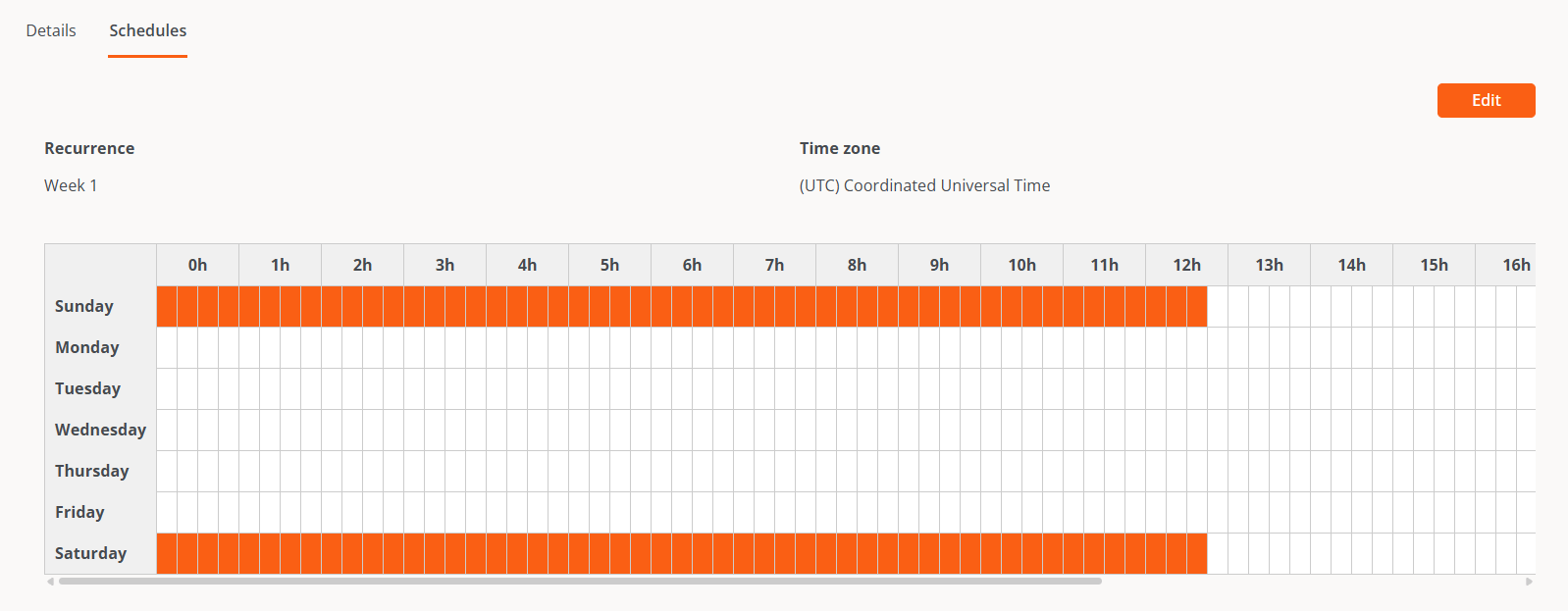
Automatic Windows Update patching will be disabled on all devices that belong to a reporting group that is part of a target.