

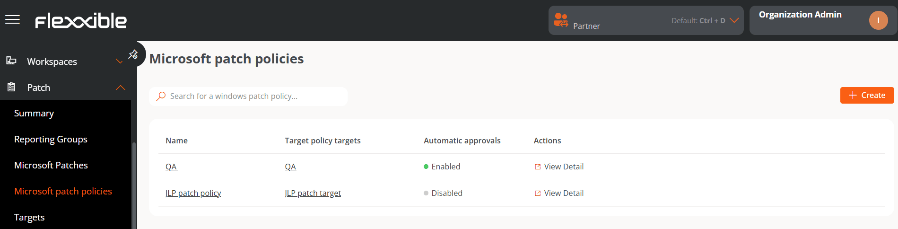
Create a new update policy
- Go to Updates → Microsoft update policies.
- Click New in the upper right corner of the interface.
- In the form, assign a name to the new policy.
- Click Save.
- Update policy targets. Targets that have a Microsoft update policy configured.
- Automatic approvals. Indicates whether the automatic approvals configuration is Enabled or Disabled.
- Actions. Contains the View details button, which provides access to the configuration areas: Details, Microsoft updates, Automatic approvals, Uncatalogued updates, and Uncatalogued automatic approvals.
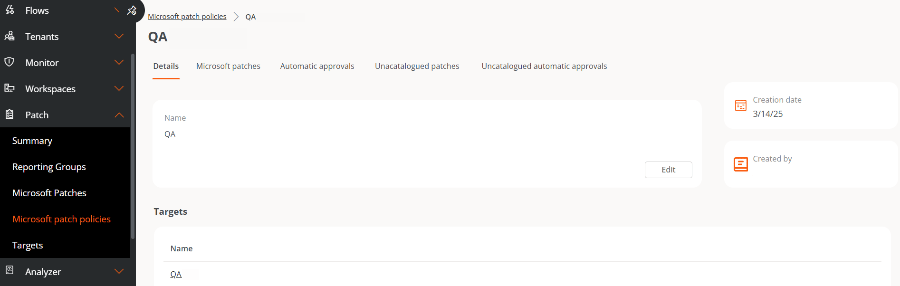
Details
From this tab, you can view basic information about the policy:- Name
- Linked targets
- Creation date
- Creator user
Microsoft updates
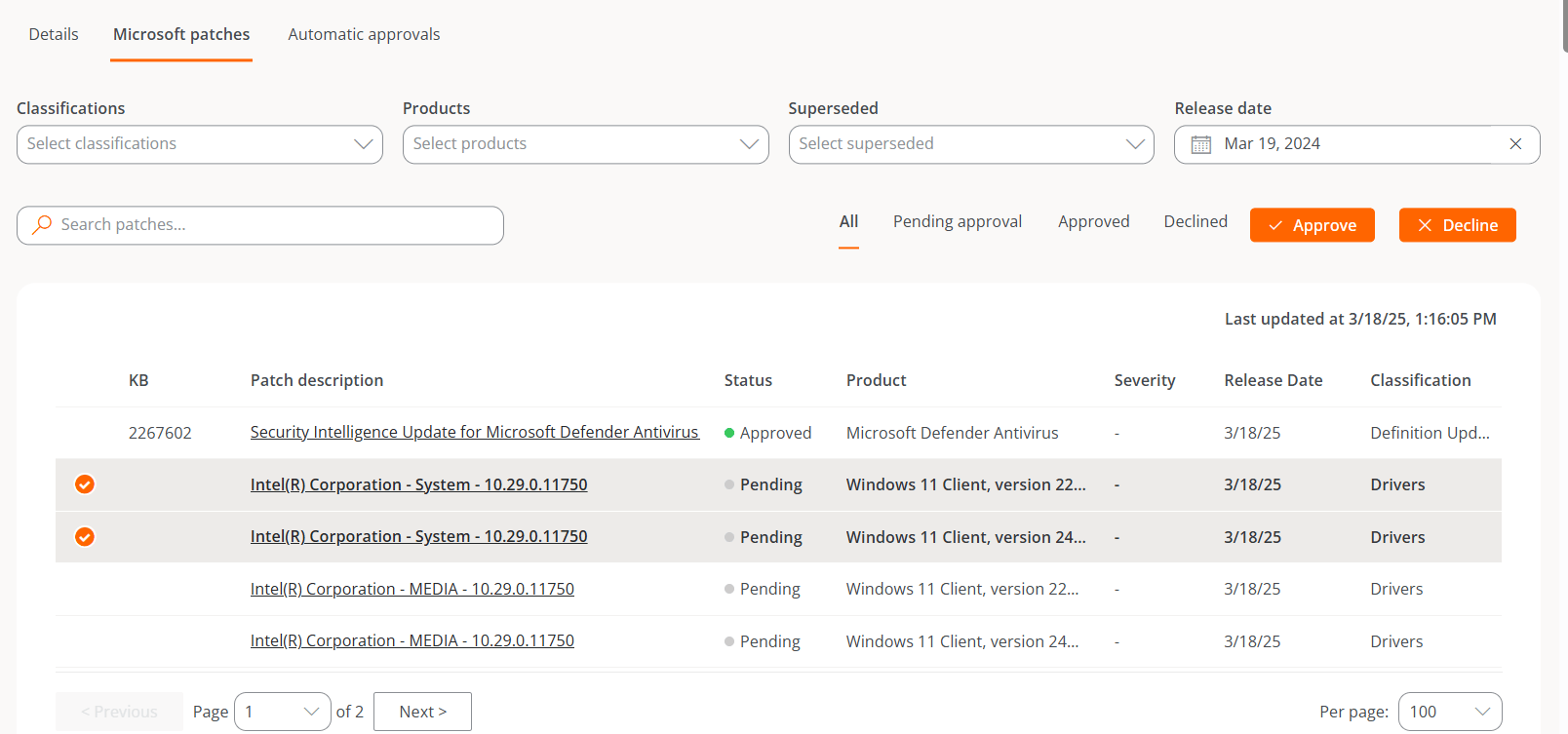
This tab shows a table with the list of updates available for the linked target, along with the following data:- KB. Unique identifier assigned to the Microsoft update package. Some drivers or firmware do not have an assigned KB.
- Revision description. Link that leads to detailed information about the update.
- Status. Update status: Approved, Rejected, or Pending.
- Product. Name of the Microsoft product to which the update applies.
- Severity. Level of urgency detected for running the update.
- Release date. Date from which the update is available.
- Classification. Category assigned to the update. Can be Updates, Critical Updates, Security Updates, Upgrades, Definition Updates, Drivers, Feature Packs, and Update Rollups.
- Last update. Date and time of the last modification to the list.
Manually approve or reject an update
To approve or reject an update, select one or more entries from the table and choose the desired action:- Approve. The update will be installed on the corresponding devices the next time an update process runs, according to the target’s configuration.
- Reject. The update will be attempted to be uninstalled during the next update process on devices that have it installed, according to the target’s configuration. Not all updates can be uninstalled. The execution of this process depends on the device’s current state and other factors. The result of the uninstallation attempt will be available in the corresponding update task.
If a user defines a Microsoft update policy but does not manually or automatically approve or reject an update package, no installation or uninstallation activity will be generated on the devices.
Automatic approvals
This tab shows a table with the configured automatic approval rules. The fields include the following information:- Classification. Category assigned to the update.
- Products. Name of the Microsoft product to which the update applies.
- Days after release. Number of days elapsed since the update was published, after which it will be automatically approved.
- Actions. Contains the View details button, which opens a form to edit the automatic approval rule.
Create an automatic approval rule
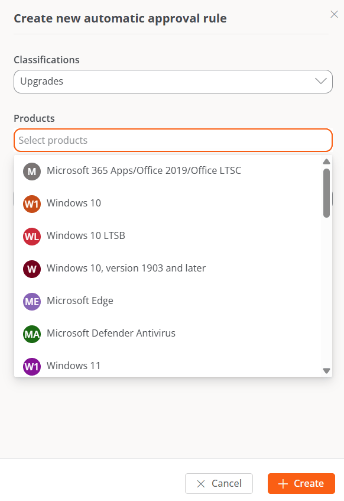
You can configure one or several automatic approval rules within the same update policy. To create a new rule:- Go to Updates → Microsoft update policies.
- Select a policy.
- Go to the Automatic approvals tab.
-
Click New and define:
- Classifications
- Products
- Days after release
Automatic approvals run once a day, at 6:00. Therefore, any changes to the automatic approval rule configuration will not take effect immediately, but usually the next day.
Uncatalogued updates
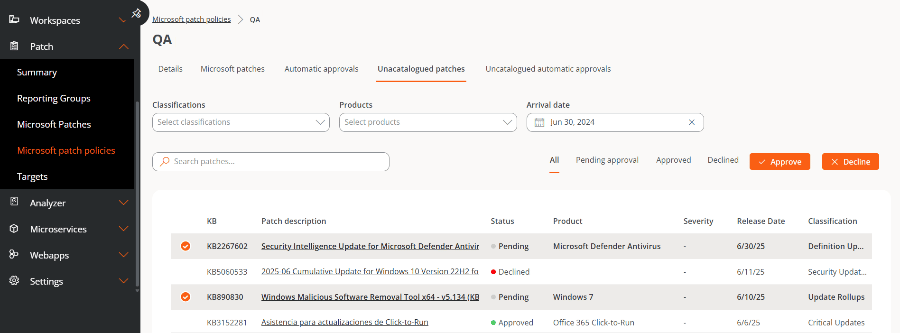
The global list of updates pending on a device can be viewed in Microsoft updates; however, there are patches that the device may report as pending but that do not appear in that list. Uncatalogued updates correspond to these cases. These are pending patches that may be related to Microsoft features but do not have an exact match with the catalog entries.The uncatalogued updates list is shown at the tenant level.
- KB. Unique identifier of the update package. Some drivers or firmware do not have an assigned KB.
- Revision description. Link to detailed information about the update.
- Status. Approved, Rejected, or Pending.
-
Product. Name of the Microsoft product to which the update applies.
Uncatalogued updates are reported by FlexxAgent based on the information obtained from the device; however, sometimes Windows does not provide information about the associated Product. For this reason, this field may appear empty.
- Severity. Level of urgency detected for running the update.
- Release date. Date from which the update is available.
- Classification. Category assigned to the update.
Manually approve or reject an uncatalogued update
To approve or reject an uncatalogued update, select one or more entries from the table and choose the corresponding action:- Approve. The update will be installed on the devices during the next update process, according to the target’s configuration.
- Reject. The update will be attempted to be uninstalled during the next update process, according to the target’s configuration. Not all updates can be uninstalled. The execution of this process depends on the device’s current state and other factors. The result of the uninstallation attempt will be available in the corresponding update task.
Uncatalogued automatic approvals
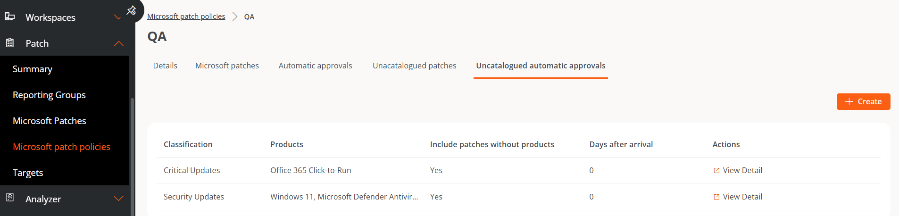
This tab shows a table with the configured automatic approval rules, with the following fields:- Classification. Category assigned to the update.
-
Product. Name of the product to which the update applies.
Uncatalogued updates are reported by FlexxAgent based on the information obtained from the device; however, sometimes Windows does not provide information about the associated Product. For this reason, this field may appear empty.
-
Include updates without products. Indicates whether the automatic approval rule includes uncatalogued updates without an associated product.
Since there can be uncatalogued updates without an associated product, Flexxible recommends creating an automatic approval rule for uncatalogued updates to ensure that these types of updates are also included in the automatic approval process.
- Days after arrival. Number of days after the update’s arrival in the list, after which it will be automatically approved.
- Actions. Contains the View details button, which lets you edit the rule.
Create an automatic approval rule for uncatalogued updates
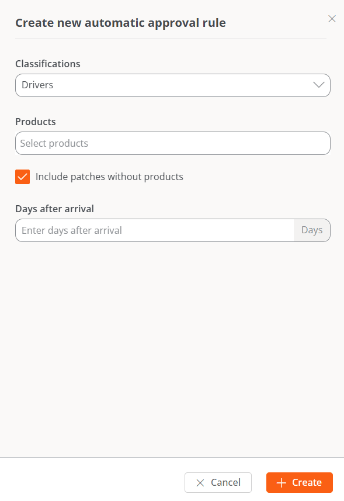
You can configure one or several automatic approval rules for uncatalogued updates within the same update policy. To create a new rule:- Go to Updates → Microsoft update policies.
- Select a policy.
- Go to the Uncatalogued automatic approvals tab.
-
Click New and define:
- Classifications
- Products
- Days after arrival
- Include updates without products
Since there can be uncatalogued updates without an associated product, Flexxible recommends creating an automatic approval rule for uncatalogued updates to ensure that these types of updates are also included in the automatic approval process.
Uncatalogued updates and Uncatalogued automatic approvals are available starting with FlexxAgent version 25.6.