- Virtual desktops (VDI/SDI)
- Templates
- General-purpose machines
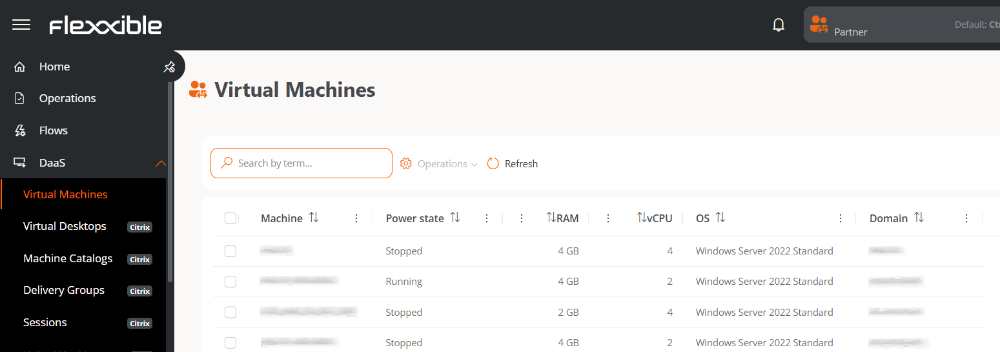
The Virtual machines and Templates views are only available for organizations with an active subscription to FlexxDesktop.
Table information
- Machine. Virtual machine name.
- Power state. Running or Stopped.
- vCPU. Number of virtual CPUs.
- RAM. Amount of RAM assigned.
- OS. Installed operating system.
- Domain. Domain the machine belongs to.
Available operations
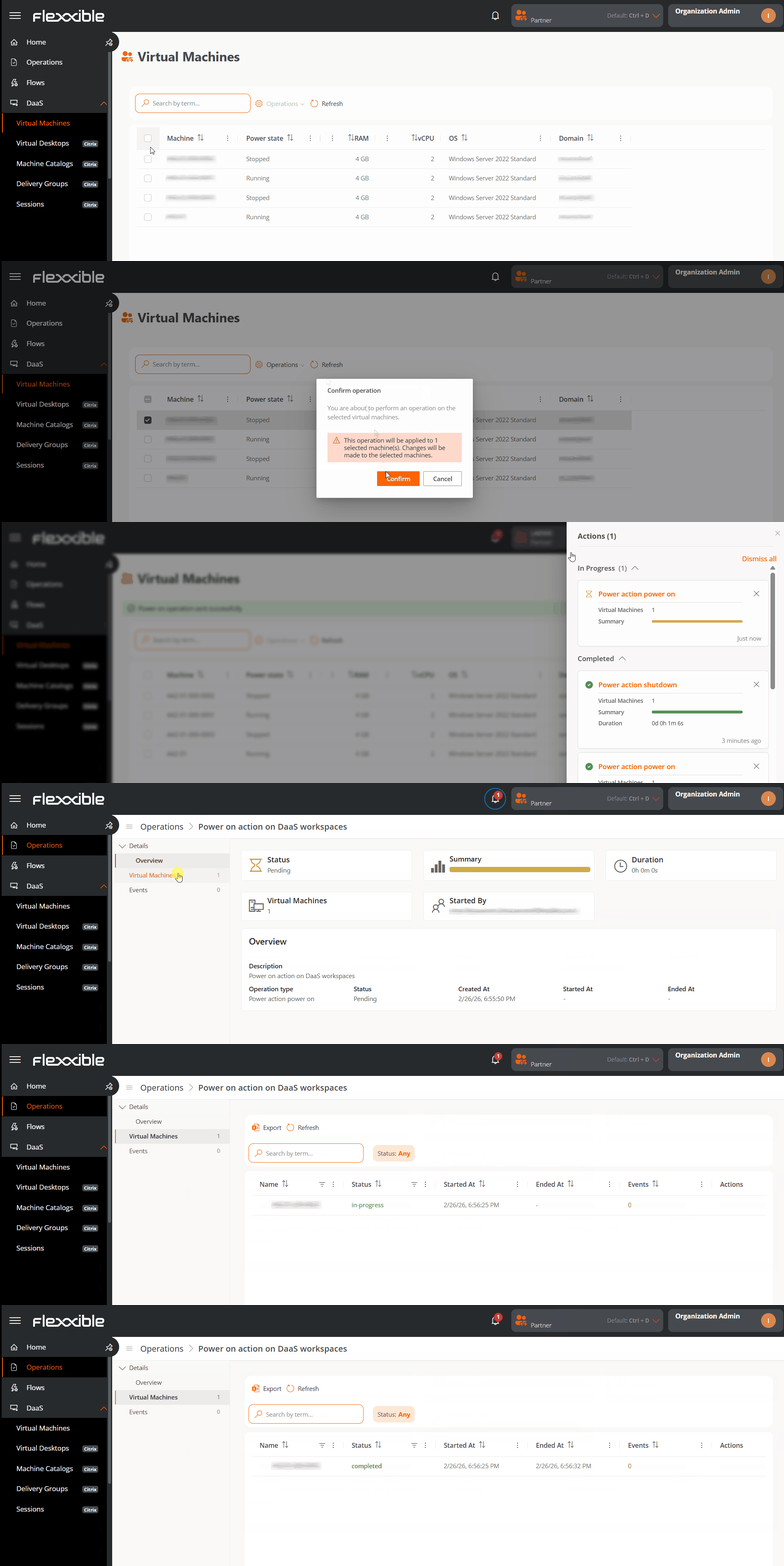
This view lets you run actions on one or more selected virtual machines.Operations run from this view are executed on the hypervisor infrastructure and are monitored until they finish. The process may take a few seconds to complete.
Steps to run an operation
- Go to DaaS → Virtual machines.
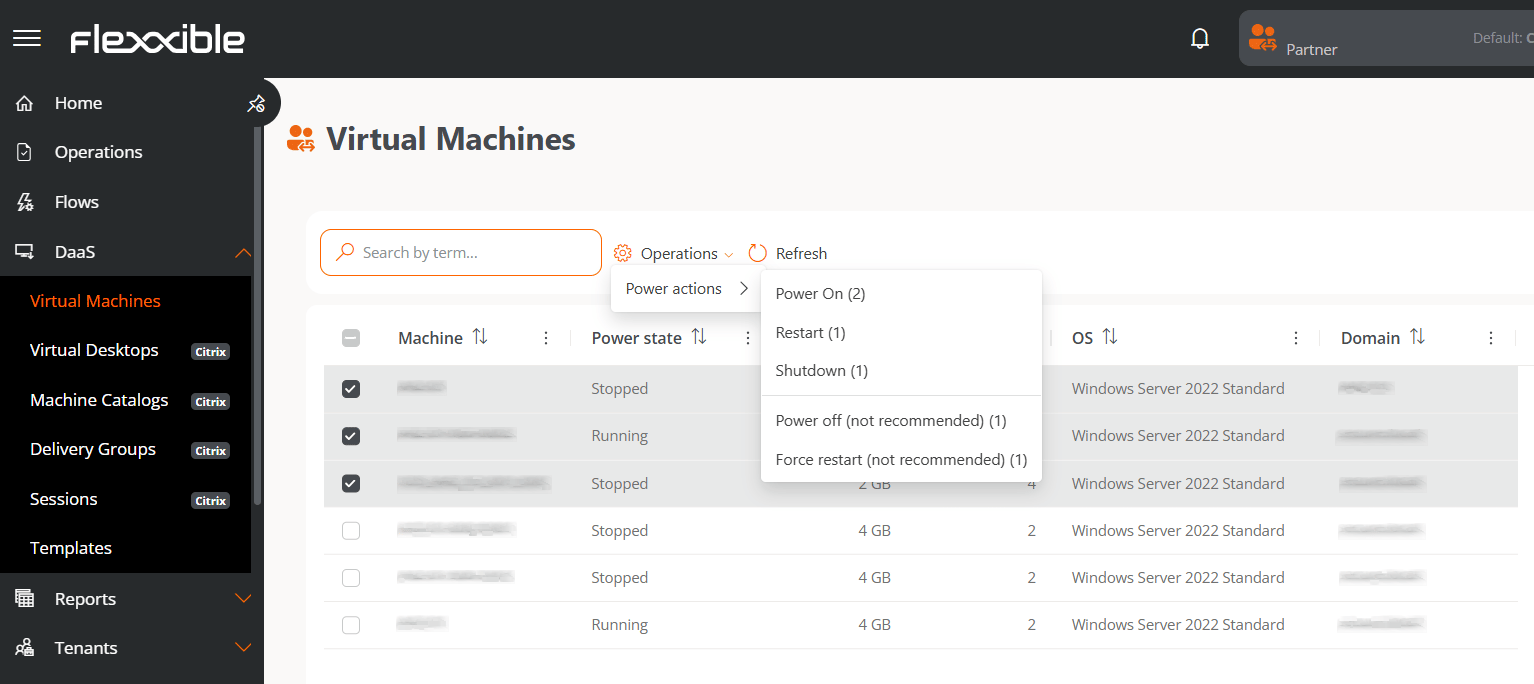
- In the table, select one or more virtual machines to run the action on.
- Click the Operations button.
- Select the corresponding action. The number in parentheses next to each action indicates the number of virtual machines it can be applied to.
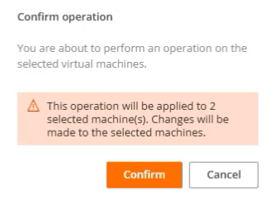
- Confirm the operation in the pop-up window.
Tracking operations
Once the action is confirmed, you can check its status by clicking the notifications icon (bell) located next to the organization name. Each action generates a separate entry per virtual machine in the Operations section, where you can review the status and result of each execution.