

- View the details and historical data of each application, even if it is disabled.
- Create custom web applications.
- Enable or disable applications at the organization or sub-organization level.
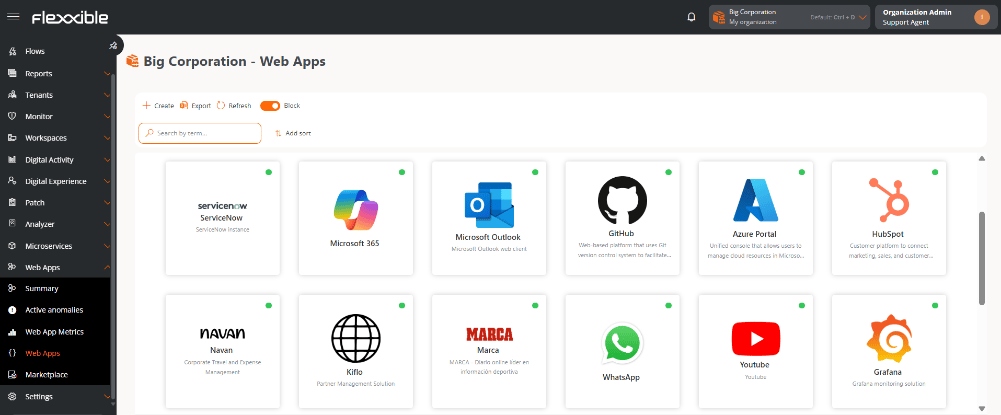
- Green: application enabled in the organization.
- Gray: application disabled in the organization.
Application details
Selecting an application from the list opens its details view, which shows advanced metrics and specific information about its behavior and usage. For more information, see Details of a web application.Create a web application
- Go to Web Apps → Web Apps.
- Click New.
- Complete the form with the application’s information:
- Name. Main identifier of the application.
- Description. Descriptive summary of the application.
- URL. Linked addresses.
- Logo. Identifying image.
- Click Save.
- The application will appear in the Web Apps list and in Marketplace.
- The application will remain disabled by default until it is enabled manually.
Enable or disable a web application in the organization
- Go to Web Apps → Web Apps.
- Select an application from the list.
- Click Enable or Disable, as applicable.

Data collection will start the next time the browser is launched.