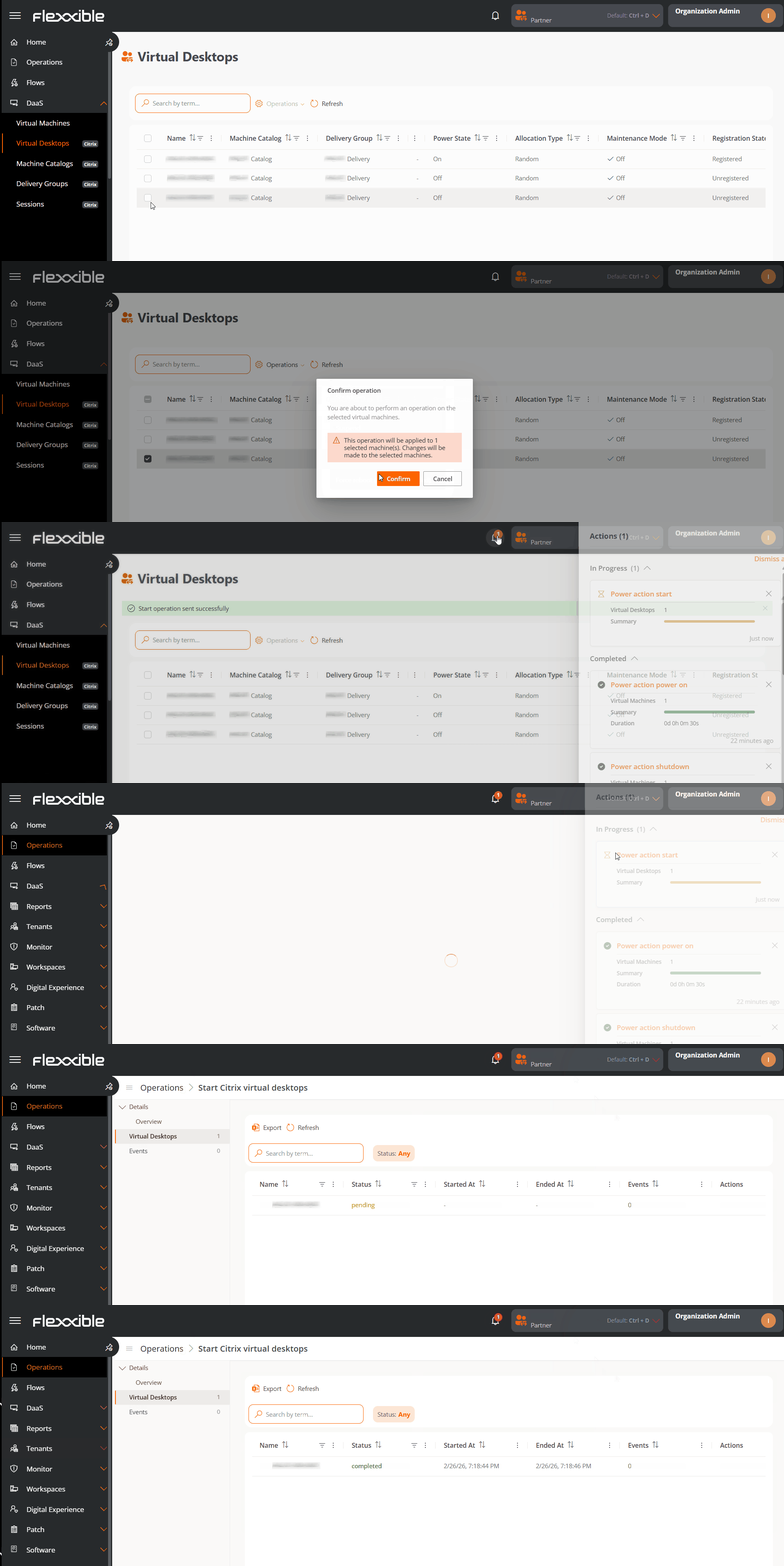
Virtual Desktops
The view of Virtual Desktops is focused exclusively on machines associated with a session broker that are available for user session provision.
Includes both VDI (Virtual Desktop Infrastructure) and SDI (Shared Desktop Infrastructure) or published apps.
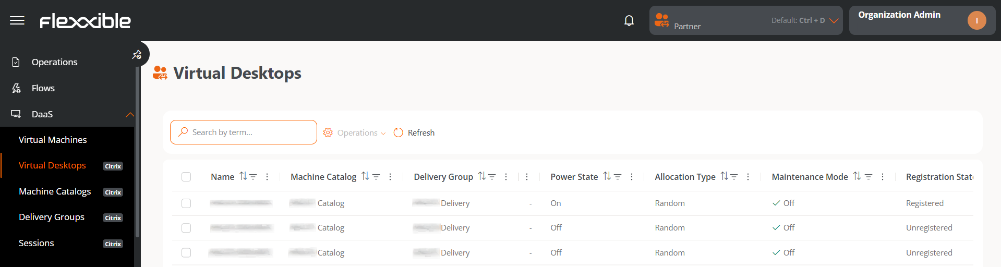
Table info
- Name. Name of the machine or template.
- Machine catalog. Name of the catalog it belongs to.
- Delivery group. Delivery group the machine is part of.
- User. Name of the user.
- Power state. In use, Off, Available, or Disconnected.
- Maintenance mode. Off or On.
- Assignment type. Static or Random.
- Registration state. Registered or Not registered.
Available operations
This view allows you to perform actions on one or more selected virtual desktops.
| Operation | Action | Caption |
|---|---|---|
| Power actions | Start | Start the virtual desktop if it is stopped |
| Shut down | Shuts down the virtual desktop. | |
| Restart | Restarts the virtual desktop. | |
| Sleep | Pauses the current state of the virtual desktop, keeping the session for later resumption. | |
| Resume | Restores a previously suspended virtual desktop, returning it to its previous state. | |
| Power off (not recommended) | Immediately shuts down the virtual desktop without waiting for the proper shutdown of the operating system. | |
| Force restart (not recommended) | Immediately restarts the virtual desktop without performing an operating system shutdown. | |
| Maintenance Mode | Activated | Sets the desktop in maintenance mode, preventing new user connections. Existing sessions are not affected. |
| Deactivated | Allows user connections to the virtual desktop again. |
Steps to execute an operation
-
Access
Portal->DaaS->Virtual Desktops. -
In the table, select one or more virtual desktops where you want to perform the operation.
-
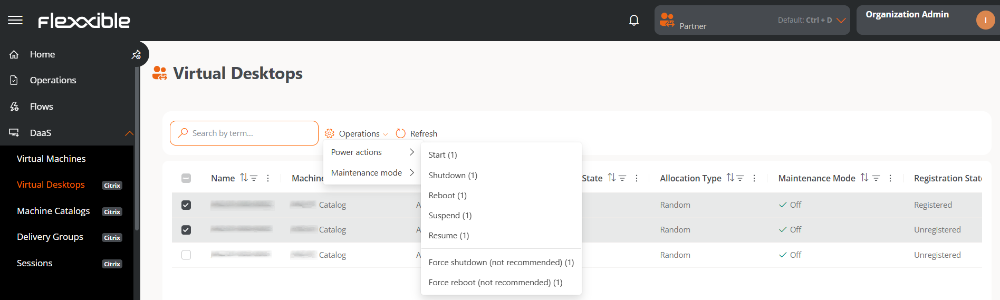
Click the
Operationsbutton. -
Select the appropriate action.
The number shown in parentheses next to each action indicates how many virtual desktops can be applied.
-
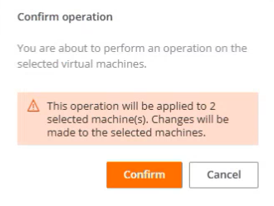
Confirm the operation in the pop-up window.
Tracking Operations
Once the action is confirmed, the user can check its status by clicking the notification icon (bell) located next to the organization's name.
Each action generates an independent entry per virtual desktop in the Operations section, where you can review the status and outcome of each execution.