Virtual Machines
The Virtual Machines view offers a comprehensive overview of the virtual infrastructure managed at the hypervisor level. Includes all existing virtual machines in the cluster, regardless of their role or purpose, such as:
- Virtual desktops (VDI/SDI)
- Templates
- General purpose machines
The information is obtained directly from the virtualization manager in the hypervisor, so this view represents the real state of the environment, without distinguishing if the machines belong to any type of function.
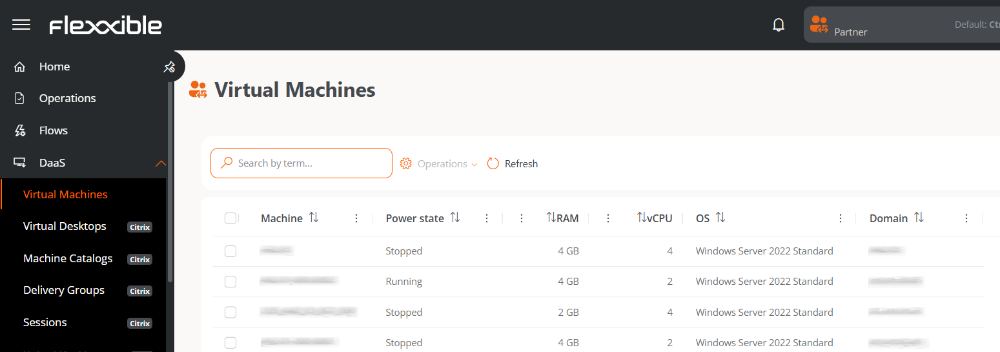
Table info
- Machine. VM name.
- Power status. Running or Stopped.
- vCPU. Number of virtual CPUs.
- RAM. Amount of assigned RAM.
- OS. Installed operating system.
- Domain. Domain to which the machine belongs.
The Virtual Machines and Templates views are only available for organizations with an active subscription to FlexxDesktop.
Available operations
This view allows you to perform actions on one or more selected virtual machines.
| Operation | Action | Caption |
|---|---|---|
| Power actions | Turn on | Start the virtual machine if it's turned off. |
| Restart | Restarts the virtual machine, shutting down the operating system before starting it again. | |
| Shut down | Shuts down the virtual machine. | |
| Power off (not recommended) | Shuts down the virtual machine immediately, without waiting for the operating system to close correctly. | |
| Force restart (not recommended) | Restarts the virtual machine immediately without shutting down the operating system. |
The operations performed from this view are executed on the hypervisor infrastructure and are monitored until completion. The process may take a few seconds to complete.
Steps to execute an operation
-
Access
Portal->DaaS->Virtual Machines. -
In the table, select one or more virtual machines on which you want to perform the action.
-
Click the
Operationsbutton. -
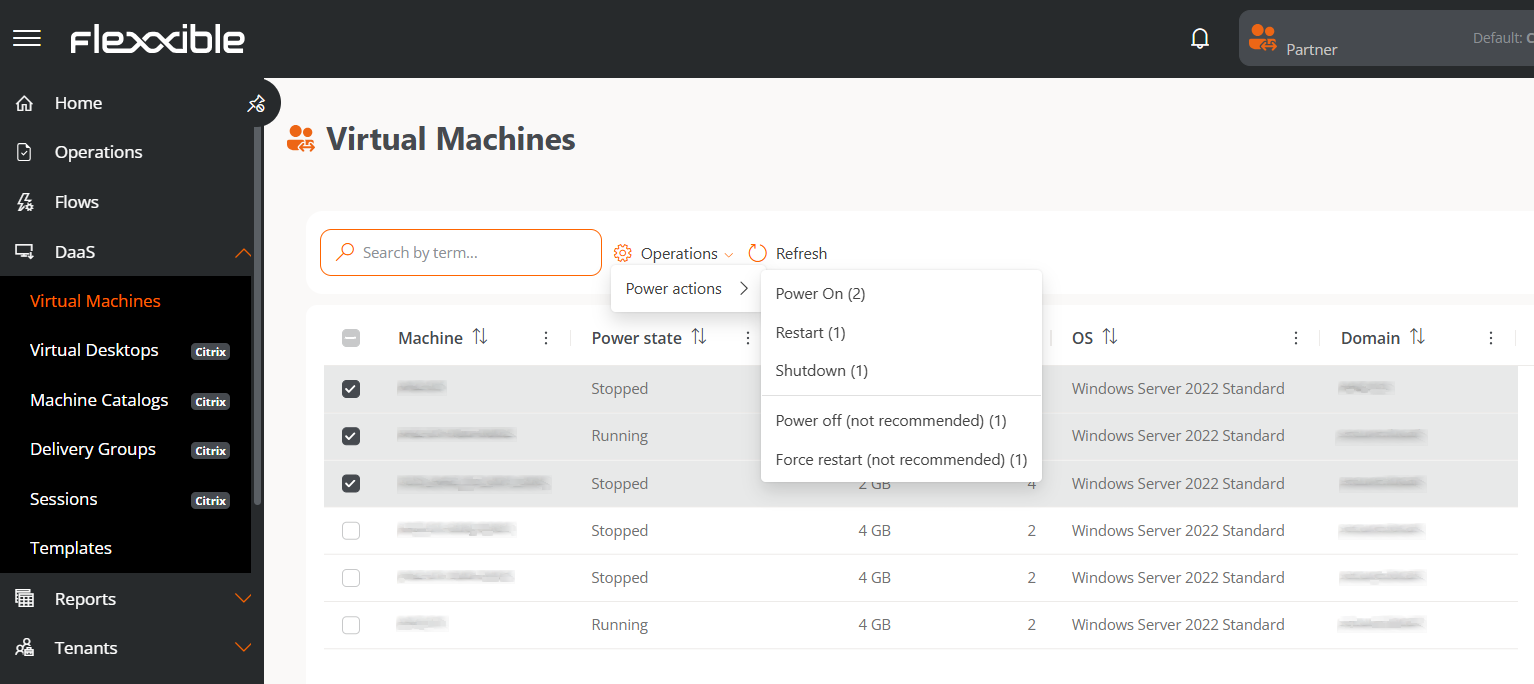
Select the appropriate action.
The number in parentheses next to each action indicates the number of virtual machines it can be applied to.
-
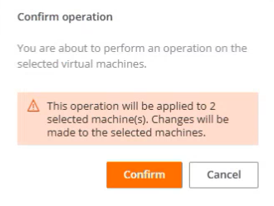
Confirm the operation in the pop-up window.
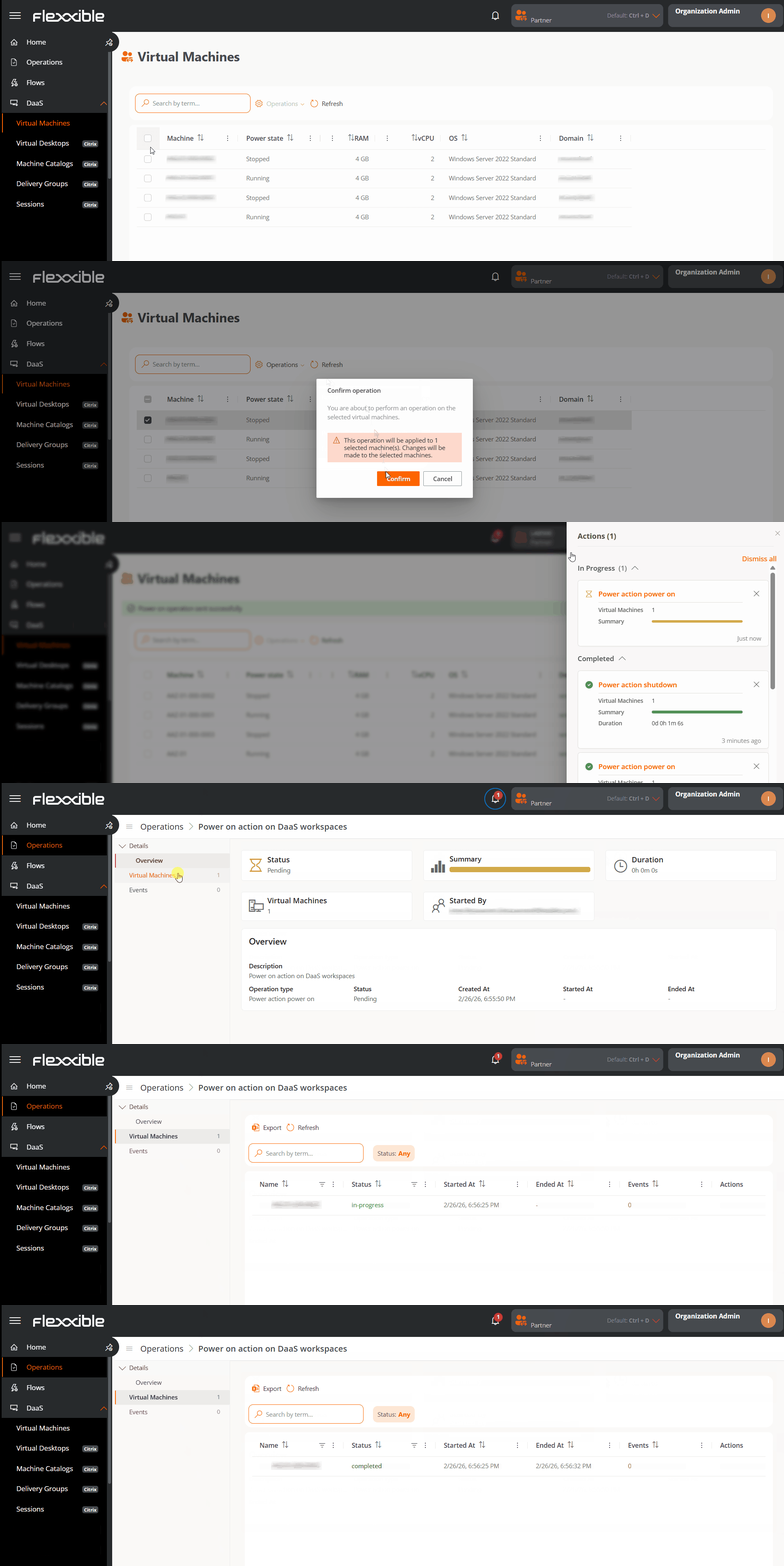
Tracking Operations
Once the action is confirmed, the user can check its status by clicking the notification icon (bell) located next to the organization's name.
Each action generates a separate entry for each virtual machine in the Operations section, where you can review the status and result of each execution.