

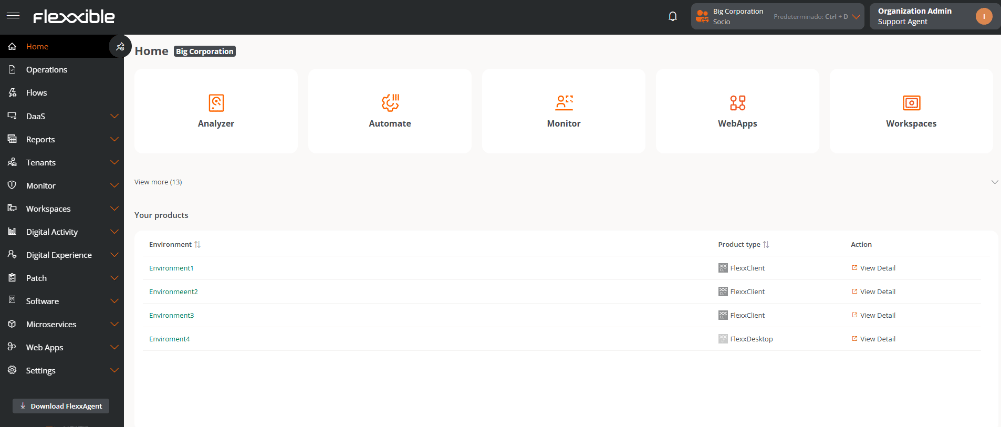
Side menu
The side menu provides access to the different features and administration areas of the platform.Collapsing the menu
The side menu can be collapsed to make more space available on the screen. If you want to keep it always visible, use the pin-shaped button to fix it in place.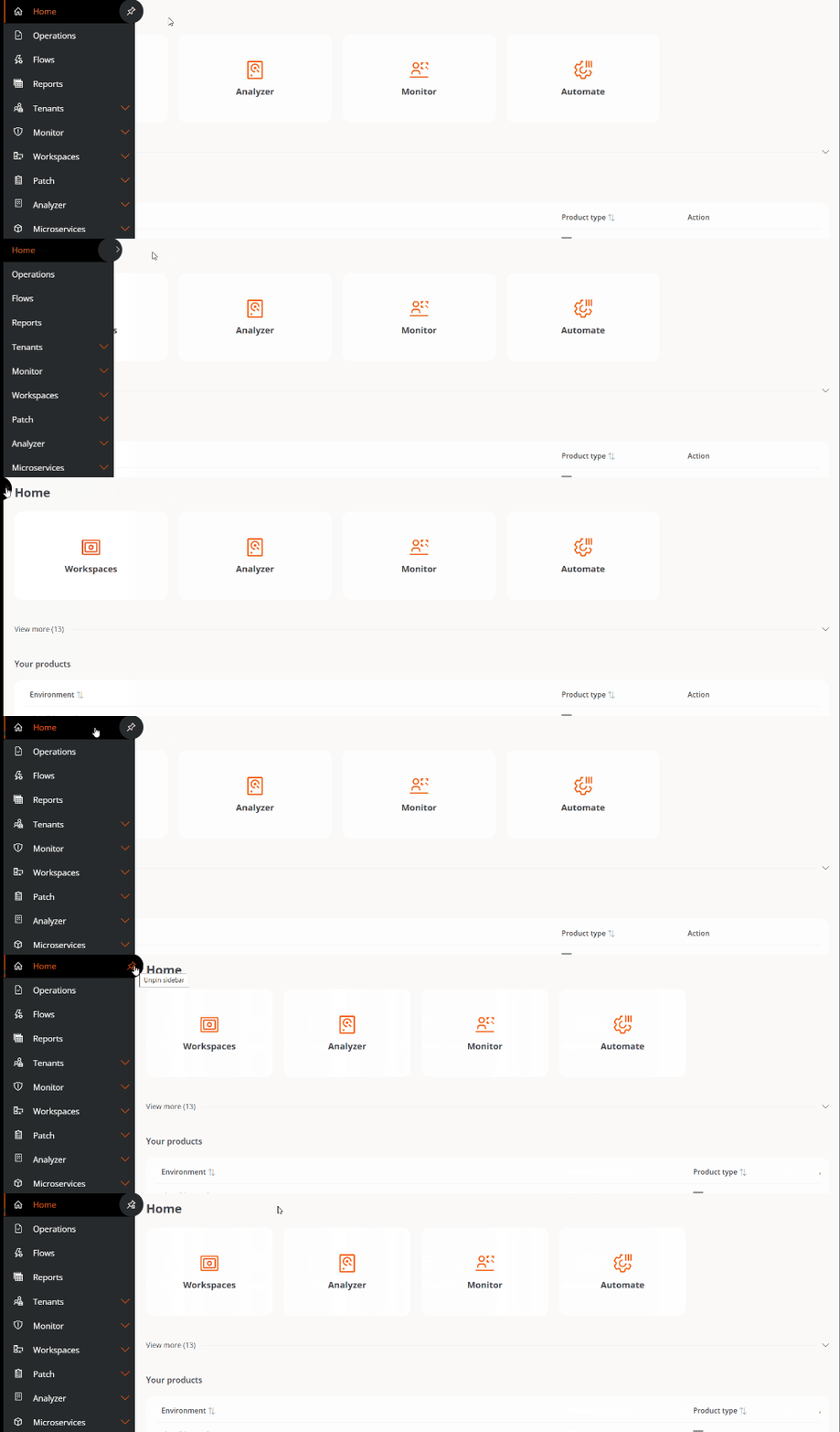
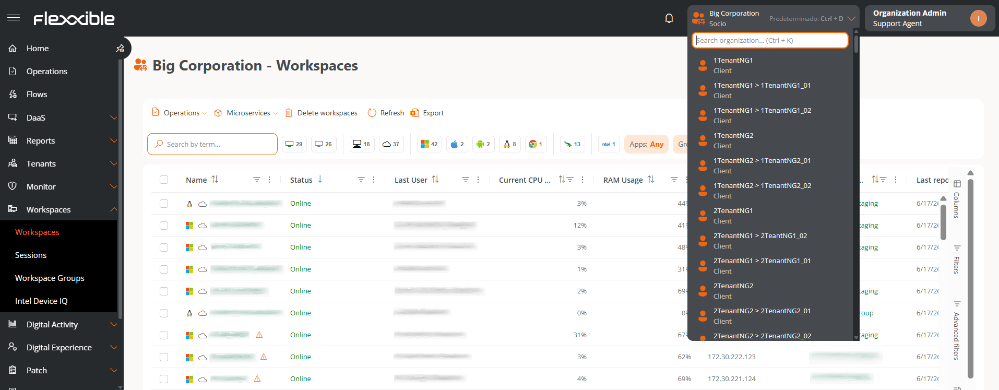
Organization selector
The organization selector lets you quickly switch between the organizations you have access to. In environments with multiple organizations, such as managed service providers (MSPs), you can find an organization by name using the search box. You can also switch organizations from the search bar using the Ctrl + K or Cmd + K (Mac) shortcuts. To return to the default organization, useCtrl + D or Cmd + D (Mac).
User settings
At the top right of the interface, the user menu is shown, displaying the name and the assigned role.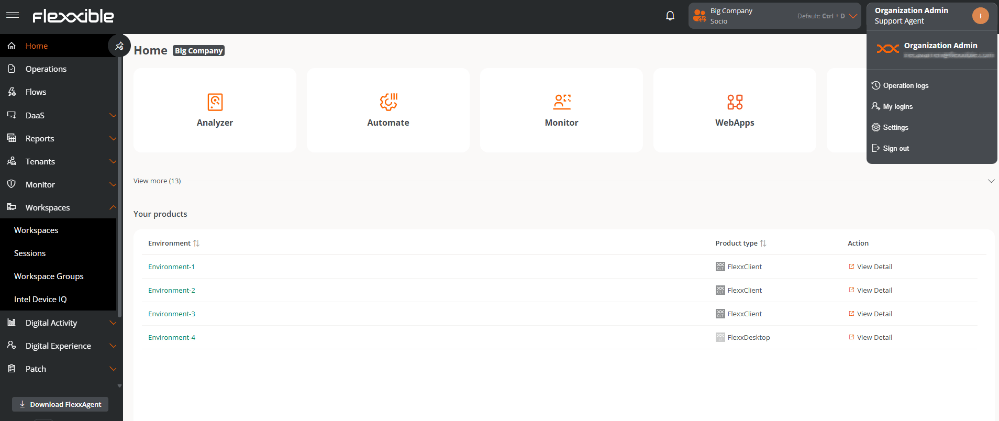
- Operations log
- My sign-ins
- Settings
- Sign out
Operations log
Shows the history of operations executed on the organization’s devices and, in the case of managed service providers (MSPs), on the organizations they have access to. The table includes information such as the organization, the process identifier, the operation status, its description, any errors, and the start and update dates.My sign-ins
Shows the user’s sign-in history. This information is obtained directly from the authentication provider. Records for the last 30 days or the 1000 most recent sign-ins are kept.Settings
This section lets you manage the user’s preferences related to using the platform.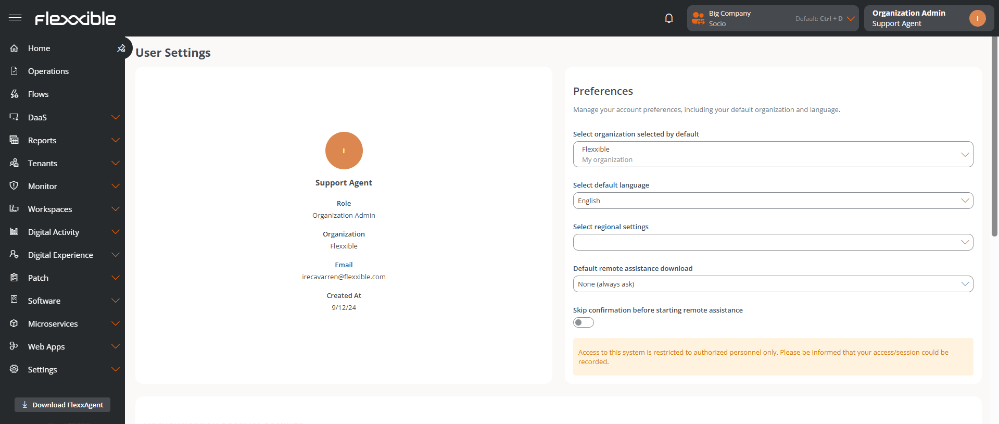
Preferences
- Organization to display by default. LLets you select the organization that will be displayed by default when you sign in.
- Default language. Language in which the interface will be displayed.
- Select regional settings. Determines the format used for dates, times, and other regional elements of the interface.
- Default remote assistance download.
- Skip configuration before starting remote assistance.
Authentication security settings
From this section you can manage the security levels for user authentication via email and password. For more information, see the Access and authentication documentation.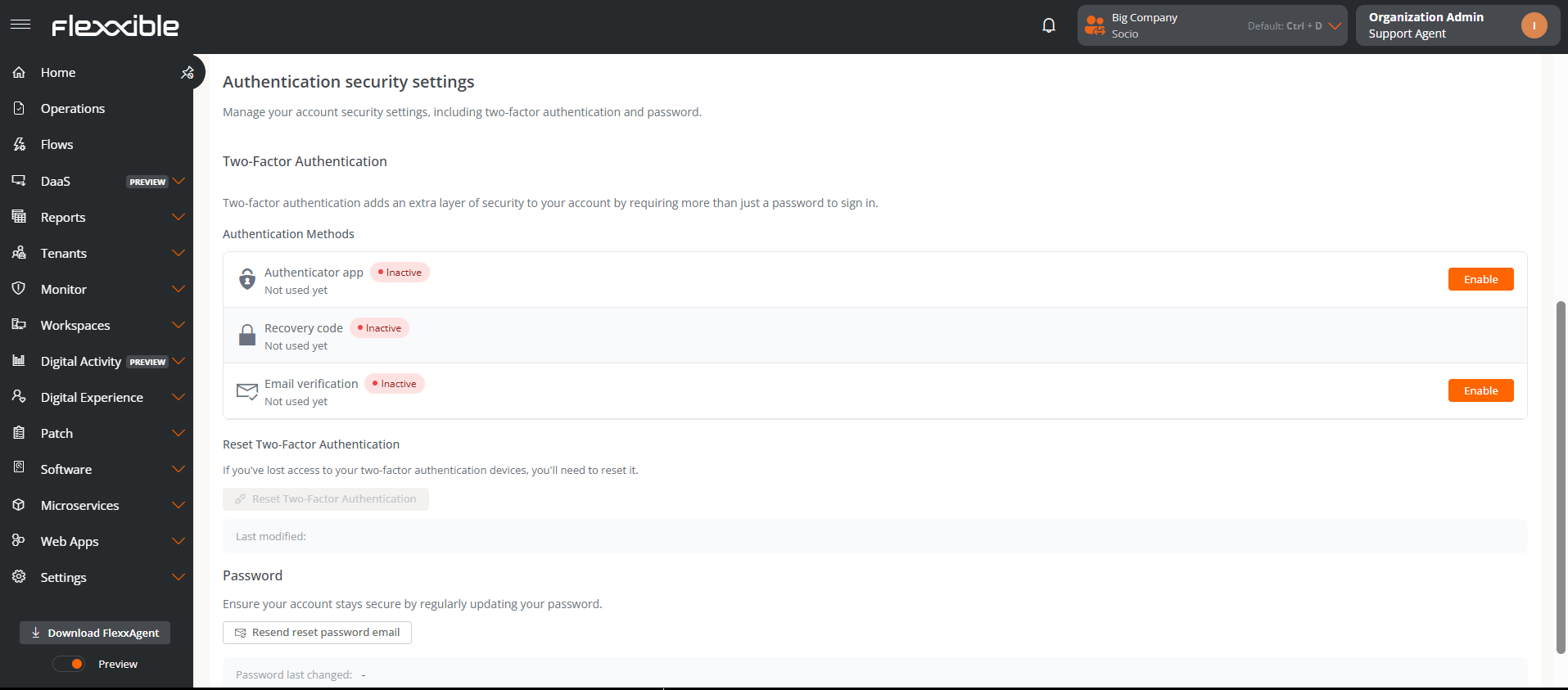
Search bar
The search bar lets you quickly access information and features without having to navigate through the platform’s menus. It can be opened at any time using the following shortcuts:Ctrl + K(Windows)Cmd + K(Mac)
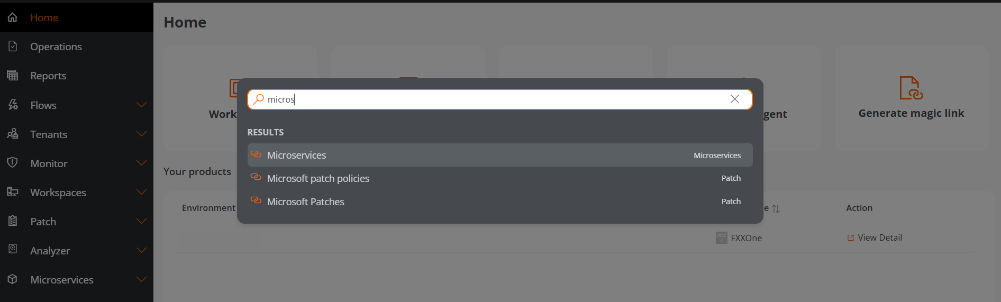
- Access sections and subsections of the platform directly Just type the name or part of the name of a section to navigate directly to it.
- Switch organizations Entering an organization’s name will display matching results to change the administration context.
- Make requests to Create with AI - Reports Lets you enter natural-language requests to generate reports using artificial intelligence.
- Search for devices Lets you locate devices by device name or by the associated user’s name. Next to the device name, in parentheses, the name of the last user who used it is shown.
- Search for sessions Lets you locate sessions by user name or by the associated device.
Considerations for the search bar
- The search must be performed in the same language configured in the platform.
- The search history is specific to each organization and is refreshed when you switch context.
- Recent searches and suggestions are shown to speed up access to frequently used resources.