

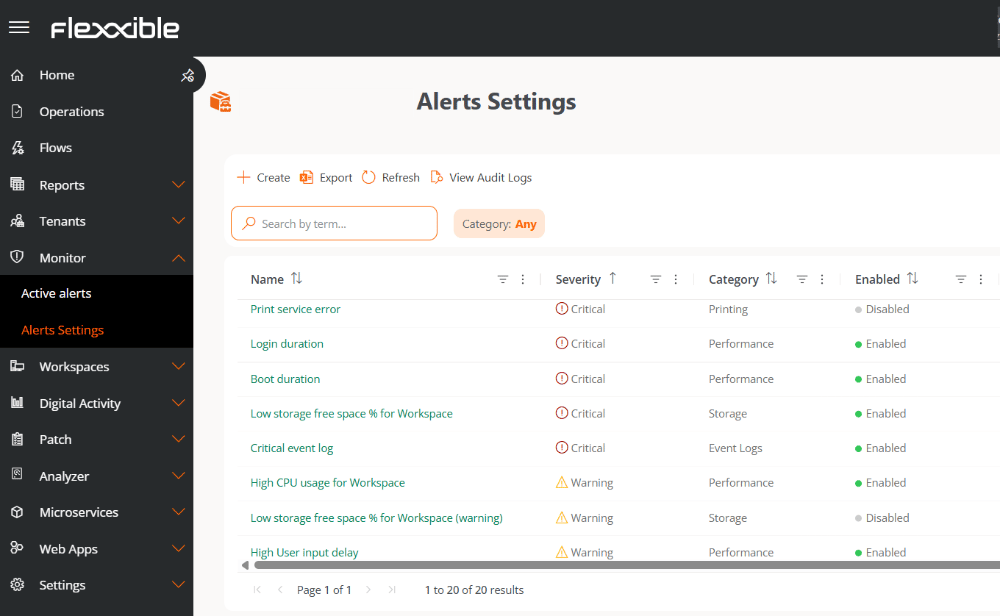
List view
This view shows a list of the alerts registered on the device. The table fields include:- Name. Alert name.
- Severity. Level of impact of the alert on the system.
- Category. Alert classification.
- Threshold. Numeric value that defines the age in minutes during which the event will be searched for. The default value is 720 minutes and the minimum allowed is 60 minutes. If the threshold is lower than the 60-minute interval, the alert may not be triggered. The threshold defines the numeric value of the age in minutes during which the event will be searched for.
- Threshold unit. Minutes.
- Authorized time (minutes). Maximum time allowed for a condition before it is considered an anomalous event.
- Repeat every (minutes). Time that will elapse before a new alert is sent if the condition persists.
- Enabled. Indicates whether the alert is enabled or disabled.
FlexxAgent collects system events every 30 minutes by default. This time can be defined in the FlexxAgent settings at both the Reporting group and Product level.
Actions from the list view
From the list view you can perform the following actions:
Create an alert configuration
The New button, located at the top of the main view, lets you define an alert based on system events.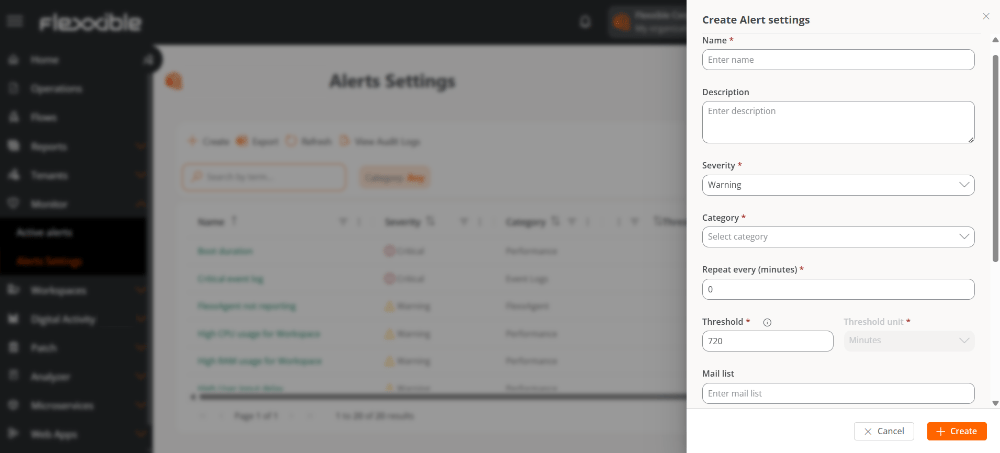
- Name. Alert name.
- Description. Details of the alert’s meaning.
- Severity. Level of impact of the alert on the system.
- Category. Alert classification.
- Repeat every (minutes). Time that will elapse before a new alert is sent if the condition persists.
- Threshold. Numeric value that defines the age in minutes during which the event will be searched for. The default value is 720 minutes and the minimum allowed is 60 minutes. If the threshold is lower than the 60-minute interval, the alert may not be triggered. The threshold defines the numeric value of the age in minutes during which the event will be searched for.
- Threshold unit. Minutes.
- Authorized time (minutes). Maximum time allowed for a condition before it is considered an anomalous event.
- Email recipient list. Email addresses (separated by commas) of the users who will receive an alert notification.
- Alert message. Notification that recipients will receive when the alert is triggered. For example: Event 786459 has been triggered.
- Event ID. Numeric identifier of the event in Event Viewer. Only accepts numeric values. An alert will be issued when an event with that ID is generated.
- Search text. Full text or literal fragment of the message in Event Viewer. It is always a text string.
-
Source. Value of the Source column in Event Viewer. It is equivalent to the
Provider Namefield in the event XML. For example: Microsoft Office 16 Alerts. - Exclude from UX score. Lets you exclude the alert from the Workspace Reliability Index (WRI) calculation.
Search text example
Configured alert message:Name resolution for _ldap._tcp.Tullahoma._sites.FlexxLab.com timed out after none of the configured DNS servers responded.Valid search texts:
Invalid search text:
- Name resolution for
- Timed out after none of the configured DNS servers responded
- None of the configured DNS servers responded
- Name resolution timed out after none of the configured DNS servers responded.
Alert severity
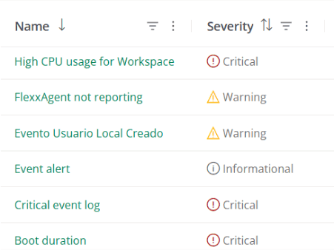
There are three levels:- Informational. The event is not critical, but the system’s operation could be optimized.
- Warning. The event could compromise the system’s operation if not addressed.
- Critical. The event requires immediate attention because it compromises the system’s operation.
Alert categories
Categories indicate the area where the event originates:- Connectivity
- FlexxAgent
- Hardware
- Performance
- Event Logs
- Security
- Printing
- Storage
Alert activation
Alerts configured based on system events are generated by detecting the event on the device, not by each individual occurrence of the event. This means:- If the same event is recorded several times on a device, multiple alerts will not be generated.
- A single alert is generated per device when the first occurrence is detected within the defined threshold.
- The alert will remain active while events continue to be detected within the configured interval.
- The alert will be automatically deactivated once the time defined in the threshold has elapsed since the last recorded occurrence of the event.
When you want to detect events that do not have a Critical level, you must add their ID in the FlexxAgent settings as an additional event.
Details view
Selecting an alert from the main table opens its details view, divided into the following four sections: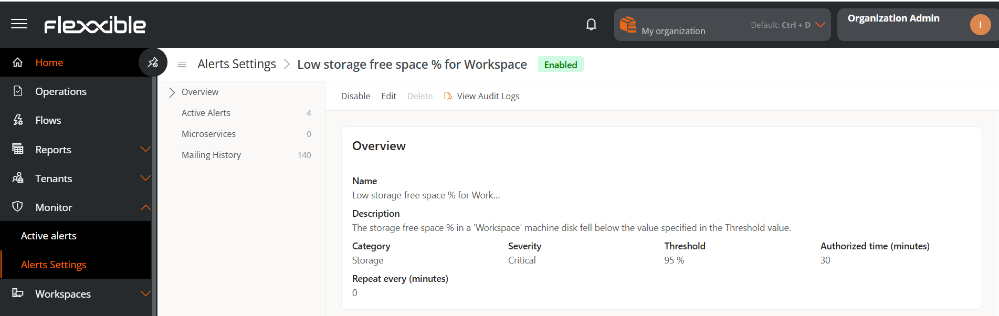
- Overview
- Active alerts
- Microservices
- Send history
Overview
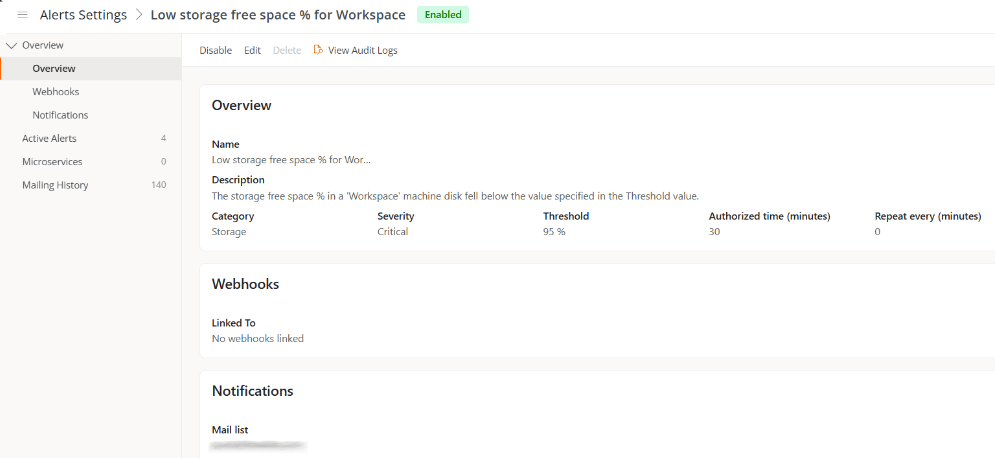
Provides the alert’s main data, defined at the beginning of this document.- Name
- Description
- Category
- Severity
- Threshold
- Authorized time (minutes)
- Repeat every (minutes)
- Exclude from UX score
Webhooks
Shows the list of Webhook integrations associated with the alert.Notifications
Shows the list of the email addresses of the recipients who will be notified when the alert is triggered.Active alerts
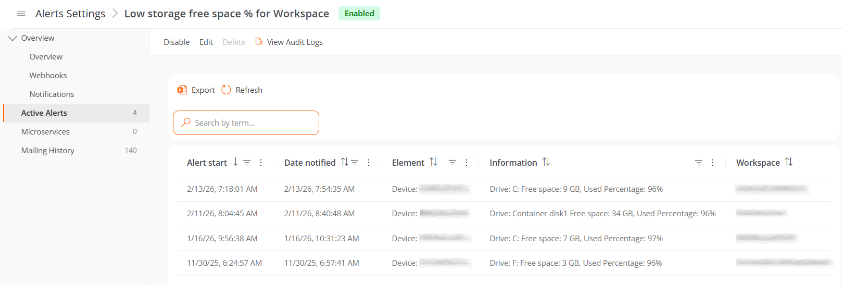
Lists the devices where the alert is currently active.- Information. Description of the alert.
- Start date. Day and time the alert is recorded.
- Notification date. Day and time of the alert notification.
- Item. Type of device on which the alert is recorded.
- Workspace. Name of the device on which the alert is recorded.
Microservices
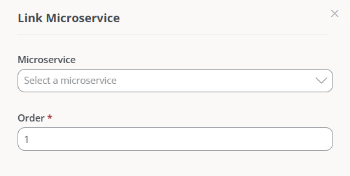
Lets you associate the alert with one or more microservices to resolve them with an automatic execution. The Link button opens the association form, where you define:- Which microservice to associate the alert with.
- Execution order, which is useful when you want to link more than one microservice.
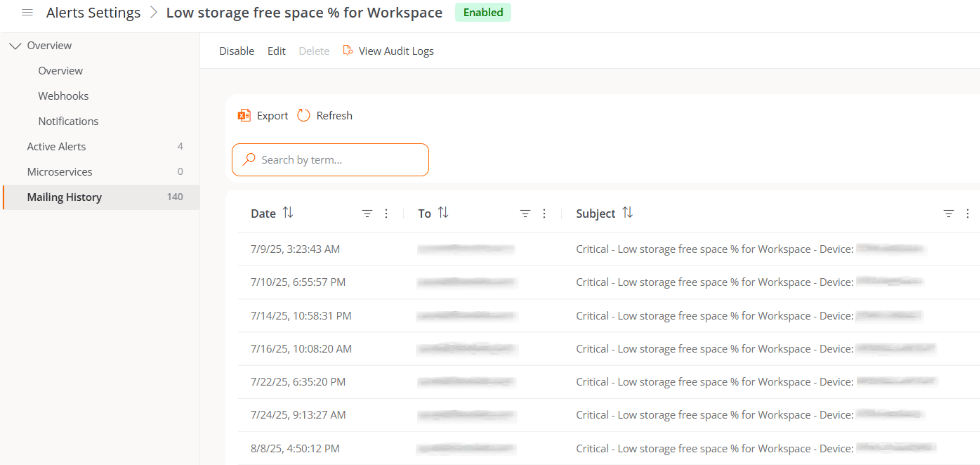
Send history
Shows the record of notifications sent:- Date. Day and time the notification was sent.
- To. Recipient’s email.
- Subject. Name of the alert and of the device where it was recorded.
- Error. Status of the device that triggered the alert.
Actions from the details view
