

Device
- Go to Workspaces → Workspaces.
- In the table, select the device on which you want to perform assistance.
- Click the Remote Assistance button.
- Select the type of assistance.
-
Wait a few seconds and download the activation file.
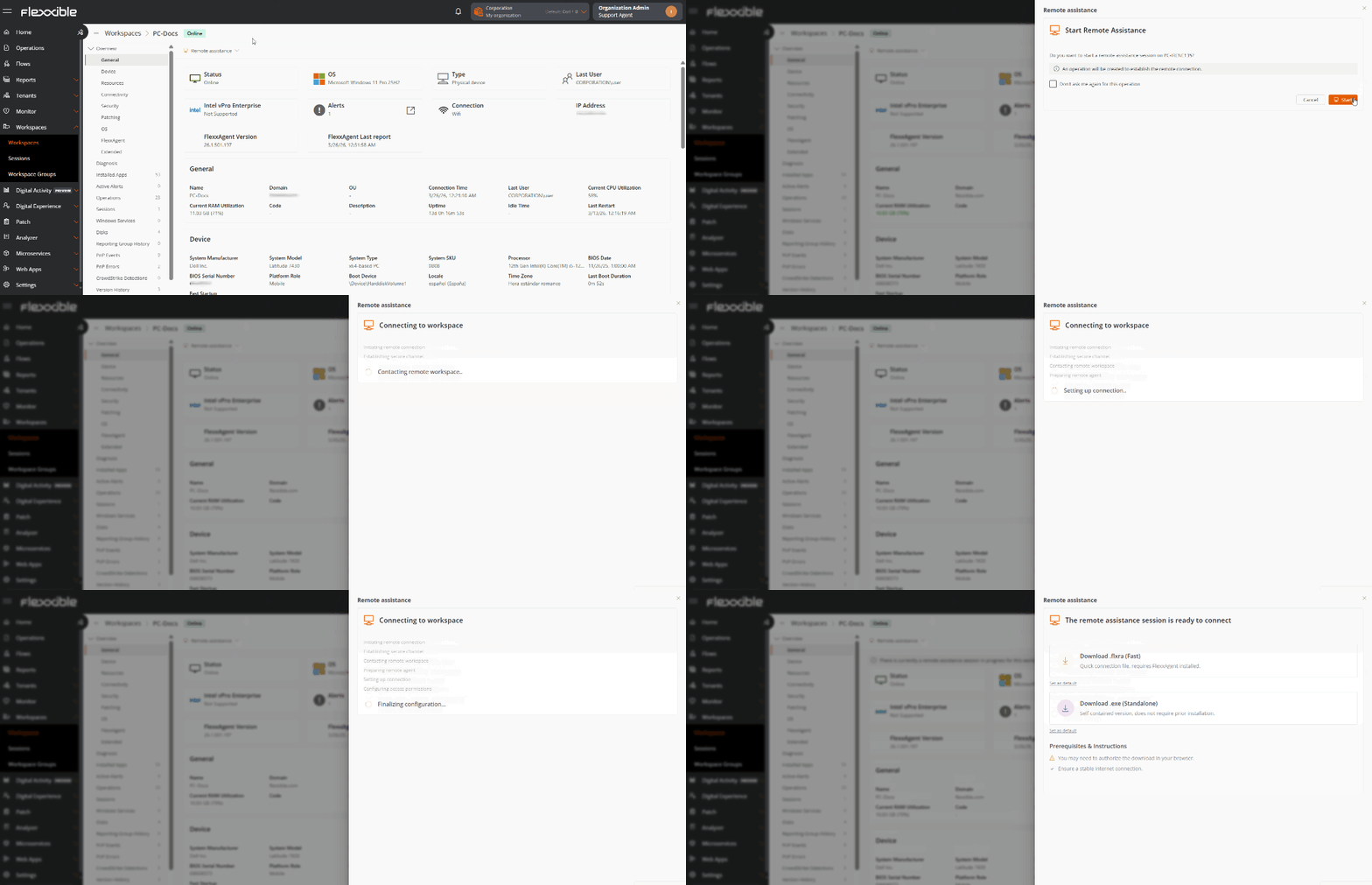
-
The user will be asked for consent before the operator can take control.
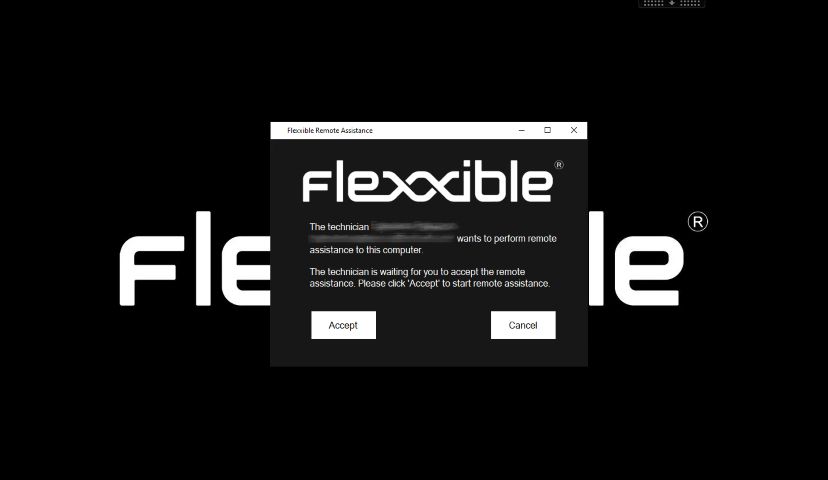
-
Start remote assistance.
When remote assistance is in progress, the following message appears in the device’s detail view:
A remote assistance session is currently in progress for this workspace. For more information, refer to the Operations section.

Session
- Go to Workspaces → Sessions.
- In the table, select the session on which you want to perform assistance.
- Click the Remote Assistance button.
- Select the type of assistance.
-
Wait a few seconds and download the activation file.
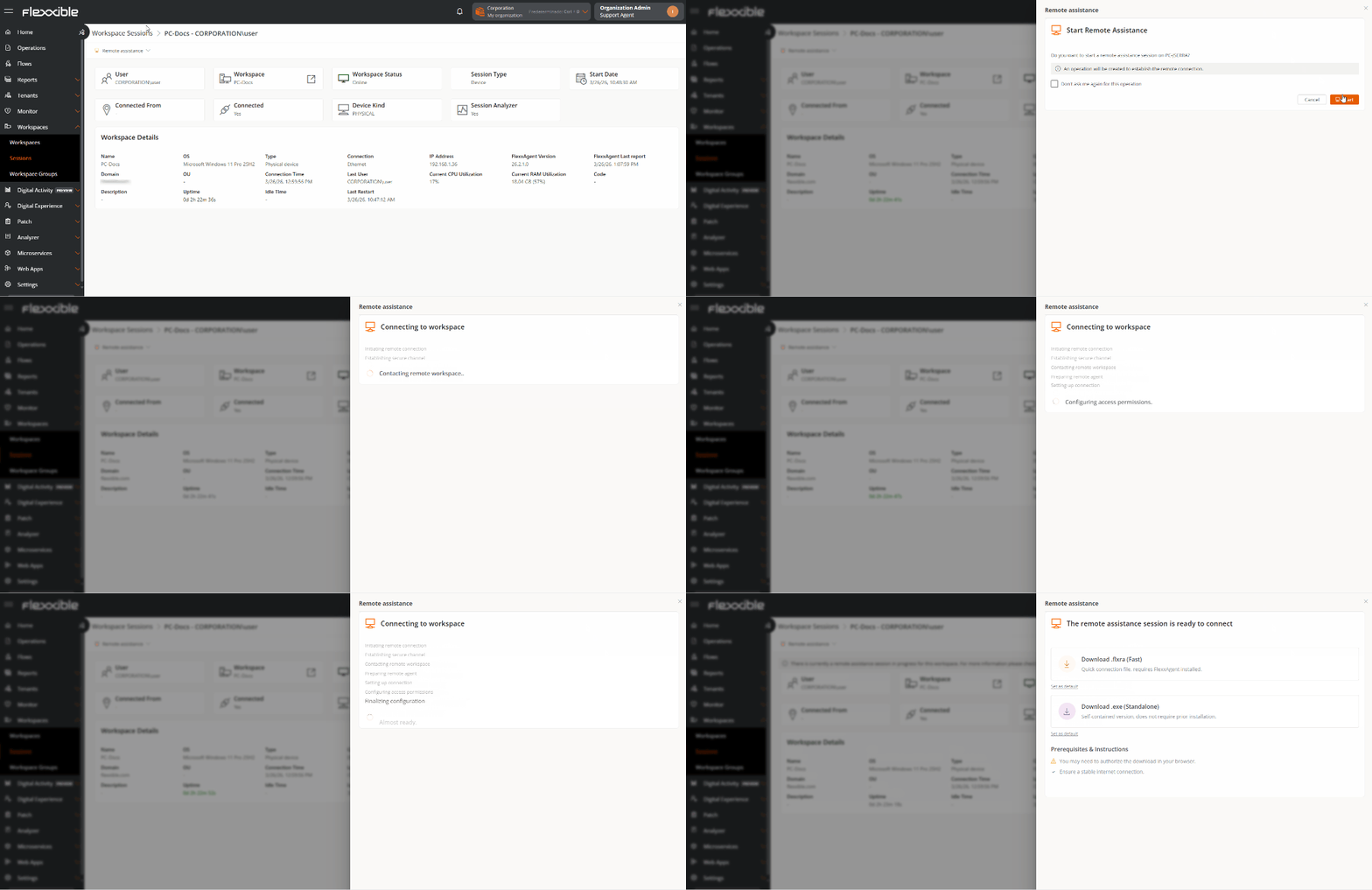
- The user will be asked for consent before the operator can take control.
-
Start remote assistance.
When remote assistance is in progress, the following message appears in the device’s detail view:
A remote assistance session is currently in progress for this workspace. For more information, refer to the Operations section.

Activation files
To provide the assistance service, the operator must download an activation file, which will depend on whether the device providing support has FlexxAgent installed or not.Devices with FlexxAgent installed
The operator must download and run the Flexxible Remote Assistance file, whose extension is.flxra.
- It runs without installation, with user permissions.
- It remains active only during the session.
- Once ended, it stops and the file is automatically removed from the system.
Flexxible recommends configuring the browser to open this type of file (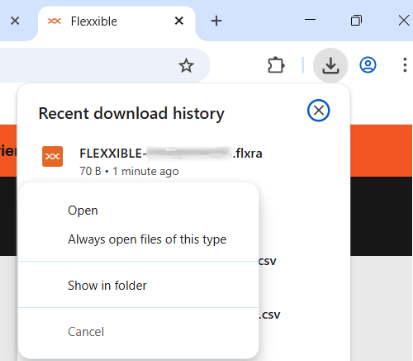
.flxra) directly, thus avoiding having to manually access the Downloads folder to run them.To do this, once the file has been downloaded (without opening it), access the browser’s download history from the navigation bar, right-click on the file, and select the option Always open files of this type.Devices without FlexxAgent installed
The operator must click Download and run the file with.exe extension.
- It runs without installation, with user permissions.
- It remains active only during the session.
- The file is not automatically removed after the session ends.
-
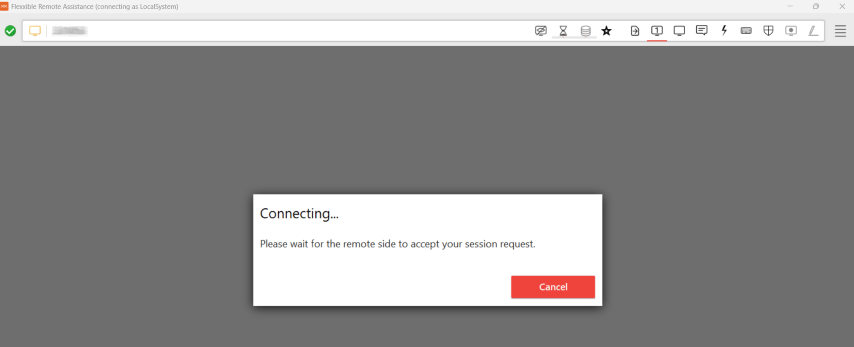
View from the operator’s screen:
-
View from the user’s screen:
Even though the file runs without administrative permissions, the operator will have access to administrative tools through Flexxible Tools.
Preferences for downloading the activation file
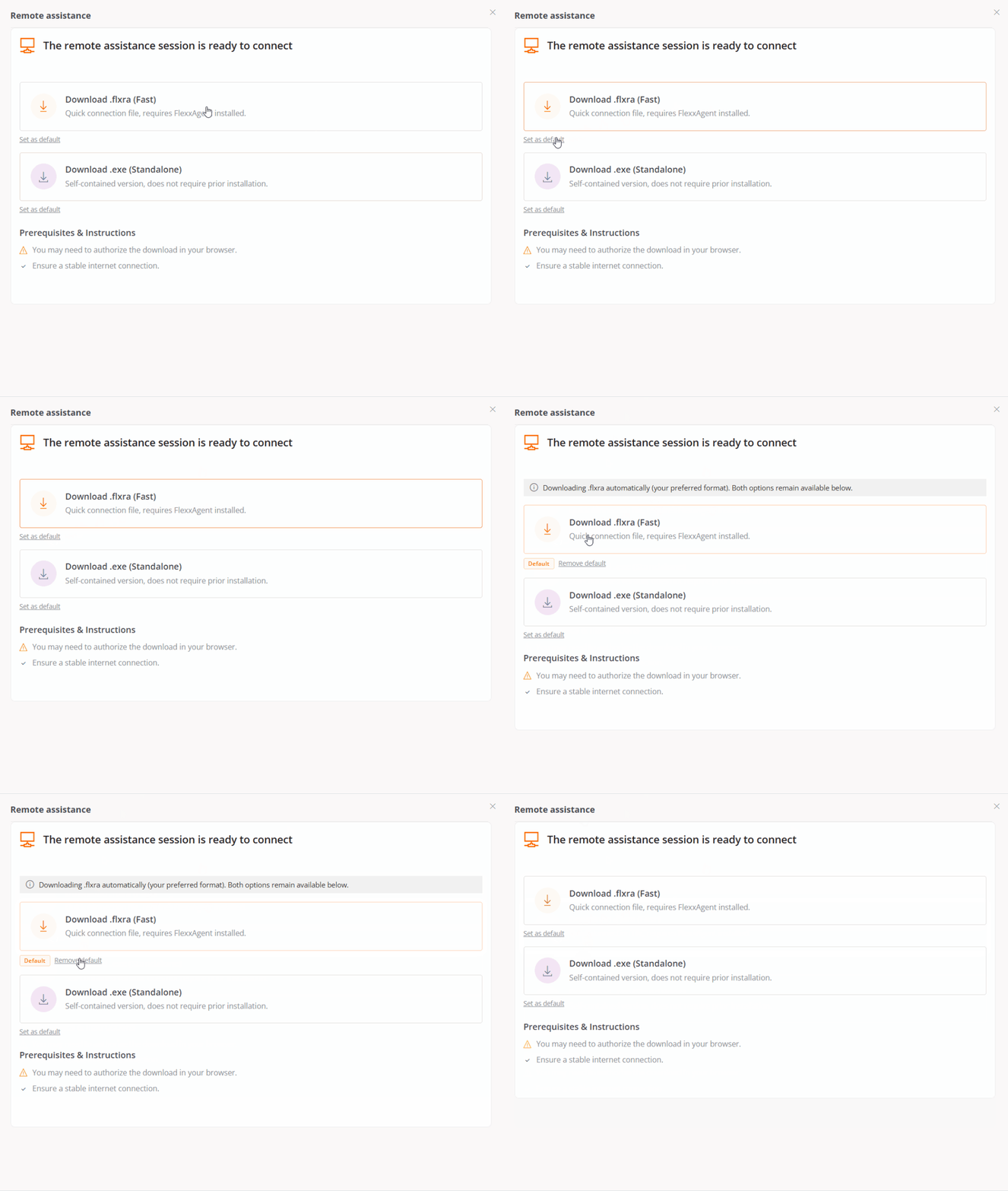
-
When the remote assistance process starts, the operator can choose, through the Set as default button, which type of file will be downloaded by default going forward.
-
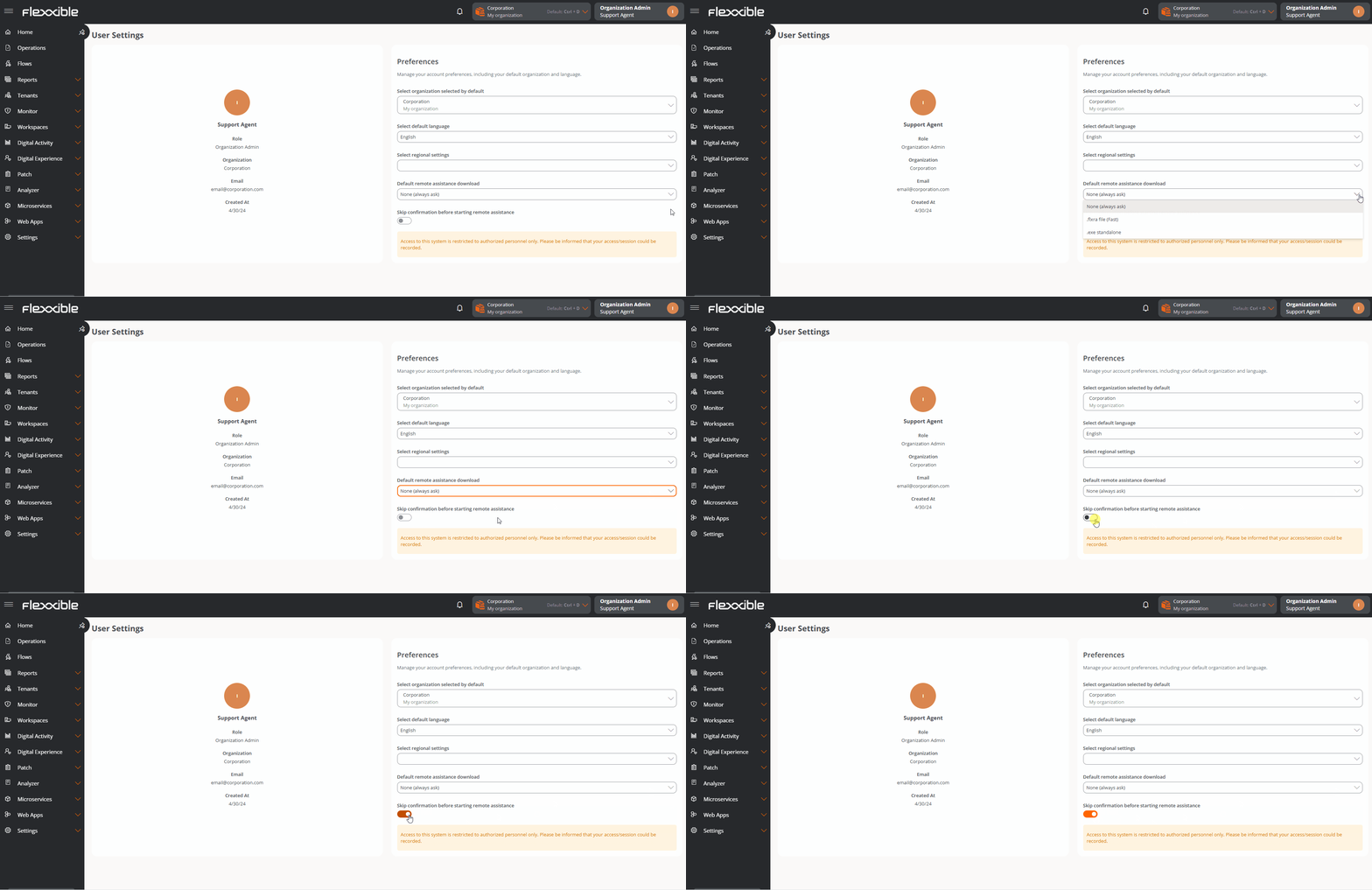
From the user’s Settings screen, you can define which type of file will be downloaded by default and whether you want to skip the confirmation before starting assistance.
Generated processes
When running the activation file, two processes are started:- FlexxAgent.exe
- FlexxibleRA.exe

Operation through proxy
From the operator’s point of view
When running the activation file, FlexxAgent checks whether the Proxy_Url key exists:- If it detects it, it uses it.
- If not, it runs AnyDesk in auto-detection mode.
From the end user’s point of view
FlexxAgent checks whether the proxy is configured.- If it detects it, it uses it.
- If not, it runs AnyDesk in auto-detection mode.
- If it detects it and it is accessible, it uses it.
- If not, it runs AnyDesk in auto-detection mode.
Flexxible Tools
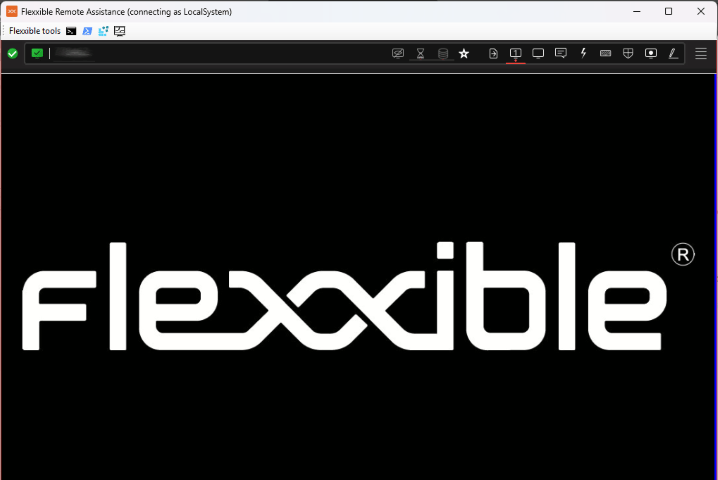
The remote assistance file runs with the user’s permissions. If the user does not have administrator privileges, the operator can use Flexxible Tools. Flexxible Tools, available in interactive (attended) remote assistance, allows the operator to run administrative tools.- CMD
- PowerShell
- Registry Editor
- Task Manager
Configuration
Flexxible Tools can be enabled for users based on the role they have on the platform.Flexxible Tools requires having FlexxAgent version 25.10 or higher installed.
Both the operator’s and the assisted device must belong to the same agent environment.