Existence of a running process
- Performs periodic evaluations to check whether a process is running.
- Configurable intervals between 15 seconds and 5 minutes.
Windows event log identifier detected
- Searches for specific events registered in the Windows Event Viewer.
- Intervals of 5 to 20 minutes.
-
Events are identified using the format:
<logName>:<Provider>:<id>Example:System:Microsoft-Windows-Winlogon:7001Where:logName= SystemProvider= Microsoft-Windows-Winlogonid= 7001
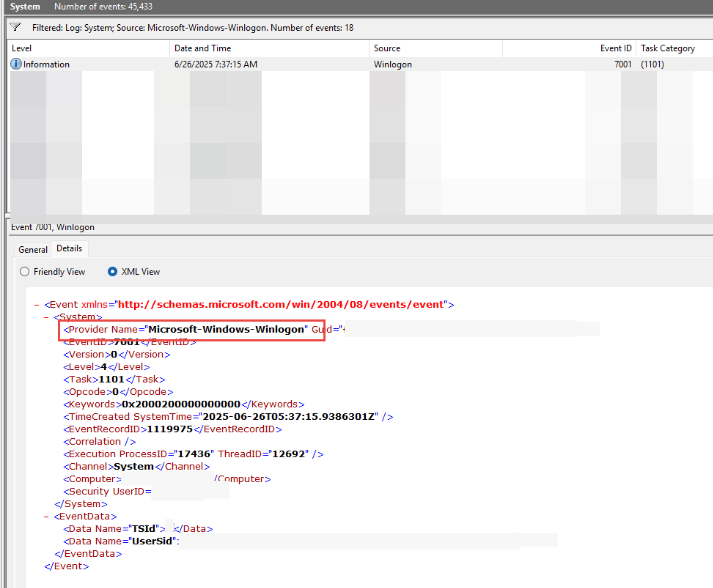
If the flow’s execution scope is set to Session level, only Windows events to which the user with the started session has access or visibility will be evaluated.To ensure the complete evaluation of all events registered on the device, without restrictions derived from user permissions, the flow must be executed with Workspace scope.
Operating system version
- Retrieves the operating system version at intervals of 1 to 12 hours.
- Uses operators that allow you to compare whether the value is equal to, starts with, ends with, or contains a specific string.
Operating system language
- Detects the operating system language at intervals of 1 to 12 hours.
- Uses operators that allow you to compare whether the value is equal to, starts with, ends with, or contains a specific string.
Operating system free disk space percentage
- Evaluates the free disk space, allowing you to set a target percentage.
- It is checked at intervals of 5 to 60 minutes.
Cron Match
-
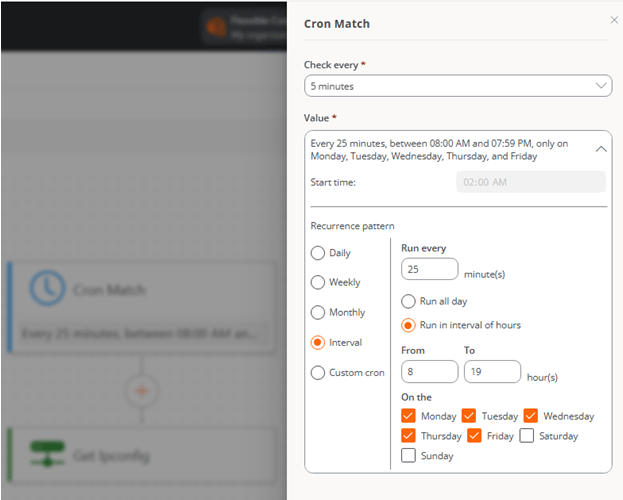
Verifies whether the current date and time match the schedule defined graphically in the Value field. If there is a match, the scheduled action will be executed.
- Check every. Specifies how often the system will evaluate whether the schedule is met. This value must be adjusted based on the indicated schedule.
- Value. Allows you to configure the time, periodicity, and recurrence that will determine when the action will be executed. The form allows you to define a Recurrence pattern using the following options:
- Daily. Indicates at what time and how often (in days) the action should be executed, as well as whether it should be performed only Monday through Friday.
- Weekly. Allows you to define at what time, every how many weeks, and on which days of the week the action will be executed.
- Monthly. Sets at what time and on which day of the month the action will be executed.
- Interval. Determines every how many minutes the action will be executed within a day or in a specific time range.
- Custom cron. Allows you to manually enter a string in standard cron format, useful for custom and advanced configurations. At the top of the form, a textual summary of the configured schedule is displayed.
- The schedule uses the backend time (not the device’s), currently in CET (UTC +1).
-
In Custom cron the hours are specified in UTC.
Even if a specific time is configured for a flow, the execution is performed approximately. This is because flows are processed in batches to ensure system scalability, and because the backend calculates the optimal execution time in an estimated way to best fit the configured time.
For this reason, in certain cases a slight deviation from the configured time can be observed; for example, a flow scheduled for 10:00 could be executed at 09:58.
To implement custom flow conditions —such as evaluating activity time in days, checking the current state of services, or any other parameter that can be analyzed locally from the device—, consult with Flexxible.
Actions
Actions are the microservices that have been programmed to run automatically when the preset conditions of the flow are met. To add an action when creating or modifying a flow, click on the corresponding condition and then select Add condition to choose one of the available microservices.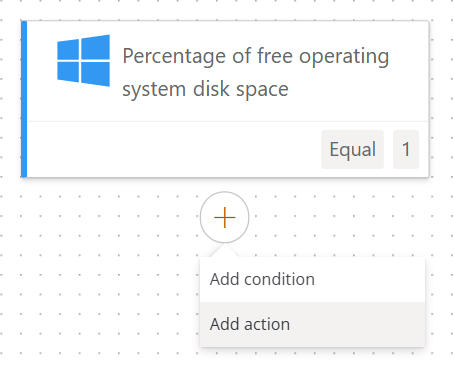
Flow management
Once created, a flow can be managed through the following options:- Enable/Disable flow
- Edit
- Delete
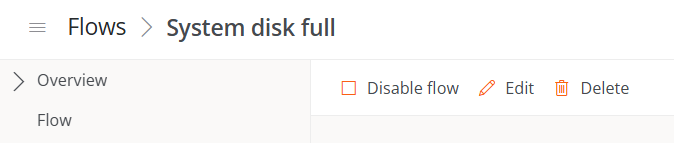
Enable/Disable flow
Allows you to activate or deactivate the flow in an organization. The current state of the flow can be viewed from the table containing the list of flows or in Overview.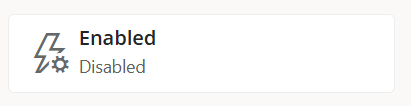
Edit - Overview, Notification, and Target
By clicking Edit from the Overview, Notification, or Target tabs, you can modify the configurations defined during the creation of the flow.-
Overview
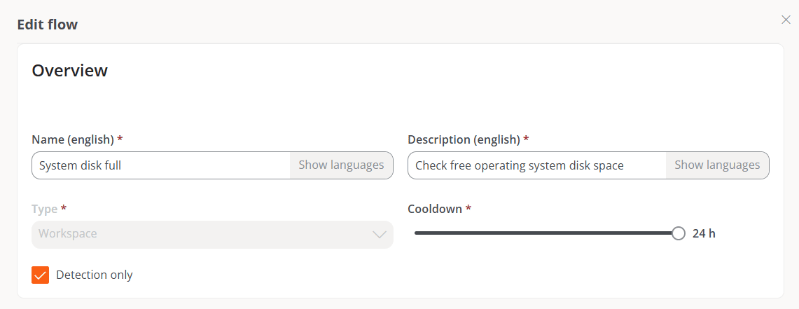
Allows you to edit the flow name, its description, the execution scope, the reuse time, and the option to run or not the microservice once the conditions are met.
-
Notification
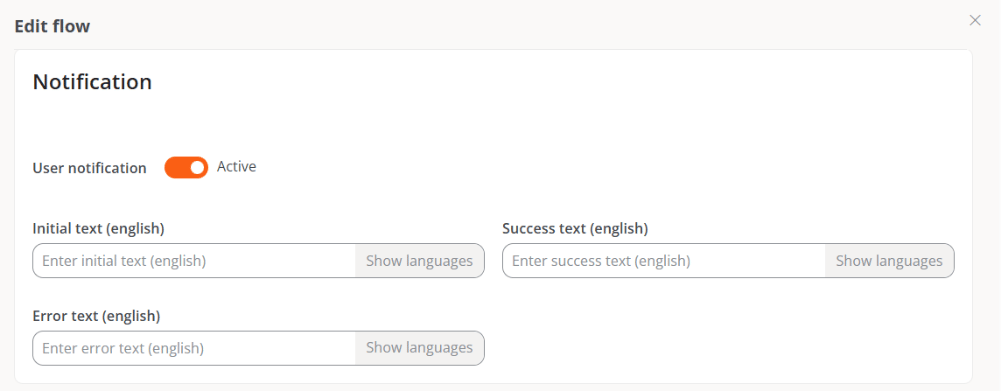
Allows you to enable or disable the sending of notifications to users, as well as edit their content. The types of messages available are explained in the Notification section.
-
Target
Allows you to define the target devices of the flow. From the Apply to button, you can choose whether the flow will be applied to all devices in the organization, to specific devices, to workspace groups, or to reporting groups.
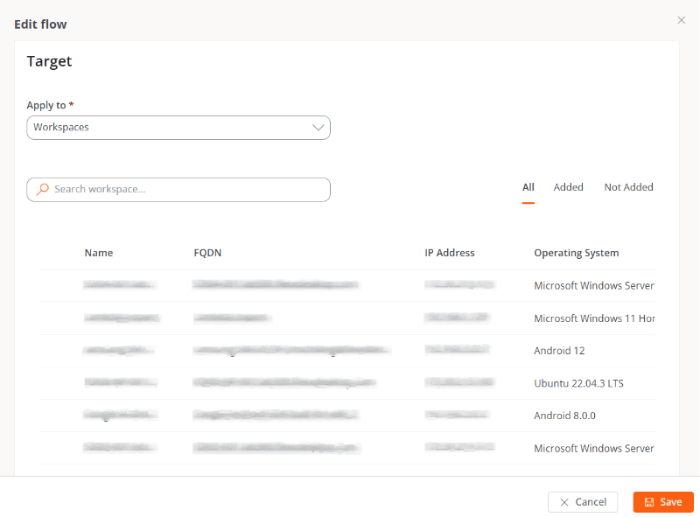
Edit - Flow
If you click Edit from the Flow tab, you can modify the conditions of the flow and the actions that comprise it.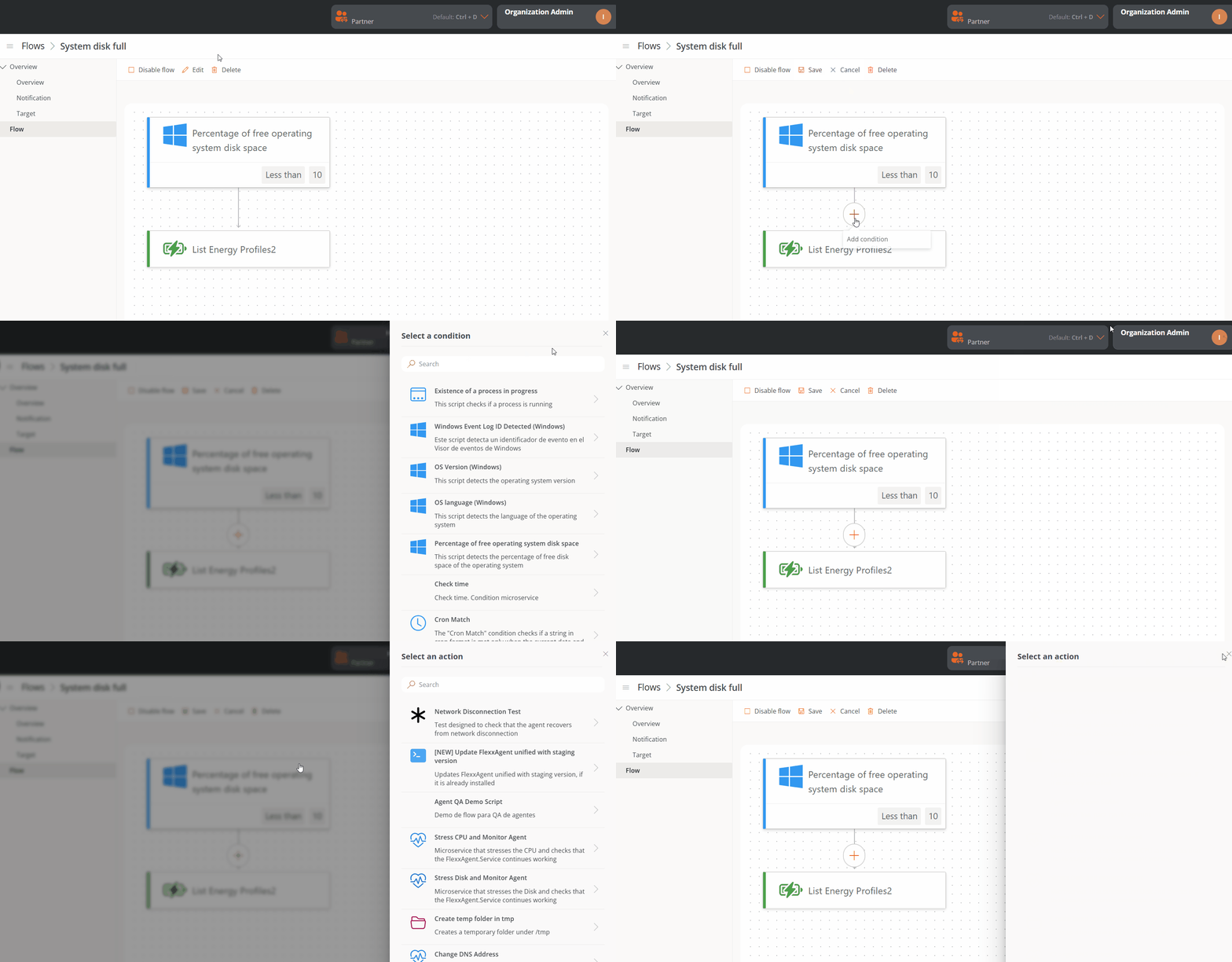
Changes made to a flow can take up to 15 minutes to be applied to all linked devices.
Delete
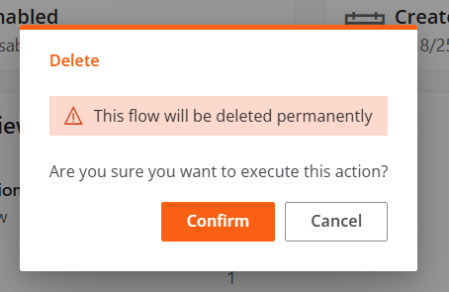
Permanently deletes the flow.