> ## Documentation Index
> Fetch the complete documentation index at: https://docs.flexxible.com/llms.txt
> Use this file to discover all available pages before exploring further.
# Perform remote assistance
> Connect remotely to devices and sessions to provide technical support to users.
Flexxible Assist lets you establish remote connections to devices managed from the platform to perform support, diagnostic, and administration tasks.
Remote assistance can be started either from the [Workspaces](../features/workspaces/workspaces) view or from the [Sessions](../features/sessions/sessions) view.
## Before you begin
Verify that this feature is enabled at the [Products](../features/flexxible-assist/flexxible-assist#product) and [Reporting groups](../features/flexxible-assist/flexxible-assist#reporting-groups) level.
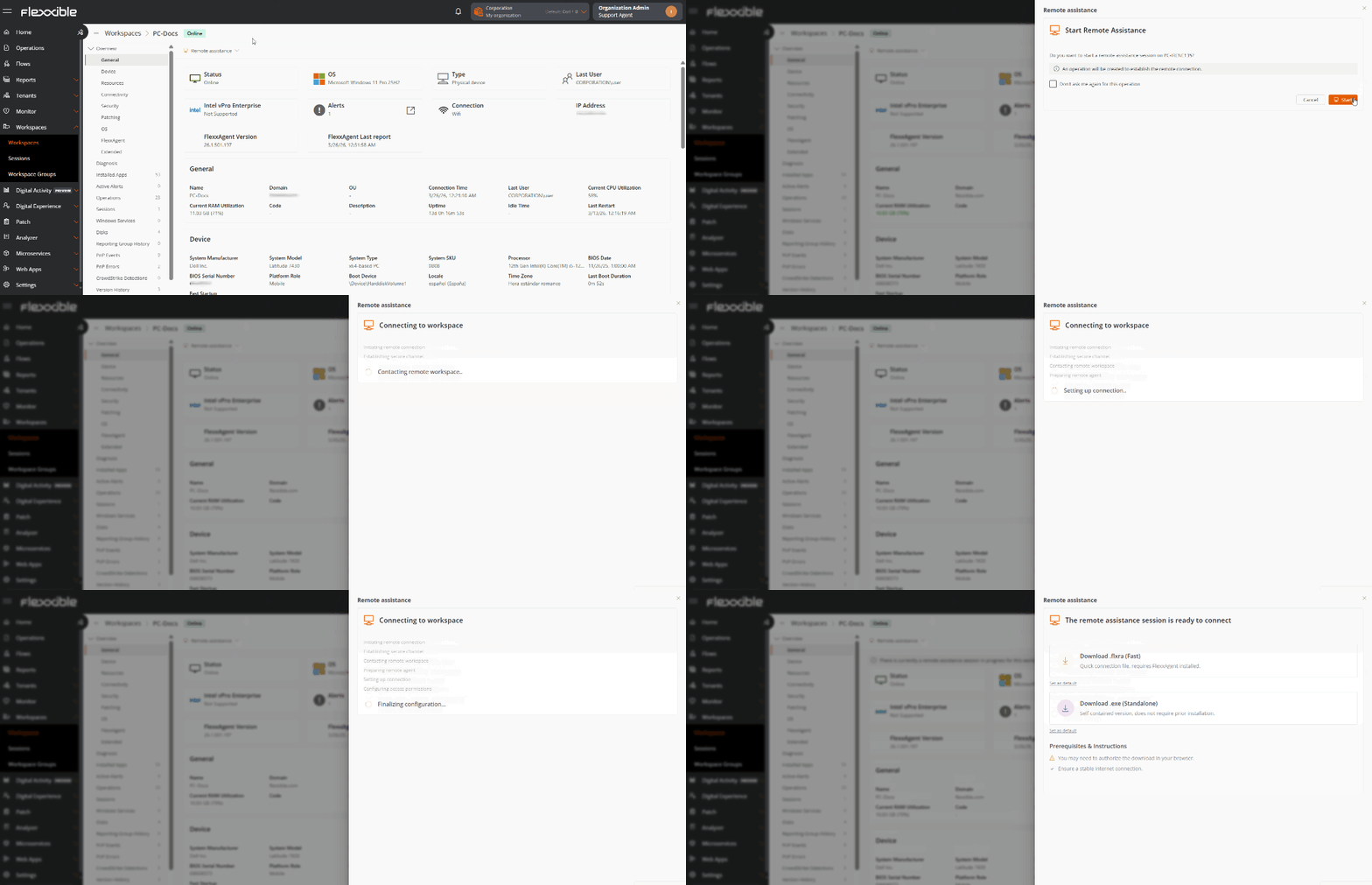
## Start assistance from Workspaces
1. Go to **Workspaces**.
2. Select the device you want to connect to.
3. Click **Remote assistance**.
4. Select the connection mode you want.
5. Download the generated connection file.
6. Run the downloaded file to start the remote session.
 ## Start assistance from Sessions
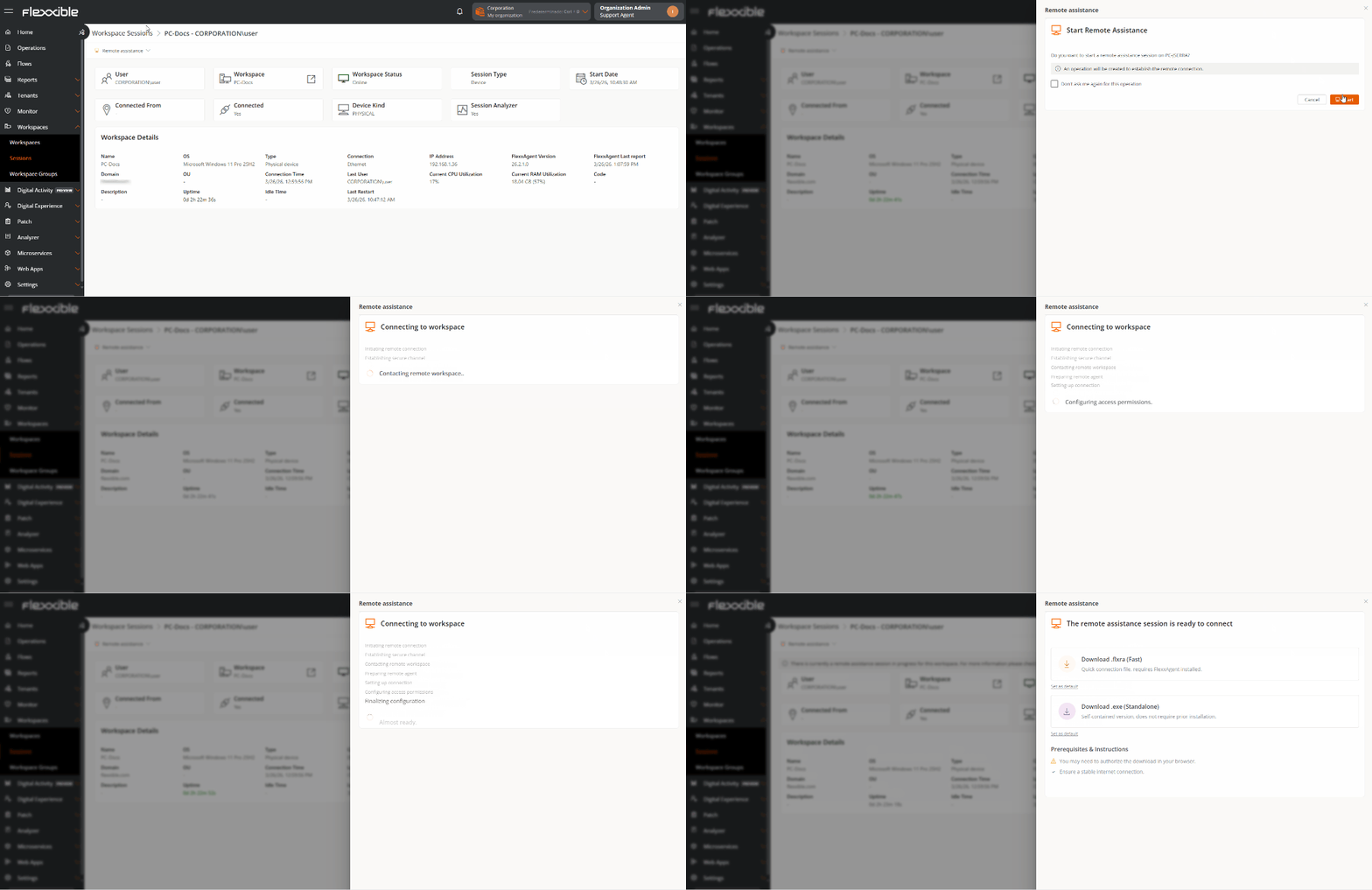
1. Go to **Sessions**.
2. Select the session you want to connect to.
3. Click **Remote assistance**.
4. Select the connection mode.
5. Download the generated connection file.
6. Run the downloaded file to start remote assistance.
## Start assistance from Sessions
1. Go to **Sessions**.
2. Select the session you want to connect to.
3. Click **Remote assistance**.
4. Select the connection mode.
5. Download the generated connection file.
6. Run the downloaded file to start remote assistance.
 ## Connection modes
Flexxible Assist offers different connection modes based on the support scenario.
### Interactive (attended)
Requests the user's authorization before starting the remote connection.
This mode is suitable when you need to interact with the user while resolving the incident.
### Interactive and unattended
Lets you connect to the device without requiring user intervention.
Geared toward devices such as servers or kiosks, it is especially useful for maintenance, administration, or support tasks outside of business hours.
### Dynamic
Automatically selects the most appropriate connection mode based on the device's status:
* If there is an active user session, an interactive connection is used.
* If there is no active session, an unattended connection is used.
## Monitor assistance in progress
While remote assistance is active, the platform displays information about the session on the corresponding device.
You can also check the status of connections from the **Operations** section.
If FlexxAgent restarts during a remote session, the connection will be interrupted automatically.
## Related information
For more information about Flexxible Assist, see:
* [Flexxible Assist](../features/flexxible-assist/flexxible-assist).
* [Workspaces](../features/workspaces/workspaces)
* [Sessions](../features/sessions/sessions)
## Connection modes
Flexxible Assist offers different connection modes based on the support scenario.
### Interactive (attended)
Requests the user's authorization before starting the remote connection.
This mode is suitable when you need to interact with the user while resolving the incident.
### Interactive and unattended
Lets you connect to the device without requiring user intervention.
Geared toward devices such as servers or kiosks, it is especially useful for maintenance, administration, or support tasks outside of business hours.
### Dynamic
Automatically selects the most appropriate connection mode based on the device's status:
* If there is an active user session, an interactive connection is used.
* If there is no active session, an unattended connection is used.
## Monitor assistance in progress
While remote assistance is active, the platform displays information about the session on the corresponding device.
You can also check the status of connections from the **Operations** section.
If FlexxAgent restarts during a remote session, the connection will be interrupted automatically.
## Related information
For more information about Flexxible Assist, see:
* [Flexxible Assist](../features/flexxible-assist/flexxible-assist).
* [Workspaces](../features/workspaces/workspaces)
* [Sessions](../features/sessions/sessions)