> ## Documentation Index
> Fetch the complete documentation index at: https://docs.flexxible.com/llms.txt
> Use this file to discover all available pages before exploring further.
# Send a pop-up notification to users
Portal offers two types of notifications to communicate messages to users effectively:
* Pop-up messages
* Notifications
Notification operations are available in both the *Sessions* and *Workspaces* sections.
## Pop-up messages
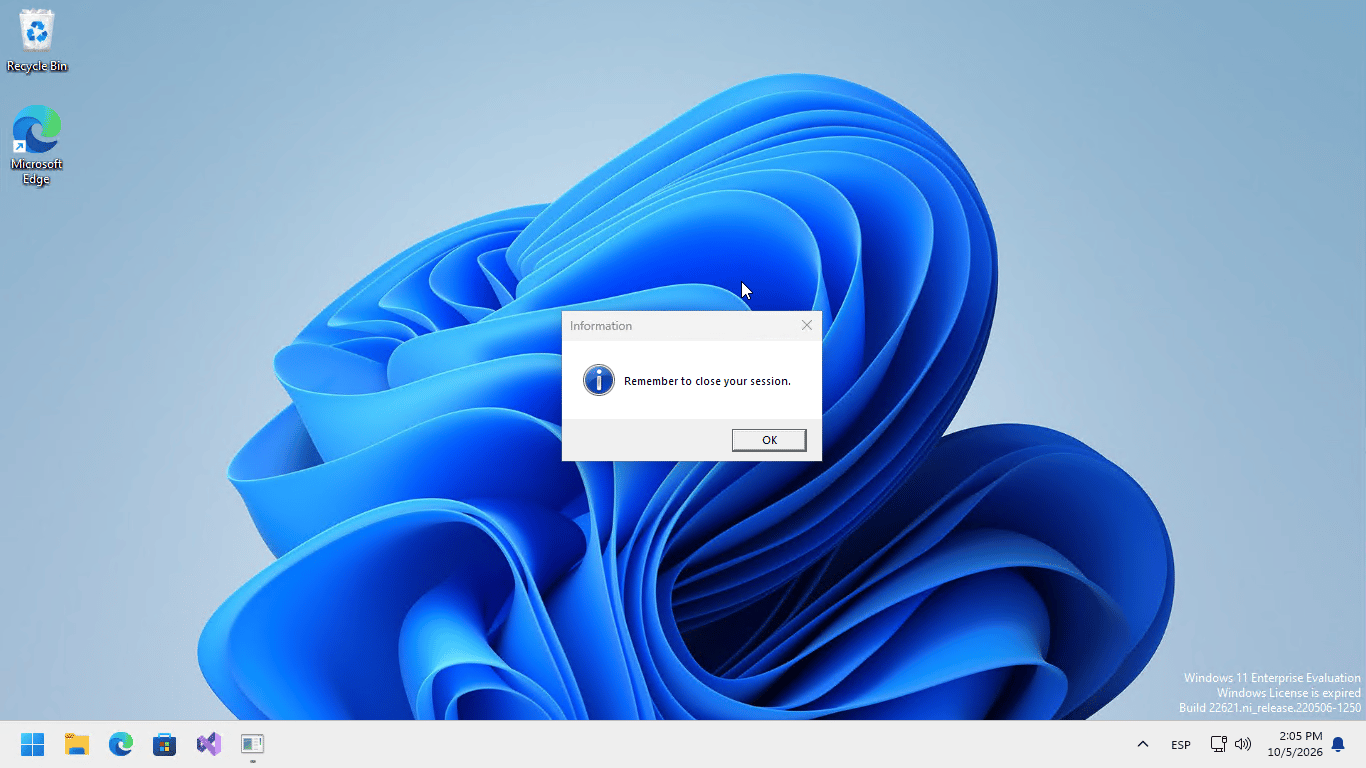
They show the user a window that appears over the interface and can be closed with a single click. They are useful for communicating brief or one-off information without permanently interrupting work.
The user in the session will receive the message through a pop-up window.
 This type of notification is based on Windows system tools. If all devices or sessions are selected and a pop-up message is sent, it will only reach users who are working (in session) at that moment. If a user signs in to their session after the message was received, it will not be visible.
On Windows, the pop-up message will remain visible until the user closes it or the session reaches a maximum of three days of activity. Time does not count while the session is locked or disconnected.
On Windows, the pop-up message will remain visible until the user closes it or the session reaches a maximum of three days of activity. Time does not count while the session is locked or disconnected.
## Send pop-up messages
This type of notification is based on Windows system tools. If all devices or sessions are selected and a pop-up message is sent, it will only reach users who are working (in session) at that moment. If a user signs in to their session after the message was received, it will not be visible.
On Windows, the pop-up message will remain visible until the user closes it or the session reaches a maximum of three days of activity. Time does not count while the session is locked or disconnected.
On Windows, the pop-up message will remain visible until the user closes it or the session reaches a maximum of three days of activity. Time does not count while the session is locked or disconnected.
## Send pop-up messages
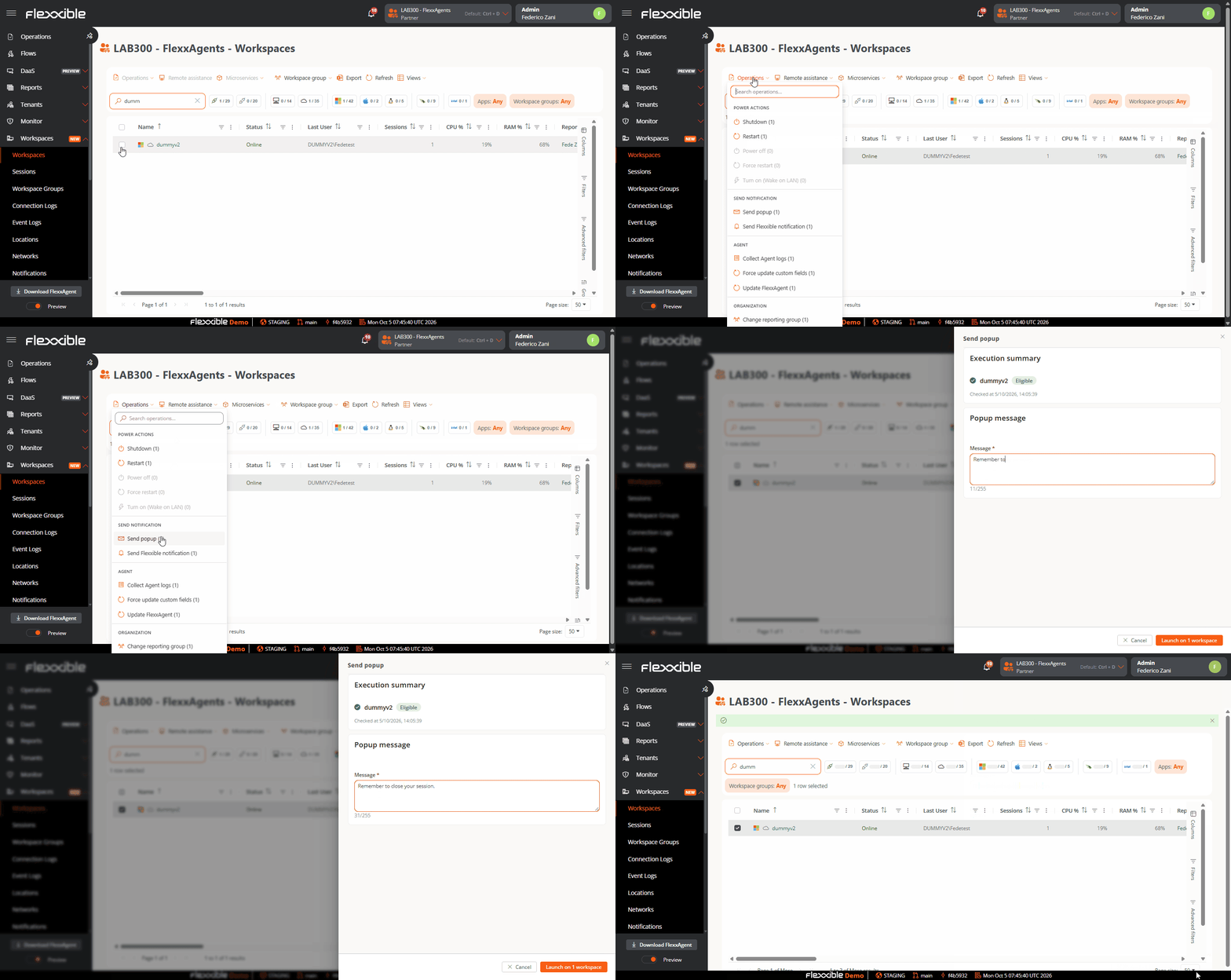 From the *Sessions* or *Workspaces* view, after selecting the items (sessions or devices) to send the notification to, you can run the notification operation from the *Operations* menu:
Once launched, you can monitor its result in *Operations*
The user will receive a pop-up window with the content of the message:
For more information, see [Notifications](/en/features/workspaces/notif)
From the *Sessions* or *Workspaces* view, after selecting the items (sessions or devices) to send the notification to, you can run the notification operation from the *Operations* menu:
Once launched, you can monitor its result in *Operations*
The user will receive a pop-up window with the content of the message:
For more information, see [Notifications](/en/features/workspaces/notif)