> ## Documentation Index
> Fetch the complete documentation index at: https://docs.flexxible.com/llms.txt
> Use this file to discover all available pages before exploring further.
# Send a notification to users
Portal offers two types of notifications to communicate messages to users effectively:
* Pop-up messages
* Notifications
Notification operations are available in both the *Sessions* and *Workspaces* sections.
## Notifications
Notifications are designed for critical situations, such as service outages, in which other corporate channels might not be available. Their goal is to ensure that the message reaches users as soon as possible, reducing the risk of overwhelming the support team with simultaneous requests.
Notifications have many additional features, aimed at maintaining effective communications and protecting the information transmitted to users.
While on screen, notifications reserve that space so that the user can no longer occupy it with their applications. This mechanism ensures that the user has the message visible.
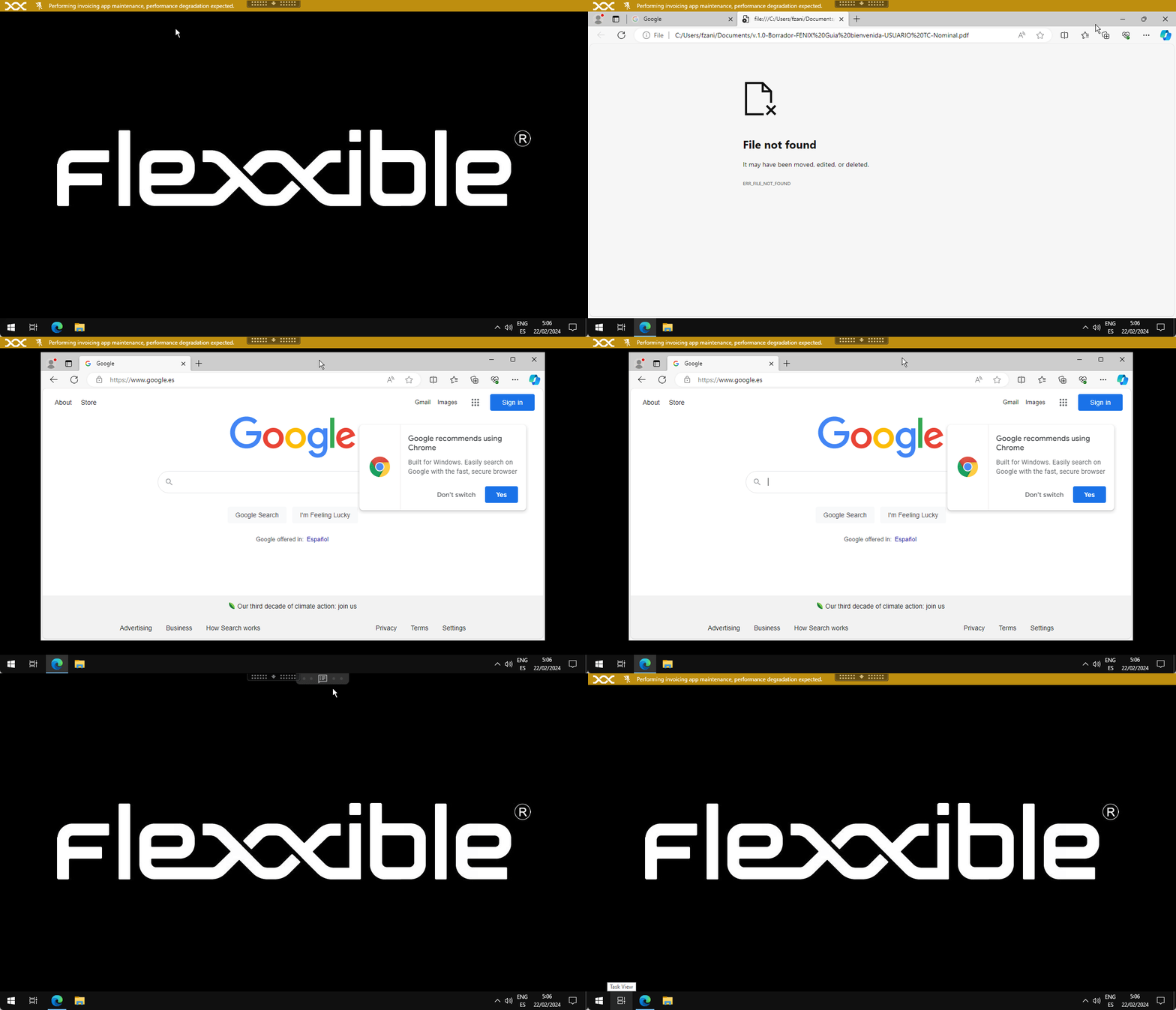 Notifications can be configured by time intervals, so that all active and future sessions receive the notification during the defined period.
## Send notifications
From the *Sessions* or *Workspaces* view:
* Select the items (sessions or devices) to send the notification to
* From the *Operations* menu, select the notification operation:
### Configurable parameters:
| Field | Function |
| - | - |
| Message | Lets you enter the text content of the message. |
| Start date | Lets you enter the start date and time of the notification. |
| Duration | Defines how long the notification will be visible. |
| Level type | Defines whether it is of type *Informational*, *Maintenance*, or *Technical issue*. |
| Time zone | Defines the time zone in which the notification will apply. |
| Tooltip | Defines the text that will appear when the user hovers the mouse over the notification. |
| Link | Lets you specify a destination URL for when the notification is clicked. |
| Blinking | Adds a blinking effect to the notification. |
| Request acceptance | Lets the user accept the notification to record that it has been read and close it. |
Once launched, you can monitor its result in *Operations*
The user will receive a pop-up window with the content of the message:
### Operation tracking
You can monitor the result of the notification in *Operations*, as well as track active notifications and user consent (if enabled) in the *Notifications* section within *Workspaces*.
For more information, see [Notifications](/en/features/workspaces/notif)
Notifications can be configured by time intervals, so that all active and future sessions receive the notification during the defined period.
## Send notifications
From the *Sessions* or *Workspaces* view:
* Select the items (sessions or devices) to send the notification to
* From the *Operations* menu, select the notification operation:
### Configurable parameters:
| Field | Function |
| - | - |
| Message | Lets you enter the text content of the message. |
| Start date | Lets you enter the start date and time of the notification. |
| Duration | Defines how long the notification will be visible. |
| Level type | Defines whether it is of type *Informational*, *Maintenance*, or *Technical issue*. |
| Time zone | Defines the time zone in which the notification will apply. |
| Tooltip | Defines the text that will appear when the user hovers the mouse over the notification. |
| Link | Lets you specify a destination URL for when the notification is clicked. |
| Blinking | Adds a blinking effect to the notification. |
| Request acceptance | Lets the user accept the notification to record that it has been read and close it. |
Once launched, you can monitor its result in *Operations*
The user will receive a pop-up window with the content of the message:
### Operation tracking
You can monitor the result of the notification in *Operations*, as well as track active notifications and user consent (if enabled) in the *Notifications* section within *Workspaces*.
For more information, see [Notifications](/en/features/workspaces/notif)