> ## Documentation Index
> Fetch the complete documentation index at: https://docs.flexxible.com/llms.txt
> Use this file to discover all available pages before exploring further.
# Automate microservice execution
> This guide explains how to create a flow capable of automatically running a microservice when certain conditions are met.
Flows let you automate maintenance, diagnostic, and remediation tasks without manual intervention, reducing response times and improving operational efficiency.
## Create the flow
1. Go to **Flows**.
2. Click **New**.
If you want to modify an existing automation, select the corresponding flow from the table.
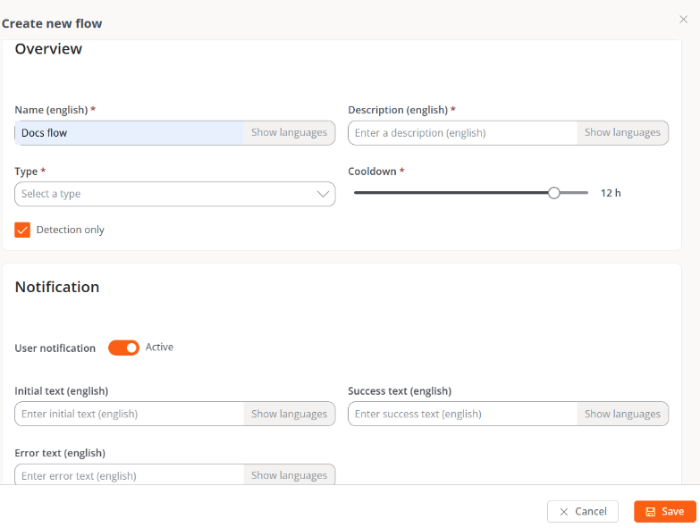
3. Complete the flow's basic information.
### Basic information
| Field | Description |
| ------------------ | ------------------------------------------------------------------------------------------------------------------------------------------------ |
| **Name** | Name that will identify the flow. The **Show languages** button lets you define it in Spanish, English, Portuguese, Catalan, and Basque. |
| **Description** | Brief description of the flow's purpose. |
| **Type** | Determines the flow's execution scope: **Session** (with user session permissions) or **Device** (with administrative privileges on the device). |
| **Reuse time** | Minimum time that must elapse before the flow can be run again on the same device once its conditions are met. |
| **Detection only** | Evaluates the configured conditions without running any action. Useful for validating an automation before enabling it. |
 ### Configure notifications
Optionally, you can display notifications to users before and after the flow runs.
The following fields support translations via the **Show languages** button:
* **Initial text.** Message shown when execution starts.
* **Success text.** Message shown when execution finishes successfully.
* **Error text.** Message shown when execution finishes with errors.
### Select the target
Define the devices on which the conditions will be evaluated and the actions will be executed.
The available options are:
* **All workspaces.** Applies the flow to all devices in the organization.
* **Workspaces.** Lets you select specific devices.
* **Workspace groups.** Lets you select one or more workspace groups.
* **Reporting groups.** Lets you select one or more reporting groups.
Once the configuration is complete, click **Save**.
## Configure the conditions
After saving the flow:
1. Go to the **Flow** tab.
2. Click **Edit**.
3. Click the **+** icon.
4. Select **Add condition**.
A window will open showing the available conditions.
### Configure notifications
Optionally, you can display notifications to users before and after the flow runs.
The following fields support translations via the **Show languages** button:
* **Initial text.** Message shown when execution starts.
* **Success text.** Message shown when execution finishes successfully.
* **Error text.** Message shown when execution finishes with errors.
### Select the target
Define the devices on which the conditions will be evaluated and the actions will be executed.
The available options are:
* **All workspaces.** Applies the flow to all devices in the organization.
* **Workspaces.** Lets you select specific devices.
* **Workspace groups.** Lets you select one or more workspace groups.
* **Reporting groups.** Lets you select one or more reporting groups.
Once the configuration is complete, click **Save**.
## Configure the conditions
After saving the flow:
1. Go to the **Flow** tab.
2. Click **Edit**.
3. Click the **+** icon.
4. Select **Add condition**.
A window will open showing the available conditions.
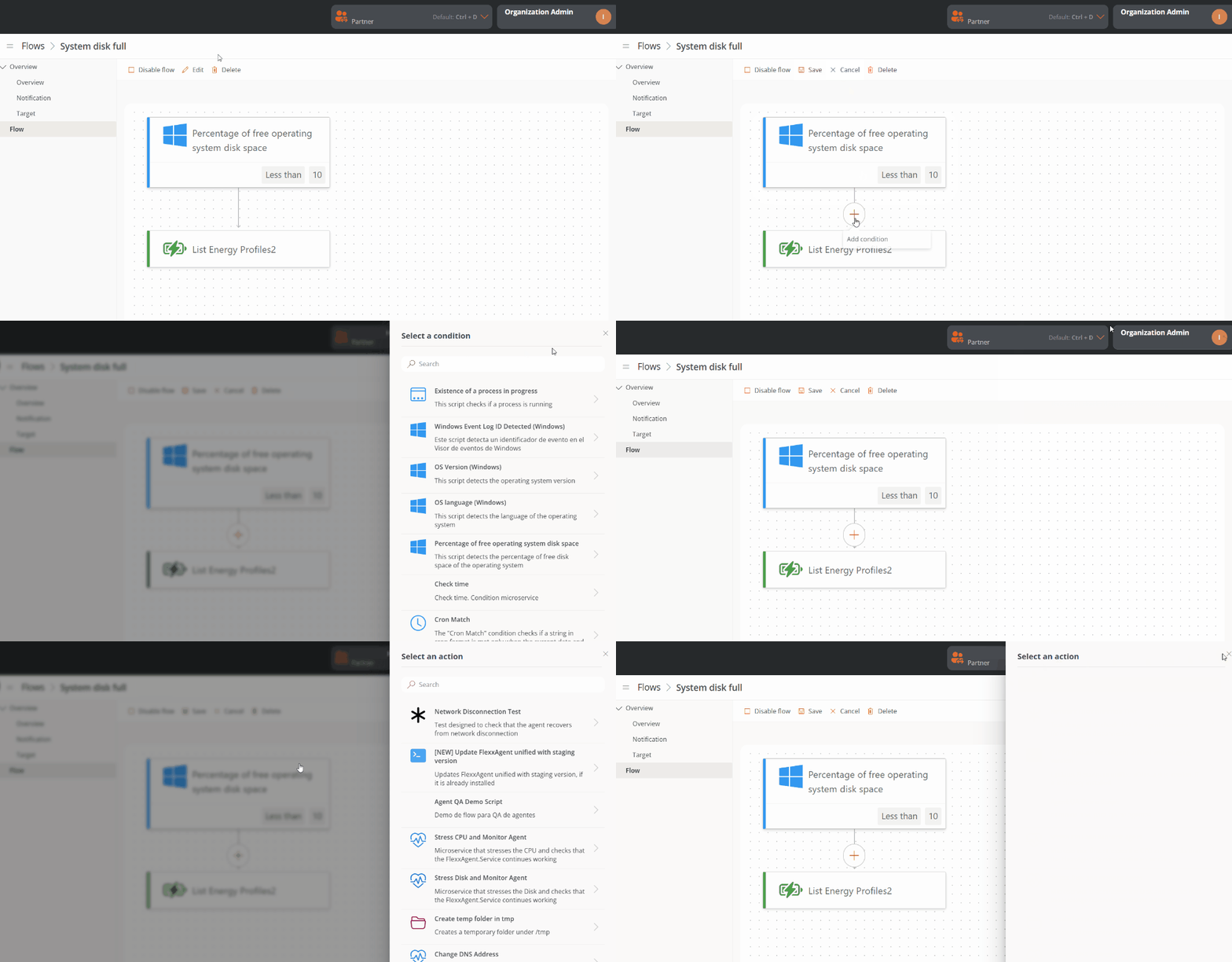 5. Select the condition you want to evaluate.
6. Configure its parameters.
7. Click **Save**.
You can combine several conditions to create more specific automations.
## Add the microservice
Once the condition is created:
1. Click the **+** icon below the condition.
2. Select **Add action**.
3. Choose the microservice you want to run.
4. Configure the required parameters, if any.
5. Click **Save**.
## Enable the flow
1. Go to the flow's detail view.
2. Click **Enable flow**.
Once enabled, the flow will periodically evaluate the configured conditions and automatically run the microservice on the devices that meet the defined criteria.
## Related information
For more information, see the [Flows](../features/flows/flows) section.
5. Select the condition you want to evaluate.
6. Configure its parameters.
7. Click **Save**.
You can combine several conditions to create more specific automations.
## Add the microservice
Once the condition is created:
1. Click the **+** icon below the condition.
2. Select **Add action**.
3. Choose the microservice you want to run.
4. Configure the required parameters, if any.
5. Click **Save**.
## Enable the flow
1. Go to the flow's detail view.
2. Click **Enable flow**.
Once enabled, the flow will periodically evaluate the configured conditions and automatically run the microservice on the devices that meet the defined criteria.
## Related information
For more information, see the [Flows](../features/flows/flows) section.