> ## Documentation Index
> Fetch the complete documentation index at: https://docs.flexxible.com/llms.txt
> Use this file to discover all available pages before exploring further.
# Deploy on Android with Intune
> Guide for deploying the agent on Android devices.
Before starting the deployment, Microsoft Intune must be connected to Android Enterprise.
To configure the integration, follow the official Microsoft procedure:
```
https://learn.microsoft.com/en-us/mem/intune/enrollment/connect-intune-android-enterprise
```
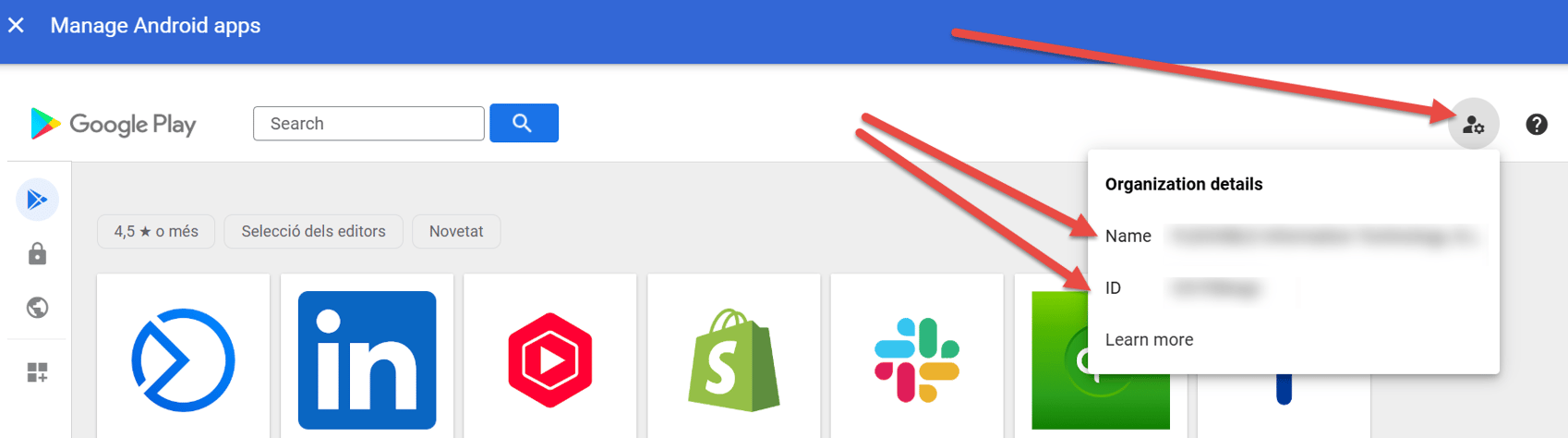
In addition, Flexxible must enable the application in the customer's Managed Google Play environment.
To do so, you need to provide Flexxible with the following data:
* Managed Google Play name.
* Managed Google Play ID.
 ### Synchronize the application in Microsoft Intune
Once the application has been enabled in Managed Google Play:
1. Sign in to the Microsoft Intune admin center.
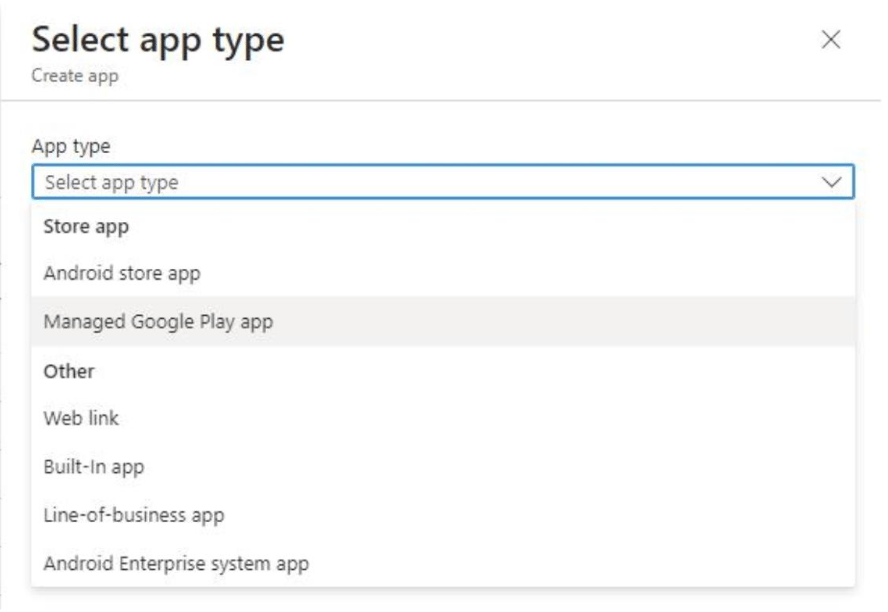
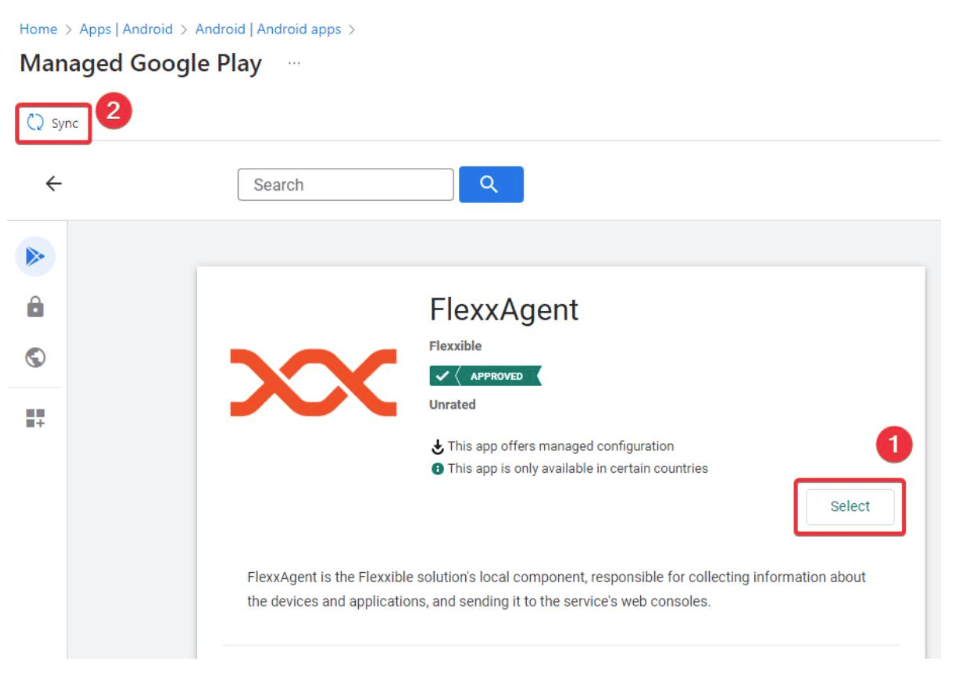
2. Select the application and synchronize it:
### Synchronize the application in Microsoft Intune
Once the application has been enabled in Managed Google Play:
1. Sign in to the Microsoft Intune admin center.
2. Select the application and synchronize it:
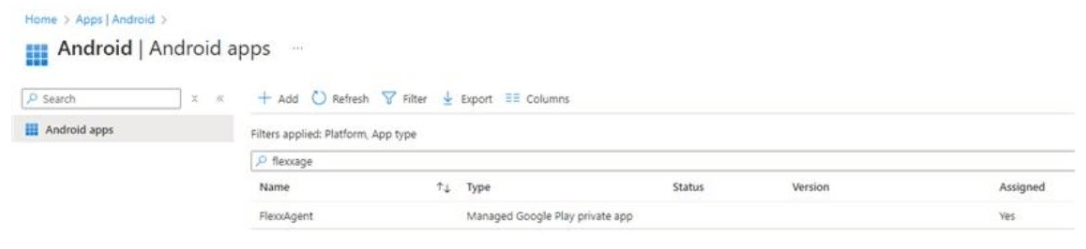
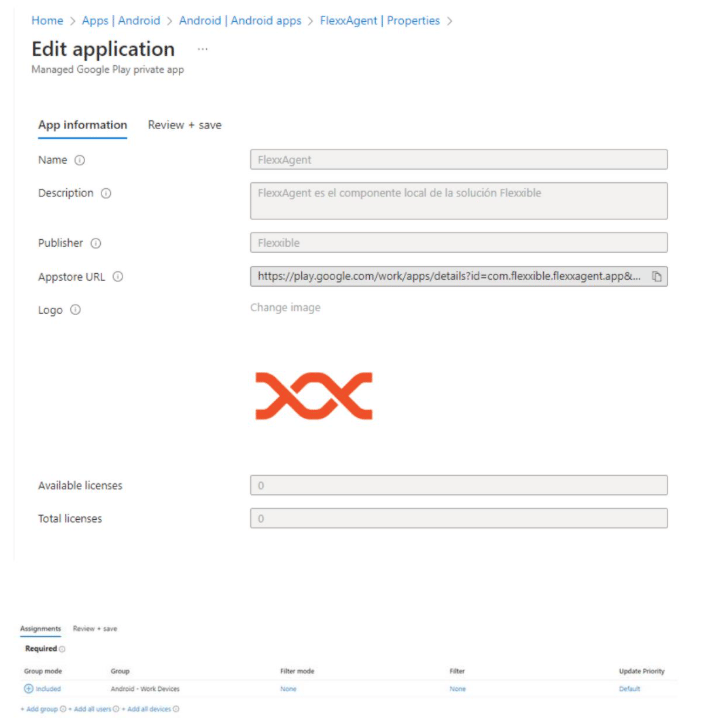
 3. After synchronization, FlexxAgent will appear in the list of available applications.
 ## Configure the application
Select FlexxAgent and complete the deployment configuration based on your organization's needs.
## Configure the application
Select FlexxAgent and complete the deployment configuration based on your organization's needs.
 ### Create the configuration policy
FlexxAgent requires a managed configuration policy to receive the parameters needed for it to work.
The configuration values can be obtained in two ways:
* By extracting them from the `.conf` file generated when downloading FlexxAgent.
* By requesting them from a Flexxible contact during the implementation process.
#### Get the parameters from the configuration file
1. Download FlexxAgent for [Windows](../flexxagent/systems/windows), [Linux](../flexxagent/systems/linux), or [macOS](../flexxagent/systems/mac).
2. Open the configuration file (`.conf`) included in the download.
3. Extract the following values:
* Required parameters
* IHName → iQN
* QScstr → sbCS1 + "|"+ sbCS2
* QueueServiceName → sbN
* IHcstr → iCS1 + "|"+ iCS2
* Rg → rg
* environment → production
* Optional parameters
These parameters let you associate additional device information using the attributes provided by the MDM solution.
* user\_email → `"{{userprincipalname}}"`. In Google Workspace you can use `"$LOGIN_EMAIL"`
* user\_email\_name → `"{{userprincipalname}}"`. In Google Workspace you can use `"$LOGIN_EMAIL"`
* user\_email\_domain → User's domain
* device\_id → Device identifier
* device\_serial → Device serial number
* device\_asset → Inventory identifier
* device\_location → Device location
### Configure the policy in Intune
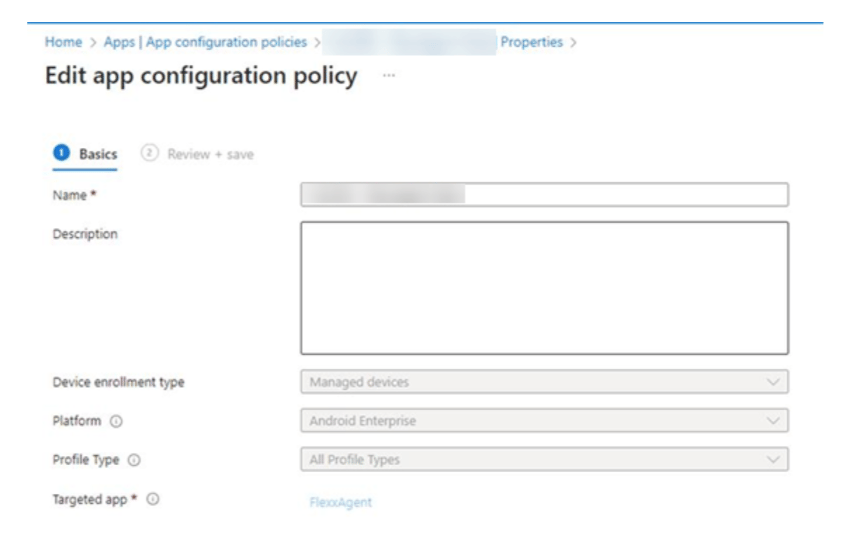
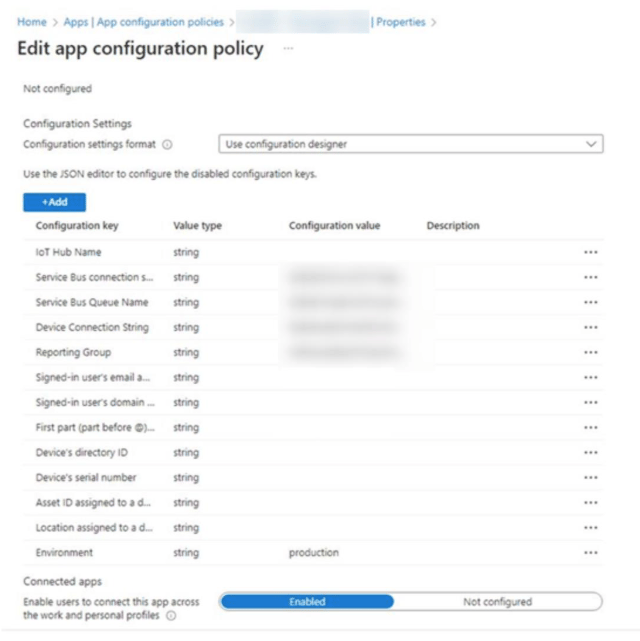
Enter the obtained parameters in the Microsoft Intune managed configuration policy.
### Create the configuration policy
FlexxAgent requires a managed configuration policy to receive the parameters needed for it to work.
The configuration values can be obtained in two ways:
* By extracting them from the `.conf` file generated when downloading FlexxAgent.
* By requesting them from a Flexxible contact during the implementation process.
#### Get the parameters from the configuration file
1. Download FlexxAgent for [Windows](../flexxagent/systems/windows), [Linux](../flexxagent/systems/linux), or [macOS](../flexxagent/systems/mac).
2. Open the configuration file (`.conf`) included in the download.
3. Extract the following values:
* Required parameters
* IHName → iQN
* QScstr → sbCS1 + "|"+ sbCS2
* QueueServiceName → sbN
* IHcstr → iCS1 + "|"+ iCS2
* Rg → rg
* environment → production
* Optional parameters
These parameters let you associate additional device information using the attributes provided by the MDM solution.
* user\_email → `"{{userprincipalname}}"`. In Google Workspace you can use `"$LOGIN_EMAIL"`
* user\_email\_name → `"{{userprincipalname}}"`. In Google Workspace you can use `"$LOGIN_EMAIL"`
* user\_email\_domain → User's domain
* device\_id → Device identifier
* device\_serial → Device serial number
* device\_asset → Inventory identifier
* device\_location → Device location
### Configure the policy in Intune
Enter the obtained parameters in the Microsoft Intune managed configuration policy.
 For more information about FlexxAgent for Android, see its [documentation](../flexxagent/systems/android).