> ## Documentation Index
> Fetch the complete documentation index at: https://docs.flexxible.com/llms.txt
> Use this file to discover all available pages before exploring further.
# How to delete workspaces
## Delete selected workspaces
To delete one or more selected workspaces, use the corresponding option in the *Operations* button of the *Workspaces* section:
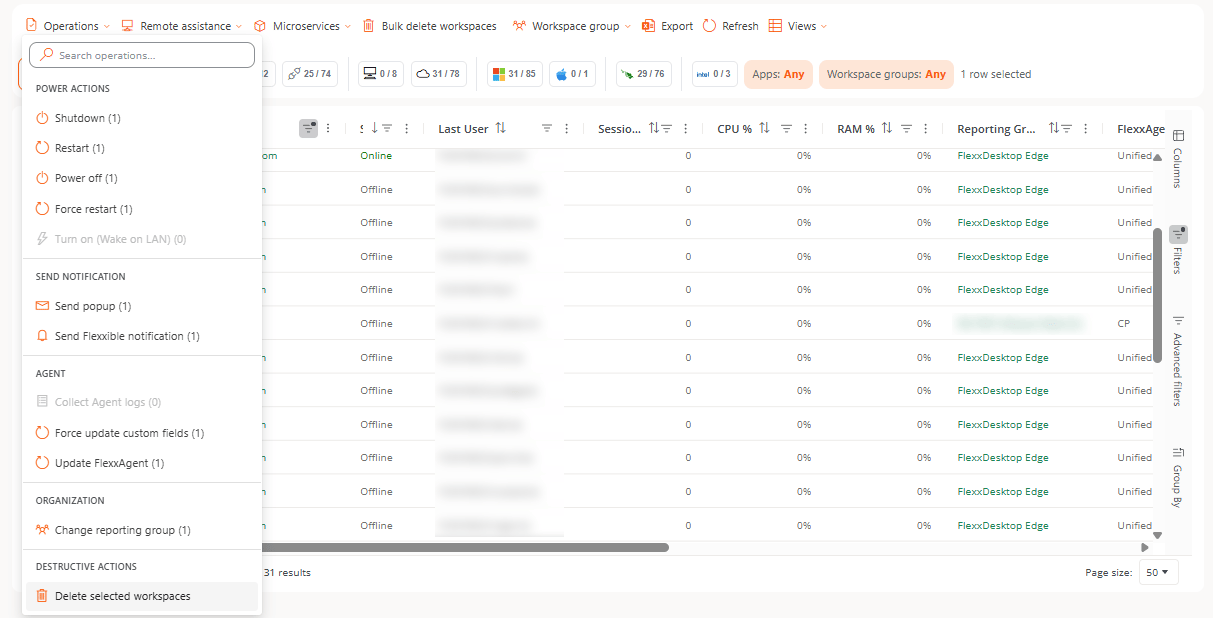 Once you confirm the operation, you can check its result in the Operations section.
To prevent accidental mass deletions, this operation is limited to 50 devices.
## Bulk delete workspaces
To delete multiple workspaces in bulk, once you enable the button for this option, enter a list of the names of the workspaces to delete:
Once you confirm the operation, you can check its result in the Operations section.
To prevent accidental mass deletions, this operation is limited to 50 devices.
## Bulk delete workspaces
To delete multiple workspaces in bulk, once you enable the button for this option, enter a list of the names of the workspaces to delete:
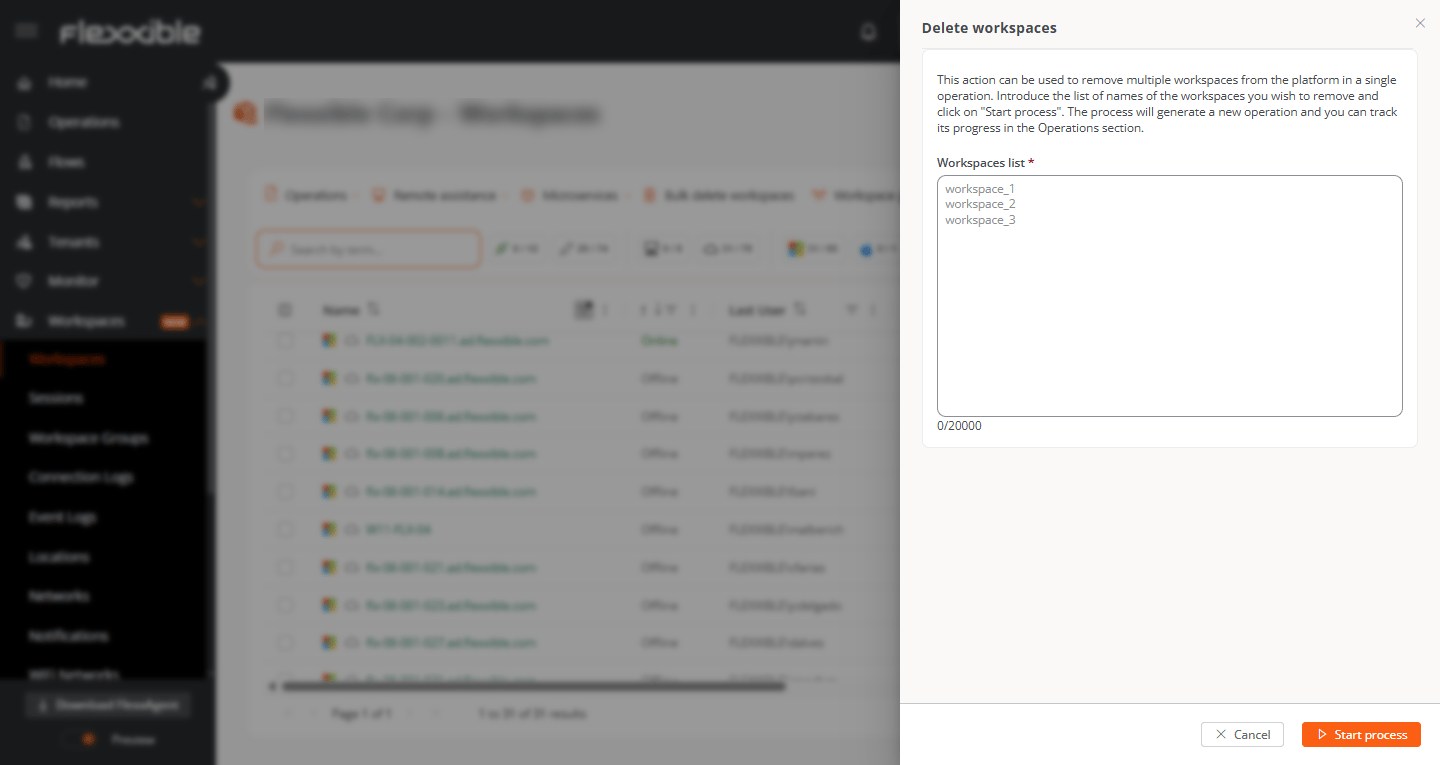 Once you confirm the operation, you can check its result in the Operations section.
## Deletion considerations
* Device deletion is not immediate. After you request the deletion, it may take a few minutes for the process to complete and for the device to stop appearing on the platform.
* Even if you delete a device, if it has FlexxAgent installed and continues reporting, the device will appear on the platform again.
* If you delete devices from several suborganizations, **a separate operation is generated for each suborganization**.
Once you confirm the operation, you can check its result in the Operations section.
## Deletion considerations
* Device deletion is not immediate. After you request the deletion, it may take a few minutes for the process to complete and for the device to stop appearing on the platform.
* Even if you delete a device, if it has FlexxAgent installed and continues reporting, the device will appear on the platform again.
* If you delete devices from several suborganizations, **a separate operation is generated for each suborganization**.