> ## Documentation Index
> Fetch the complete documentation index at: https://docs.flexxible.com/llms.txt
> Use this file to discover all available pages before exploring further.
# Download FlexxAgent
> Guide to downloading the agent and starting to manage Windows devices.
At the end of this process, the devices will appear in the [Workspaces](../features/workspaces/workspaces) section of the platform and will begin sending inventory, status, and performance information.
## 1. Sign in to the platform
Sign in with the credentials provided by Flexxible or by your partner.
## 2. Select a reporting group
Before downloading the agent, select the reporting group that the devices will belong to.
Reporting groups let you organize and segment devices within the platform.
If you have not yet defined a segmentation strategy, you can use the default reporting group. Devices can be reorganized later manually or automatically.
For more information, see the [Reporting groups](../features/administration/reporting-groups) documentation.
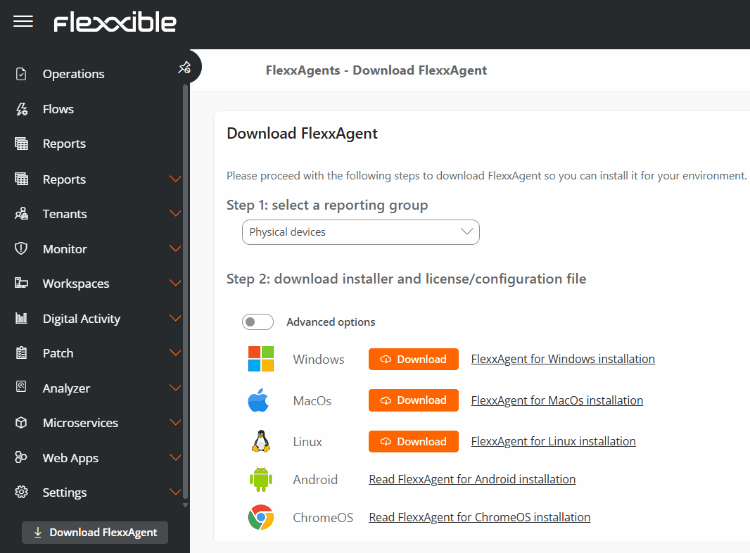
## 3. Download FlexxAgent
1. In the side menu, click **Download FlexxAgent**.
2. Select the corresponding reporting group.
3. In the **Windows** section, click **Download**.
The downloaded installer will be associated with the selected reporting group.
 ## 4. Install the agent
Run the installer on the device or distribute it using the deployment tool used by your organization.
To learn about system requirements and the available installation methods, see:
* [FlexxAgent for Windows](../flexxagent/systems/windows)
* [Deploying with Microsoft Intune](../guides/intune-deploy)
## 5. Verify device onboarding
Once installation is complete:
1. Go to [Workspaces](../features/workspaces/workspaces).
2. Search for the device by name.
3. Verify that it appears in the selected reporting group.
4. Verify that the device status is **Connected**.
After the first report, the platform will start collecting information from the device and displaying it in the platform's various sections.
## Related information
For more information about downloading FlexxAgent on Windows and other operating systems, see the following links:
* [Windows](../flexxagent/systems/windows#download-and-installation)
* [Linux](../flexxagent/systems/linux#download-and-installation)
* [macOS](../flexxagent/systems/mac#download-and-installation)
* [Android](../flexxagent/systems/android#download-and-installation)
* [Chrome](../flexxagent/systems/chrome#download-and-installation)
## 4. Install the agent
Run the installer on the device or distribute it using the deployment tool used by your organization.
To learn about system requirements and the available installation methods, see:
* [FlexxAgent for Windows](../flexxagent/systems/windows)
* [Deploying with Microsoft Intune](../guides/intune-deploy)
## 5. Verify device onboarding
Once installation is complete:
1. Go to [Workspaces](../features/workspaces/workspaces).
2. Search for the device by name.
3. Verify that it appears in the selected reporting group.
4. Verify that the device status is **Connected**.
After the first report, the platform will start collecting information from the device and displaying it in the platform's various sections.
## Related information
For more information about downloading FlexxAgent on Windows and other operating systems, see the following links:
* [Windows](../flexxagent/systems/windows#download-and-installation)
* [Linux](../flexxagent/systems/linux#download-and-installation)
* [macOS](../flexxagent/systems/mac#download-and-installation)
* [Android](../flexxagent/systems/android#download-and-installation)
* [Chrome](../flexxagent/systems/chrome#download-and-installation)