> ## Documentation Index
> Fetch the complete documentation index at: https://docs.flexxible.com/llms.txt
> Use this file to discover all available pages before exploring further.
# Linux
FlexxAgent for Linux lets you include devices running this operating system in Flexxible's service consoles, enabling their centralized management and monitoring. The agent is designed to work in different types of environments, including physical devices, virtual machines and desktops, which makes it a solution that adapts to a variety of infrastructures.
The following device types are supported:
* Physical Linux devices
* Virtual devices on VMware as the hypervisor
* VDIs published through Citrix as the broker
## Supported distributions and versions
FlexxAgent is compatible with the following Linux distributions:
* Fedora 37 or later
* Debian/GNU Linux 11 (Bullseye) or later
* Ubuntu 22.04 and 24.04
To request the inclusion of a new distribution, contact the Flexxible team.
## Requirements
Before installing the agent, we recommend updating all operating system packages. During installation, the necessary components will be added automatically based on the detected distribution.
Required package dependencies on Fedora and Debian:
* dmidecode
* imvirt
* systemd
## Limitations
Some features are not available on Linux systems, such as Flexxible Assist, end-user microservices, flow execution, or Plug and Play peripheral data collection.
## Download and installation
Installing FlexxAgent on Linux is done using an installation script and a `deb` or `rpm` file, the latter being needed to perform an offline installation (without automatic download of the installation package).
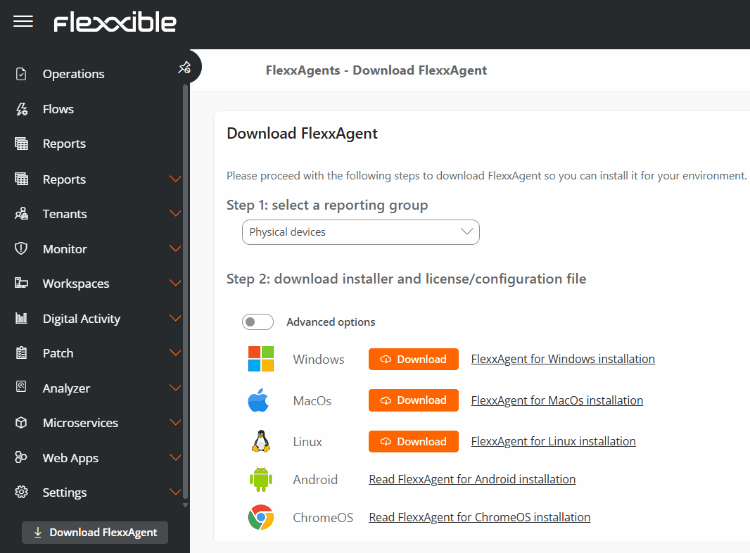
1. Click the **Download FlexxAgent** button, located at the bottom of the menu.
2. Select a reporting group in the corresponding drop-down.
3. Download the license/configuration file (`.conf`) and the Linux installer.
 ### Available installer types
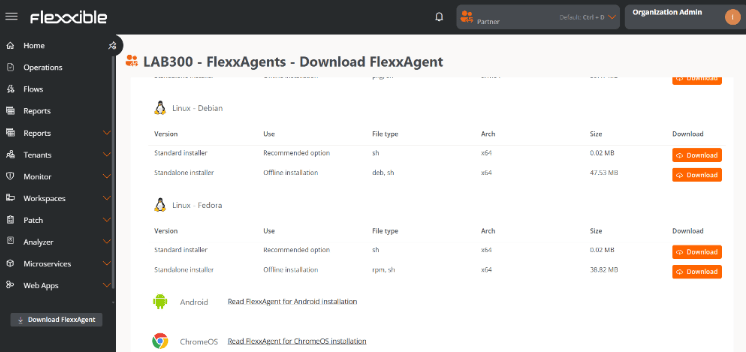
The advanced options let you select the installer type depending on the distribution:
* **Debian**
* `sh` (recommended option): standard installation or offline installation.
* `deb`: offline installation.
* **Fedora**
* `sh` (recommended option): standard installation or offline installation.
* `rpm`: offline installation.
### Available installer types
The advanced options let you select the installer type depending on the distribution:
* **Debian**
* `sh` (recommended option): standard installation or offline installation.
* `deb`: offline installation.
* **Fedora**
* `sh` (recommended option): standard installation or offline installation.
* `rpm`: offline installation.
 #### Installation script parameters
| Parameter | Description |
| ------------------------ | --------------------------------------------------------------------------------------------------------------------------------------------------------------------------------------------------------------------------------------- |
| `-v,--version ` | Uses a specific version; default is **latest**. |
| `-d,--distro ` | The script automatically detects the distribution of the system it runs on. This parameter lets you force the installation of the FlexxAgent version for a specific distribution when working with derivative or similar distributions. |
| `--verbose,-Verbose` | Displays diagnostic information. |
| `-c,--config ` | Applies the configuration from a configuration file; default is **settings.conf**. |
| `-o, --offline` | Installs FlexxAgent from a package instead of downloading it from the internet. |
| `-?,--?,-h,--help,-Help` | Displays help. |
##### Examples
* Install FlexxAgent using a configuration file:
`flexxagent-install.sh [-c|--config ]`
* Install a specific version of FlexxAgent:
`flexxagent-install.sh [-v|--version ]`
* Force the installation of FlexxAgent for a specific distribution:
`flexxagent-install.sh [-d|--distro ]`
* Access help:
`flexxagent-install.sh -h|-?|--help`
#### Offline installation
FlexxAgent can be installed in environments with network restrictions or without internet access.
Installation steps:
1. Place the FlexxAgent installation package, the configuration file, and the installation script in the same folder.
2. Grant permissions to the script:
`sudo chmod +x ./flexxagent-install.sh`
3. Run the script with the `-o` or `--offline` parameter, specifying the package to install:
`sudo ./flexxagent-install.sh -c [configuration file] -o [Flexxagent package]`
4. Delete the used files if they are no longer needed.
## Uninstallation
The uninstall script can be downloaded from the following URL:
```
https://update.workspaces.flexxible.com/agents/Linux/FlexxAgent/latest/flexxagent-uninstall.sh
```
**Uninstallation steps**
1. Download the uninstaller from the URL.
2. Grant permissions to the script.
`sudo chmod +x ./flexxagent-uninstall.sh`
3. Run the script.
`sudo ./flexxagent-uninstall.sh`
4. Delete the used files if applicable.
### Uninstall script parameters
| Parameter | Description |
| ------------------------ | -------------------------------------------------------------------------------------------------------------------------------------------------------------------------------------------------------------------------------------- |
| `-d,--distro ` | The script automatically detects the distribution of the system it runs on. This parameter helps force the uninstallation of the FlexxAgent version for a specific distribution when working with derivative or similar distributions. |
| `-c,--cleanup ` | Removes configurations and logs; default is **false**. |
| `-?,--?,-h,--help,-Help` | Displays help. |
#### Examples
Uninstall and remove configurations and logs:
`flexxagent-uninstall.sh [-c|--cleanup]`
Force uninstallation for a specific distribution:
`flexxagent-uninstall.sh [-d|--distro ]`
Access help:
`sudo ./flexxagent-uninstall.sh --help`
## Proxy configuration
Proxy configuration must be done before installation, by modifying the downloaded configuration file.
**Unauthenticated proxy**
* `proxy = http://proxy_uri:port`
* Example: `proxy = http://192.168.0.100:443`
**Authenticated proxy**
* `proxy = http://user:password@proxy_uri:port`
* Example: `proxy = http://proxy_user:xxxxxxxx@192.168.0.100:443`
## Updates
FlexxAgent can be updated to the latest version by running the installation script again so that it downloads and installs the latest version.
#### Installation script parameters
| Parameter | Description |
| ------------------------ | --------------------------------------------------------------------------------------------------------------------------------------------------------------------------------------------------------------------------------------- |
| `-v,--version ` | Uses a specific version; default is **latest**. |
| `-d,--distro ` | The script automatically detects the distribution of the system it runs on. This parameter lets you force the installation of the FlexxAgent version for a specific distribution when working with derivative or similar distributions. |
| `--verbose,-Verbose` | Displays diagnostic information. |
| `-c,--config ` | Applies the configuration from a configuration file; default is **settings.conf**. |
| `-o, --offline` | Installs FlexxAgent from a package instead of downloading it from the internet. |
| `-?,--?,-h,--help,-Help` | Displays help. |
##### Examples
* Install FlexxAgent using a configuration file:
`flexxagent-install.sh [-c|--config ]`
* Install a specific version of FlexxAgent:
`flexxagent-install.sh [-v|--version ]`
* Force the installation of FlexxAgent for a specific distribution:
`flexxagent-install.sh [-d|--distro ]`
* Access help:
`flexxagent-install.sh -h|-?|--help`
#### Offline installation
FlexxAgent can be installed in environments with network restrictions or without internet access.
Installation steps:
1. Place the FlexxAgent installation package, the configuration file, and the installation script in the same folder.
2. Grant permissions to the script:
`sudo chmod +x ./flexxagent-install.sh`
3. Run the script with the `-o` or `--offline` parameter, specifying the package to install:
`sudo ./flexxagent-install.sh -c [configuration file] -o [Flexxagent package]`
4. Delete the used files if they are no longer needed.
## Uninstallation
The uninstall script can be downloaded from the following URL:
```
https://update.workspaces.flexxible.com/agents/Linux/FlexxAgent/latest/flexxagent-uninstall.sh
```
**Uninstallation steps**
1. Download the uninstaller from the URL.
2. Grant permissions to the script.
`sudo chmod +x ./flexxagent-uninstall.sh`
3. Run the script.
`sudo ./flexxagent-uninstall.sh`
4. Delete the used files if applicable.
### Uninstall script parameters
| Parameter | Description |
| ------------------------ | -------------------------------------------------------------------------------------------------------------------------------------------------------------------------------------------------------------------------------------- |
| `-d,--distro ` | The script automatically detects the distribution of the system it runs on. This parameter helps force the uninstallation of the FlexxAgent version for a specific distribution when working with derivative or similar distributions. |
| `-c,--cleanup ` | Removes configurations and logs; default is **false**. |
| `-?,--?,-h,--help,-Help` | Displays help. |
#### Examples
Uninstall and remove configurations and logs:
`flexxagent-uninstall.sh [-c|--cleanup]`
Force uninstallation for a specific distribution:
`flexxagent-uninstall.sh [-d|--distro ]`
Access help:
`sudo ./flexxagent-uninstall.sh --help`
## Proxy configuration
Proxy configuration must be done before installation, by modifying the downloaded configuration file.
**Unauthenticated proxy**
* `proxy = http://proxy_uri:port`
* Example: `proxy = http://192.168.0.100:443`
**Authenticated proxy**
* `proxy = http://user:password@proxy_uri:port`
* Example: `proxy = http://proxy_user:xxxxxxxx@192.168.0.100:443`
## Updates
FlexxAgent can be updated to the latest version by running the installation script again so that it downloads and installs the latest version.