> ## Documentation Index
> Fetch the complete documentation index at: https://docs.flexxible.com/llms.txt
> Use this file to discover all available pages before exploring further.
# FlexxAgent versions
As FlexxAgent versions evolve and add new features, organizations need to be able to control which version of FlexxAgent is installed on their devices.
To that end, **FlexxAgent version** lets users with the **Organization Administrator** role choose the version of FlexxAgent that will be used in each of the reporting groups created in the organization's environment.
To access this feature, contact your Flexxible representative.
## Version configuration
To manage FlexxAgent versions, the environment must have at least version 25.4.1 installed.
### Configuration steps
1. Go to **Settings** → **FlexxAgent version**.
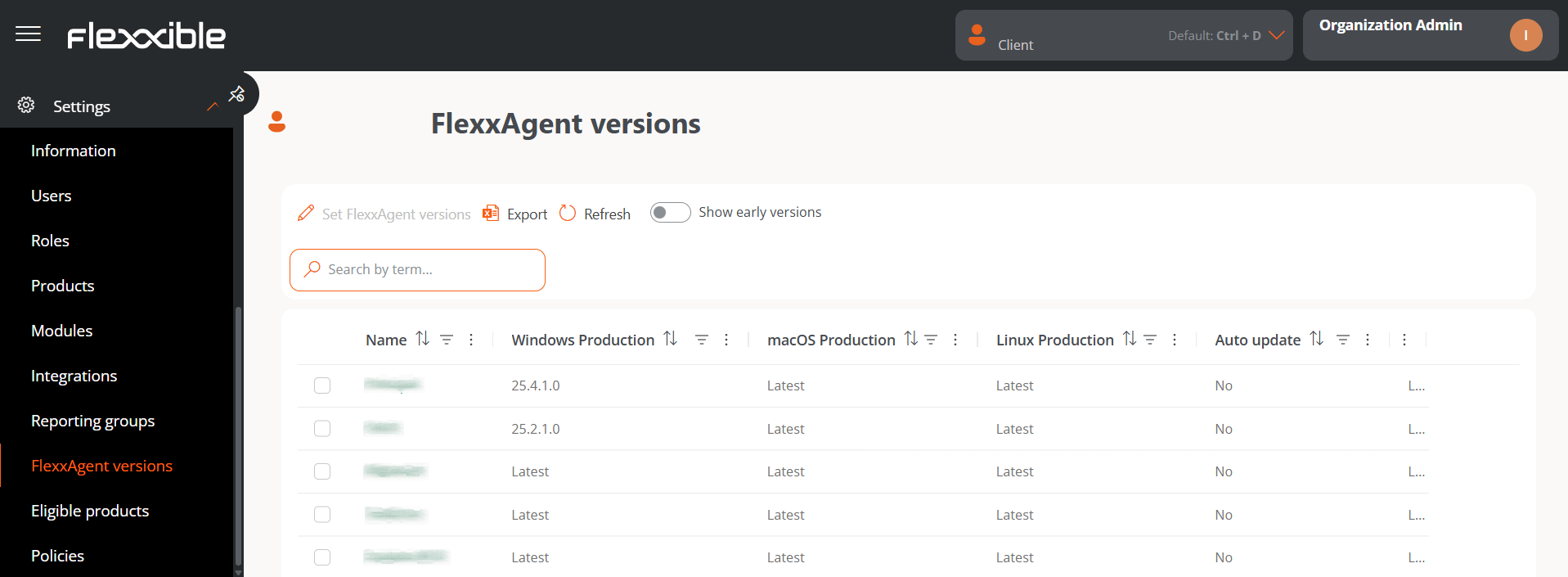 The table will show the list of the organization's reporting groups with the following information:
* **Name.** Name of the reporting group.
* **Windows production.** Version number set for **Production** on Windows.
* **macOS production.** Version number set for **Production** on macOS.
* **Linux production.** Version number set for **Production** on Linux.
* **Automatic update.** Defined from the reporting group configuration. It will always point to **Production** environments, not **Early**.
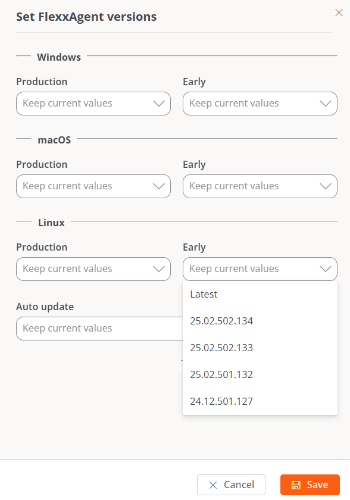
* **Early** is the test environment, where an operator can review whether the version specified in this field is suitable for the organization's needs. It is recommended to keep it on **Latest**.
* **Production** is the live environment. The version specified in this field will apply to all production devices of the selected reporting groups.
If the **Show early versions** button, located at the top of the table, is enabled, versions in the **Early** scope will be shown for all operating systems.
1. Select one or more reporting groups in the table to configure the FlexxAgent version of their devices.
2. Click **Set FlexxAgent versions**. In the form, configure the version number for each of the two available environments: **Production** and **Early**, on all operating systems. It also lets you choose whether or not to enable automatic FlexxAgent updates.
The table will show the list of the organization's reporting groups with the following information:
* **Name.** Name of the reporting group.
* **Windows production.** Version number set for **Production** on Windows.
* **macOS production.** Version number set for **Production** on macOS.
* **Linux production.** Version number set for **Production** on Linux.
* **Automatic update.** Defined from the reporting group configuration. It will always point to **Production** environments, not **Early**.
* **Early** is the test environment, where an operator can review whether the version specified in this field is suitable for the organization's needs. It is recommended to keep it on **Latest**.
* **Production** is the live environment. The version specified in this field will apply to all production devices of the selected reporting groups.
If the **Show early versions** button, located at the top of the table, is enabled, versions in the **Early** scope will be shown for all operating systems.
1. Select one or more reporting groups in the table to configure the FlexxAgent version of their devices.
2. Click **Set FlexxAgent versions**. In the form, configure the version number for each of the two available environments: **Production** and **Early**, on all operating systems. It also lets you choose whether or not to enable automatic FlexxAgent updates.
 3. Click **Save**.
When a lower version of FlexxAgent is applied (downgrade), the version currently installed is automatically uninstalled to install the configured version; in addition, devices lose access to features that correspond to more recent versions.
3. Click **Save**.
When a lower version of FlexxAgent is applied (downgrade), the version currently installed is automatically uninstalled to install the configured version; in addition, devices lose access to features that correspond to more recent versions.