> ## Documentation Index
> Fetch the complete documentation index at: https://docs.flexxible.com/llms.txt
> Use this file to discover all available pages before exploring further.
# Workspaces
**Workspaces** is a tool designed to give you a complete, centralized view of the status and performance of your organization's devices.
Through an intuitive interface, you can monitor key information for each machine, access technical details, review alerts, operations, and sessions, and manage updates, services, and system components.
The main goal of **Workspaces** is to simplify device administration and monitoring, improving decision-making with accurate, up-to-date, and visually organized data.
 ## Workspace list
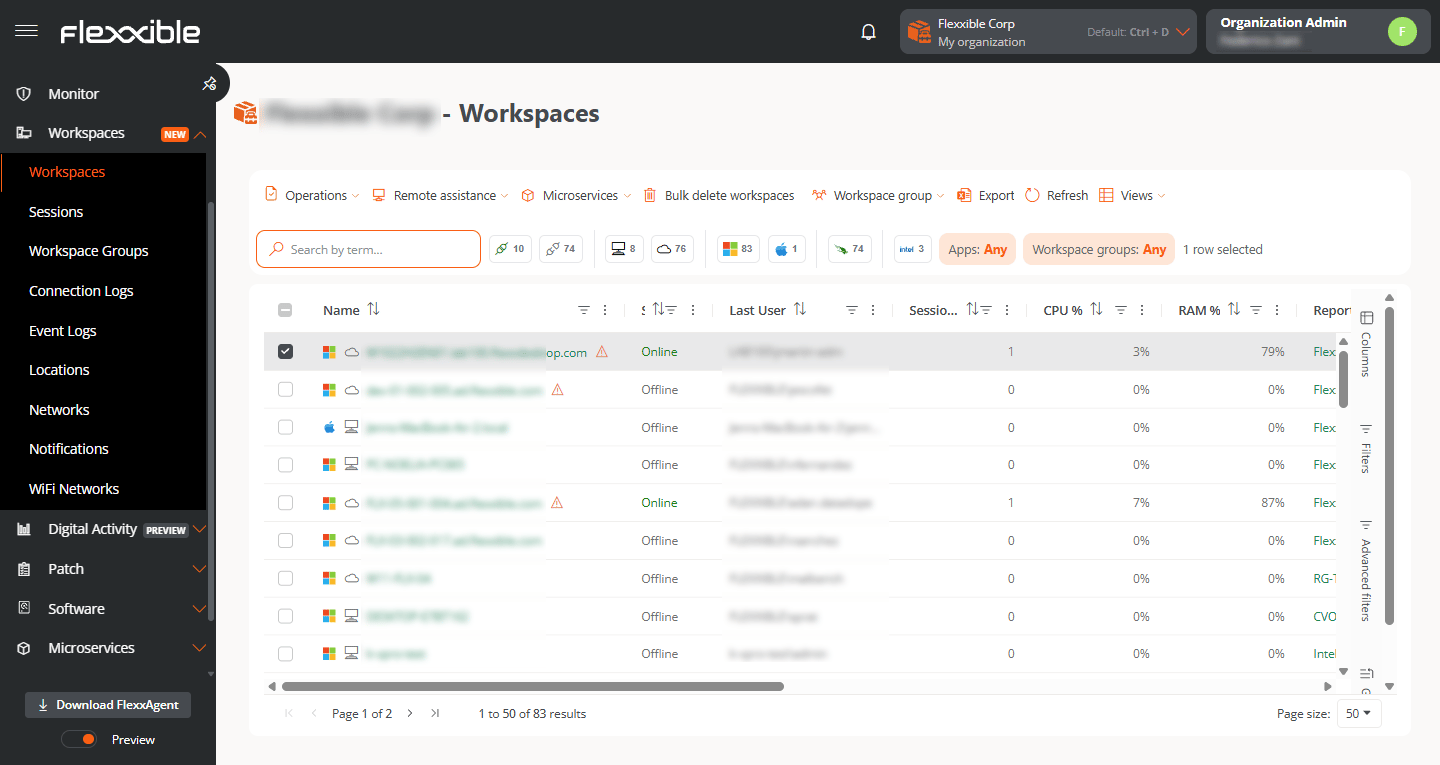
The main view shows all the organization's devices in a table. By default, the following columns are displayed:
* **Name.** Device name.
* **Status.** Current status (Online or Offline).
* **Last user.** Name of the last user who accessed the device.
* **CPU cores.** Number of processor cores.
* **RAM.** Total RAM (in MB).
* **IP address.** IP assigned to the device.
* **Reporting group.** Reporting group the device belongs to.
* **Last report.** Date and time of the last report received.
* **OS.** Installed operating system.
* **Device type.** Physical or Virtual.
* **Connection.** Type of network connection used by the device.
* **FlexxAgent version.** Installed agent version.
* **FlexxAgent type.** Unified or Universal.
Some columns include informational icons that provide additional details about the device's status. For example, the **Name** column may show an indicator with the number of active alerts on the device, while the **Connection** column shows information about the quality or strength of the network connection.
## Category filters
The platform provides several tools to adapt the table to your needs. You can customize the visible columns, apply filters, create groupings, and run advanced searches.
Several quick filters are shown above the table, each represented by an icon. Each icon indicates the number of devices that belong to that category.
## Workspace list
The main view shows all the organization's devices in a table. By default, the following columns are displayed:
* **Name.** Device name.
* **Status.** Current status (Online or Offline).
* **Last user.** Name of the last user who accessed the device.
* **CPU cores.** Number of processor cores.
* **RAM.** Total RAM (in MB).
* **IP address.** IP assigned to the device.
* **Reporting group.** Reporting group the device belongs to.
* **Last report.** Date and time of the last report received.
* **OS.** Installed operating system.
* **Device type.** Physical or Virtual.
* **Connection.** Type of network connection used by the device.
* **FlexxAgent version.** Installed agent version.
* **FlexxAgent type.** Unified or Universal.
Some columns include informational icons that provide additional details about the device's status. For example, the **Name** column may show an indicator with the number of active alerts on the device, while the **Connection** column shows information about the quality or strength of the network connection.
## Category filters
The platform provides several tools to adapt the table to your needs. You can customize the visible columns, apply filters, create groupings, and run advanced searches.
Several quick filters are shown above the table, each represented by an icon. Each icon indicates the number of devices that belong to that category.
 When you select one or more filters, the table shows only the devices that meet all the selected criteria. To disable a filter, click it again.
**Applications** and **Groups** let you filter by the selected application and by reporting groups.
## Columns
The **Columns** tab lets you customize the information shown in the table. From it you can:
* Show or hide columns.
* Search for columns by name.
* Change the order in which they appear.
The configuration is saved automatically. To restore the original configuration, use the **Restore** button.
When you select one or more filters, the table shows only the devices that meet all the selected criteria. To disable a filter, click it again.
**Applications** and **Groups** let you filter by the selected application and by reporting groups.
## Columns
The **Columns** tab lets you customize the information shown in the table. From it you can:
* Show or hide columns.
* Search for columns by name.
* Change the order in which they appear.
The configuration is saved automatically. To restore the original configuration, use the **Restore** button.
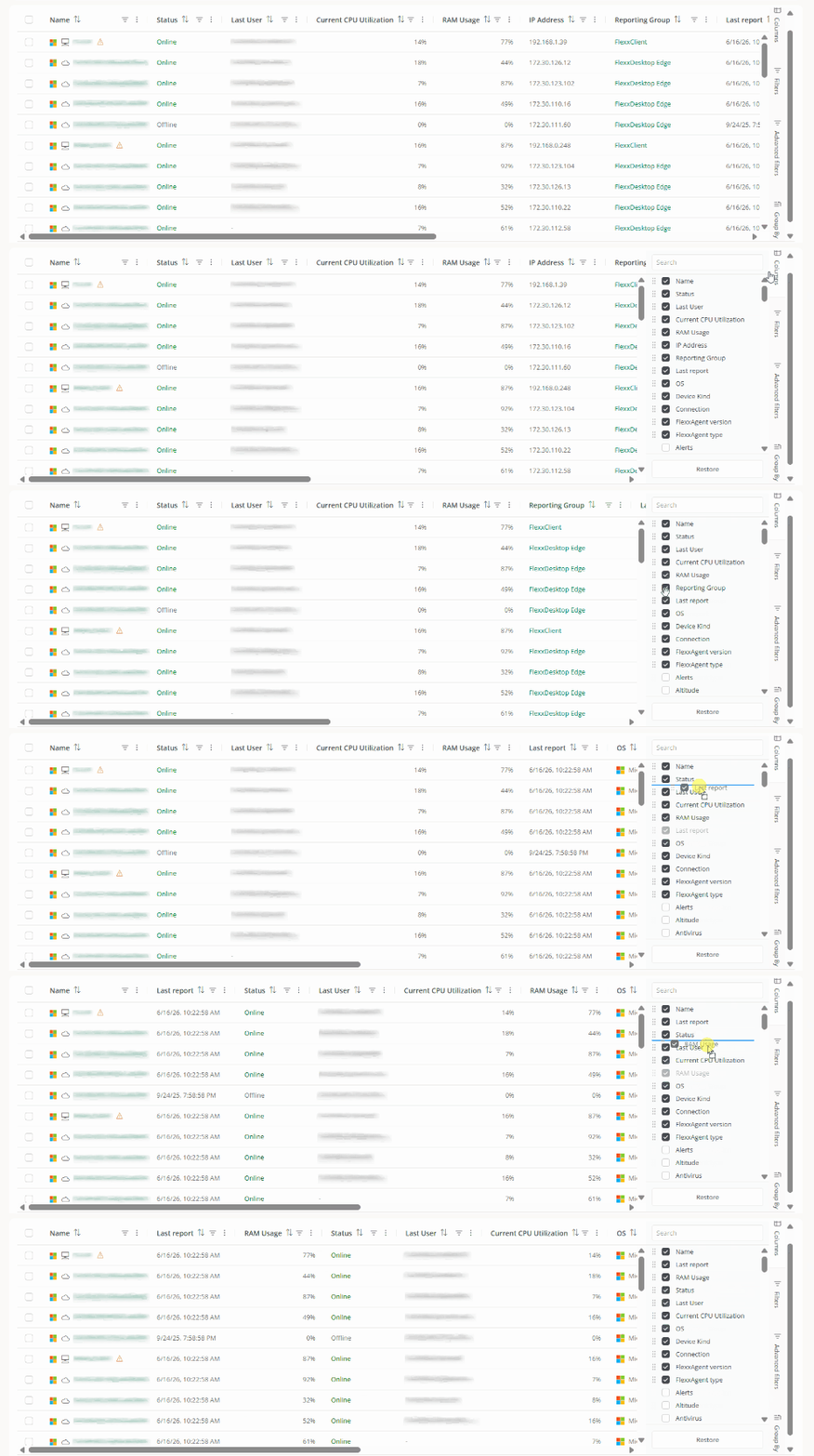 You can also change the column order directly from the table by dragging a column header to the desired position.
### Filters
The **Filters** tab lets you reduce the number of results shown in the table to find devices that meet specific conditions.
You can also change the column order directly from the table by dragging a column header to the desired position.
### Filters
The **Filters** tab lets you reduce the number of results shown in the table to find devices that meet specific conditions.
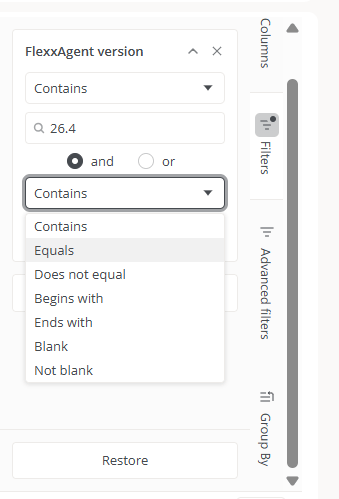 To create a filter:
1. Click **Add filter**.
2. Select the field you want to filter by.
3. Choose one or more values.
4. Add more filters if needed.
You can only filter by fields that have been added as columns to the list.
You can combine filters to run more precise searches.
For example, if the **Connection** column is visible, you can filter devices connected via Ethernet or Wi-Fi.
Filters can be combined with each other to progressively refine the results. For example, you can add an IP address criterion to the Ethernet connection filter to show only devices whose address starts with 192., and then add another filter on the operating system.
Filters are kept automatically and remain available as you navigate to other sections of the platform.
To show all devices again, use the **Restore** button.
You can also apply filters directly from the column headers using the context menu available on each of them.
### Advanced filters
The **Advanced filters** tab expands the search options. Currently, you can filter by:
* **Group.** Shows in the table only the devices that belong to a specific reporting group.
To create a filter:
1. Click **Add filter**.
2. Select the field you want to filter by.
3. Choose one or more values.
4. Add more filters if needed.
You can only filter by fields that have been added as columns to the list.
You can combine filters to run more precise searches.
For example, if the **Connection** column is visible, you can filter devices connected via Ethernet or Wi-Fi.
Filters can be combined with each other to progressively refine the results. For example, you can add an IP address criterion to the Ethernet connection filter to show only devices whose address starts with 192., and then add another filter on the operating system.
Filters are kept automatically and remain available as you navigate to other sections of the platform.
To show all devices again, use the **Restore** button.
You can also apply filters directly from the column headers using the context menu available on each of them.
### Advanced filters
The **Advanced filters** tab expands the search options. Currently, you can filter by:
* **Group.** Shows in the table only the devices that belong to a specific reporting group.
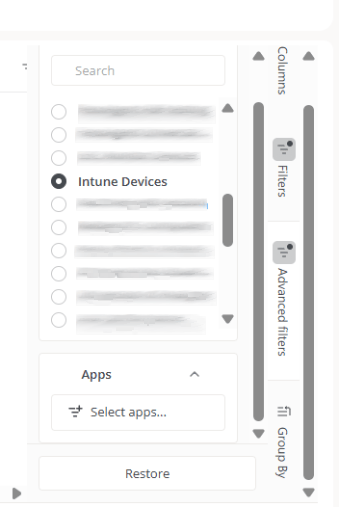 * **Applications.** Shows in the table only the devices that have one or more specific applications installed.
To filter by applications:
1. Go to **Applications** → **Select apps**.
2. Select one or more applications from the available list.
* **Applications.** Shows in the table only the devices that have one or more specific applications installed.
To filter by applications:
1. Go to **Applications** → **Select apps**.
2. Select one or more applications from the available list.
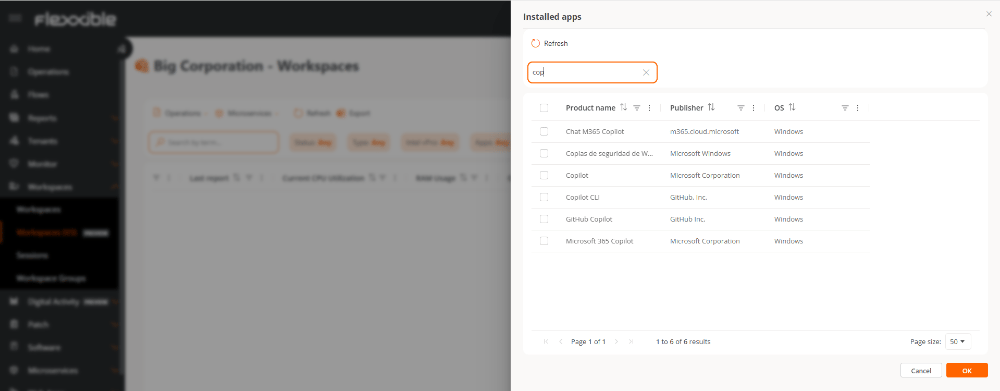 Advanced filters can be combined with standard filters to run more specific searches.
As in the **Filters** tab, the **Restore** option removes the applied filters and returns the table to its original view.
When a filter is applied, the corresponding tab shows a gray dot next to its name, indicating that filtering criteria are active.
### Group by
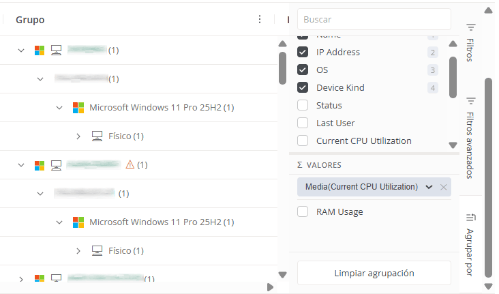
The **Group by** tab organizes devices by the values of one or more columns.
For example, if the **OS** column is visible in the table, you can group devices by operating system.
You can also create hierarchical groupings by adding multiple levels. For example, group first by **OS** and then by **Device type**.
Advanced filters can be combined with standard filters to run more specific searches.
As in the **Filters** tab, the **Restore** option removes the applied filters and returns the table to its original view.
When a filter is applied, the corresponding tab shows a gray dot next to its name, indicating that filtering criteria are active.
### Group by
The **Group by** tab organizes devices by the values of one or more columns.
For example, if the **OS** column is visible in the table, you can group devices by operating system.
You can also create hierarchical groupings by adding multiple levels. For example, group first by **OS** and then by **Device type**.
 #### Values
The **Values** subsection lets you calculate aggregate metrics for each group.
#### Values
The **Values** subsection lets you calculate aggregate metrics for each group.
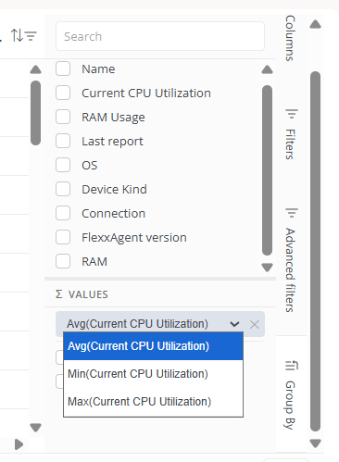 The available operations include:
* Average
* Minimum value
* Maximum value
For example, you can view the average CPU or memory usage for each operating system, device group, or any other grouping you configure.
To remove an aggregate metric, click the corresponding **X** icon.
Groupings can be removed using the **Clear grouping** button or by clearing the selected fields.
Groupings are especially useful for analyzing large volumes of information, identifying patterns, and comparing behavior across different sets of devices.
The available operations include:
* Average
* Minimum value
* Maximum value
For example, you can view the average CPU or memory usage for each operating system, device group, or any other grouping you configure.
To remove an aggregate metric, click the corresponding **X** icon.
Groupings can be removed using the **Clear grouping** button or by clearing the selected fields.
Groupings are especially useful for analyzing large volumes of information, identifying patterns, and comparing behavior across different sets of devices.